
Download Assets
description
Learn how to master the all-new Adobe Firefly Boards to effortlessly merge photographic styles. This guide teaches you to blend subjects with style references using advanced AI models like Gemini 2.5 and Veo, then transform those static results into high-quality, cinematic videos with audio—all directly within your web browser.
Go PRO:
Dive deeper into the world of Photoshop with our in-depth PRO Photoshop Learning Path . Across 11 courses and 53 hours of engaging content, you’ll learn Photoshop’s ins and outs, master pro-level tools, and tackle fun and challenging projects..
Image Source
- Alyona Grishina
- Karsten Winegeart
Images sourced from Unsplash.
Share
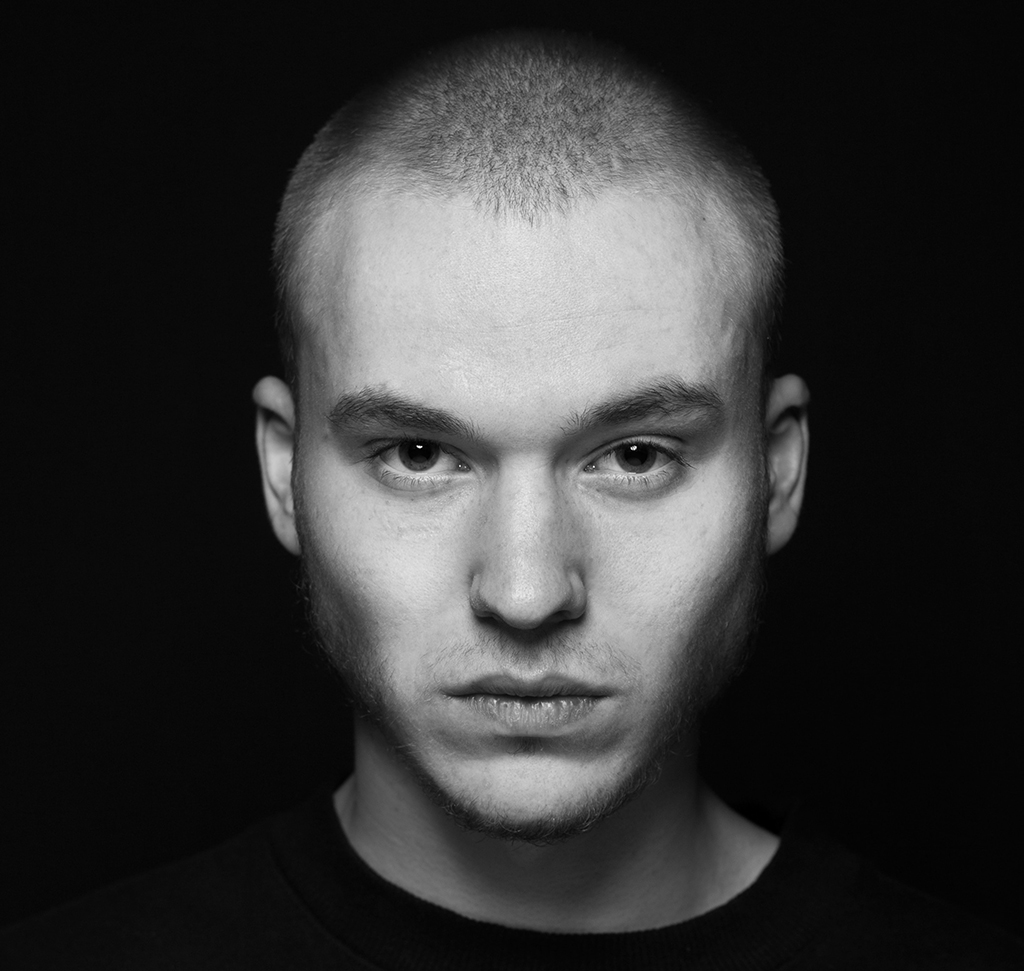
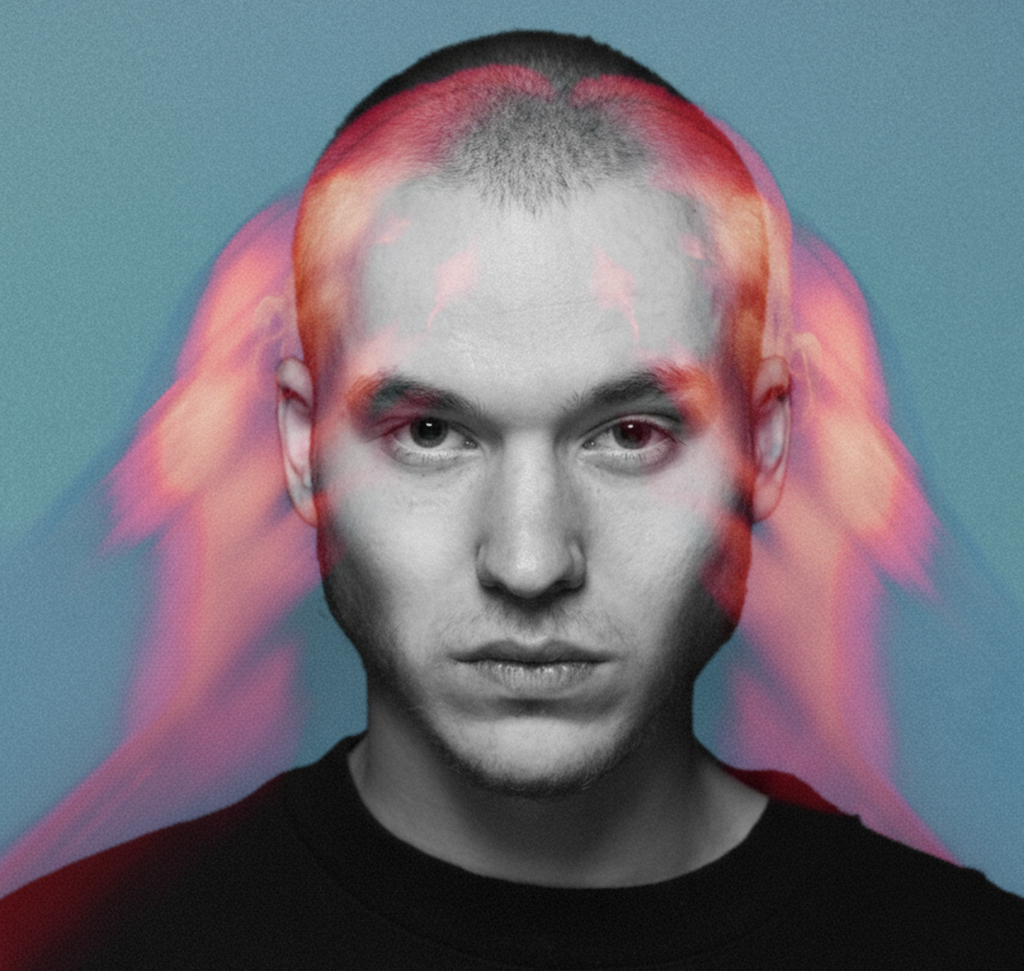
AFTER
BEFORE
Style. Merge. Animate.
Adobe Firefly Boards is a web-based workspace that allows you to manage multiple AI models and generations on a single canvas. By learning this tool, you can rapidly prototype creative ideas, merge specific visual styles from different images, and generate high-fidelity video without needing complex desktop software. It streamlines the creative workflow by allowing you to iterate on various AI models simultaneously in real-time.
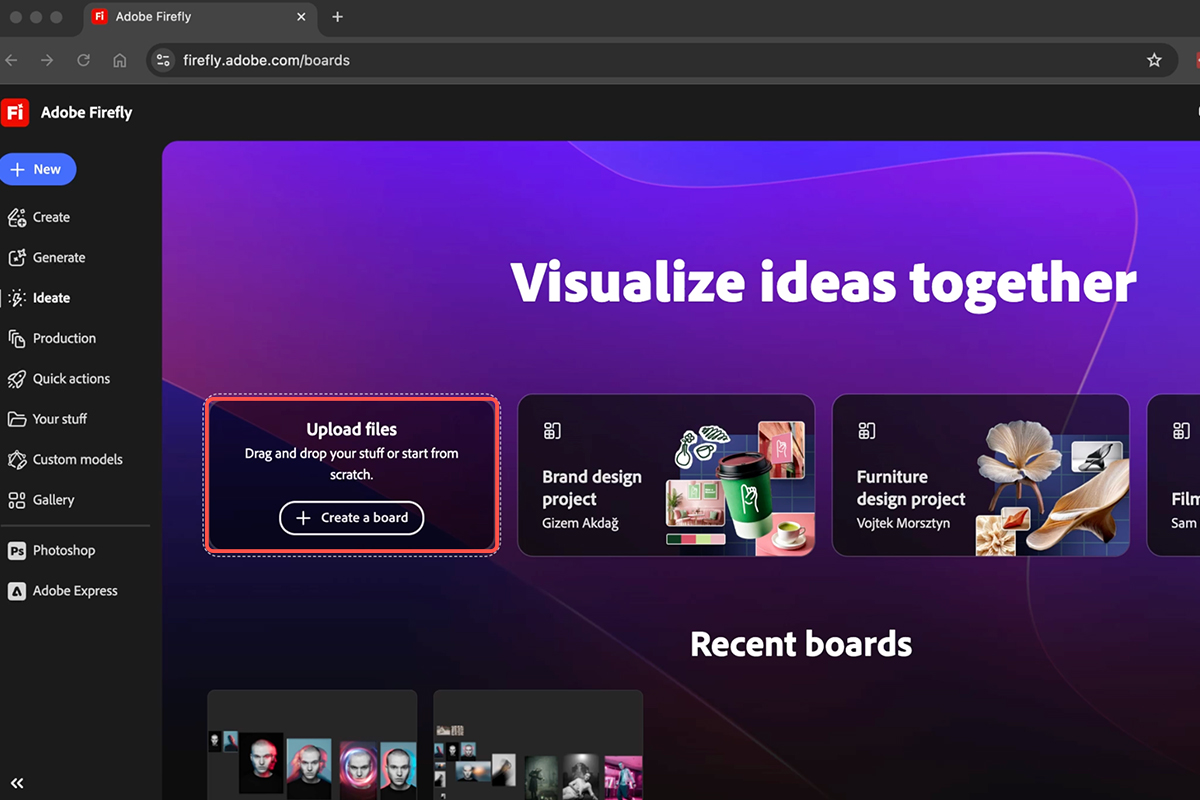
Initialize Your Board
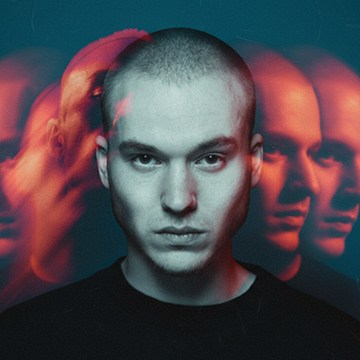
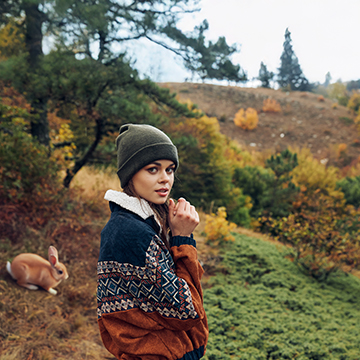
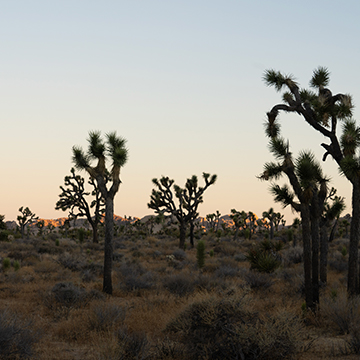
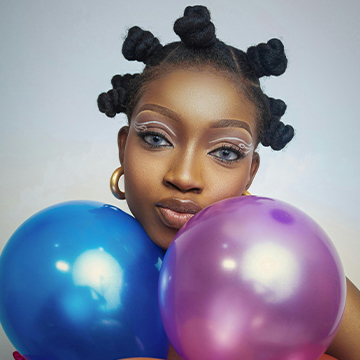
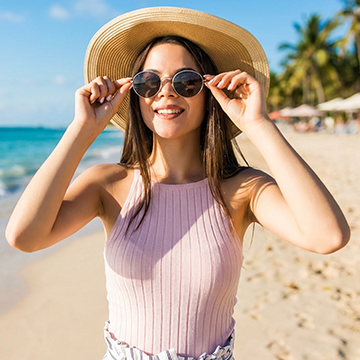
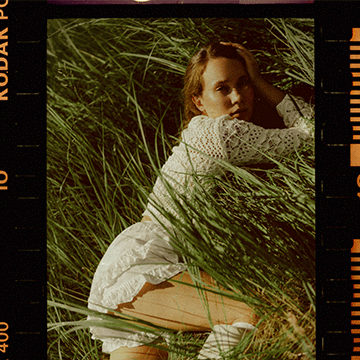
To begin, navigate to Firefly Boards and select “Create a new board.” This environment gives you access to the latest Firefly and third-party models, including early access to features not yet available in Photoshop. Start by dragging and dropping your subject image and your style reference image directly onto the canvas. Use the V key to select and move your images, arranging them so you can easily reference both during the generation process.
Merge Visual Styles
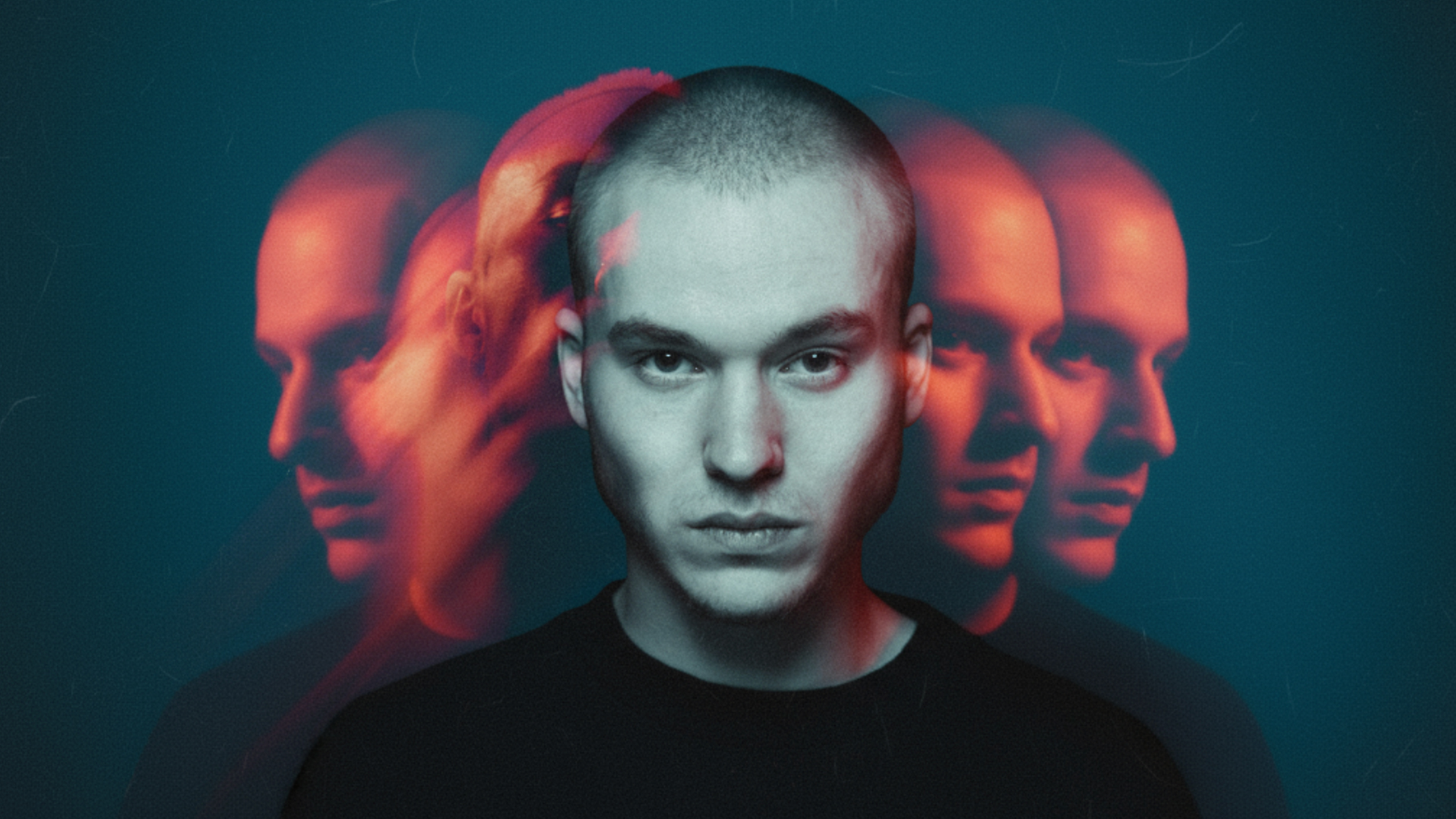
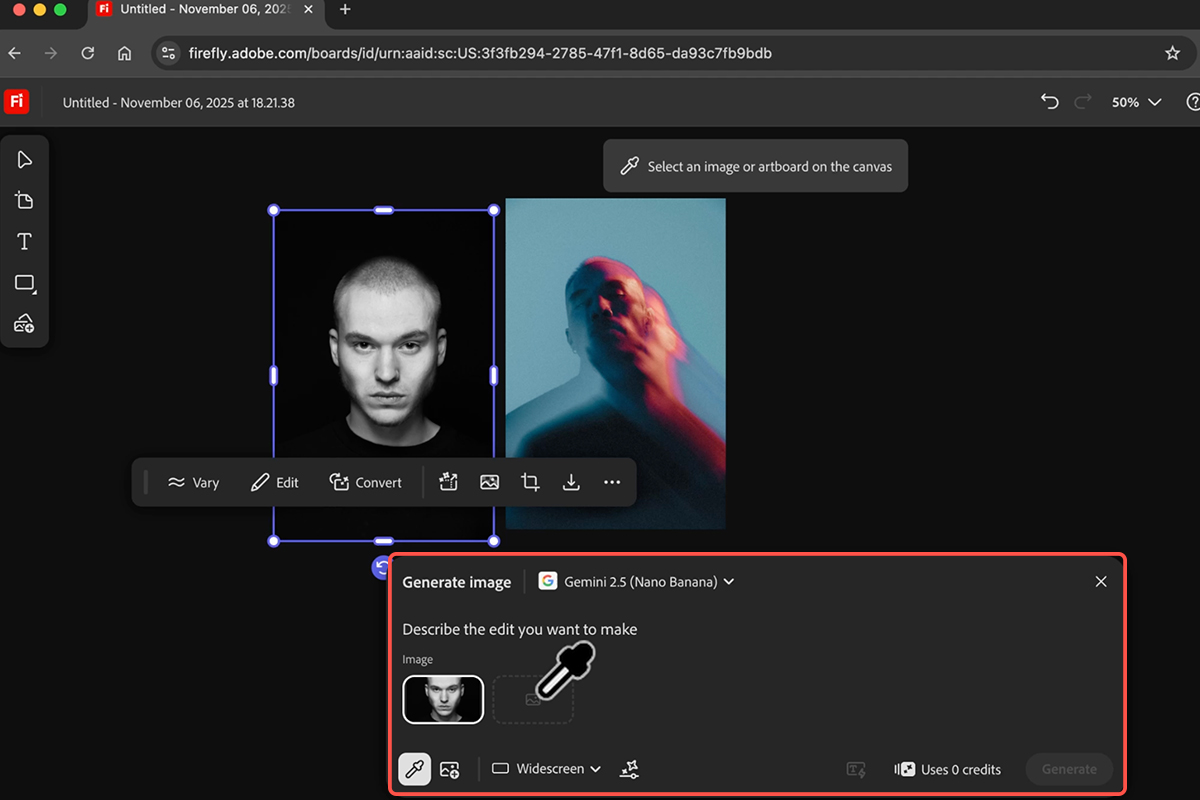
Click on the “Generate Image” tool and select a high-performance model like Gemini 2.5 Nano Banana. Use the eyedropper tool to select your subject image and your style reference so they load into the prompt box. In the “Describe the edit” field, type a simple command like “Merge the style of these two photographs” and hit Enter. You can click “Generate” multiple times to create various iterations simultaneously without waiting for the previous one to finish.
Adjust & Refine
Once you find a generation you like, you can easily change its dimensions. Click the “Load” icon on your favorite image to pull up its original prompt settings. From here, you can change the aspect ratio; for example, switching from horizontal to portrait for social media—and hit “Generate” again. Once the new version appears, click Place on Canvas to add the refined vertical version to your board.

Generate AI Video
To bring your image to life, switch to the “Generate Video” tool and select a model such as Video 3.1. Select your generated image as the first frame and type a motion command, such as “slowly shake head left to right while zooming in”. After hitting generate, you can download the final high-resolution video, which includes natively generated audio. Use Ctrl/Cmd + S to save your progress on the board before exporting your final assets.