
THIS COURSE INCLUDES
- 13 Lessonsin 2 sections
- 1h 51mof 4K video
- Advancedfor experienced editors
- 29 Sample Images26 JPEGs + 3 RAW files
- 8 Layered PSDs+ 2 sample videos
- Captionsand chapters on every lesson
Part of a Learning Path
Join PHLEARN PRO for instant access to this course and every tutorial on PHLEARN.
- Stream in up to 4K on any device
- Closed captions and chapters on every course
- Download all sample images and PSDs
- New PRO tutorials every month
- Cancel anytime
Description
Photoshop and Lightroom 2026 bring the biggest wave of AI features Adobe has ever shipped, and this course covers every one of them in depth, with a clear opinion on when each tool is worth using. Across thirteen sections you will master the improved Harmonize tool, Generative Upscale, Generative Fill with partner models like Gemini 2.5 Nano Banana and Flux Kontext Pro, still-to-video transitions in Firefly Boards, reference-image swaps, Photoshop Projects, and the new Lightroom tools: AI Assisted Culling, Snow and Landscape masking, Reflection, Dust, and People removal, and Denoise.
Everything is demonstrated on real projects and finished non-destructively in Camera Raw, so the results look like photographs rather than generations. The download includes 26 JPEGs, 3 RAW files, 8 PSDs, and 2 sample videos.
What You’ll Learn
- Know which AI tool fits the job and when to use it
- Composite realistically with Harmonize matching light and color
- Use the new Lightroom AI tools to mask, remove, and clean up
Table of Contents
-
01 - Harmonize Tool20:21m
-
02 - Upscaling Tools7:23m
-
03 - Nano Banana & Flux Kontext Pro6:09m
-
04 - From Still to Video9:24m
-
05 - Combining Tools11:41m
Course Downloads
All The Updates in One Tutorial

Photoshop and Lightroom 2026: What Changed
Editing technology moved fast this year, and this course is the map: every new tool in both apps, demonstrated on real images, with an honest verdict on which ones belong in a professional workflow. You will also see how to keep every AI result on its own layer or smart object, so nothing is baked in and any generation can be swapped or faded later.
The Improved Harmonize Tool
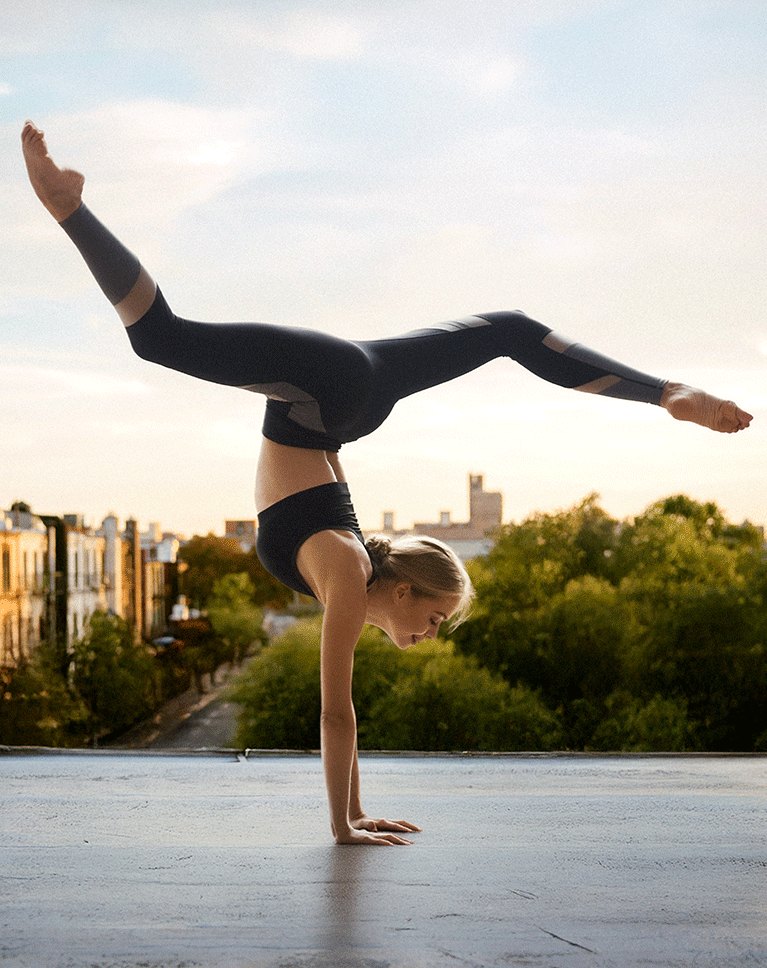
The first project cuts a yoga subject out with the new cloud-based Remove Background, clears the original person from a rooftop with Generative Fill, expands the sky, and swaps the foreground with a single prompt. Then the Photoshop and Lightroom 2026 headline feature, Harmonize, matches her color and light to the scene and adds a believable shadow and reflection in one step, before a Camera Raw pass with grain, vignette, and a radial light finishes the composite.
Generative Upscale, Model by Model
A 1,000-pixel vintage portrait becomes print-ready in Photoshop and Lightroom 2026 as you compare Firefly Upscale, Topaz Gigapixel with Face Recovery, and Topaz Bloom side by side. You will learn which model to trust for faces and which to avoid on people, then clean scratches, dust, and a crease with the Remove tool on a new layer.
Nano Banana & Flux Kontext Pro
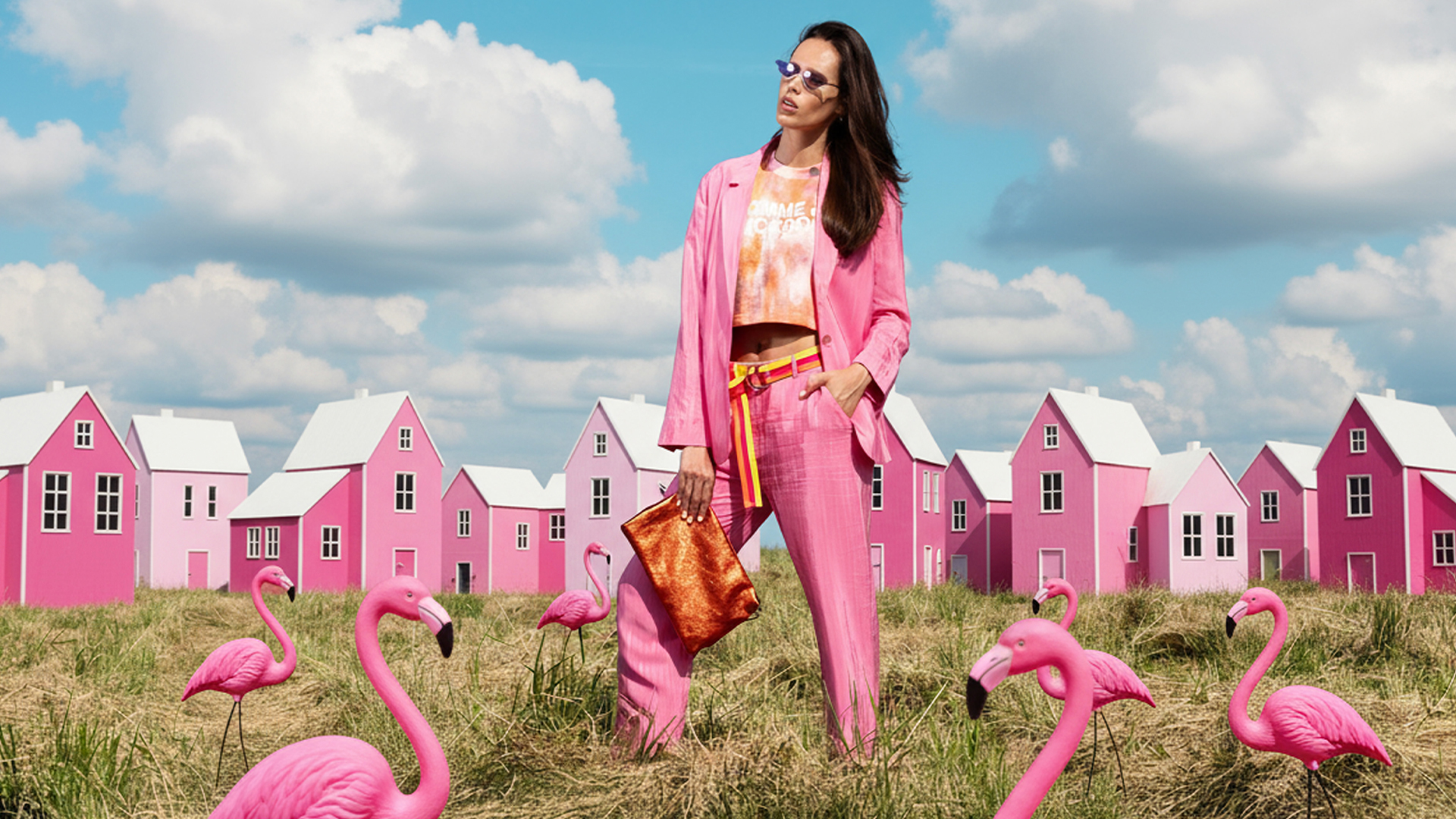
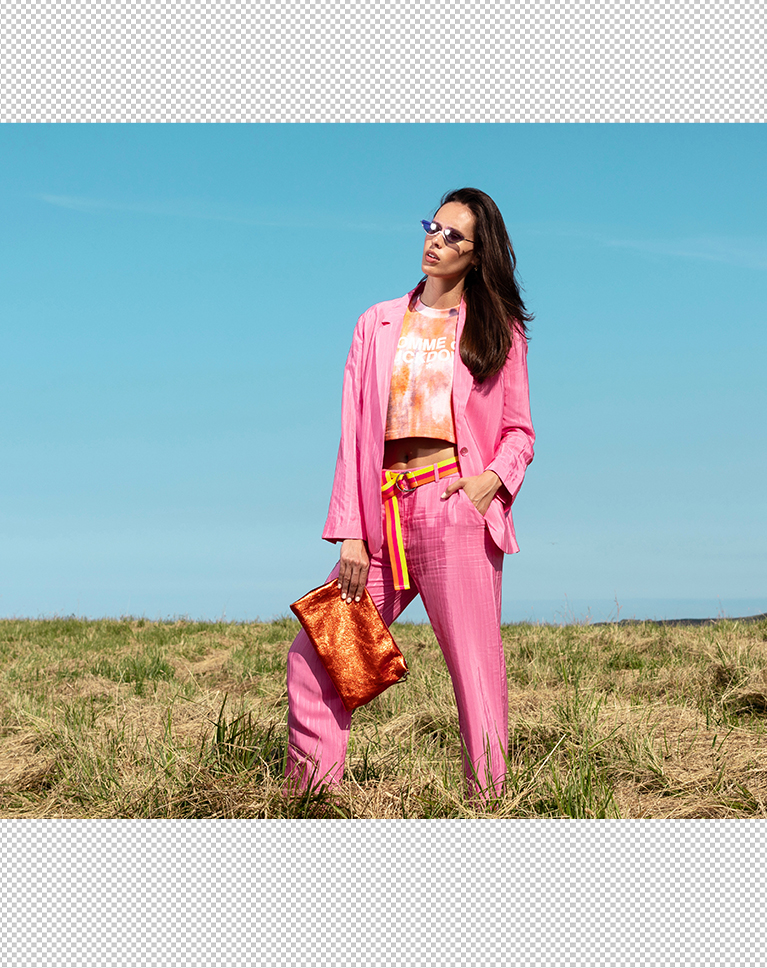
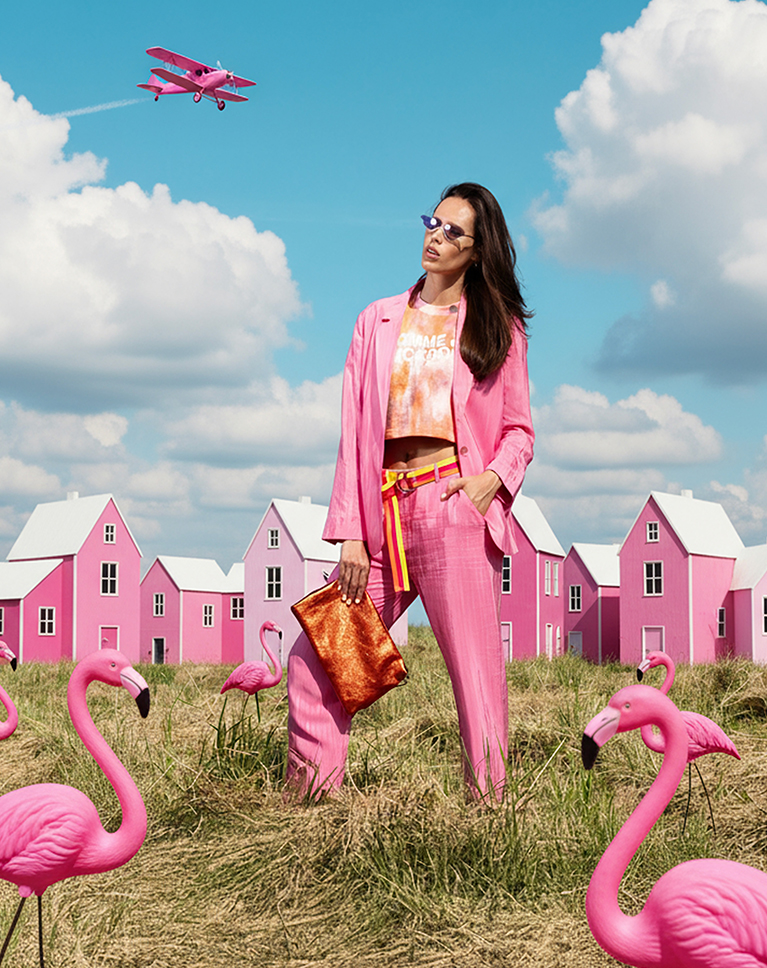
Generative Fill in Photoshop and Lightroom 2026 lets you choose partner models, and this section shows how to talk to them. On a pink fashion portrait you will expand the frame with Firefly, then hand Gemini 2.5 Nano Banana one long prompt to add flamingos, houses, clouds, and an airplane at once. You will learn why a single prompt beats step-by-step edits, when Flux Kontext Pro is the better pick, and the rule of thumb: Firefly to expand and remove, Nano Banana to add.
Generative Credits, Explained
Firefly generations cost roughly one credit; premium partner models like Gemini and Flux cost more, and video models cost far more. You will see where to check your balance, how promo periods change the math, and how to plan a project so the expensive generations happen once, at the end.
From Still to Video
In one of the most fun Photoshop and Lightroom 2026 projects, a woman in a VR headset gets futuristic clothing and a flight-simulator background from Nano Banana, then both frames go to Firefly Boards, where Generate Video turns the original and the generation into a seamless transition. You will compare Firefly Video with Google Veo 3.1 and see why keeping the same pose in your prompt matters.

Craft New Scenes
The most powerful workflow in Photoshop and Lightroom 2026 is combining the tools in the right order. Start with the background, bring in a subject that suits it, cut her out with Remove Background, run Harmonize for color and light, then ask Nano Banana to change her clothing to match the environment and place her in the scene. Finish in Camera Raw with grain, a vignette, a warm radial light, and low-saturation color grading, and add lens blur on a separate copy so the hair stays sharp. The result is a composite that reads as one photograph.
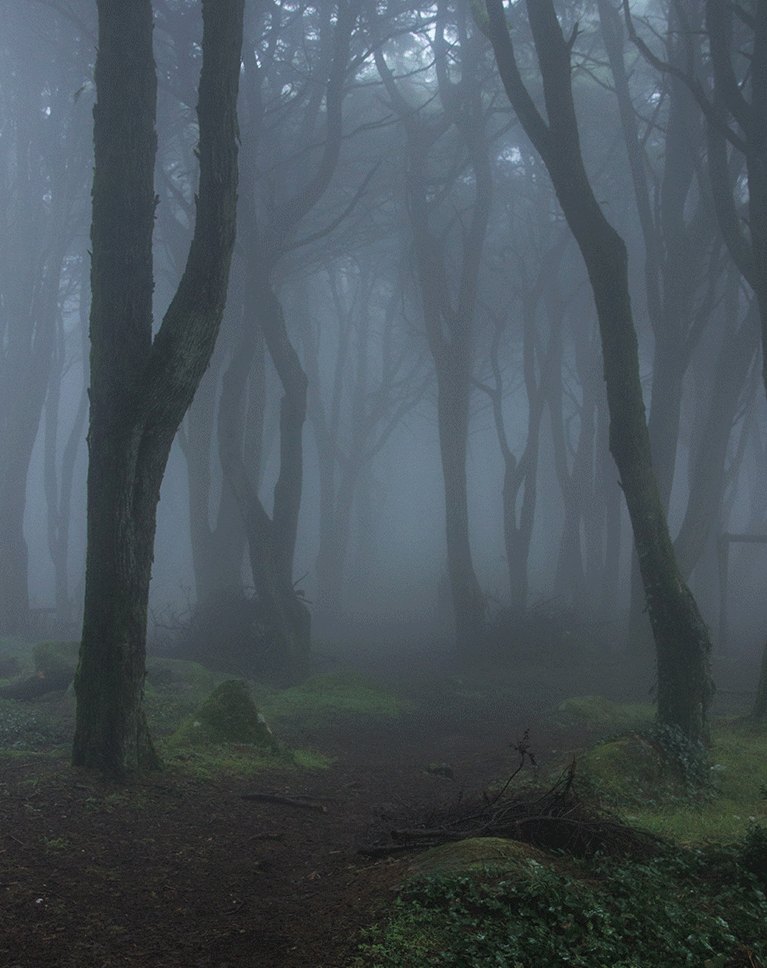
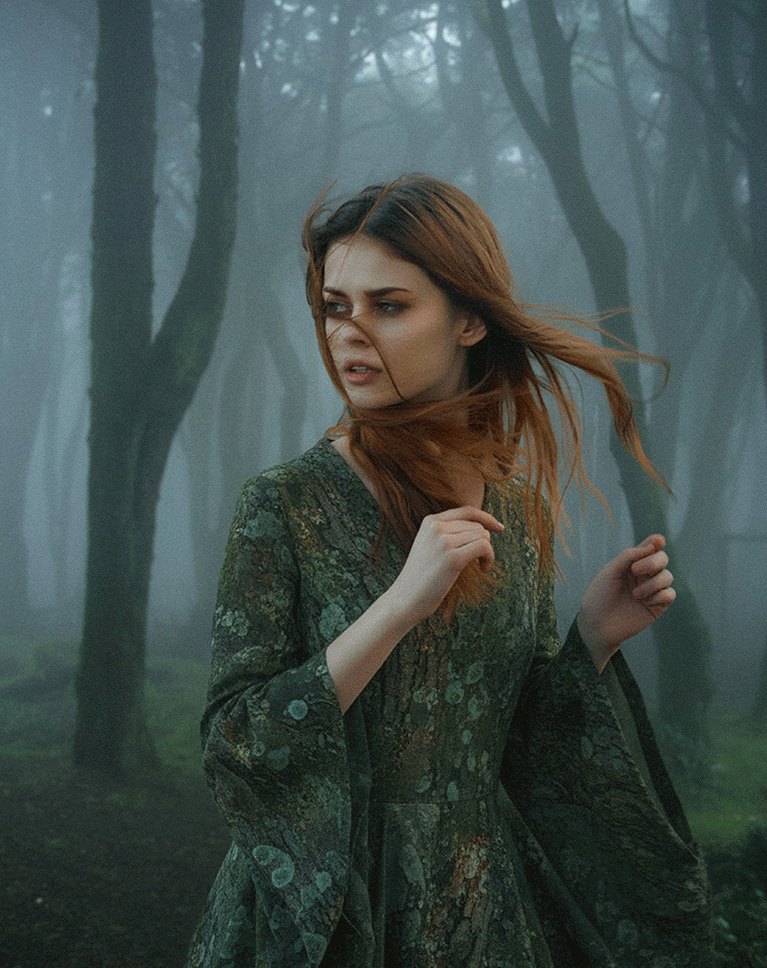
Environment Swaps & Reference Images
One prompt to Nano Banana places a fashion subject on a high-fashion city rooftop, and every regeneration keeps her clothing and identity while changing time of day, lighting, and camera angle. In Photoshop Beta you will select clothing with the Object Selection tool, upload a leather jacket as a reference image, and swap it onto the subject; in Firefly Boards, a whole mood board becomes a Virtual Try-On.
Photoshop Projects & Integration
New in Photoshop and Lightroom 2026, Photoshop Projects store documents in the cloud and share them with collaborators, Adobe Express templates open from the home screen, Lightroom photos sync straight into Photoshop, and Generation History brings Firefly Boards results back in. You will also search Adobe Stock from the File menu, place a free image, and Harmonize it into an AI scene.
AI Assisted Culling in Lightroom
Lightroom 2026 now scores every frame for subject focus, eye focus, and open eyes on import, flags exposure problems and misfires, and stacks bursts by time or visual similarity. You will learn how to set the thresholds, apply Pick and Reject flags in batch, and combine culling with Survey view and star ratings to get from a full card to your selects in minutes.
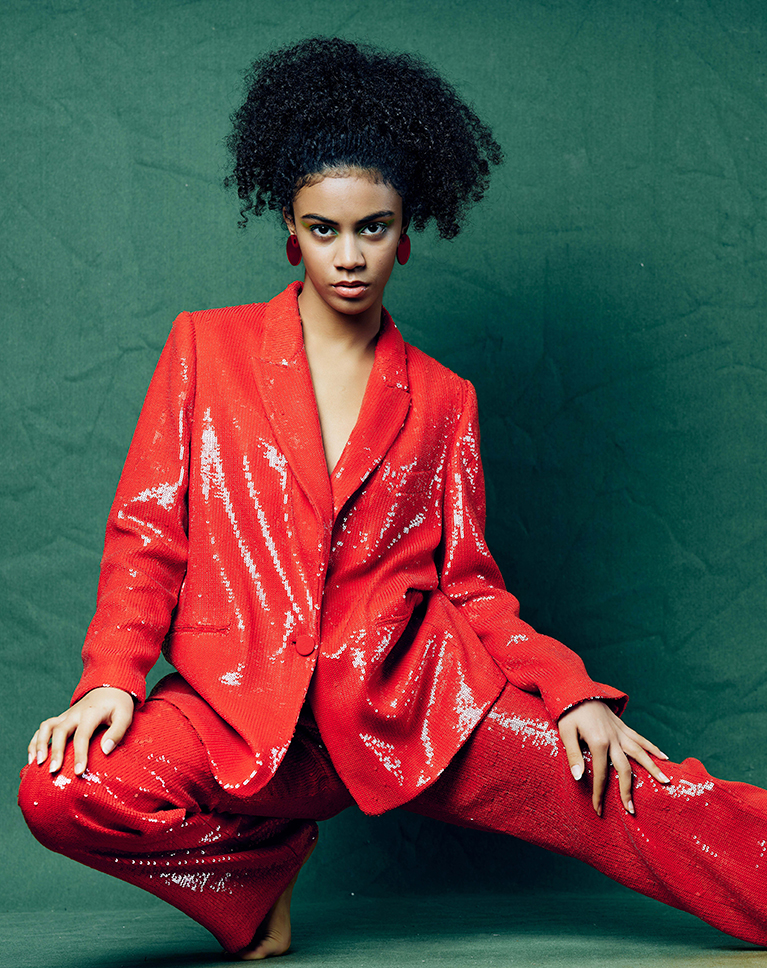
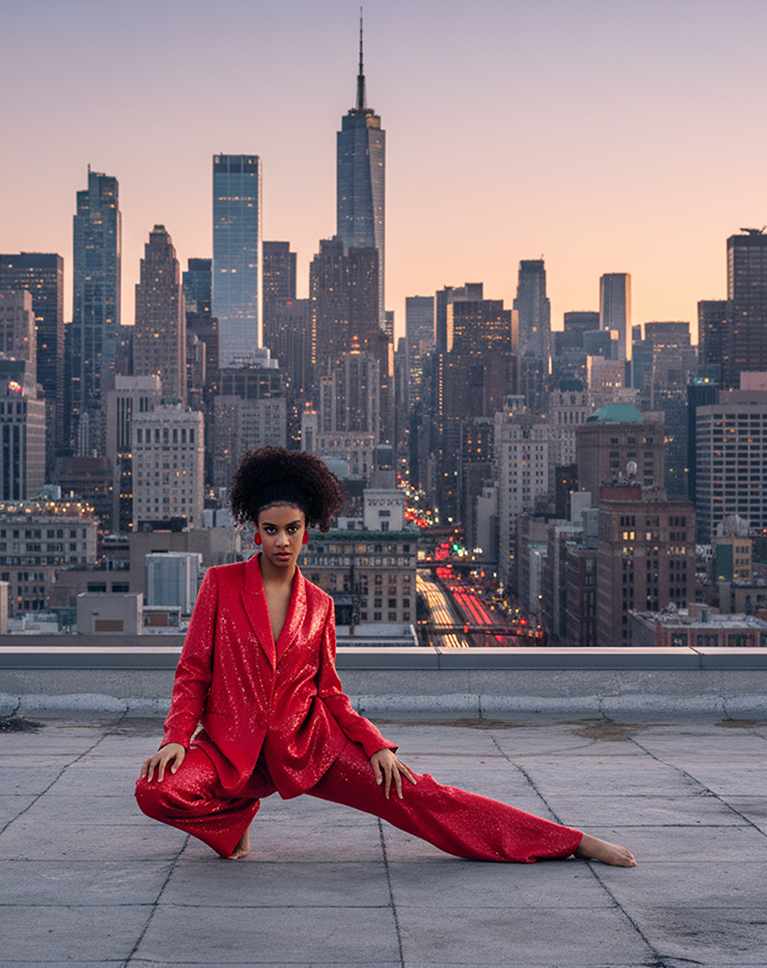
Snow & Landscape Masking
The Landscape mask in Photoshop and Lightroom 2026 now separates Sky, Mountains, Vegetation, Water, Natural Ground, Architecture, and the new Snow category, each as its own mask in one click. On three winter scenes you will cool the sky, deepen the vegetation, sharpen the water, saturate a red cabin, and protect snow detail by pulling Highlights and Whites down instead of pushing exposure up.
Reflection, Dust & People Removal
Distraction Removal in Photoshop and Lightroom 2026 handles the jobs that used to take an hour: dial a window reflection down to nothing, scan a RAW file for sensor dust and clear every spot in one click (then sync it across a whole shoot), and remove every bystander behind your subject at once, with shadows and reflections detected automatically. AI Denoise finishes by cleaning high-ISO RAW files without smearing detail.
Included Files & Next Steps
This Photoshop and Lightroom 2026 course includes 26 sample JPEGs, 3 RAW files, 8 layered PSDs, and 2 sample videos. Images sourced from Adobe Stock come with a PDF of direct download links. To lock in the non-destructive habits used throughout, continue with The Ultimate Guide to Non-Destructive Editing in Photoshop.

Class Instructor
Aaron Nace
PHLEARN Founder & Lead Instructor
Aaron Nace is a photographer, digital artist, and the founder of PHLEARN. Since 2011 he has taught millions of people to edit with confidence in Photoshop and Lightroom, on YouTube and in PHLEARN PRO, and he has been a featured speaker at Adobe MAX for more than eight years.
Every PRO course comes with the sample images and PSDs to follow along step by step, and Aaron adds new courses and free tutorials all year.
- 2M+YouTube subscribers
- 160M+video views
- 1,000+tutorials published
- 15years teaching Photoshop
Some photographs in this course are Adobe Stock images; the download includes a PDF with direct links to them, plus 26 JPEGs, 3 RAW files shot by Aaron in Joshua Tree, 8 layered PSDs and 2 sample videos.
Reviews
Master Photoshop, Lightroom and Photography
Join PHLEARN PRO for $12.99 a month or $99.99 a year. Cancel anytime, with a 100% money-back guarantee.






2026
Hey there! Our team has reached out to you via email.
Very informative and easy to follow.
We’re glad you enjoyed the tutorial!
great to have overviews of most recent Photoshop and Lightroom products. presented enthusiastically, professionally and easy to follow. many of these updates help take your images to the next level. well done and much appreciated!
AMAZING WORKFLOW.
Nice review, with frank discussion of pros and cons of different engines and updates. Thank you!
Delete my previous review please.
Aaron Nace’s Photoshop 2026 tutorial explains things that Adobe’s menus have been hiding from me forever. Clear, fast, funny. Highly recommended
Thank you Aaron, very helpful. I used noise reduction with night shots and it was perfect. The deleting of reflections is a must, when you like to photograph in the zoo. It works fine.
A comprehensive coverage of whats new, plus helpful tips
Amazing
A really good presentation which is the norm for Aaron and Phlearn. Found this particularly helpful since I have somewhat of a disdain for AI approaches in most cases. This really helps my awareness on what Adobe has done with the new features and get somewhat of a perspective on how they might fit into my own work.
Once again an enlightening learning experience so well presented. Thank you.
Thank you!
Thanks as always, Aaron, for your inimitable teaching style and candid reviews on the newest Adobe features. In the past, Generative Fill could only output perfectly blended 1024 X 1024 pixel areas. Do the newer AI Generative engines like Nano Banana fill in large areas seamlessly?
Hey there! The resolution is still on the lower end. if you’re working with RAW files, the content generated will be lower quality.
It’s now January 6 and my Photoshop does not look anything like your Photoshop 26. No option for Project. When might my Photoshop have all the features presented in this section?
Our team has reached out via email to help you get things sorted out!
Aaron, Can you please check the down loads? I am unable to find the sample files for your video, Harmonise Tool. The files listed give the completed process. Cheers James
Hey there! For some of the images, you will need to use the direct links included in the PDF guide. Our team has reached out to you directly via email to help you with this.
I didn’t even know about Firefly Boards! Hope Aaron can do another tutorial on this as it appears very powerful .. meantime, I wish Adobe would give us a few more generative credits to experiment with 🙂
I found the Firefly boards tutorial really interesting; as i’ve never even considered using them before. Hope Aaron explores this feature more in the future.
The downloaded sample images contains 3 RAW files and only 15 jpeg files (not 27). There is a pdf file with links to the missing files on Adobe Free Stock Images. However, none of the links are working. I get “page not found” on Adobe Stock Images website. Hopefully, this can be rectified.
Hey there! The download folder includes 29 images, 12 of which are links inside the PDF guide. We tested them and they seem to be working, so our team has reached out via email to you to help you get things sorted out!
2026
i loved this seeing the new AI features. just wish Adobe didn’t use AI credits, its a limiting factor for some of us non prousers. look forward to seeing more from Arron.