Selections & Masking Tutorials for Photoshop & Lightroom
Learn to make clean selections and masks in Photoshop and Lightroom: Select Subject, cutting out hair and fur, channels, Select and Mask, refining and fixing edges, and the AI masks in Camera Raw and Lightroom. More than 120 free and PRO video tutorials from Aaron Nace.
What You’ll Learn
Almost every serious edit starts with a selection. These tutorials teach you to choose the right tool for the subject, get a clean edge on the first try, and fix the edge when the first try isn’t enough.
- The selection tools, one by one. Select Subject, Object Selection, Quick Selection, the Lasso and Pen tools, and when each one wins.
- Hair, fur, and soft edges. Select and Mask, Refine Edge, Enhance Edge, and painting masks by hand for the strands AI misses.
- Channels and luminosity. Pulling selections out of the image itself for skies, trees, and high-contrast subjects.
- Edges that hold up in a composite. Removing color fringing and halos so a cut-out sits naturally on a new background.
- Masks in Camera Raw and Lightroom. AI subject, sky, background, and object masks, and adding or subtracting from them to adjust one area at a time.
Where to Start
Begin with How to Select Subjects and Refine Edges in Photoshop, then The Power of Object Masking in Photoshop 2026 for Camera Raw’s newest masks. When you’re ready for hair and fur, the PRO course The Ultimate Guide to Selections & Masking in Photoshop takes you from your first selection to the hardest edges in 17 lessons.
Free and PRO Tutorials
Free tutorials are complete lessons, not previews. PRO tutorials go deeper and longer, and they include the sample images, RAW files, actions, and presets used in the lesson so you can follow along on the exact same file. The PRO courses here include the layered files, so you can compare your mask to Aaron’s. A PHLEARN PRO membership unlocks every PRO tutorial on the site, including all of the ones in this category.
Frequently Asked Questions
What is the best way to select hair in Photoshop?
Start with Select Subject, then open Select and Mask and use the Refine Hair button and the Refine Edge Brush along the hairline. For fine strands that still drop out, paint them back into the mask by hand with a soft brush.
What is the difference between a selection and a mask?
A selection is temporary: it tells Photoshop where to work right now. A layer mask saves that selection on the layer, so you can hide and reveal parts of it at any time without deleting pixels.
Can I make masks in Lightroom?
Yes. Lightroom and Camera Raw can detect the subject, sky, background, people, and objects automatically, and you can add to or subtract from any mask with brushes and gradients to adjust one area at a time.
Where to Go Next
Clean selections are the start of Compositing, where you place a subject into a new scene, and of Object Removal & Cleanup. For the core tools behind every mask, see Tools & Techniques.
Learn Selections in Order
The Ultimate Guide to Selections & Masking goes from your first selection to hair, fur, and clouds in 17 lessons.
On This Page
PHLEARN PRO
Every PRO tutorial in this category, with sample and RAW files, plus the full PRO library.
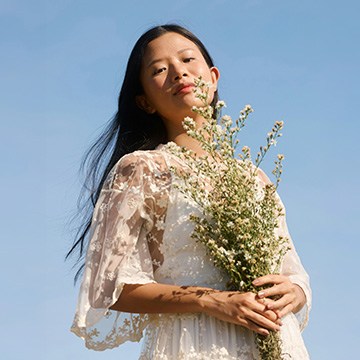
Masking in Photoshop from your first selection to hair, fur and clouds: 17 follow-along lessons on selection tools, layer masks and Select and Mask.
Photoshop | Selections & Masking | Medium | 3.75 hours
24 Sample Images | 21 Sample PSDs | Selections & Masking Course Guide (PDF)
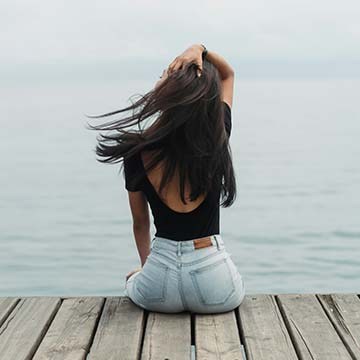
Fix color fringing in Photoshop two ways: the new Enhance Edge AI tool versus a free clipping mask technique using the Brush tool and Darken blend mode.
Photoshop | Selections & Masking | Medium | 15 mins | 1 video
1 Sample Image | 1 Sample PSD | 1 PDF Guide
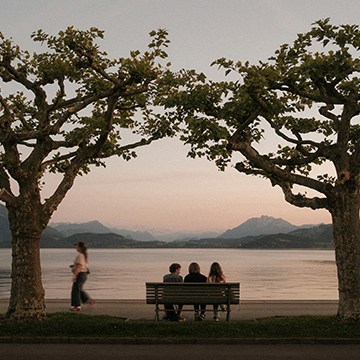
Use object masking in Camera Raw to select trees, people and complex edges with a rough scribble, then balance a dark foreground without touching the sky.
Photoshop | Selections & Masking | Medium | 15 mins | 1 video
1 Sample Image | 1 Sample PSD | 1 PDF Guide
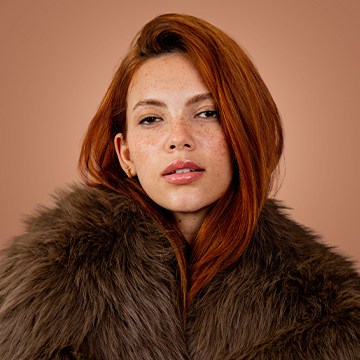
Isolate subjects in Photoshop and clean up the edges: cut out, expose the halo, build a clipped correction layer, and clone real texture back into the hair.
Photoshop | Selections & Masking | Medium | 30 mins | 1 video
1 Sample Image | 1 Sample PSD | 1 PDF Guide

Use AI depth masking in Photoshop to separate foreground from background by distance, then lift your subject and direct the eye without a single selection.
Photoshop | Selections & Masking | Easy | 15 mins | 1 video
1 Sample Image | 1 Sample PSD | 1 PDF Guide
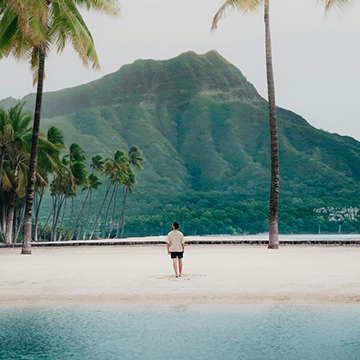
Use the Clarity and Dehaze tool in Photoshop to cut through haze: select the hazy area, add clarity where it helps, and reuse the mask for the rest.
Photoshop | Photo Editing | Easy | 15 mins | 1 video
1 Sample Image | 1 Sample PSD | 1 PDF Guide
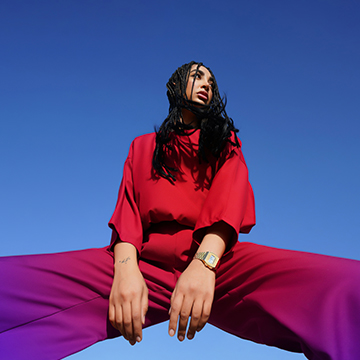
Add color gradients to any object in Photoshop: change the color with Hue/Saturation, protect skin tones with a second mask, and keep it adjustable after.
Photoshop | Color & Tone | Medium | 15 mins | 1 video
1 Sample Image | 1 Sample PSD | 1 PDF Guide
Master advanced masking and coloring across all Lightroom apps! This course covers mask logic, light balancing, and professional color grading, with Photoshop techniques included for those who need ultimate creative control.
Lightroom | Selections & Masking | Medium | 3.75 hours
9 Sample Images

Adobe’s AI landscape tool now detects snow. Generate separate snow, sky and vegetation masks, then edit each one without touching the rest of the scene.
Photoshop, Lightroom | Selections & Masking | Easy | 15 mins | 1 video
1 Sample Image (RAW File) | 1 PDF Guide
Sync Lightroom masks across a whole shoot: build one masked edit on a portrait or landscape, then copy the masks to every other frame in a few clicks.
Lightroom | Workflow & Productivity | Medium | 15 mins | 1 video
4 Sample Images
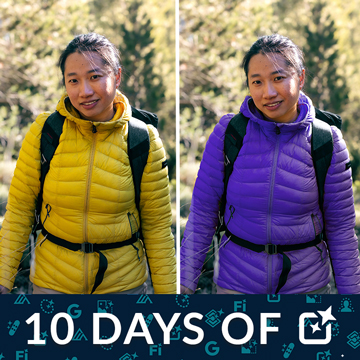
Select Subject gives you a one-click cutout, but the selection is worth more than the cutout. Reuse it to swap a background, grade the subject, or build a mask.
Photoshop | Selections & Masking | Advanced | 15 mins | 1 video
4 Sample Images | 4 Sample PSDs
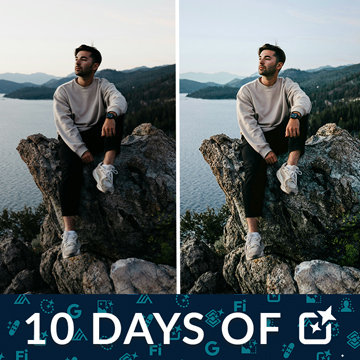
AI masking in Camera Raw selects the subject, sky and background for you. Set it up non-destructively, refine the mask, then edit each area on its own.
Photoshop | Selections & Masking | Advanced | 15 mins | 1 video
2 Sample Images | 2 Sample PSDs
Select Subject has quietly become the most useful button in Photoshop. Switch it to the cloud engine and it handles hair and fine edges properly.
Photoshop | Selections & Masking | Medium | 15 mins | 1 video
2 Sample Images | 2 Sample PSDs
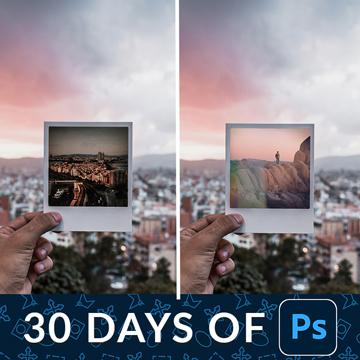
Layers and layer masks are the one feature that separates Photoshop from every other editor. Learn what each kind of layer is for and when to mask instead.
Photoshop | Tools & Techniques | Easy | 30 mins | 1 video
3 Sample Images | 1 Sample PSD
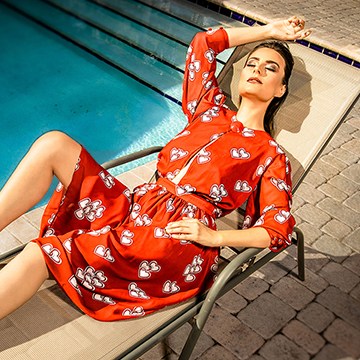
Transform your portraits! This advanced tutorial in Photoshop and Camera Raw guides you through editing eight diverse RAW photographs, tackling unique challenges. Learn AI masking, reshape lighting, and more!
Photoshop | Photo Editing | Advanced | 3.5 hours
8 Sample Images (RAW Files) | 8 Sample PSDs

Color channels are three grayscale images stacked together. Read them properly and you get selections that no other tool in Photoshop can make for you.
Photoshop | Tools & Techniques | Easy | 30 mins | 1 video
2 Sample Images | 2 Sample PSDs | 1 PDF Guide
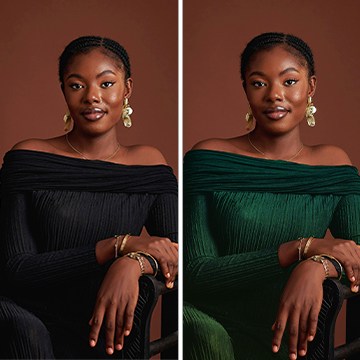
Black clothing defeats the usual recoloring tools because there is no hue in black to shift. Lay the color in instead, then bring the texture back through it.
Photoshop | Color & Tone | Medium | 15 mins | 1 video
1 Sample Image | 1 PSD File | 1 PDF Guide
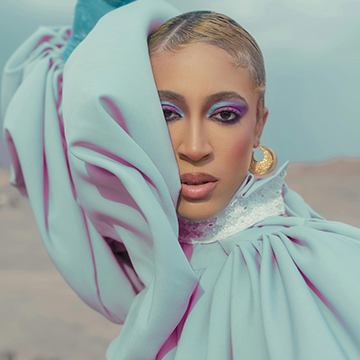
Color coordinate elements in Photoshop by sampling one and pushing the other to meet it. Pick Hue or Color for the blend mode and it stays editable.
Photoshop | Color & Tone | Medium | 15 mins | 1 video
1 Sample Image | 1 PSD File | 1 PDF Guide
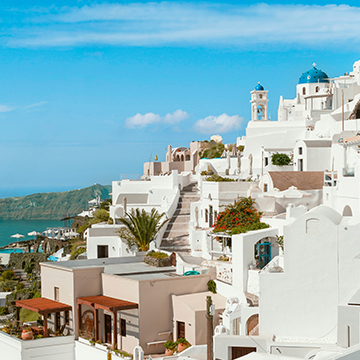
AI landscape masking finds the sky, the land and the water for you. Learn where it works in Lightroom, where it works in Camera Raw, and how to stack two masks.
Lightroom, Photoshop | Selections & Masking | Medium | 15 mins | 1 video
2 Sample Images | 1 PSD File | 1 PDF Guide
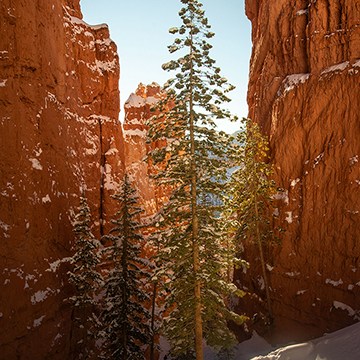
Master advanced landscape editing in Photoshop and Adobe Camera RAW. Learn Aaron’s must-do adjustments, advanced Sky Replacement, color grading, and more! This tutorial includes RAW files so you can follow along.
Photoshop | Photo Editing | Advanced | 3.75 hours
6 Sample Images (RAW Files) | 6 Sample Images (JPEG Files) | 5 Sample PSDs

Cloud processing sends Select Subject to Adobe’s servers instead of your machine. On hair, fur and fine edges the extra few seconds are worth it.
Photoshop | Selections & Masking | Medium | 30 mins | 1 video
4 Sample Images | 1 PDF Guide

One mask on its own is a blunt instrument. Add and subtract masks in Lightroom Classic and you can light exactly the part of the frame you meant to.
Lightroom | Selections & Masking | Medium | 15 mins | 1 video
1 Sample RAW File

Masking is how you stop editing the whole photograph. Lightroom has ten mask types: the automatic ones, the manual ones, and the range masks that read the image.
Lightroom | Selections & Masking | Medium | 15 mins | 1 video
1 Sample RAW File
Ready to start learning Photoshop but unsure where to start? This is the course for you! Master Aaron’s top 10 tools and techniques that will help you confidently tackle any Photoshop project.
Photoshop | Tools & Techniques | Medium | 4.25 hours
21 Sample PSDs | 36 Sample Images (JPEG) | 1 Sample Image (RAW)
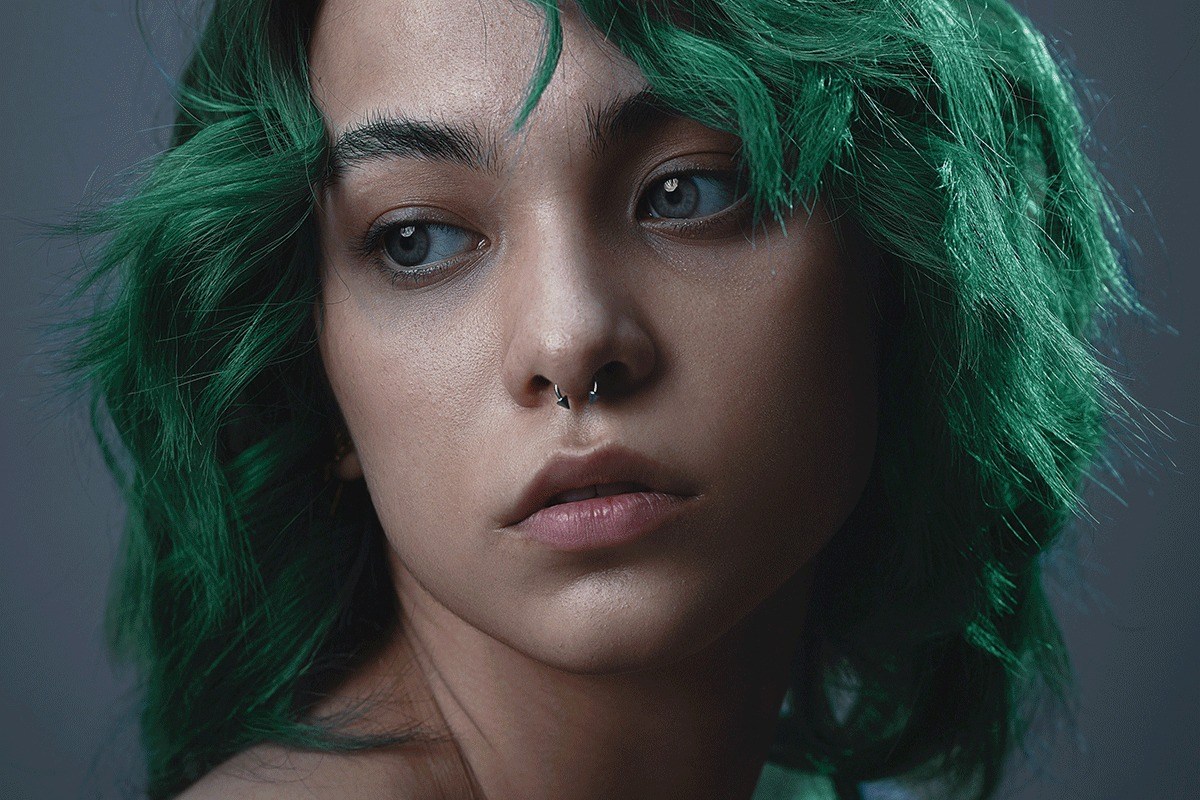
How to create and use layer masks in Photoshop: build a mask from a selection, refine the edge, copy it to another layer, unlink it, and mask a whole group.
Photoshop | Tools & Techniques | Medium | 15 mins | 1 video
2 Sample Images | 1 Sample PSD | 1 PDF Guide

How to use the Object Selection Tool in Photoshop: click Select People and get the hair, eyebrows, eyes, pupils, lips and clothing as separate selections.
Photoshop | Selections & Masking | Easy | 15 mins | 1 video
2 Sample Images | 1 PDF Guide

Master studio photo editing in Photoshop! This tutorial combines traditional and AI tools to teach you background changes, retouching, and essential techniques. Get JPEG and RAW files, plus our Frequency Separation Action!
Photoshop | Photo Editing | Medium | 2 hours
6 Sample PSDs | 6 Sample Images (JPEG) | 1 Sample Image (RAW) | 1 Photoshop Action

How to create a speed effect in Photoshop: isolate the subject, remove it from the background, then blur the background along a path with Path Blur.
Photoshop | Photo Effects | Medium | 15 mins | 1 video
2 Sample Images | 2 Sample PSDs | 1 PDF Guide

How to use Select Subject and refine edges in Photoshop: place the new background first, soften the edge, bring the hair back, then kill the color fringe.
Photoshop | Selections & Masking | Easy | 30 mins | 1 video
1 Sample Image | 1 Sample PSD | 1 PDF Guide

How to use the Selection Brush Tool in Photoshop: paint a selection, read the magenta overlay, and refine selections other tools made badly.
Photoshop | Selections & Masking | Easy | 15 mins | 1 video
2 Sample Images | 2 Sample PSDs | 1 PDF Guide

How to blur the background in Lightroom Classic with Lens Blur, across four examples: a clean subject, difficult hair, two subjects, and one that should stay sharp.
Lightroom | Photo Effects | Easy | 15 mins | 1 video
4 Sample Images | 1 PDF Guide