

Download Assets
This tutorial includes 5 sample images, 1 sample GIF, 2 sample PSDs and 1 PDF guide. Downloads are free with a PHLEARN account.
- Download the sample images and PSDs from every free tutorial on PHLEARN
- New free tutorials published every week
- One free account — sign up once, then download anything
Free PDF Guide · 6 Pages
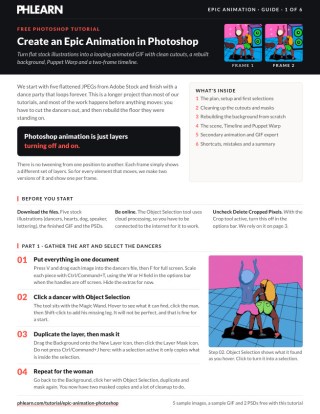
This Tutorial as a Step-by-Step PDF
Walks through 31 steps: Object Selection and layer masks, the Shift+Alt/Option exclusion, the disabled-mask trick, Step and Repeat with Shift+Alt/Option+Ctrl/Command+T, a Perspective transform for the floor grid, Smart Objects, Edit > Puppet Warp, Window > Timeline > Create Frame Animation at 0.5 seconds, and Save for Web (Legacy) as a GIF. Keep it next to your keyboard.
description
An epic animation in Photoshop is built the same way a composite is: cut the subjects out, rebuild what was behind them, then move them frame by frame with Puppet Warp.
Turning a flat, layered stock illustration into a looping animated GIF is a longer project than most tutorials, but every step builds on the last. Cut the subjects cleanly out of their background, rebuild the background you had to destroy doing it, convert everything to Smart Objects, then use Puppet Warp and the frame animation timeline to bring it to life — and export the result as a GIF that loops properly.
Enjoying This Free Tutorial?
We publish a new free tutorial every week, each one with sample images and PSDs you can download and follow along with. Sign up and they land straight in your inbox, along with early word on sales, events and subscriber-only offers.
How to Create an Epic Animation in Photoshop
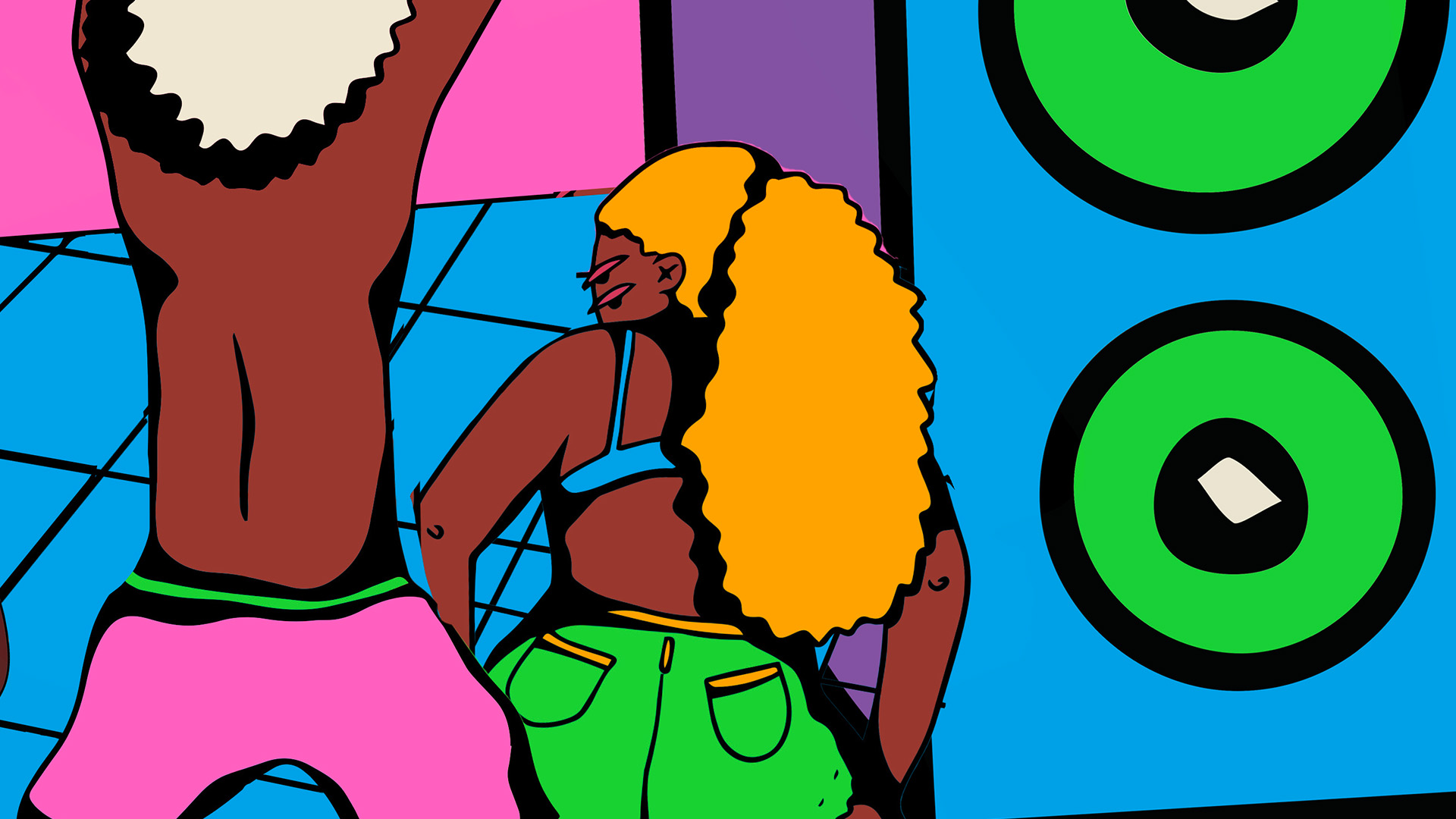
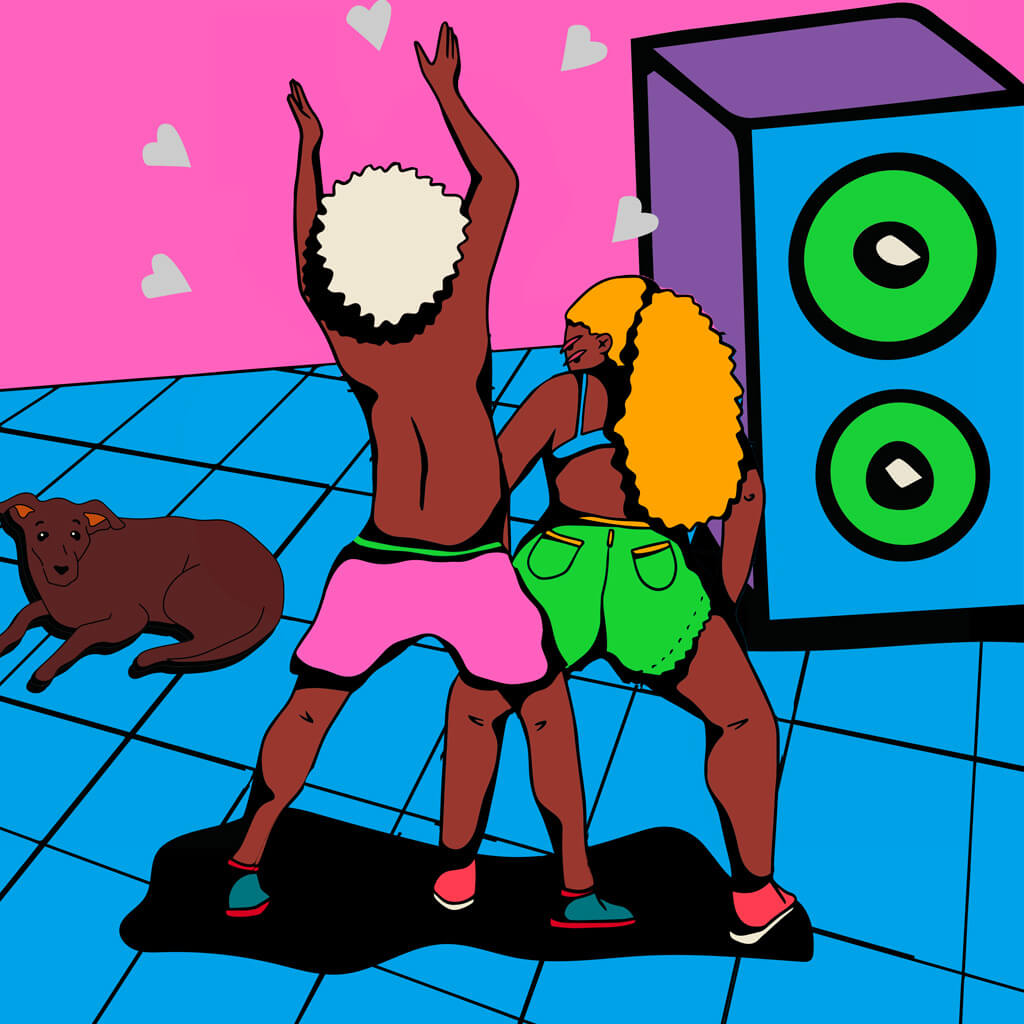
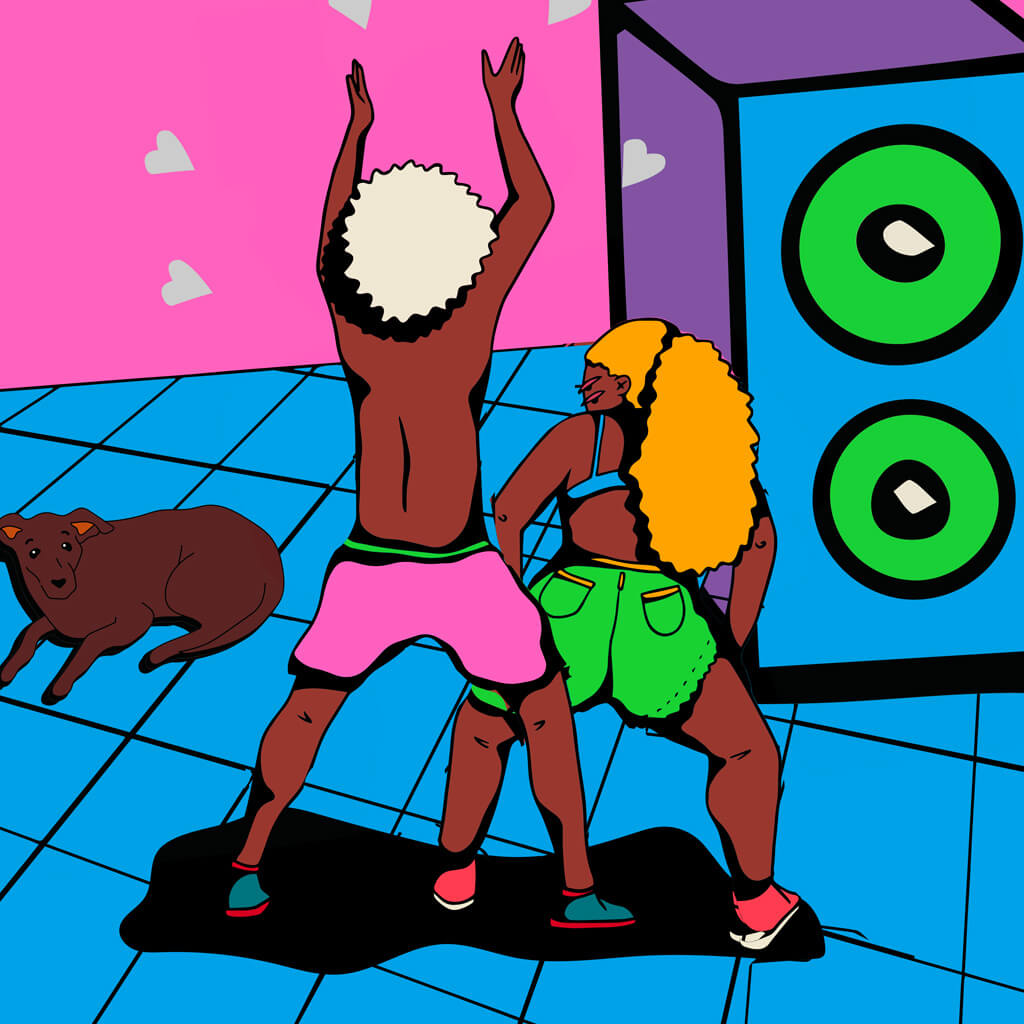
Turning a flat, layered stock illustration into a looping animated GIF in Photoshop is a longer project than most tutorials, but every step builds on the last: cut your subjects cleanly out of their background, recreate whatever background you had to destroy in the process, convert everything into flexible Smart Objects, and then use Puppet Warp and the frame animation timeline to bring it all to life.
Cutting Out Subjects with the Object Selection Tool
Before anything can move independently, every subject needs to be separated cleanly from its background and from each other.
-
Bring Your Assets into One Document
Use the Move tool to drag each separate stock image or illustration into a single working file, then scale each one down with Ctrl/Cmd + T using the width and height fields at the top of the screen.
-
Select a Subject with the Object Selection Tool
Choose the Object Selection tool (grouped near the Magic Wand tool) and click directly on a subject. The tool uses cloud-based AI, so an internet connection is required.
-
Duplicate the Layer and Load the Selection into a Mask
Rather than pressing Ctrl/Cmd + J (which only duplicates what’s inside the selection), drag the layer onto the New Layer icon to duplicate the whole layer, then click the layer mask icon to load your selection into a mask.
Cleaning Up Selections with Multiple Tools
An automatic selection rarely separates two overlapping subjects perfectly, so cleanup relies on switching freely between several selection tools and keyboard shortcuts.
-
Turn a Layer Mask Back into a Selection
Hold Ctrl/Cmd and click a layer mask thumbnail to reload its shape as an active selection whenever you need to reference it on another layer.
-
Use Exclusion Selections with Shift + Alt/Option
With the Lasso tool, hold Shift + Alt/Option together to get an exclusion selection (keeping only the area where the two selections overlap) — useful for isolating just one subject’s limb from a selection shared with another subject.
-
Fill Directly with Keyboard Shortcuts
Press D to reset to default colors (white foreground, black background on a mask), then use Ctrl/Cmd + Delete to fill with your background color or Alt/Option + Delete to fill with your foreground color — both skip the Fill dialog entirely for faster mask cleanup.
-
Switch Between Lasso Types Mid-Selection
While using the regular Lasso tool, hold Alt/Option to temporarily switch to the Polygonal Lasso for straight-edge sections, releasing Alt/Option to go back to freehand.
-
Use the Pen Tool for Precise, Editable Edges
Press P for the Pen tool when you need a genuinely accurate selection. Right-click your finished (or even unfinished) path and choose Make Selection with 0 pixels of feather.
Why the Pen Tool Is Worth the Extra Time
Unlike the Polygonal Lasso, where accidentally closing a selection early means starting over, a Pen tool path stays fully editable — hold Ctrl/Cmd to move any point, or Alt/Option to adjust a handle, at any time before you commit it to a selection. For genuinely important edges, that flexibility often makes the Pen tool faster overall despite feeling slower moment to moment.
Temporarily Disabling a Mask for Cleaner Selections
Removing a specific leftover background color, like a bright accent color bleeding along an edge, is much easier without your existing mask interfering with the selection.
-
Shift-Click a Layer Mask to Disable It
Hold Shift and click a layer mask thumbnail to temporarily disable it (marked with a red X), revealing the full unmasked layer underneath.
-
Select and Remove the Leftover Color
With the mask disabled, use the Magic Wand tool to select the unwanted background color cleanly, without your existing mask edge getting in the way.
-
Re-enable the Mask and Fill
Shift-click the mask thumbnail again to re-enable it, then fill your new selection with black on that mask to hide the color you just isolated.
Recreating the Background You Had to Remove
Once subjects are cut out and moved independently, the original background can’t move with them, so a stationary replacement background needs to be built essentially from scratch.
-
Duplicate the Background and Remove Subjects
Duplicate your background layer, roughly select the areas where subjects used to be, and run Edit > Content-Aware Fill as a starting point — it won’t be perfect, but it gives you a base to refine.
-
Recreate Lost Line Work with Step and Repeat
Make one small shape or line, then press Ctrl/Cmd + T to move it slightly and hit Enter (defining your “step”), then repeatedly press Shift + Alt/Option + Ctrl/Cmd + T to repeat that same transformation over and over, generating an evenly spaced pattern of duplicates automatically.
-
Build a Grid and Apply a Perspective Transform
Duplicate and rotate your repeated line pattern 90 degrees to form a grid, then use Ctrl/Cmd + T, right-click, and choose Perspective (or hold Ctrl/Cmd + Alt/Option + Shift while dragging a corner) to warp the flat grid into the same perspective as the original background.
-
Mask the New Pattern to Match the Original Colors
Select the color area the pattern should occupy with the Magic Wand tool, expand the selection by a pixel or two, and load it into a layer mask on your new grid so it only shows where it belongs.
Why Step and Repeat Beats Manual Duplication
Manually duplicating and nudging a shape dozens of times is slow and prone to uneven spacing. Step and Repeat records the exact transformation between your first and second copy and reapplies it identically every time you trigger it again, which is what makes an evenly spaced grid or pattern practical to build by hand in just a few keystrokes.
Converting Layers to Smart Objects for Flexible Editing
Before any animation work begins, converting complex cutout layers into Smart Objects keeps every layer mask and future edit fully recoverable.
-
Convert Complex Cutouts to Smart Objects
Right-click a layer (or group of layers) with an intricate layer mask and choose Convert to Smart Object, rather than leaving it as a regular layer with an applied mask.
-
Double-Click to Re-Edit the Original Mask
Double-click a Smart Object at any time to reopen its original contents, including the layer mask, letting you fix a missed selection detail without disturbing anything built on top of it since.
Why Smart Objects Matter for Animation Specifically
Puppet Warp settings applied to a Smart Object stay attached and editable even after the animation is built — reopening the Puppet Warp dialog on a Smart Object brings back every pin exactly where you left it, which is what makes it practical to keep refining a pose after you’ve already seen how it looks in motion.
Setting Up the Frame Animation Timeline
Photoshop’s animation tools are simpler than a dedicated animation program, working essentially by toggling different layers visible or invisible between a small number of frames.
-
Open the Timeline and Create Frame Animation
Go to Window > Timeline, then choose Create Frame Animation from the dropdown rather than the video timeline option.
-
Duplicate Every Layer You Want to Animate
For each subject or element that will move, duplicate its layer so you have two versions — one for each of the two animation frames.
-
Toggle Visibility Per Frame
Click your first frame in the timeline and make the “second position” layer invisible; click your second frame and make the “first position” layer invisible instead. That toggle, repeated across every animated element, is the entire animation mechanism.
-
Set Frame Delay and Looping
Shift-click both frames, open the frame delay dropdown, choose Other, and set a short delay (around half a second worked well here) with looping set to Forever.
Animating Subjects with Puppet Warp
Puppet Warp is what actually brings a static cutout to life, letting you pin down parts that should stay fixed while repositioning everything else around them.
-
Open Puppet Warp on a Duplicated Layer
Go to Edit > Puppet Warp on the duplicate you’ll use as your “second position” frame.
-
Pin the Parts That Should Stay Fixed
Click to place pins on areas like feet or a base point that shouldn’t move — each pin locks that part of the image in place during the warp.
-
Drag Unpinned Areas into a New Pose
Click and drag other points (hips, knees, a hand) to reshape the pose, favoring simple, moderate movements over dramatic ones for a more believable loop.
-
Preview and Iterate
Play the two-frame animation, then reopen Puppet Warp on the same Smart Object as many times as needed to refine the movement — simple adjustments tend to read better than complex ones.
Simple Movements Read Better Than Complex Ones
A two-frame loop has no in-between motion to smooth out an overly dramatic pose change, so a subtle shift — a knee bending slightly, a hip moving a few inches — tends to loop far more convincingly than an ambitious full-body repositioning, which risks looking like it’s breaking at the joints.
Adding Secondary Animation Details
Beyond the two main subjects, small secondary animations throughout the scene add texture and make the final loop feel more alive.
-
Animate Color with Color Overlay
Double-click a layer, choose Color Overlay, and set a different color per frame — useful for elements like decorative shapes that should appear to shift color rather than move.
-
Animate Scale for a Pulsing Effect
Scale an element up or down between frames (a speaker appearing to grow, for instance) to suggest movement or intensity without needing a full pose change.
-
Smooth Rough Shapes with Select and Mask
For a hand-drawn shape with sharp, unwanted corners, load it as a selection, open Select and Mask, and raise Feathering and Contrast together to round out the edges before filling the refined shape on a new layer.
Exporting as an Animated GIF
The finished multi-frame animation needs a specific export path to preserve its motion once it leaves Photoshop.
-
Open Save for Web (Legacy)
Go to File > Export > Save for Web (Legacy).
-
Set the Format to GIF
Change the format dropdown from JPEG or PNG to GIF — this is required for the frame animation to actually play once exported.
-
Resize for the Web and Set Looping
Reduce the width and height substantially from your full working resolution (large dimensions make for a very slow-loading GIF), and confirm the looping option is set to Forever.
-
Preview in a Browser Before Saving
Use the Preview button to open the animation in your default browser and confirm it plays correctly before committing to the final save.
Common Mistakes to Avoid
The most common mistake is animating a subject before the background has been properly recreated behind them — if the original background is still visible where a subject used to sit, you’ll see a ghostly double image every time that subject moves in the animation. It’s also easy to attempt overly dramatic Puppet Warp poses on the very first try; starting with a small, subtle movement and only increasing it if the loop still looks too static tends to produce more convincing results than the reverse.
Why This Approach Works
Every early step in this project exists to make the later animation possible: cutting subjects out precisely means they can move without dragging their background along, and rebuilding that background from scratch with Step and Repeat and a perspective transform means there’s nothing left behind for a moving subject to reveal a gap in.
Converting everything to Smart Objects before touching Puppet Warp is what keeps the whole project revisable — a missed selection detail, a pose that doesn’t read well, or a color choice you want to reconsider are all still just a double-click away rather than requiring you to start over. And keeping the animation itself simple, both in frame count (just two) and in the size of each individual movement, plays to Photoshop’s actual strength as an animation tool: it excels at toggling prepared artwork on and off, not at generating smooth in-between motion the way a dedicated animation program would.
Final Thoughts
This is a long project precisely because so much of the real work happens before any animation exists at all — clean cutouts, a rebuilt background, and Smart Object conversions are what make the actual Puppet Warp and timeline steps go quickly by comparison. Treat the two-frame, toggle-based structure as a strength rather than a limitation: a handful of well-chosen, subtle movements across several independent elements adds up to a genuinely lively looping animation, without ever needing more than Photoshop’s built-in tools.
Quick Reference: Keys, Menus and Settings
- Cut out a subjectObject Selection tool, drag the layer onto the New Layer icon, then the Layer Mask icon
- Fill a maskD, then Alt/Option + Backspace/Delete for foreground or Cmd/Ctrl + Backspace/Delete for background
- Clean the edgesShift-click the mask to disable it, W for the Magic Wand; Shift + Alt/Option with the Lasso keeps the overlap
- Step and RepeatCmd/Ctrl + T, move, Enter; then Shift + Alt/Option + Cmd/Ctrl + T
- Floor in perspectiveCmd/Ctrl + T, right-click > Perspective, drag a corner
- AnimateWindow > Timeline > Create Frame Animation; Edit > Puppet Warp on the Smart Object copy; delay 0.5 seconds, Forever
- ExportFile > Export > Save for Web (Legacy), GIF, width 1500 or less, Looping Options: Forever
Free Downloads
Follow Along on the Same Illustrations
Get the five stock illustrations, the finished animated GIF, the two layered PSDs and the 6-page PDF guide to every step. Free with a PHLEARN account.
Animation in Photoshop: Common Questions
How does animation work in Photoshop?
Go to Window > Timeline and choose Create Frame Animation. Each frame shows a different set of layers, so every moving element gets two versions and you turn one on per frame. There is no tweening between positions.
Why can I still see my subject on the background when it moves?
The original subject is still printed on the background layer. Cut the subjects out first, then rebuild the background behind them so nothing is left to show through.
Why not press Cmd/Ctrl + J to copy the layer before masking?
With a selection active, Cmd/Ctrl + J copies only what is inside the selection. Drag the layer onto the New Layer icon to copy all of it, then click the Layer Mask icon.
What is the fastest way to fill a mask with black or white?
Press D for the default colors. Alt/Option + Backspace/Delete fills with the foreground color and Cmd/Ctrl + Backspace/Delete fills with the background color, with no Fill dialog.
How do I remove a leftover background color along the edge?
Shift-click the layer mask to disable it (a red X appears), then select the color with the Magic Wand (W). Turn the mask back on and fill the selection with black on the mask.
How does Step and Repeat work in Photoshop?
Press Cmd/Ctrl + T, move the shape once and press Enter to define the step. Then press Shift + Alt/Option + Cmd/Ctrl + T again and again; each press makes another copy moved by the same amount.
Why convert the cutouts to Smart Objects?
Double-click a Smart Object and its original layer mask is still inside, so you can fix a missed spot and the animation updates. Puppet Warp on a Smart Object also keeps every pin, so you can reopen it and adjust the pose.
How do I pose a character with Puppet Warp?
Choose Edit > Puppet Warp on the copy, click once on the feet and knees to pin them, then drag a point at the hips. Keep the move small; if a pose looks wrong, the Reset button clears every pin.
How do I save the animation as a GIF that plays?
Go to File > Export > Save for Web (Legacy) and set the format to GIF. Bring the width down to 1500 pixels or less, set Looping Options to Forever and click Preview to check it in your browser.
Are the sample files free?
Yes, with a free PHLEARN account. You get 5 sample images, 1 sample GIF, 2 sample PSDs and 1 PDF guide: the five stock illustrations, the finished animation, the layered PSDs and a 6-page guide.
Master Photoshop, Lightroom and Photography
Join PHLEARN PRO for $12.99 a month, or $99.99 a year (save 36%). Cancel anytime, with a 100% money-back guarantee.





