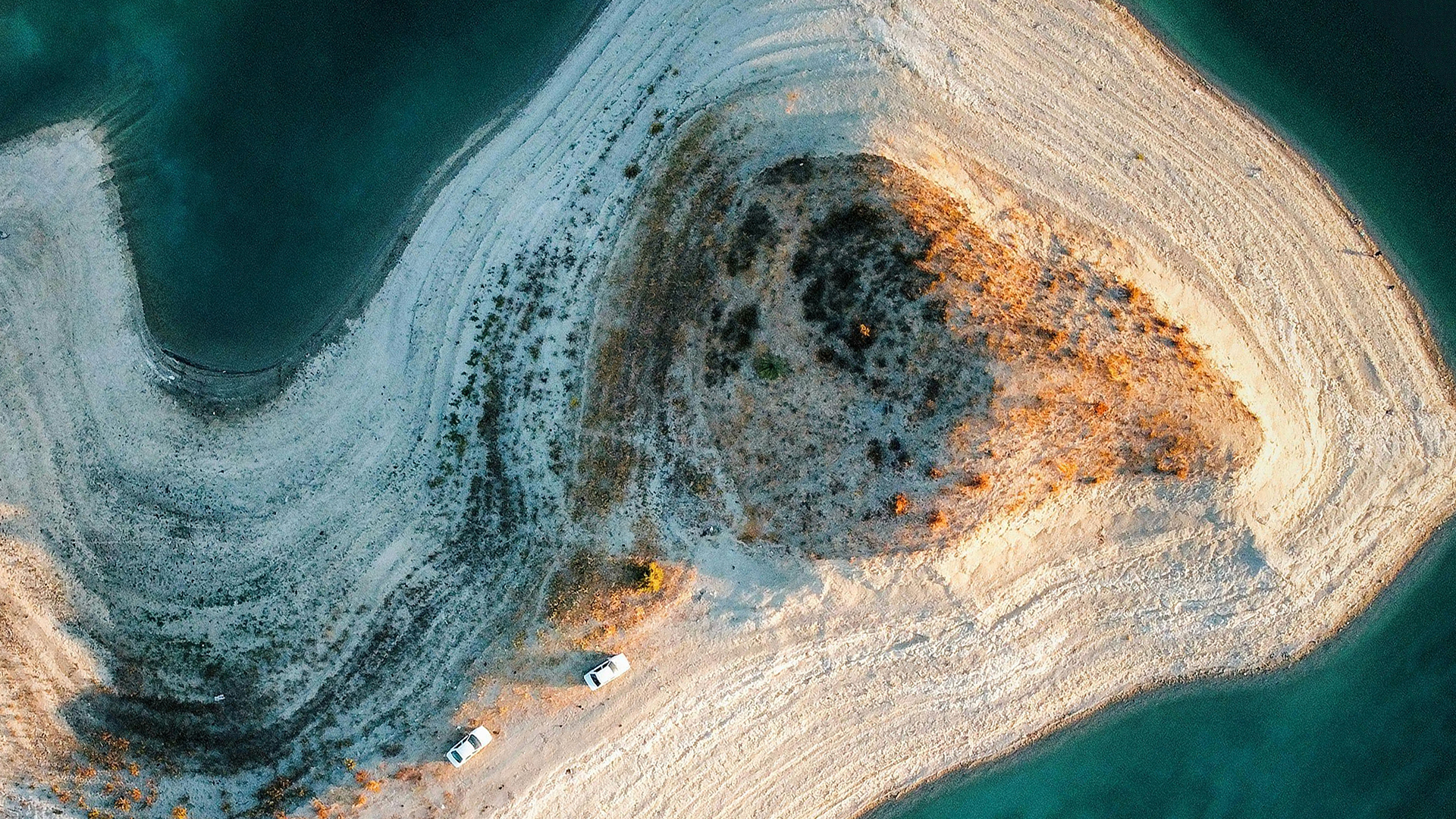

Download Assets
This tutorial includes 1 sample image, 1 sample PSD and 1 PDF guide. Downloads are free with a PHLEARN account.
- Download the sample images and PSDs from every free tutorial on PHLEARN
- New free tutorials published every week
- One free account — sign up once, then download anything
Free PDF Guide · 3 Pages
This Tutorial as a Step-by-Step PDF
Every step from the video in order: Image > Image Rotation for the whole canvas, Flip Canvas Vertical and Horizontal, Cmd/Ctrl+J then Cmd/Ctrl+T for a single layer, the rotate and flip buttons in the contextual taskbar, typing 45 degrees, and the right-click menu. Keep it next to your keyboard.
description
Flip and rotate images in Photoshop and there are two different operations hiding behind one idea: the canvas, and the layer. In this tutorial, we’ll show you how to rotate and flip your entire canvas as well as individual layers. You’ll discover how to use the image rotation menu for whole-canvas changes and the transform tool for precise adjustments to specific layers, including custom degree rotations and scaling.
Enjoying This Free Tutorial?
We publish a new free tutorial every week, each one with sample images and PSDs you can download and follow along with. Sign up and they land straight in your inbox, along with early word on sales, events and subscriber-only offers.
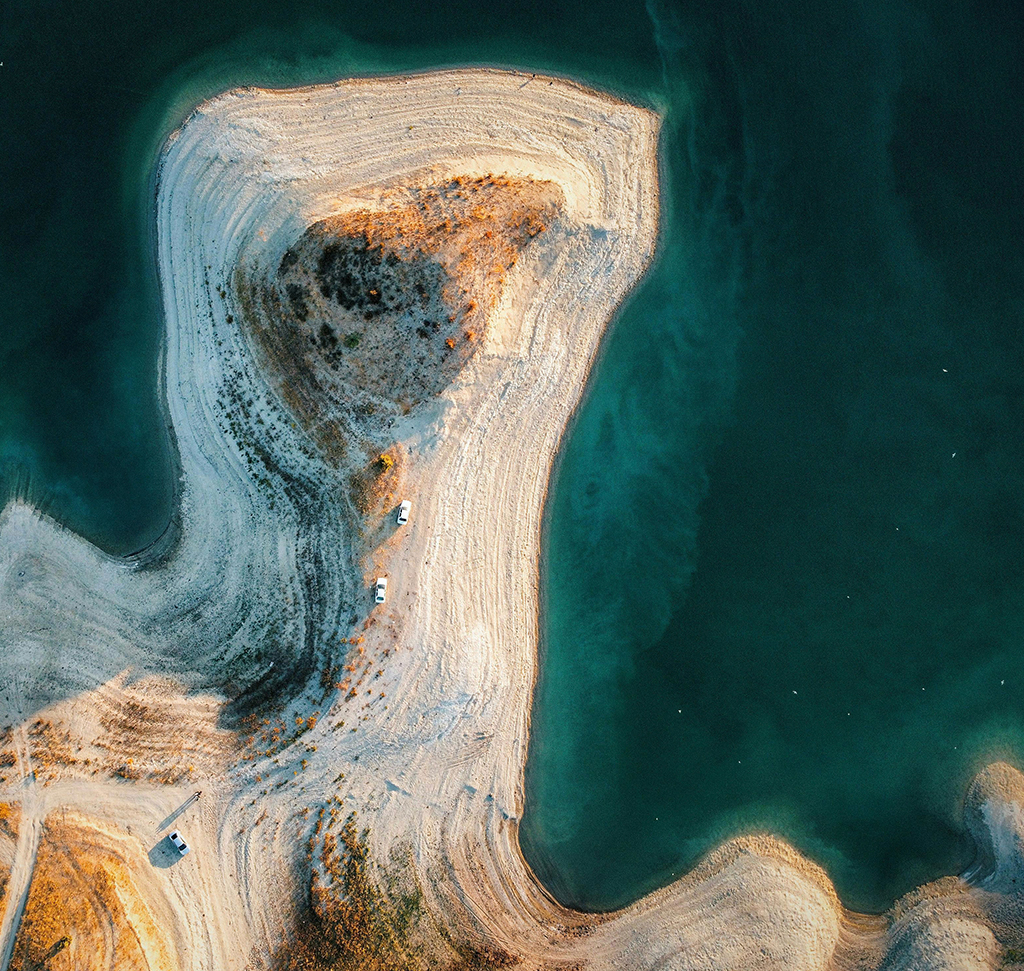
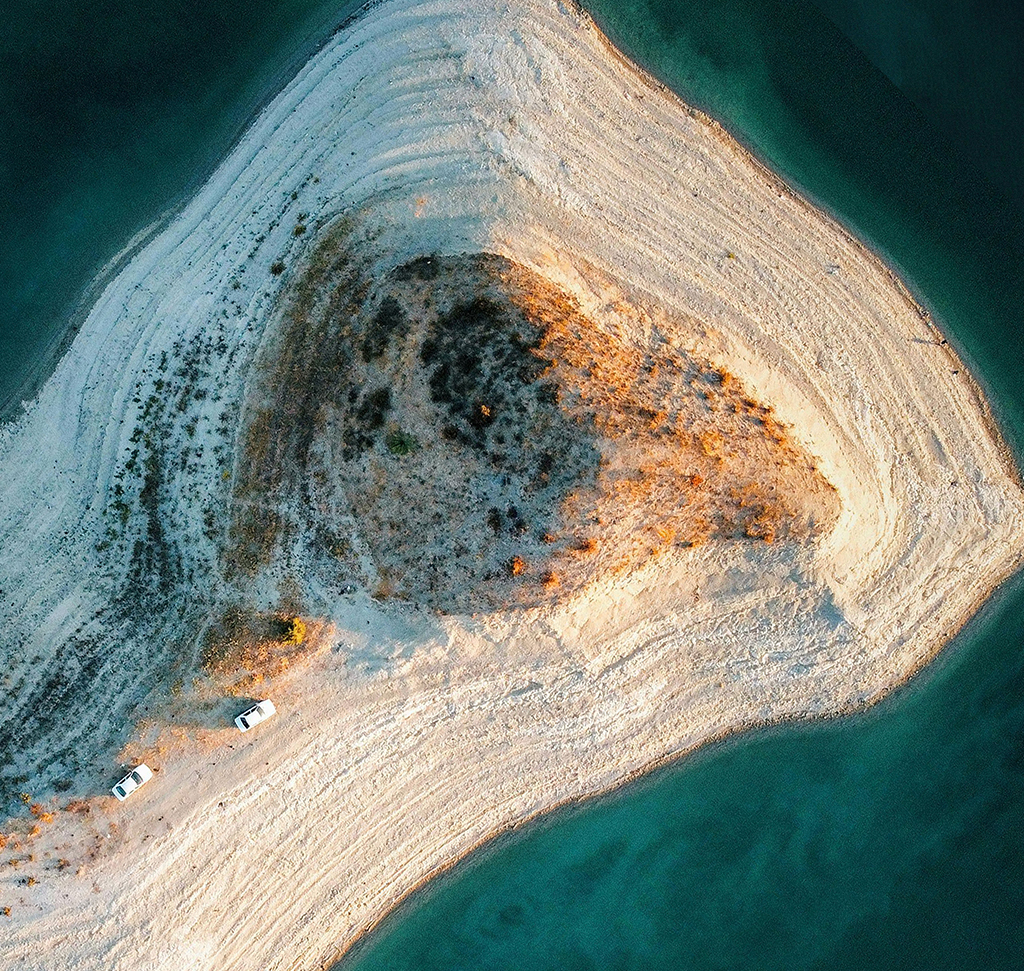
How to Flip and Rotate Images in Photoshop
Rotating and flipping look like the simplest operations in Photoshop, and they mostly are. The one thing worth getting straight is that there are two entirely separate ways to do it — one affects the whole document, the other affects a single layer — and reaching for the wrong one is the source of nearly all the confusion.

Two Different Jobs
Image Rotation turns the entire canvas. Every layer moves together, and the document itself changes orientation. Use it when the whole photograph is the wrong way round.
Transform affects only the layer you have selected. Everything else stays put. Use it when one element within a composition needs moving.
That is the whole distinction, and it decides which menu you go to.
Rotating the Whole Image
Go to Image, then Image Rotation. The options are:
180° — turns the image upside down.
90° Clockwise and 90° Counter Clockwise — for a photo shot in the wrong orientation. Note that the canvas dimensions swap, so a landscape file becomes portrait.
Arbitrary — type any angle and choose a direction. This is the one for correcting a slight tilt.
Flip Canvas Horizontal and Flip Canvas Vertical — mirror the whole document.
These are document-level operations, so they apply regardless of which layer is selected and cannot be applied to just part of an image.
Arbitrary leaves corners to fill
Rotating by anything other than a multiple of 90 degrees leaves empty wedges at the corners, because a rotated rectangle no longer fits its own frame. Either crop in slightly afterward, or select those areas and use Generative Fill with an empty prompt to extend the scene outward — the second option keeps more of your composition.
Transforming a Single Layer
Select the layer, then press Ctrl or Cmd + T for Free Transform. A bounding box appears with handles.
Rotating by hand
Move the cursor just outside a corner handle until it becomes a curved double arrow, then drag. Hold Shift while dragging to snap to 15-degree increments, which is the easy way to land on exactly 45 or 90.
Typing an exact angle
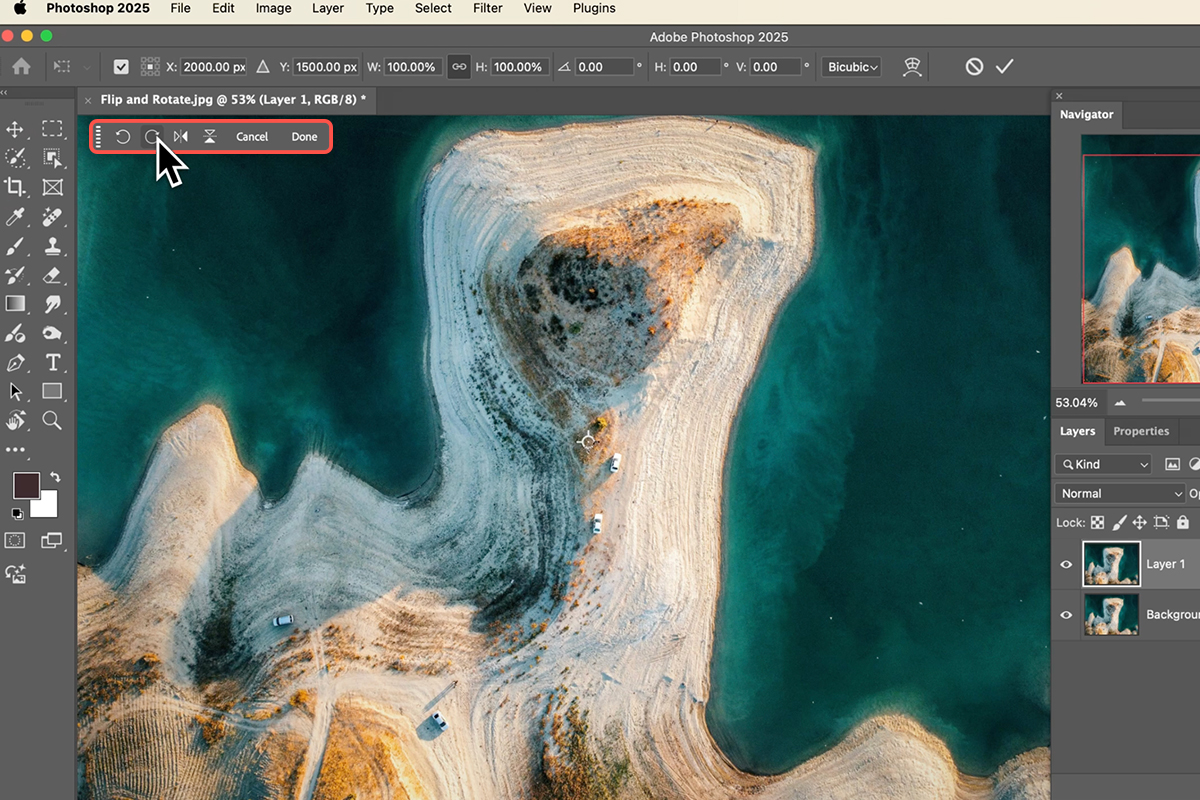
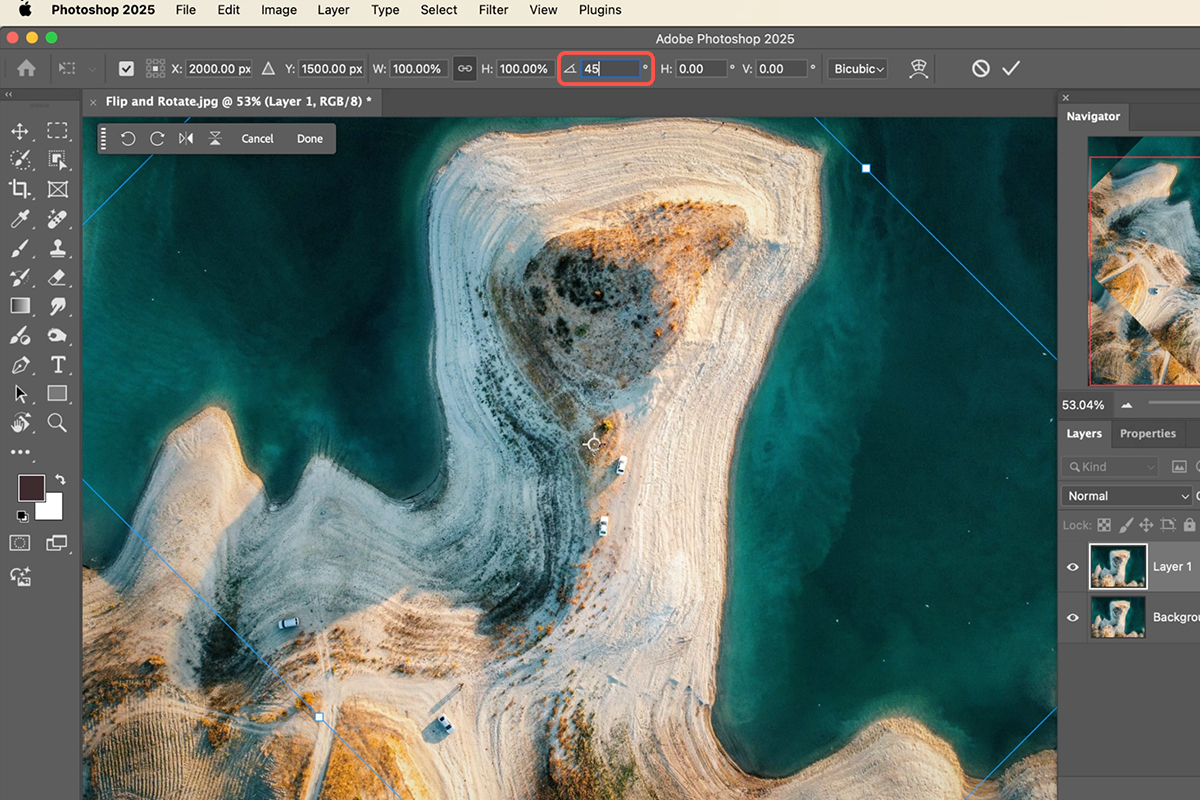
With Transform active, the contextual task bar gives you numeric fields — width, height and a rotation angle. Type a precise value such as 45 rather than trying to drag to it. If the task bar is not visible, turn it on under Window, then Contextual Task Bar.
The right-click menu
With Transform active, right-click inside the bounding box for the full list: Rotate 180°, Rotate 90° Clockwise, Rotate 90° Counter Clockwise, Flip Horizontal and Flip Vertical — the same operations as Image Rotation, but applied to this layer alone.
Press Enter to commit, or Escape to cancel.
Moving the pivot point
By default a layer rotates around its center. The reference point can be moved — the small grid in the options bar sets which corner or edge acts as the anchor — which is useful when something should swing from one end rather than spin in place.
Rotating the View Instead
Worth knowing because it solves a different problem entirely. Press R for the Rotate View Tool and drag, and the canvas spins on screen without altering a single pixel.
This is for comfort while working — turning the image to a natural angle before painting a difficult stroke or masking a curved edge, the way you would turn a sheet of paper. Press R and hold Shift, or use Reset View, to snap back upright.
Because nothing is actually transformed, there is no quality cost and nothing to undo.
Straightening a Crooked Horizon
Rather than guessing an arbitrary angle, let Photoshop measure it.
-
Select the Ruler Tool
It is nested with the Eyedropper.
-
Drag a line along something that should be level
A horizon, a windowsill, the edge of a table.
-
Click Straighten Layer in the options bar
Photoshop calculates the angle and rotates to correct it.
The Crop Tool has an equivalent straighten function that rotates and crops in one step, which is often the tidier option since it deals with the empty corners at the same time.
When Not to Flip
Flipping is genuinely useful for composition — reversing an image so a subject looks into the frame rather than out of it, or mirroring an element for symmetry. But there are cases where it will cost you.
Anything containing text
Signage, packaging, book spines, logos and watermarks all become mirror writing. It is obvious the moment somebody notices, and easy to miss while you are focused on composition.
Faces and familiar places
Faces are not symmetrical, and people are often unsettled by a mirrored portrait of someone they know without being able to say why. The same applies to recognisable buildings and landmarks — a flipped skyline reads as wrong to anyone familiar with it.
Things with an inherent handedness
Watches on the wrong wrist, buttons on the wrong side of a shirt, steering wheels on the wrong side of a car, instruments strung backwards. Worth a quick scan before committing.
Protecting Quality
Every free rotation resamples the pixels, so rotating a layer repeatedly degrades it slightly each time. Multiples of 90 degrees and flips are lossless, since they only reorder existing pixels.
If a layer is going to be rotated and adjusted more than once, convert it to a Smart Object first. Photoshop then reapplies the transform from the original data each time rather than compounding the damage, and the rotation stays editable indefinitely.
Choosing Quickly
Whole photograph the wrong way round — Image, then Image Rotation. One element inside a composition — Ctrl or Cmd + T. Just want a better angle to work at — press R, and change nothing at all.
Quick Reference: Keys, Menus and Settings
- Whole image (every layer)Image > Image Rotation > 90° Clockwise, 90° Counter Clockwise, 180°, Arbitrary, Flip Canvas Horizontal, Flip Canvas Vertical
- One layer onlyClick the layer, Cmd/Ctrl + T, then the rotate and flip buttons in the contextual taskbar (or right-click > Rotate 90° / Flip Horizontal / Flip Vertical)
- Any angleWith Transform active, type the degrees in the options bar (45 in the video); drag W or H to scale; Enter
- Duplicate firstCmd/Ctrl + J to keep the original layer untouched
- Missing taskbar?Window > Contextual Task Bar
Image Rotation moves every layer at once; Transform moves only the selected one.

Free Downloads
Follow Along on the Same Photo
Get the aerial photo from the video, the PSD with the rotated and flipped layers, and the PDF guide. Free with a PHLEARN account.
Flip and Rotate: Common Questions
How do I rotate the whole image in Photoshop?
Image > Image Rotation, then 90° clockwise, 90° counter clockwise or 180°. It turns the canvas and every layer in it.
And flip it?
Same menu: Flip Canvas Horizontal or Flip Canvas Vertical. Again, every layer flips together.
How do I flip or rotate just one layer?
Click the layer, press Cmd/Ctrl+T and use the rotate and flip buttons in the contextual taskbar. Right-clicking inside the transform box gives the same options. Only that layer changes.
Can I rotate by an exact angle?
Yes. With Transform active, type the angle in the options bar (the video uses 45), then drag the width and height fields to scale the layer to fit, and press Enter.
Why did both my layers flip?
You used Image Rotation, which always affects the whole document. For a single layer, use Transform.
I don’t see the rotate buttons. Where are they?
Turn on the contextual taskbar under Window, or right-click inside the transform box for the same commands.
Are the sample files free?
Yes, with a free PHLEARN account. You get the aerial photo, the PSD with the rotated and flipped layers, and the PDF guide.
Master Photoshop, Lightroom and Photography
Join PHLEARN PRO for $12.99 a month or $99.99 a year. Cancel anytime, with a 100% money-back guarantee.





