

Use Depth Masking in Camera Raw to isolate subjects from the background. Master non-destructive Smart Objects, targeted exposure adjustments, and realistic lens blur to enhance focus.
Free practice files
Practice Files for This Tutorial
The sample image, the layered PSD and the 4-page PDF guide from the video, so you can follow every step on the same files.
This tutorial includes 1 sample image, 1 sample PSD and 1 PDF guide.


Create a free PHLEARN account to download, or log in if you already have one. One account gets you the files for every free tutorial.
description
Enjoying This Free Tutorial?
Image Source


Separate Foreground From Background With Depth Masking
The single biggest difference between a snapshot and a finished photograph is usually that someone decided where the eye should go. Edit the whole frame at once and everything gets brighter or warmer together, which changes nothing about hierarchy. Edit the subject separately from what’s behind them and the picture suddenly has direction.
Camera Raw’s Depth Range masking makes that separation almost trivial. It reads the physical distance in the scene rather than colour or brightness, so you can click the subject and get everything at that depth — regardless of what colour they’re wearing or how busy the background is.
What Depth Masking Does Differently
It Reads Distance, Not Colour
Luminance and colour masks fall apart when a subject wears something the same shade as the wall behind them. Depth doesn’t care — it builds a map of how far each part of the scene is from the camera and selects a slice of that.
It Handles Messy Edges Without Trying
Because it’s working in three dimensions rather than tracing an outline, hair, foliage and semi-transparent edges tend to fall out correctly without any edge refinement at all.
Two Masks, Opposite Directions
The real power is having a subject mask and a background mask on the same image. Lift one, drop the other, and you’ve built separation that no global adjustment can produce.
Set Up Non-Destructively
-
Convert to a Smart Object
Select your background layer and convert it for Smart Filters. Everything you do in Camera Raw then lives as an editable filter you can reopen and change at any point.
-
Open the Camera Raw Filter
Filter > Camera Raw Filter, or Cmd/Ctrl + Shift + A. It works on JPEGs as readily as raw files.
-
Choose Masking > Depth Range
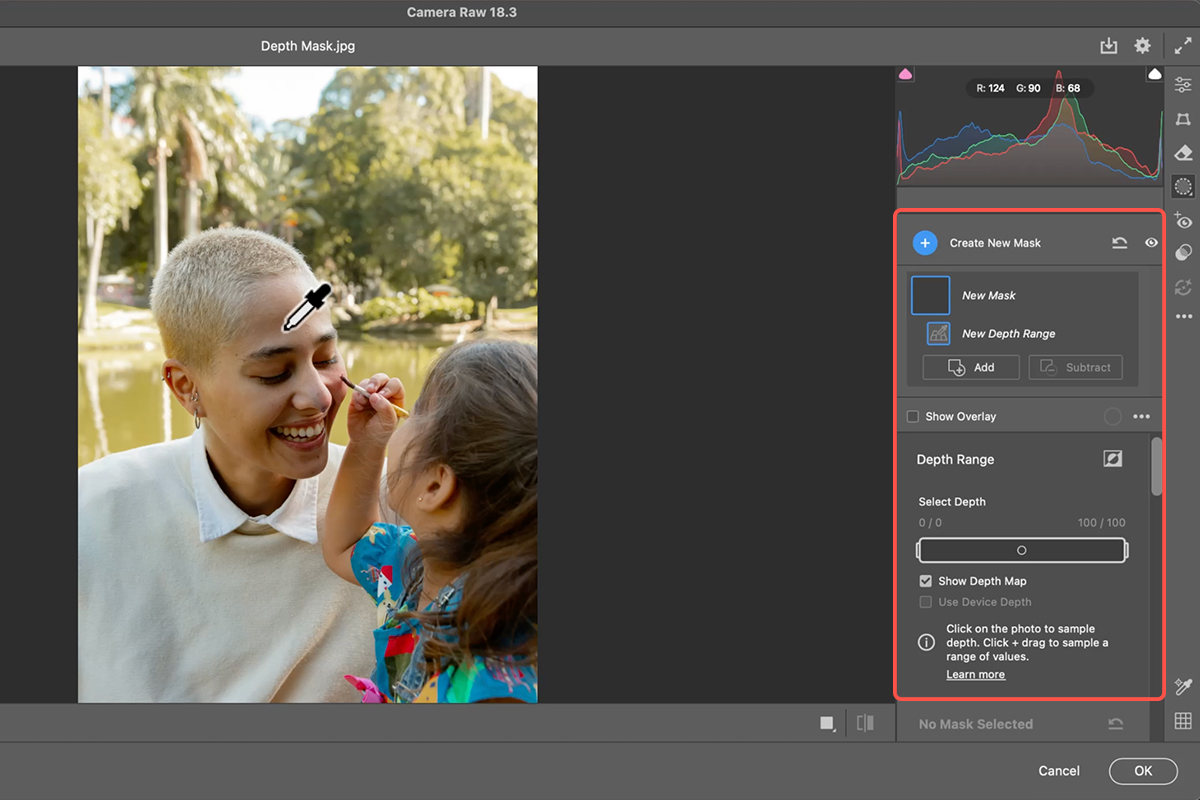
Open the Masking panel on the right and pick Depth Range under the Range options. Your cursor becomes an eyedropper and Photoshop builds a depth map of the scene.
Pick Your Plane
-
Click the Subject or the Background
Click your subject to select everything at their distance from the camera, or click behind them to target the environment instead. The depth slider then expands or tightens how much of that plane the mask covers — widen it to include a bit of ground the subject is standing on, or narrow it to isolate them cleanly.
-
Turn Off the Overlay Before Judging It
The coloured depth map makes the selection legible but hides your actual tones. Switch it off before making any adjustment — you cannot evaluate exposure through a red overlay, and this is where most people go wrong.
Lift the Subject
Small moves. The goal is separation, not a spotlight.
-
Exposure and Shadows
Brighten the subject slightly and open the shadows to recover detail that was sitting flat. A quarter of a stop is often enough to change where the eye lands.
-
Texture and Clarity
A little of each makes the subject read as crisper than their surroundings. Clarity affects mid-tone contrast and Texture affects fine detail — on skin, lean on Texture and go easy on Clarity, which can get harsh fast.
-
Build a Second Mask for the Background
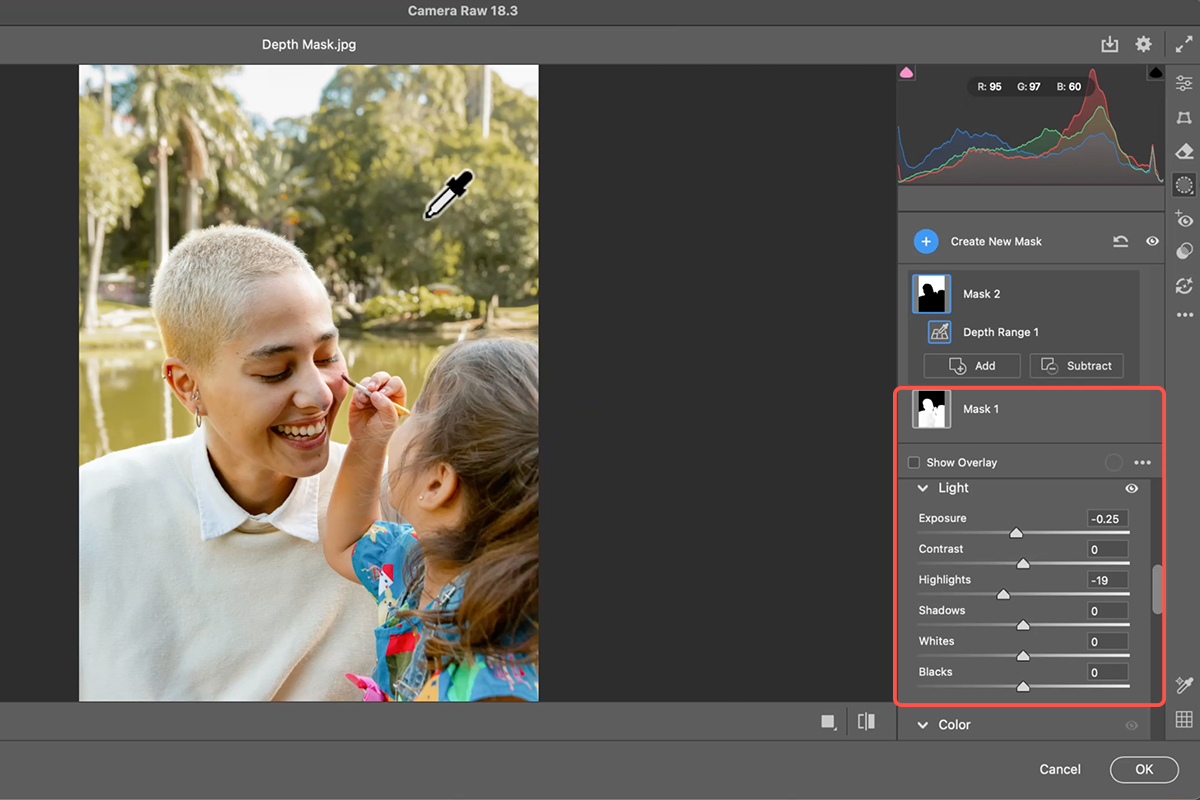
Create another Depth Range mask, this time clicking behind the subject. Lower its exposure a touch, and use the Point Color tool to pull specific hues down if a colour back there is competing for attention. Our free Point Color walkthrough covers that tool properly.
Direct the Eye
With the two planes separated, these last moves are about focus in both senses of the word.
-
Radial Gradient on the Face, Vignette on the Edges
Add a Radial Gradient over your subject’s face and lift it slightly. Then, under Optics, slide the vignette to the left to darken the frame edges. The two work as a pair — brighter centre, darker perimeter, without either being noticeable on its own.
-
Lens Blur With the Subject Targeted
Open Lens Blur, click apply, and use the target tool on your subject. The background softens while they stay sharp, which is the optical version of the separation you just built tonally.
-
Grain, Then OK
Add a hint of grain from the Effects panel. Synthetic blur is unnaturally smooth, and grain over the top is what stops it reading as a filter. Click OK to return to Photoshop with everything still editable.
Where Depth Masking Struggles
Flat Scenes
If your subject is pressed against a wall there’s no depth difference to find. Depth masking needs actual distance between planes — on a flat scene, use Select Subject instead. Our free guide to isolating subjects and cleaning up edges covers that route.
Something Beside the Subject at the Same Distance
Depth selects a plane, not a person. Anything standing alongside your subject comes with them. Narrow the depth slider, or subtract from the mask with a brush.
Overcooking the Separation
Lifting the subject two stops and dropping the background two stops produces something that looks composited rather than photographed. If a viewer notices the separation, it’s too much.
Why Separation Beats Brightness
People reach for exposure when an image feels flat, and often the problem isn’t that it’s dark — it’s that everything in the frame has the same visual weight. Brightening all of it keeps that problem exactly where it was.
What actually creates depth in a photograph is difference: the subject a little brighter and sharper, the background a little darker and softer. Depth masking is just the fastest way to draw the line between those two things so you can treat them separately.
Run It on a Portrait
Smart Object, Camera Raw, Masking > Depth Range, click the subject, lift exposure and texture, second mask on the background going the other way, then radial gradient, vignette, Lens Blur and grain. Download the free sample image and PSD to follow the exact edit — then try it on a photo with real depth to it, a street shot or an environmental portrait, where the tool has the most to work with. For the wider portrait workflow, our PRO Natural Light Portrait Editing course carries it further.
Quick Reference: Keys, Menus and Settings
- Set upFilter > Convert for Smart Filters, then Filter > Camera Raw Filter
- Depth maskMasking > Range > Depth Range, then click the image with the eyedropper (foreground or background)
- See and shape itShow Depth Map on; drag the range and feather to take in more or less
- Subject maskExposure and Shadows up; Effects > Texture and Clarity a little
- Background maskCreate New Mask > Depth Range on the background; Highlights and Exposure down, Color temperature and tint, Point Color with the eyedropper (variance up)
- Light on the facesCreate New Mask > Radial Gradient, drag it out, Exposure up a touch
- FinishBack in the main panels: Optics > Vignette, Lens Blur > Apply (click the faces with the focus target, keep the amount low), Effects > Grain
- Edit again laterDouble-click Camera Raw Filter under the Smart Object; the eye toggles the before and after
Mac first, then Windows where they differ.
Image source
Photo by Fellipe Ditadi via Unsplash

Free Downloads
Follow Along on the Same Photo
Get the sample image, the PSD with the Camera Raw Smart Filter and all three masks, and the PDF guide. Free with a PHLEARN account.
AI Depth Masking: Common Questions
What is depth masking?
Camera Raw uses AI to work out the three-dimensional space of a photo, so you can select by distance: the people in the foreground or the trees behind them. Then any adjustment you make affects only that plane.
Where is it?
Inside the Camera Raw Filter: Masking, then Range, then Depth Range. Convert the layer for Smart Filters first (Filter > Convert for Smart Filters) so you can come back and change everything later.
I turned on Depth Range and nothing happened. Why?
You have to click the photo. Hover over the image, the cursor becomes an eyedropper, and clicking the foreground selects the subjects while clicking the background selects the background. Turn on Show Depth Map to see what you’ve got.
Can I take in more or less of the scene?
Yes. With the depth map showing, drag the range and feather sliders to widen the selection or narrow it down to just the faces.
What did you change on the subjects?
Exposure and shadows up a little, then a touch of texture and clarity in Effects so they’re slightly sharper than the background. Toggling the mask off and on shows how much that alone does.
And on the background?
A second depth mask on the background: highlights and exposure down slightly, a green tint and warmer temperature for the washed-out greens, more saturation, then Point Color with the eyedropper on the foliage to shift the hue, saturation and luminance. Raising variance keeps the greens from all becoming one color.
What’s the finish?
A radial gradient mask with a subtle exposure lift on the faces, then back in the main panels a vignette in Optics, Lens Blur with the focus target on the subjects and the amount kept low, and a little grain so the blur looks natural.
Can I change it afterwards?
Yes. Because the layer is a Smart Object, Camera Raw Filter sits under it as a Smart Filter. The eye icon toggles the before and after, and double-clicking the filter reopens Camera Raw with every mask and slider still there.
Are the sample files free?
Yes, with a free PHLEARN account. You get the sample image, the PSD and the PDF guide.
Master Photoshop, Lightroom and Photography
Join PHLEARN PRO for $12.99 a month or $99.99 a year. Cancel anytime, with a 100% money-back guarantee.