

THIS COURSE INCLUDES
- 10 Lessonsin 2 sections
- 4h 30mof 4K video
- Advancedfor experienced editors
- 36 Sample Images29 JPEGs + 7 RAW files
- 16 Layered PSDsto follow along
- Captionsand chapters on every lesson
Part of a Learning Path
Join PHLEARN PRO for instant access to this course and every tutorial on PHLEARN.
- Stream in up to 4K on any device
- Closed captions and chapters on every course
- Download all sample images and PSDs
- New PRO tutorials every month
- Cancel anytime
Description
Non-destructive editing in Photoshop means you can change your mind at any stage of an edit and always get back to the original photograph, and this ultimate guide teaches the complete professional workflow behind it. Across ten sections you will learn layered files, smart objects, the RAW pipeline from Lightroom to Photoshop and back, layer masks, blend modes and Blend If, adjustment layers, every tool on the toolbar used non-destructively, smart filters, and the Camera Raw Filter, then bring it all together in a final project.
Everything is built on real images with the exact assets from the videos: 29 JPEGs, 7 RAW files, and 16 layered PSDs, so you can open any project, toggle every layer, and see precisely how a safe, flexible edit comes together.
What You’ll Learn
- Edit without ever damaging the original photo always undoable
- Master smart objects and adjustment layers the flexible toolkit
- Move between Lightroom RAW and Photoshop and back, losslessly
Table of Contents
-
01 - Layered Workflows14:32m
-
02 - Smart Objects24:24m
-
03 - Adobe Camera RAW27:29m
-
04 - Layer Masks27:37m
-
05 - Blending Modes40:03m
-
06 - Adjustment Layers41:13m
Course Downloads
Streamline Your Workflow

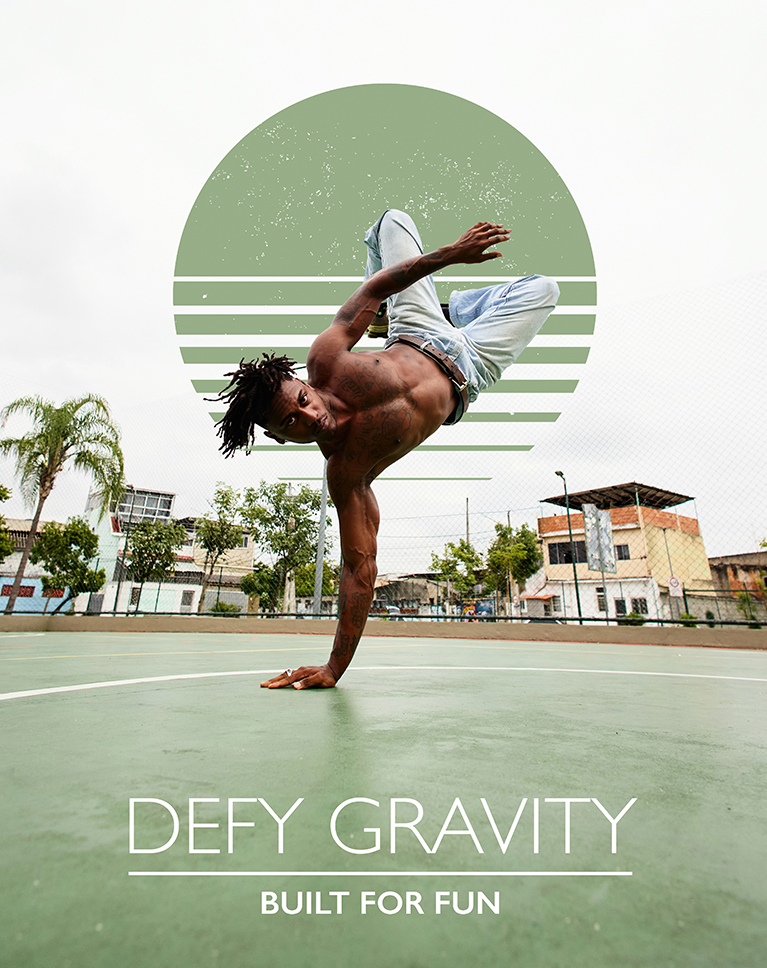
Non-Destructive Editing in Photoshop: The Unbreakable Blueprint
The course opens by comparing a flattened JPEG with a fully layered PSD of the same portrait. You will see how every change, from a Generative Expand to a Curves adjustment, lives on its own layer or group, how naming and color-coding keep a complex file readable, and why the original always sits untouched at the bottom of the stack. Then you will save the PSD and export a compressed JPEG so you always have both.
Smart Objects
A smart object, the foundation of non-destructive editing in Photoshop, is a container that holds your original pixels, so anything you do to the container never touches what is inside. You will place a logo as a smart object, blur it with an editable smart filter, open the source to adjust it, recolor it with a Color Overlay, mask it behind a dancer with Select Subject, and even edit the text inside a placed PSD, all without a single destructive step.
The Professional RAW Pipeline
RAW files are the ultimate digital negative. You will open a DNG straight into Camera Raw, set the workflow to ProPhoto RGB, 16-bit, and Open as Smart Object so you can re-enter Camera Raw at any time, then run the same image through Lightroom Classic with Edit In > Open as Smart Object, add a Lens Blur, and save a layered TIFF that lands right back in your catalog.


Layer Masks
Masking is the ultimate tool for non-destructive editing in Photoshop: hide and reveal instead of delete. Using a portrait of three friends, you will replace the sky with Select Sky, blend in clouds with the Screen blend mode, unlink masks so layers move freely, copy a mask from one layer to another with an Alt-drag, mask an entire group at once, and clip two gradients to a logo so the color stays editable.
Blend Modes & Blend If
A lakeside camping scene becomes a starry night as you expand the frame with Generative Expand, drop in star photos, and tour every blend-mode category to see why Screen, Multiply, and Soft Light do most of the work. Then a portrait gets a vintage look from a Solid Color fill at Screen, paper textures at Multiply and Screen, and a Grain adjustment layer, with Levels smart filters tuning how much of each layer shows.
Adjustment Layers
This section demystifies adjustment layers, the workhorse of non-destructive editing in Photoshop, by applying the same Brightness/Contrast and Hue/Saturation three ways: baked into a regular layer, as smart filters on a smart object, and as adjustment layers with their own masks. You will clip Levels and Color Balance to a fog layer, paint gradients on masks, recolor a jacket with Hue/Saturation, and finish with a rundown of what every adjustment in Photoshop is actually for.

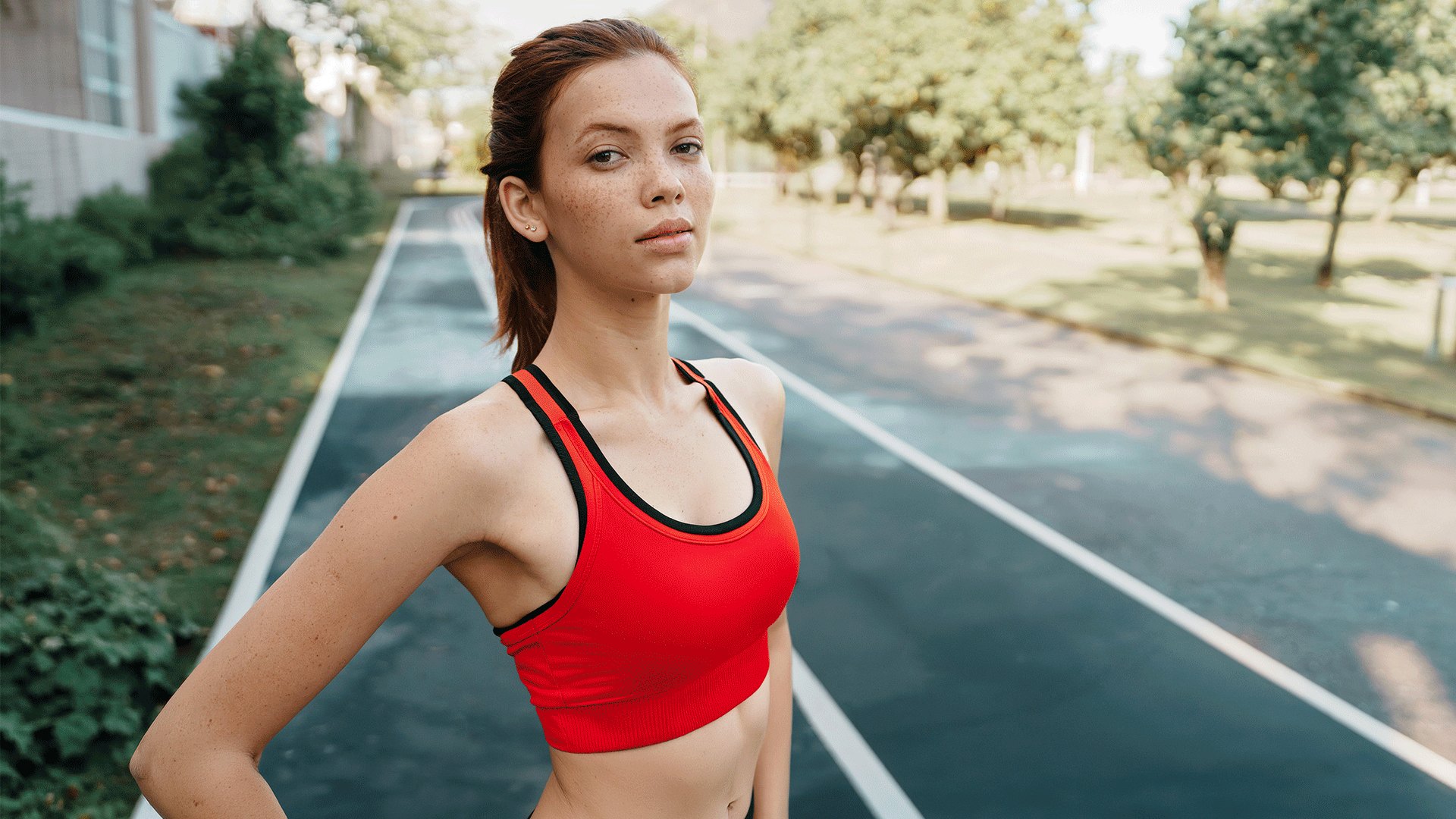
The Non-Destructive Toolbar
Every tool can be part of non-destructive editing in Photoshop, and this section walks the whole toolbar to show you how. On a runner photographed at a busy track you will scale a smart object down to 5% and back to 100% with no loss, use the Selection Brush and Generative Fill to change her top and clear the crowd, crop with Delete Cropped Pixels off and Generative Expand on, then compare the Clone Stamp, Spot Healing Brush, Healing Brush, and Remove Tool on new layers with Sample All Layers. The new Gradient tool adds a fully editable vignette to finish.


Object Placement in Perspective
To mock up artwork on a wall you will fill a selection with white, convert it to a smart object before any transform, and drag its corners into perspective. Open the container and drop in as many pieces of art as you like, then tint the white with Levels output and channel sliders and add a subtle Gaussian Blur so the print matches the photo. Swap the art or re-transform the frame at any time with zero quality loss, which is non-destructive editing in Photoshop at its most practical.
Smart Filters & the Camera Raw Filter
Convert for Smart Filters first, then every filter becomes editable, maskable, and deletable, which is non-destructive editing in Photoshop at its most flexible. The Camera Raw Filter is the master filter, the full power of Lightroom inside Photoshop: you will work through Light, Color, Effects, Curves, Color Grading, Optics, and Lens Blur, then use AI masks (Select Subject, Select People, Natural Ground, radial gradients) to relight a backlit portrait and come back later to change any of it.
The Final Project
Everything comes together on a campfire scene: shift the time of day to sunset with Generative Fill, fade it in with a mask, match the foreground in Camera Raw, expand the frame, place a text logo and icon as smart objects, build a white border from a shape and a fill layer, and unify the composite with a radial light, Lens Blur, and grain, all organized into color-coded groups.

AI Tools, Non-Destructively
Generative Fill, Generative Expand, and the Remove Tool all create their results on new layers, so they fit non-destructive editing in Photoshop naturally, which makes them a natural fit for non-destructive editing in Photoshop. You will learn when each one is the right choice, how to keep AI results separate from the source with Sample All Layers, how credits work across Firefly and other models, and how to fade or mask any generated area so the original photo is always one click away.
Save, Export & Share
A safe workflow ends with two files: the layered PSD (or TIFF for other apps) that holds every editable layer, and a compressed JPEG from Export As for social media or print. You will build this habit from the first section and see how Lightroom’s Synchronize Folder keeps your layered files, exports, and originals together in one catalog.
Included Files & Next Steps
This guide to non-destructive editing in Photoshop includes 29 sample JPEGs, 7 RAW files, and 16 layered PSDs, so every project can be opened and studied layer by layer. To stay current with the tools used here, continue with Master Photoshop & Lightroom 2026, which covers every new feature released in both apps.

Class Instructor
Aaron Nace
PHLEARN Founder & Lead Instructor
Aaron Nace is a photographer, digital artist, and the founder of PHLEARN. Since 2011 he has taught millions of people to edit with confidence in Photoshop and Lightroom, on YouTube and in PHLEARN PRO, and he has been a featured speaker at Adobe MAX for more than eight years.
Every PRO course comes with the sample images and PSDs to follow along step by step, and Aaron adds new courses and free tutorials all year.
- 2M+YouTube subscribers
- 160M+video views
- 1,000+tutorials published
- 15years teaching Photoshop
The photographs in this course are stock images and the star and texture photos come from Unsplash; every JPEG, RAW file, logo, and layered PSD is included in your download.
Reviews
Master Photoshop, Lightroom and Photography
Join PHLEARN PRO for $12.99 a month or $99.99 a year. Cancel anytime, with a 100% money-back guarantee.






Thanks Aaron I have been looking for something to try to get back up to speed with some of the latest updates in Photoshop and this went a long way in filling that need. Four or five years ago I would have said I was an expert in Photoshop but the new stuff has been coming so fast it has been terribly to keep up. Thanks again for the Great Work. Yours, Michael
Aaron, Really enjoy your style of teaching and reinforcing steps and different methods to achieve the same results. DP
Great job! Thank you!
I love your instructions and I do understand the need to include AI. I do however just turn off your video when the 40 credit nano banana sky replacement begins. I am a CC member at a level with 25 credits. I do not need a 40 credit instruction. How many people who subscribe to your instruction as I have for several years have that many credits. I use CC regularly across all the programs. What I need from you is how to use those tools without AI. Again, I don’t have the credits to follow and copy your lessons now. I have loved them in the past but if AI is going to be your focus there is no need for me to subscribe. Thanks and will continue to subscribe…….for awhile.
Hey there! Thanks so much for being a long-time subscriber! We completely hear you.
Our goal is always to show you the most efficient ways to work, which often includes new AI tools, but we are fully committed to teaching the manual, “old school” methods too. Our team will reach out to you via email to see what you’re looking to learn so they can suggest some manual tools tutorials.
Excellent description. I thought I was working non destructively but I have now learned some new tools / ways. Thank You.
best teacher on photoshop by far. thank you for all your hard work and keep the tutorials coming
Fastening and educational. I thought I was familiar with Photoshop but often resulted in using some destructive actions. I now know how to work nondestructively. Thanks so much!
I used Photoshop in the past, took a break to focus on other tools, and began using again last year. I’ve learned a lot, especially through your guidance. I really enjoyed all the courses from PhLearn. Especially the part about Camera RAW was an eye opener, please keep tutorials like this coming. Thank you.
Great coverage and quick review of several nondestructive editing techniques, focusing on generative fill, smart objects and adobe camera raw. Useful hints for compositing.
Great refresher course with enough new nuggets to make it very worthwhile. If your like me and have got into the habit of flattening an image and moving on- Arron makes a great case for taking advantage of the Smart Object.
I have been using Photoshop for a few years now and have picked up so much more knowledge with these videos. Thanks Aaron