Episode Categories

How to Master Editing Colors using LAB Mode in Photoshop

Color, Photoshop Jan 21 , Episode 418

LAB Mode VS RGB Mode

It can be hard to pump up the colors in a photograph without making it look unnatural. In RGB mode, changing your colors in curves will also produce changes in brightness and exposure. To fix this, we can easily switch to LAB Mode by selecting it from the Image drop down menu.

LAB stands for Lightness, A Channel, B Channel. If you pull up a curves adjustment layer in LAB, you’ll see that your red, green, and blue channels have been replaced with Lightness, A, and B. Your A and B Channels ONLY affect the colors in your image, so you’re free to push them as much as you desire without messing up your exposure.

Once you’ve settled on colors you like, simply create a stamp visible layer by pressting Shift + Alt/Option + Command + E. You can drag this layer back into your RGB mode image and the incredible colors will stay the same. Try using this technique and post your re-colored images in the comment section below!
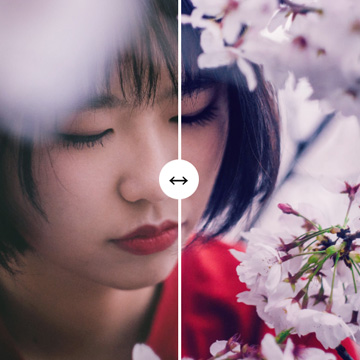
Before & After

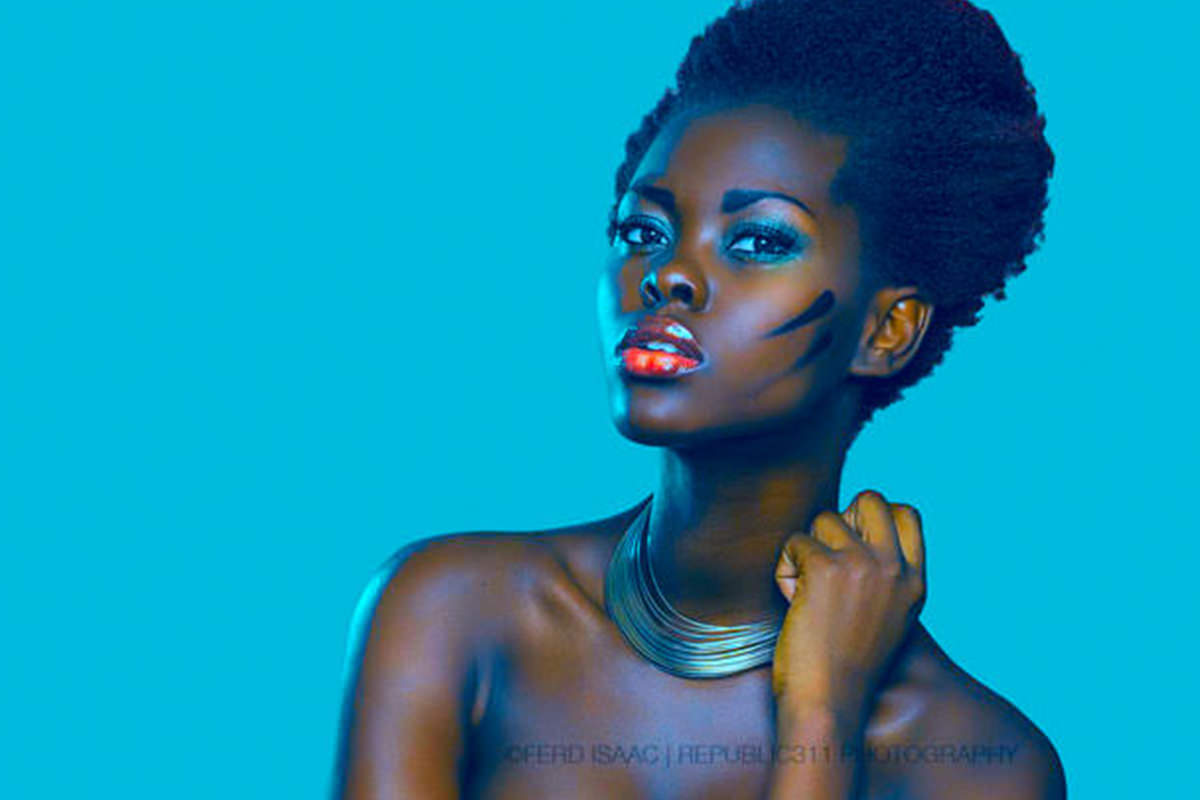
Thanks to Ferd Isaac for the perfect photo for this tutorial!

Before
After
  • http://www.facebook.com/profile.php?id=620905154 Ferd Isaac

    Totally made my day! Thank you so much! here’s my fb link to get a hold of me! -> https://www.facebook.com/republic311

  • Jay Stebbins

    Very Cool. I might experiment with simply working in LAB mode and exporting a finished project in RGB or what is needed for the final project. It seems to me LAB will be a much better way to adjust exposure when skin tones need to me exact as color on lightness are separated. When you are adjusting exposure otherwise it changes the skin to that odd orange hue. Just a thought.

  • http://twitter.com/Andersteibel Anders M

    Sweet. Looking forward to trying this out

  • http://www.facebook.com/profile.php?id=806184635 Ronen Segers

    Thanks Aaron, very cool.

    You can also use it in a smart object layer so you can always adjust it.

  • Spy Black

    It’s actually easier and more intuitive just working in RGB using adjustment layer processes and transforms setting the adjustment layer to COLOR or LUMINOSITY, as needed. I set my images to 16-bit-per-channel as well to eliminate any banding artifacts. Lab is too much a pain with dysfunctional controls. You’d think for instance that you could lock hi and lo settings so you stay sync’d in color when needed, instead of doing one, then the other in a, then the same thing in b, etc. The color and luminosity settings in adjustment layers completely negate the need to use Lab and allow you to work with color as you know it.

  • http://twitter.com/pdbym Matt

    Before and after of a shoot I did last year edited with this technique! Thanks a million! it was really cool to see the colors come out! I also used a level adjustment layer while in Lab mode! interesting effects! Very cool!!

  • Amarjot

    This was AWESOME! Thank you for this vid. Never used LAB before but will do for sure now!

  • Brycehughes

    I am in no way dissing this, and am going to give it a play. BUT, does this just fall under the ‘many ways to skin a cat’ umbrella that is PS? I.E Can’t you do the same thing with curves then use the blend mode colour so it only affects the colour and not mess with tones?
    Even if thats the case – I’m pumped Aaron brought this to all our attention/knowledge/toolkits

Episode Transcript

Aaron: Today I’m going to show you how to edit colors like a boss using LAB mode.

Hey guys! Welcome to PHLEARN. My name is Aaron Nace. You can find me on Twitter @aknacer. Today we are taking one of the big topics of Photoshop, color mode and demystifying. I’m going to show you guys some of the amazing things you can do with LAB mode versus RGB Mode. We’re editing Cherd Isaac’s image and he won last week’s contest on PHLEARN. You want to PHLEARN Pro, as well as getting your image edited on PHLEARN. If you guys want to have your image edited on PHLEARN as well as win some awesome prizes, make sure to enter our contest as we announce a huge one today with some of our amazing prizes. Check out more details down below.

All right, let’s get into this because we got a lot to do. When you first open an image on Photoshop, you’re usually going to see the RGB and eight up here. We have Untitled one, this is your zoom level and this is RGB, which is the color space or the color mode rather. Then we have 8, which is 8 bit. Now 8 bit is what I edit most of my images in, and for the most part I do edit in RGB as well. The majority of the work that I do is in RGB, but every now and then when you really want to do some work with your colors, it’s great to flip it into LAB mode. I’m just kind of show you what’s going with RGB and then we’ll show you guys something similar in LAB mode. Okay. Here we have our background image and I love it. It’s just an awesome shot and it’s perfect for this tutorial. What we’re going to do now is we’re going to create a new adjustment layer and I’m going up to curve. A lot of the color editing that I do in Photoshop is in curve. Let’s go ahead and full screen that. You can see with your curve adjustment layer … let’s just try this ...Here we go. You have your RGB right over here and then you have you Red, Green and Blue. RGB stands for Red, Green, and Blue. Now if you go into your different color channels, you can start actually moving these curves to produce different results in your images. You can see you are able to change colors relatively easily. If you want to reset, you can just go right ahead and hit that reset button. Let’s go to our red channel and start seeing, maybe if we’d lower the red … Red and cyan are opposite. If you lower the red, you’re going to put more cyan in your image. If you up the red, you’re going to be putting more red in your image.

You’re going to see pretty quickly though, if you start messing around too much with these colors, you’re going to start to see something that doesn’t look natural at all. Let’s go into our green channel, and I’ll kind of show you guys what I’m talking about there. You do get a nice color change in your image. I mean we can see here the colors are completely (chuckles) changed. It don’t look like the original colors at all; we can see that pretty easily. It doesn’t look like … it doesn’t look good, basically (chuckles). It looks like you’ve messed your image up. The reason is because in RGB mode, the different color channels actually combine to create the lightness as well. Red, green, and blue --- combine those three together create the lightness and the darkness. In editing each of those different channels, you are actually bringing up brightness and darkness in different parts of your image as well. You’re going to wind up in something basically that looks like this if you start messing around too much. Not perfect for LAB. Let’s just go ahead and full screen that out, hit full screen icon to do that. I’m going to make this invisible and I’m going to right click on my background layer and go to duplicate layer. We’re going to hit document and over here I’m going to go to new. Okay, so now we have a new document. It’s basically just a copy of the other one. What we’re going to do is go to image, down the mode, and I’m going to change this from RGB to LAB. All right, now it’s not lab, I know it looks like LAB but it stands for Lightness, A and B channels, three separate channels. It looks exactly same as the other image.

So far it’s like, “Okay, well, what’s the big deal here?” Now when you start to edit using curves or any kind of hue saturations, you’re going to see that instead of working with the RGB channels, you’re working with LAB, which separates out lightness from your colors, so you can do anything you want to your colors while keeping the light level the same. It gives you a lot more flexibility especially when you’re trying to do something like this. Again, let’s do the same thing. This is with LAB. We are going to go over here to our curve. Now what we’re going to see is, instead of RGB, we see lightness, we’re seeing A and we’re seeing B. Now if you change your lightness, it’s going to do again. Just change just how light or how dark something is but it’s going to leave the color completely alone. If you go to your A channel, you’re going to see this is starting to mess with colors and it can be a little bit confusing, so if you don’t get this right away, don’t worry about it. It’s a little advance, but the best thing to do is just go to your A channel, go to your B channel and start playing around. That’s the best thing to do. I’m going to click right here in the middle and start pulling down and we can see this is pulling more cyan into my image. If I go up it’s going to put a little bit more magentas into my image. Okay?

Let’s go to our B channel and look what that’s doing. Now the B channel: if we click and drag up, it’s going to add more yellow. If we click and drag down it’s going to add more Blue. So far not a huge difference from RGB, but now if we start actually play around with these and really start to push and pull them, you can see we’re able to edit colors very, very far but keep the lightness the same. You’re able to get crazy color adjustment on your image but it still looks like it has a dynamic range of the original photo, even if you’re doing absolutely insane things with your colors. I mean we’re getting nice red and yellow in our highlights now. Just a crazy amount of variation from the original but it still looks like it should, basically. It just looks like maybe you are really more creative with your gel. Now, compare that to something like this and you can pretty quickly see that using LAB mode to change your colors really can give you some of great advantages.

We’re going to use a couple of variations. Let’s just grab another curve adjustment layer and you can do really whatever you want here. I would leave the lightness pretty much alone, but your A and B channel, if you want to click and drag from the left to the right…there we go, on your input and output sliders, you can choose to kind of lower the dynamic range of your A channel, which is going to give you a certain type of look. You can also click the high point and the low point and bring those up together, which is going to give you more of a de-saturated look, depending on how far you go and you can see that there look a little bit more de-saturated. Whatever you really like to do is (chuckles), it sounds so imperfect. It’s like “oh, I like to do this, I like to do that”. Really what you are doing is changing your colors around, there’s no right or wrong at all, it’s totally preference at this point. This is not for preserving skin tones, by the way. This is … obviously, that does not look right. You can still get some pretty close. If you do pull one side of the curve up and it’s just way too much, grab the other side. If you split this down the middle and you have your left side and your right side, grab your right side and start dragging that down to create basically like a contrast and you start to even things out a little bit more. You can have a negative contrast or you can have positive contrast.

Either way you want to do it, but again it’s working with color here, not with lightness. All right, let’s go to our B channel and we can do basically the same thing. Let’s drag that down and drag this guy up here again. All right, here we go. Let’s say, “You know what, I like the green inner skin. If I pull this down too much we can get more blue inner skin, I like that green inner skin.” Let’s go back to our A channel and you can start to adjust things from there. It’s kind of like a back and forth thing. Don’t expect it to just click and drag it to the perfect place every single time, it’s going to take a little bit of kind of pushing and pulling and seeing what you like. Alright. Even something like that is kind of cool. For me, it’s just little bit too much but you can kind of see the power of using the A channel and the B channel instead of RGB.

All right. Now it looks very cool. Now, you can see the difference between these images…that one is a little bit more on the Blue side, this is one on the green side but we’re using complimentary colors, as well. We got green on the background and then ged in her skin. You can also combine them together to create different effects, again it kind of lower the capacity and get something that’s maybe a little bit more closer to the original but still a little bit of color variation in there. Let’s do one more and we’re going to call it. All right, let’s go back to our B channel and I just want to bring this guy in at a lot Yellow and then we’re going to put a little bit more Blue in the background. If you guys want a little extra bonus points this is actually really cool. Let’s just reset that. Instead of actually clicking and dragging around here because that can be a little bit confusing, let’s go to our A channel and grab this little hand tool right here ... it’s got a hand with up and down arrow. You can actually click anywhere on your image and drag up or down and it’s going to put either more Cyan or Magenta if you’re in the Blue channel, or Yellow and Blue if you’re in the B channel. All right. I said the Blue channel but I meant the A channel. There we go. Let’s click and drag that up and kind of even this out, maybe we’ll get a little bit more…there we go. Let’s go back to our B channel, I think I want that little bit of Yellow in my skin and maybe a little bit more Blue in my highlights. By using this little arrow here, I’m able to just click the different areas that I want and define what I actually want to be visible or not visible in that part of the image. It uses the specific color range of that image to get there. All right, maybe a little less blue here in the highlights.

There we go and let’s put a little bit less green in there, as well. Or maybe more of Green, I kind of like that and then here on the lips let’s just really bring that up. This is not local in the way that it’s not going to select out the lip. It selects out that specific color range that is similar to the lip. It’s not just like selecting the area I’m clicking. It just happens to be that’s color range. If it happens to be light or dark or different color ranges within the area where you’re clicking, not necessarily around the cursor, that can be a little bit confusing. We can see there a huge color adjustment, and we’ve got something that is really, really dynamic. I know that it’s not super natural. It’s actually super natural. It’s not actual natural. Let’s just grab this and put a little more blues to her skin. Here we go. Very, very cool effect. All the while, we’re maintaining the same lightness as we had before, and you can combine this effect in very interesting ways. There we go. I actually like that. I think that’s really, really cool.

We have the Before and After for this. If you’re using curve, you’re going to see very quickly you’re going to wind up with something that changes your light level. Using LAB is a great way to actually get those curves on. Now when you’re done with LAB, all you have to do is create a stamp visible layer. Hit Shift – Option – Command – E, which creates a stamp visible layer. Then what I do is I just bring this right in to my RGB. So stamp visible layer, hold down shift and with your move tool, just click and drag. Here we go. Let’s get rid of that guy. So now, we’re back in our RGB channel. We’re editing just like normal again. We have our other image. You can start editing just like you would normally edit right back again.

That’s it for today’s episode. Thanks so much for watching! I hope you enjoy using LAB. If you guys tried this out and you did some crazy work using colors, please submit it in the comment down below. I would love to see it. It works the best when you really do have lots of crazy colors in your image. Thanks so much for watching guys! I’ll return later. Bye everyone!

Free PRO Tutorial
Sign up for our newsletter and instantly receive a free PRO Tutorial!
Over 10,000 people
are already signed up.
Contest

Random Tips

Want to shoot on a micro level but don’t think you have a lens for it? Take a wide angle lens 18mm or so and hold it to your camera backwards, get close to the subject and control focus with your distance. You will have no aperture control so work exposure with ISO and shutter, but you will be now shooting with a micro scope!

aaron