Download Assets
description
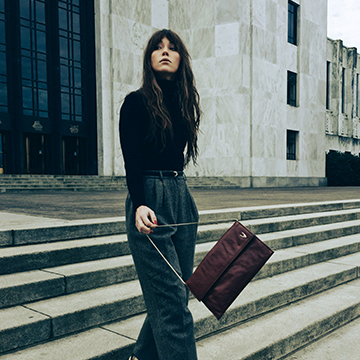
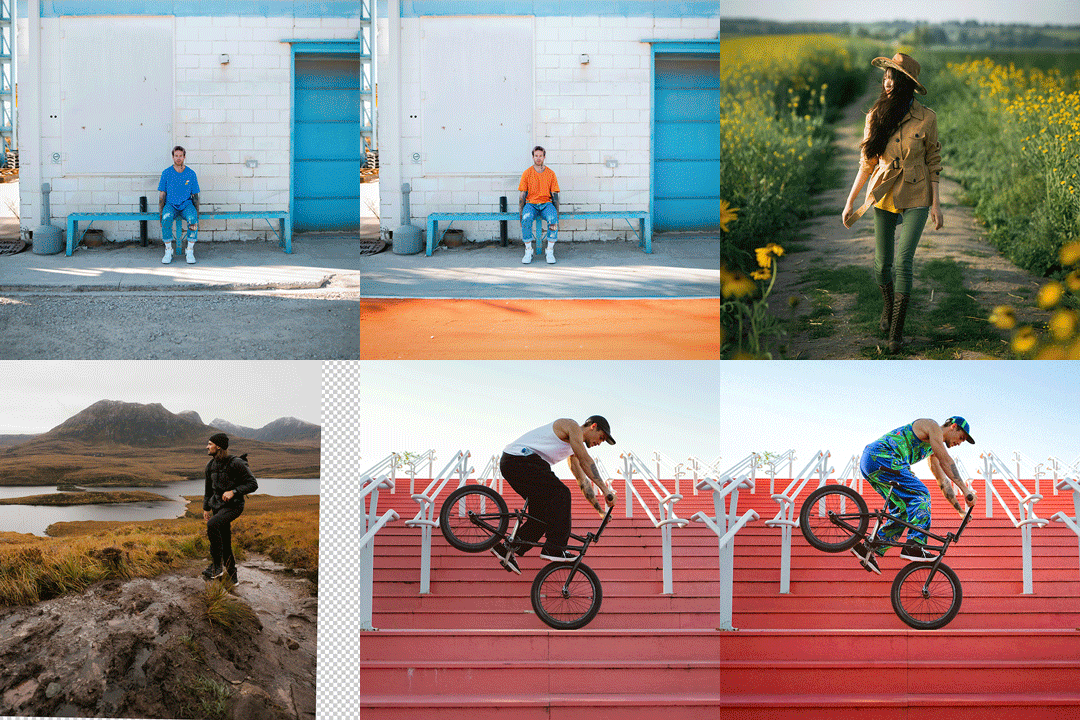
Learn how to perfectly color grade your images in a few easy steps! In this tutorial, we’re diving into the “hidden” power of the Camera Raw Filter right inside Photoshop. We’ll show you how to use professional color wheels to dial in your shadows, midtones, and highlights non-destructively.
Go PRO:
Dive deeper on non-destructive editing with our in-depth PRO tutorial The Ultimate Guide to Non-Destructive Editing in Photoshop . We’ll cover everything from mastering masks and smart objects to building an unbreakable raw pipeline, all while preserving your original image intact..
Image Source
- Daniel Snipes
Images sourced from Unsplash.
Share


AFTER
BEFORE
Your Color, Perfected.
Color grading is the fastest way to add an artistic, professional touch to your images. Instead of messing around with dozens of layers, we’re using one powerful, built-in tool to dial in a high-end look with total precision. It’s simple, effective, and will completely change how you handle color.
Getting Started
1. First things first: never edit on your background layer. Right-click your image and select Convert to Smart Object. This is the pro way to work because it unlocks Smart Filters, allowing you to jump back in and tweak your settings whenever you want. If you don’t do this, you’re stuck with your changes—and we don’t do permanent mistakes here.
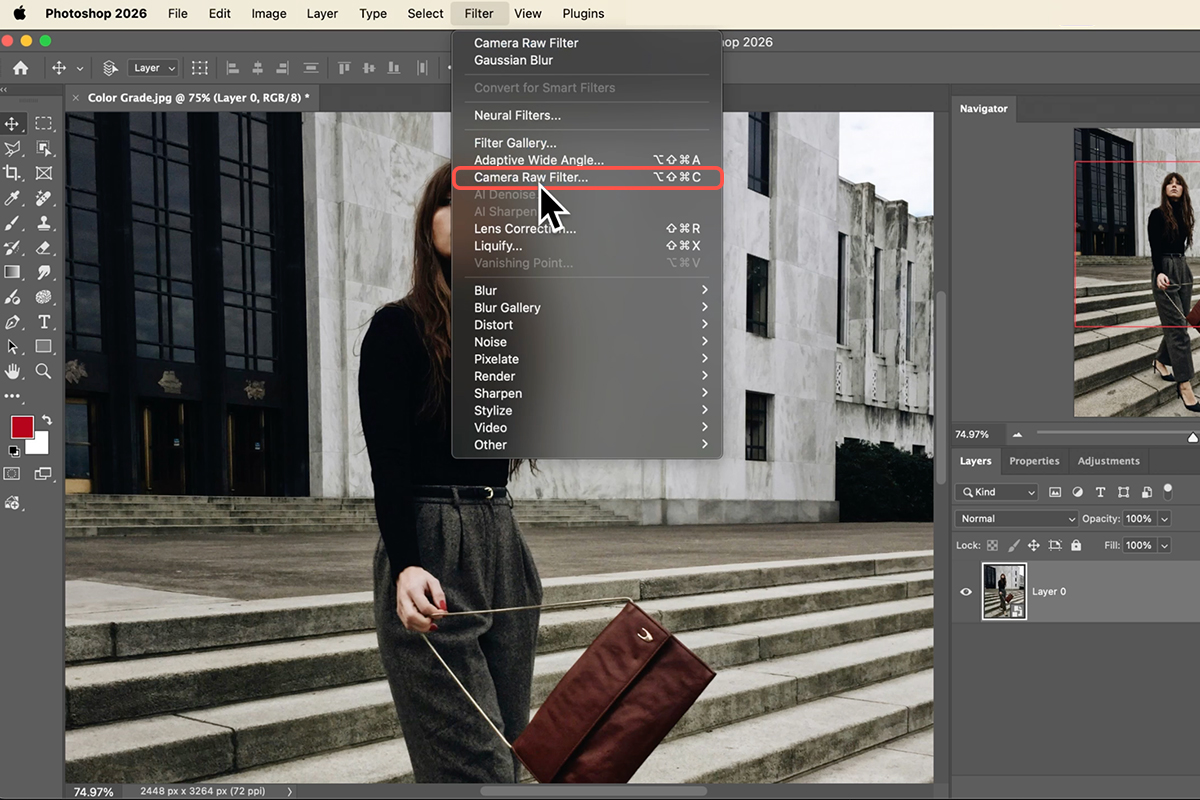
2. Go to Filter > Camera Raw Filter. This is the powerhouse tool tucked inside Photoshop that gives you Lightroom-style control over every pixel.
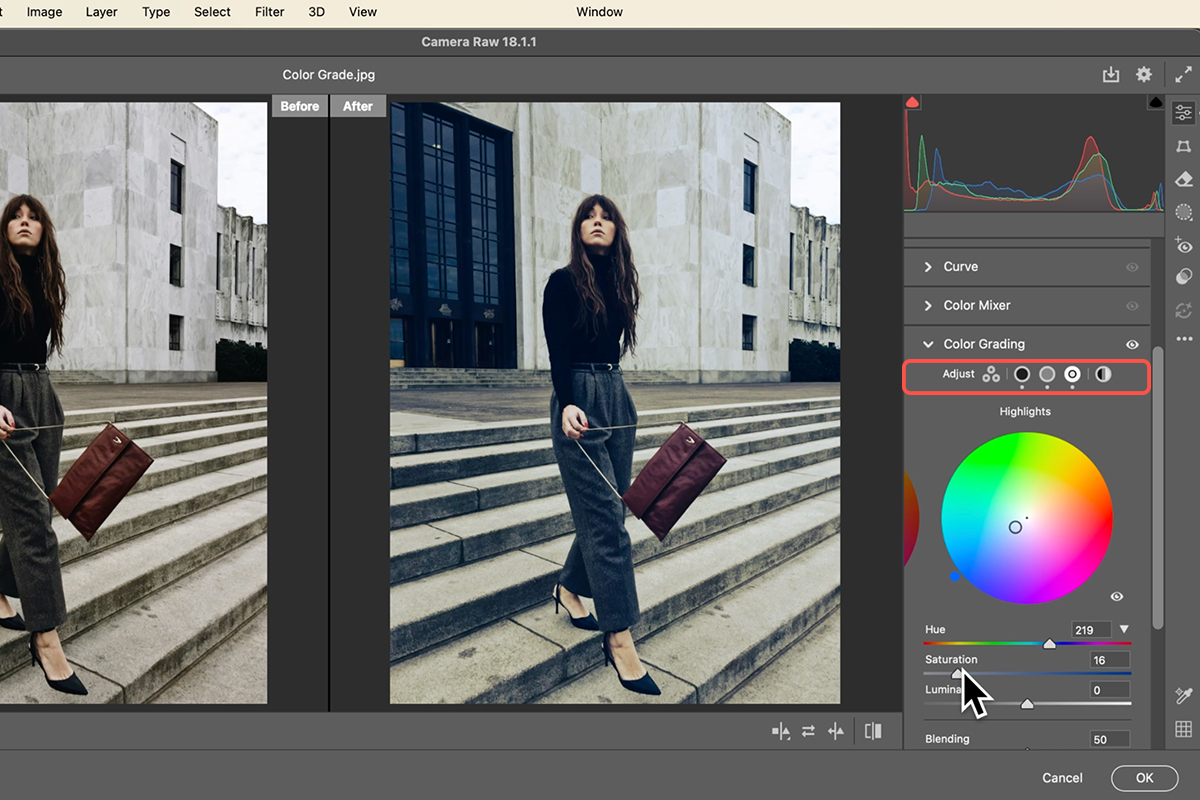
3. Head straight to the Color Grading tab. To see exactly what you’re doing, click the Cycle Between Views icon at the bottom right to get a side-by-side comparison.
Dial It In
4. Start with your Shadows. Crank the saturation slider up so you can clearly see the color you’re picking, find the right hue, and then back it off for a subtle, high-end look.
5. To reset any slider, just double-click the marker. If you want to start the whole grade from scratch, hold Alt/Option to change the “Cancel” button into a “Reset” button.
Refine the Blend
6. Once you hit OK, you’re back in Photoshop with a non-destructive layer.
7. If the effect is too strong, double-click the tiny settings icon to the right of the “Camera Raw Filter” text in your layers panel. This lets you drop the Opacity or change the Blend Mode—like Soft Light or Overlay—to perfectly merge your grade with the original shot.