

Download Assets
This tutorial includes 1 sample image, 1 sample PSD and 1 PDF guide. Downloads are free with a PHLEARN account.
- Download the sample images and PSDs from every free tutorial on PHLEARN
- New free tutorials published every week
- One free account — sign up once, then download anything
Free PDF Guide · 3 Pages
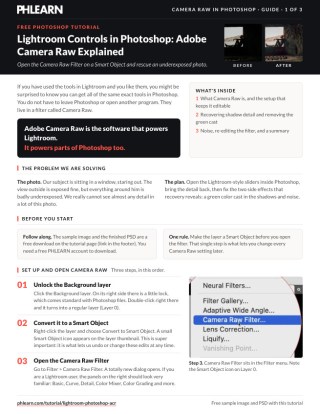
This Tutorial as a Step-by-Step PDF
Walks through unlocking the Background layer, Convert to Smart Object and Filter > Camera Raw Filter, then raising Shadows and Exposure, pulling Highlights back down, dragging the Shadows color wheel toward magenta, raising Color Noise Reduction in Detail and double-clicking the Smart Filter to re-edit. Keep it next to your keyboard.
description
Learn how to use Lightroom controls inside Photoshop with Adobe Camera Raw. Convert your layer to a Smart Object, open the Camera Raw Filter, and use the familiar Exposure, Shadows, and Highlights sliders to recover detail from an underexposed photo. Then remove the color cast that recovery reveals with the Color Grading wheels, clean up noise with Color Noise Reduction, and reopen the filter at any time since every setting stays fully editable.
Enjoying This Free Tutorial?
We publish a new free tutorial every week, each one with sample images and PSDs you can download and follow along with. Sign up and they land straight in your inbox, along with early word on sales, events and subscriber-only offers.
How to Use Adobe Camera Raw (Lightroom Tools) in Photoshop
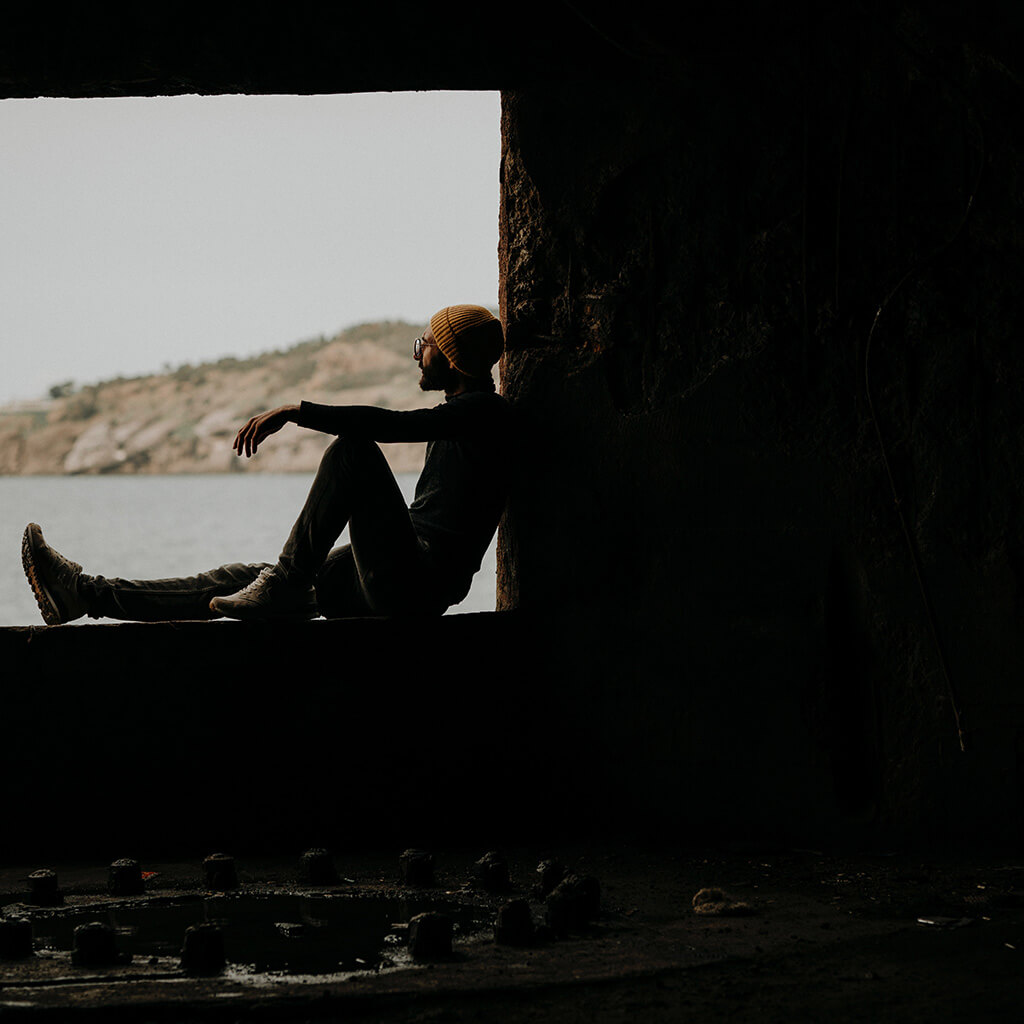
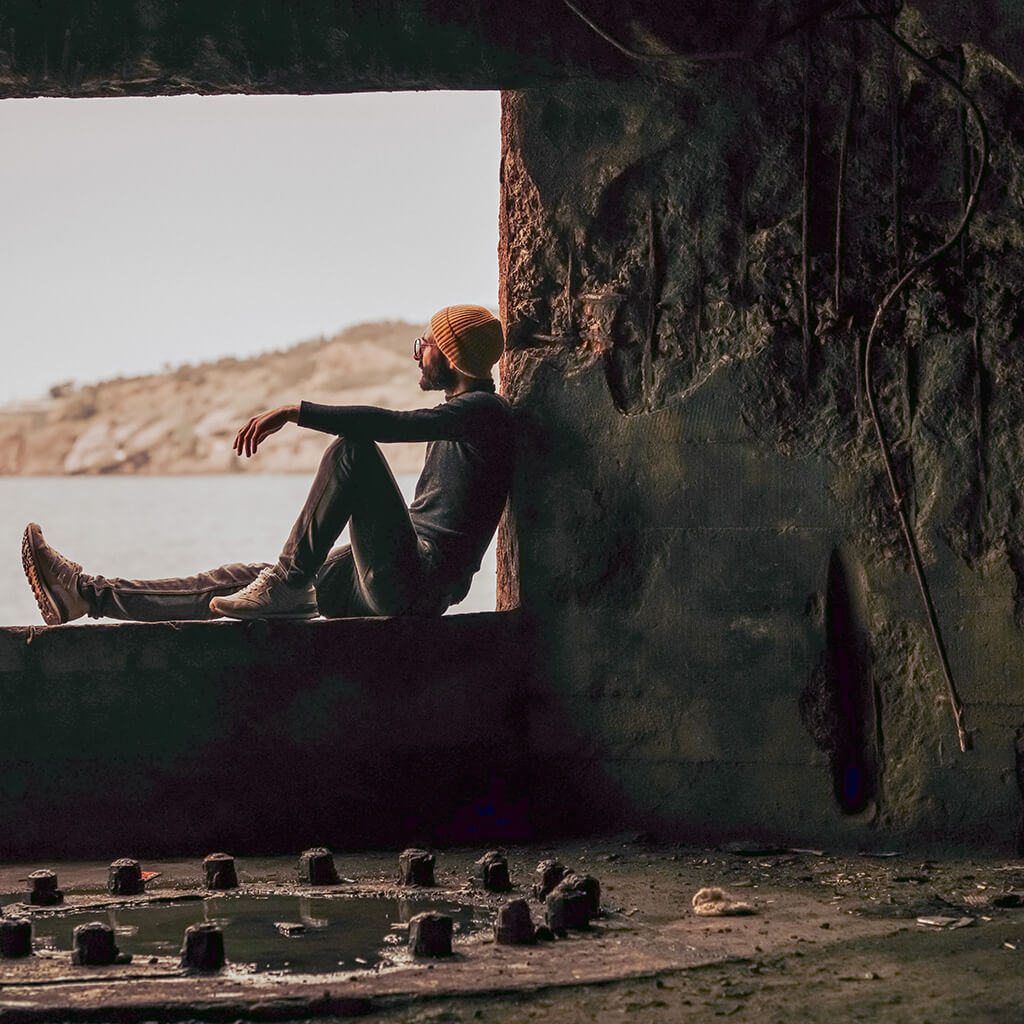
Lightroom users often assume they have to leave Photoshop and jump into a separate program to use their favorite editing sliders — but the exact same tools live inside Photoshop already, in a panel called Adobe Camera Raw. This tutorial shows how to open it, use it non-destructively, and use it to rescue serious detail from an underexposed photo.
Why Camera Raw and Lightroom Share the Same Tools
Adobe Camera Raw is the same underlying engine that powers Lightroom’s Develop module, so every slider that feels familiar from Lightroom — Exposure, Shadows, Highlights, Vibrance, Color Grading, Noise Reduction — is available in Photoshop through Camera Raw, applied directly to a layer instead of a whole catalog.
Converting Your Layer to a Smart Object First
Before opening Camera Raw, the layer needs to be set up so its edits stay flexible.
-
Unlock the Background Layer
A background layer opens locked by default (shown by a small lock icon). Double-click the layer to convert it into a regular, unlocked layer.
-
Convert the Layer to a Smart Object
Right-click the layer and choose Convert to Smart Object. This is the step that makes every filter applied afterward editable at any time instead of permanent.
Opening the Camera Raw Filter
With the layer converted, go to Filter > Camera Raw Filter to open the same editing interface Lightroom users already know, now applied directly to a Photoshop layer.
Recovering Detail from an Underexposed Photo
On a photo shot noticeably underexposed, with almost no visible detail in the shadows, raise the Shadows slider first, then bring up overall Exposure to reveal even more of what the camera actually captured. Highlights that become too bright after boosting exposure can be pulled back down with the Highlights slider, and Vibrance can be lowered slightly to keep the recovered color from looking oversaturated.
Balancing Exposure and Highlights Together
Recovering shadow detail and protecting highlight detail work against each other, so the two sliders are best adjusted together rather than one at a time — raise Shadows and Exposure to reveal detail, then bring Highlights back down until the brightest areas stop clipping.
Using Color Grading to Remove a Color Cast
Recovering detail from a heavily underexposed shadow area often reveals an unwanted color cast — in this case a greenish tint. Camera Raw’s Color Grading panel lets color be pushed into the shadows, midtones, and highlights separately, the same as in Lightroom. Since green sits opposite magenta on the color wheel, dragging the shadow color wheel slightly toward magenta cancels the green cast out. The intensity of the effect can be adjusted with the luminance slider for that range, and the small eyeball icon toggles a quick before-and-after comparison.
Adjusting Highlights and Midtones the Same Way
The same color-wheel approach works for highlights and midtones — warming or cooling the highlights, or nudging the midtones toward orange, all use the identical click-and-drag color wheel, just targeting a different tonal range of the image.
Reducing Noise in Recovered Shadow Detail
Pushing exposure and shadow sliders hard enough to recover real detail from an underexposed shot also brings up noise, often visible as flecks of green and magenta in the shadow areas. Camera Raw’s Noise Reduction and Color Noise Reduction sliders clean this up — raising Color Noise Reduction in particular removes most of the stray color specks while leaving the actual image detail intact.
Why Underexposed Shadows Show More Noise
Noise becomes more visible in shadows that have been pushed brighter in post because the camera captured very little real signal in those areas to begin with — brightening a dark, noisy area amplifies the noise right along with the detail, which is why noise reduction becomes a necessary step whenever shadows are recovered this aggressively.
Re-Editing the Camera Raw Filter at Any Time
Because the edits were applied to a Smart Object, the Camera Raw Filter appears as its own editable Smart Filter in the Layers panel. Double-clicking it at any point reopens the exact same Camera Raw interface with every setting exactly as it was left, so exposure, tint, color grading, or noise reduction can all be revisited and changed later without starting over.
Toggling the Effect On and Off
Clicking the visibility eye next to the Camera Raw Filter in the Layers panel turns the entire edit on or off instantly, making it easy to compare the recovered, color-corrected image against the original underexposed shot at any time.
Why This Workflow Works
Camera Raw gives Photoshop the same processing engine Lightroom relies on, so there’s no need to round-trip a file between two programs to use tools like Color Grading or Noise Reduction. Applying it to a Smart Object rather than a flattened layer means none of the recovery work is destructive — every slider stays live and adjustable, which matters most on a photo like this one where getting the exposure and color balance exactly right often takes more than one pass.
Final Thoughts
An underexposed shot doesn’t have to be a lost cause. Between Camera Raw’s Exposure and Shadow recovery, Color Grading to fix any resulting cast, and Noise Reduction to clean up what recovery reveals, a huge amount of detail can be pulled back out of a dark file — all inside Photoshop, and all fully editable later since it’s built on a Smart Object.
Quick Reference: Menus and Settings
- Unlock the layerDouble-click the lock on the Background layer to make it Layer 0
- Make it editableRight-click the layer > Convert to Smart Object
- Open Camera RawFilter > Camera Raw Filter
- Recover detailBasic: Shadows up, Exposure up, Highlights back down, Vibrance down a little
- Remove a green castColor Grading: drag the Shadows wheel slightly toward magenta; hold the eyeball to see the before
- Clean up noiseDetail: Noise Reduction, then Color Noise Reduction; Detail up a little
- Re-edit or compareDouble-click Camera Raw Filter under Smart Filters; click its eye to toggle
No AI, no generative credits.
Free Downloads
Follow Along on the Same Photo
Get the underexposed window photo, the finished PSD with its editable Camera Raw Filter and the 3-page PDF guide. Free with a PHLEARN account.
Camera Raw in Photoshop: Common Questions
Does Photoshop have the same tools as Lightroom?
Yes. Adobe Camera Raw is the software that powers Lightroom and parts of Photoshop, so the same panels are there: Basic, Curve, Detail, Color Mixer, Color Grading and more. You use them without leaving Photoshop.
Where is Camera Raw in Photoshop?
Go to Filter > Camera Raw Filter. It opens a separate dialog with the editing panels on the right, applied to the layer you have selected.
Why convert the layer to a Smart Object first?
On a regular layer the filter is permanent. On a Smart Object it becomes a Smart Filter, so you can change every Camera Raw setting later. Right-click the layer and choose Convert to Smart Object.
My Background layer is locked. How do I unlock it?
Double-click the little lock on the right side of the Background layer. It turns into a regular layer (Layer 0) that you can convert to a Smart Object.
How do I recover detail from an underexposed photo?
In the Basic panel, raise Shadows, then raise Exposure. Bring Highlights back down so the bright areas hold, and lower Vibrance a little so the recovered color doesn’t look oversaturated.
Why did my shadows turn green after I brightened them?
Pushing a very underexposed photo often reveals a color cast. In Color Grading, drag the Shadows wheel slightly toward magenta, the opposite of green, and hold the eyeball next to the wheel to see the before.
How do I get rid of noise in recovered shadows?
Open the Detail panel and zoom in. Raise Noise Reduction, then Color Noise Reduction, which removes most of the little green and magenta specks. Bring Detail up a little afterward.
Can I change the Camera Raw settings after I click OK?
Yes. Double-click the words Camera Raw Filter under Smart Filters in the Layers panel and you are back in Camera Raw with every setting intact. Click the eye next to the filter to turn the whole edit off and on.
Are the sample files free?
Yes, with a free PHLEARN account. You get 1 sample image, 1 sample PSD and 1 PDF guide: the underexposed window photo, the finished file with its Smart Filter and a 3-page step-by-step guide.
Master Photoshop, Lightroom and Photography
Join PHLEARN PRO for $12.99 a month or $99.99 a year. Cancel anytime, with a 100% money-back guarantee.





