

DOWNLOAD SAMPLE IMAGES
description
Welcome to Day 7 of our AI photo editing series! Discover the power of new partner models like Gemini 2.5 Nano Banana in Photoshop’s Generative Fill. Learn how to combine multiple complex image edits, from removing objects to changing time of day, into a single text prompt, saving massive time compared to traditional techniques.
Coming Up
JOIN 10 DAYS OF AI (FOR FREE!)
Ready to jump in? Sign up and we’ll email you a printable calendar and daily class schedule so you can get started right away!
Image Source
- Ryunosuke Kikuno
- Yilmaz Akin
- Dan Begel
- Mathias Reding
Images sourced from Unsplash.
Share


AFTER
BEFORE
AI Edits in a Single Click
Today we’re diving into the revolutionary new Photoshop partner models, including Gemini 2.5 Nano Banana. These partners unlock powerful, new AI engines, allowing you to use natural, conversational language to execute complex, simultaneous image edits with a single text prompt. This ability saves hours of traditional editing time!
Select Whole Canvas
The key to using the new AI partners is selecting the entire image before you prompt the AI. This bypasses the need for precise localized selections.
1. Begin by selecting your whole image using the shortcut Ctrl/Command + A (or go to Select > Select All).
2. Once selected, click the “Generative Fill” button in your Contextual Task Bar. You can then choose your desired partner model, such as Gemini 2.5 Nano Banana or Flux Contexts Pro.
Handle Complex Edits
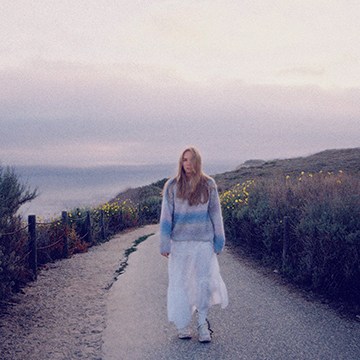
The AI partners excel at complex tasks that were previously tedious, like eliminating a detailed wire fence or distracting people.
3. Simply enter a detailed, conversational prompt like: “remove the fence and add clouds to the sky.” The AI will perform both the complex removal and the addition of new elements (like photorealistic clouds) in one step. Use Ctrl/Command + D to deselect when finished.
Generation Output Limits
A key difference when using the new partner models is the generation output. Unlike Adobe’s Firefly Image Model 3, which provides three variations per generation, partner models like Nano Banana and Flux Contexts Pro typically generate only one variation at a time. This impacts workflow and resource usage. If you need alternative versions of your edit, simply click “Generate” again to produce a new result based on the same text prompt and selected model. Use Ctrl/Command + D to deselect when finished.
Partner models like Nano Banana and Flux Contexts Pro are categorized as premium features and will consume 10 Generative Credits (significantly more than the one credit used by standard Firefly generations).
We’ve seen how powerful and time-saving these new partner models are, achieving complex, multi-step edits with the simplicity of a single text command. Remember to test different models and regenerate variations to optimize your outcome. Join us tomorrow for Day 8, where we will be diving into advanced masking techniques in Lightroom (LR)!






Enjoying This Free Tutorial? Go Further with PRO.
Unlock Full Sample Files, PSDs, and Hundreds of Masterclasses!

Download full project assets, original PSDs, and RAW images for every lesson
Unlimited access to our complete library of PRO Photoshop & Lightroom courses
Instant 4K Ultra HD streaming on all devices, anytime, anywhere
Full access to our entire library of Photoshop Actions, Presets, and LUTs
Flexible monthly and annual membership plans
Cancel anytime with zero hassle or commitments