10 Days of AI in Photoshop & Lightroom
Ten free tutorials on the AI tools that have changed how photographers work. Start with Generative Fill, Generative Expand, object removal, Harmonize and Generative Upscale in Photoshop, then move into Lightroom for AI masking, syncing masks across a whole shoot, Denoise, Lens Blur and Assisted Culling.
What You’ll Learn
Ten days, ten focused lessons, one tool per day. AI in Photoshop and Lightroom arrived faster than most photographers could absorb it, and a short daily format turns out to be the right shape for learning them — one tool, one sitting, applied to your own images before the next one arrives.
- Generative Fill and Expand Adding, removing and extending image content, and writing prompts that produce usable results instead of strange ones.
- AI selections and masking Select Subject, Select Sky and object selection — what they get right, and how to clean up what they don’t.
- Removal tools The Remove Tool and content-aware options compared against Clone Stamp and Healing Brush, with clear guidance on which suits which job.
- Lightroom AI denoise Recovering high-ISO images, and how far you can realistically push it before detail turns plastic.
- Adaptive presets and AI masks in Lightroom Local adjustments that find their own subject, and how to combine them.
- Portrait cleanup with AI Where the tools genuinely accelerate retouching and where manual work still produces better skin.
- Backgrounds and environments Replacing, extending and generating backgrounds so they match the subject’s light.
- Spotting AI failure The texture artefacts, repeated patterns and anatomical errors that give generated content away — and what to do about them.
Who This Series Is For
Anyone who wants a structured introduction to the AI tools without committing to a full course. The daily format suits people fitting learning around actual work — each day stands on its own in a single sitting.
It is a good starting point if you have been avoiding these tools out of uncertainty, and equally good if you have been using them enthusiastically and want to understand why some results don’t hold up.
Basic Photoshop or Lightroom familiarity is assumed. You should know what a layer and a mask are; everything else is explained.
What You Need
- A recent Photoshop Generative features need a current version and an internet connection — they run on Adobe’s servers.
- Lightroom Classic or the newer version, for the Lightroom days.
- An active Adobe subscription Generative features consume generative credits tied to your plan.
- Ten short sessions Rather than one long one. The spacing is the point.
How Long It Takes
Ten days if you follow it as designed — one lesson per day, each short enough to finish in a sitting and apply to one of your own images before the next.
You can binge it in a weekend, and plenty of people do. But the daily spacing exists for a reason: these tools reward repetition more than they reward watching. A tool you have used once on your own photograph is a tool you actually have.
Frequently Asked Questions
Is this series free?
Check the badge at the top of this page — it shows whether this series is free or part of a PRO membership. Sample files, where provided, follow the same access.
How is this different from the AI Learning Path?
This is the short version. Ten focused daily lessons covering one tool at a time. The Artificial Intelligence Learning Path is six full-length tutorials that go considerably deeper, including complete Lightroom and advertising-design courses. Many people do this series first.
Will it go out of date?
The interfaces will move — Adobe iterates on these features constantly. The judgement being taught, about what these tools are good and bad at, lasts a lot longer than any particular button.
Do I need a powerful computer?
Generative features run on Adobe’s servers, so your internet connection matters more than your hardware. Lightroom’s AI denoise runs locally and is noticeably faster with a decent GPU.
Do I have to do it in order?
The days build gently, and the later ones assume the selection work from the earlier ones. Following the order is easier, but each day is self-contained enough to dip into.
Where to Go Next
On This Page
PHLEARN PRO
Go deeper with the full Artificial Intelligence Learning Path and the complete PRO library.

Generative Fill does three different jobs, and each one wants a different selection. See how to select for removing, adding and replacing, and what goes wrong.
Photoshop | AI & Generative Tools | Medium | 15 mins | 1 video
4 Sample Images | 4 Sample PSDs

Generative Expand rebuilds a photo beyond its edges: turn a vertical into a horizontal, fix the resolution it costs you, and know when the result falls apart.
Photoshop | AI & Generative Tools | Medium | 15 mins | 1 video
3 Sample Images | 3 Sample PSDs

Remove objects in Photoshop with the right tool for the job: the Remove tool for most things, Generative Fill for big gaps, and a manual patch when speed matters.
Photoshop | AI & Generative Tools | Medium | 15 mins | 1 video
4 Sample Images | 4 Sample PSDs

AI masking in Camera Raw selects the subject, sky and background for you. Set it up non-destructively, refine the mask, then edit each area on its own.
Photoshop | Selections & Masking | Advanced | 15 mins | 1 video
2 Sample Images | 2 Sample PSDs

Select Subject gives you a one-click cutout, but the selection is worth more than the cutout. Reuse it to swap a background, grade the subject, or build a mask.
Photoshop | Selections & Masking | Advanced | 15 mins | 1 video
4 Sample Images | 4 Sample PSDs

Harmonize matches the color and light of a pasted subject to its new background, and Generative Upscale rebuilds the detail. See where each one works and fails.
Photoshop | AI & Generative Tools | Medium | 15 mins | 1 video
5 Sample Images | 3 Sample PSDs
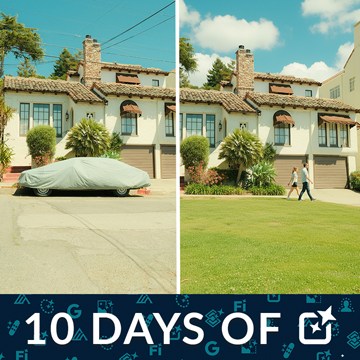
Partner models put Nano Banana and other companies’ AI inside Photoshop’s Generative Fill. See how to pick one, what each costs in credits, and where they fail.
Photoshop | AI & Generative Tools | Medium | 15 mins | 1 video
4 Sample Images | 4 Sample PSDs | 1 PDF Guide

Sync Lightroom masks across a whole shoot: build one masked edit on a portrait or landscape, then copy the masks to every other frame in a few clicks.
Lightroom | Workflow & Productivity | Medium | 15 mins | 1 video
4 Sample Images

Use Lens Blur and AI Denoise in Lightroom to fix what a cheap lens can’t: add believable background blur, refine the mask, then clear noise without mush.
Lightroom | AI & Generative Tools | Medium | 15 mins | 1 video
1 Sample Image (RAW File) | 2 Sample Images (JPEG File)

Use assisted culling in Lightroom Classic to sort a shoot fast: run it during import, read the scores, auto-stack near-duplicates, and reject the weak frames.
Lightroom | Workflow & Productivity | Medium | 15 mins | 1 video
15 Sample Images