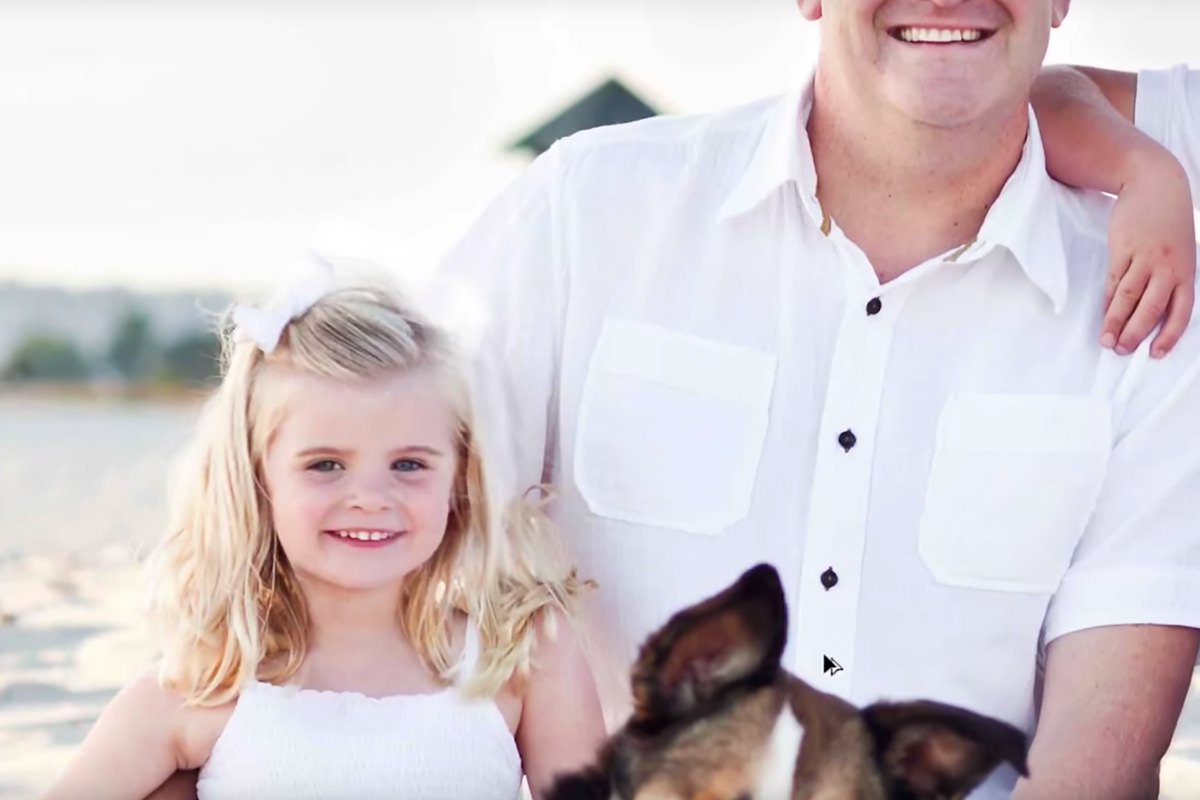

description
A group or family photo can be nearly perfect except for one person blinking, squinting, or pulling an odd face, and swapping in their head from a second frame fixes it without reshooting. This tutorial covers dragging both photos into one document, scaling the replacement head by matching eye size, masking it in while preserving the original hair and shoulders, cleaning up leftovers with the Clone Stamp, and matching exposure with a masked Curves layer.
Enjoying This Free Tutorial?
We publish a new free tutorial every week, each one with sample images and PSDs you can download and follow along with. Sign up and they land straight in your inbox, along with early word on sales, events and subscriber-only offers.
How to Swap Heads in Photoshop
A group or family photo can be nearly perfect except for one person blinking, squinting, or making an odd face, and swapping in their head from a different shot solves the problem without redoing the whole photo. This tutorial covers choosing a good replacement photo, using a layer mask to blend the new head into place, and matching exposure so the swap looks completely natural.
Combining Both Photos Into One Document
Dragging the replacement photo directly into the main photo puts both images on layers within the same document, ready for the head swap.
-
Select the Move Tool
Choose the Move tool from the toolbar.
-
Drag the Replacement Photo Into the Main Document
Hold Shift and click and drag from the replacement photo into the main group photo’s document, aligning it in the same document.
-
Close the Extra Document
Close the now-unneeded separate document and press F to view the combined document full screen.
Selecting and Duplicating the Replacement Head
A rectangular Marquee selection around the better head, made a bit larger than needed, becomes its own layer ready to be positioned over the original.
-
Select the Rectangular Marquee Tool
Choose the Rectangular Marquee tool from the toolbar.
-
Draw a Selection Around the Replacement Head
Draw a selection around the head with the better expression, making it somewhat larger than the head itself for extra room to work with.
-
Duplicate the Selection to a New Layer
Press Cmd/Ctrl+J to duplicate the selected area onto its own new layer.
Why Making the Selection Larger Than Needed Helps
A selection drawn tightly around just the head leaves very little room to blend its edges into the surrounding hair and shoulders once it’s masked into place. Including extra space around the head in the original selection gives the layer mask room to work with, so the transition between the new head and the rest of the photo can be found gradually rather than right at a hard edge.
Lowering Opacity to Position the New Head
Temporarily lowering the new head layer’s opacity makes both faces visible at once, which is what makes it possible to line them up accurately.
-
Turn Off the Layer Below
Hide the full replacement photo layer (Layer 1), so the original group photo shows underneath the new head layer.
-
Lower the New Head Layer’s Opacity
Reduce the new head layer’s opacity so both the new and original faces are visible at the same time underneath it.
-
Position the New Head Over the Original
Using the Move tool, drag the new head layer so it roughly lines up over the original head’s position.
Scaling the New Head to Match Eye Size
Comparing the size of the eyes between the two photos is a reliable way to judge exactly how much to scale the replacement head.
-
Compare Eye Size Between the Two Faces
Look at how large the eyes appear in the new head layer compared to the original face underneath.
-
Transform the New Head to Match
Press Cmd/Ctrl+T and scale the new head layer up or down until its eye size matches the original face’s eye size.
-
Restore the Layer’s Opacity
Bring the new head layer’s opacity back up to 100% once it’s correctly sized and positioned.
Why Eye Size Is a Reliable Sizing Guide
A person’s overall head shape can look deceptively different depending on their expression or the angle of a shot, making it hard to judge scale by eye alone. The size of someone’s eyes stays essentially the same regardless of expression, which makes it a dependable reference point for scaling a replacement head to the exact right size.
Masking the New Head Into Place
A layer mask, painted mostly black with white kept only over the actual face, blends the new head into the original photo while preserving as much of the original hair and shoulders as possible.
-
Leave the Replacement Photo Hidden
Keep the full replacement photo layer hidden; the original group photo underneath is what the new head blends into.
-
Add a Layer Mask
Click the layer mask icon in the Layers panel to add a mask to the new head layer.
-
Paint Black to Hide Most of the New Layer
Select the Brush tool and paint black over the mask everywhere except the face itself, keeping as much of the original photo visible as possible.
-
Paint White Carefully Around the Face’s Edge
Paint white to reveal the new face right up to where it should blend with the original hair and shoulders, stopping before any mismatched details like a different ear position become visible.
Fixing Leftover Areas With the Clone Stamp Tool
A small area that a layer mask alone can’t blend cleanly, such as a sliver of mismatched hair near the shoulder, can be covered up on a separate layer with the Clone Stamp tool.
-
Identify Any Remaining Problem Areas
Toggle the head swap layer on and off to check for any small areas, such as near the shoulder or collar, where the mask alone doesn’t blend cleanly.
-
Create a New Layer for Clone Stamping
Add a new layer above the masked head layer to hold the clone stamp fix.
-
Clone Stamp Over the Problem Area
Press S for the Clone Stamp tool and sample nearby matching texture, such as a shirt or similar-colored hair, to cover the mismatched area.
Why Some Areas Need the Clone Stamp Instead of a Mask
A layer mask can only reveal or hide what’s already present on each layer, so if neither the new head nor the original photo has clean matching detail in a specific spot, no amount of mask painting fixes it. The Clone Stamp tool solves this by pulling in texture from somewhere else nearby entirely, covering the mismatched area with material that was never part of either original layer.
Matching Exposure With a Curves Adjustment Layer
A masked Curves adjustment layer brightens or darkens just the new head so its exposure matches the rest of the photo.
-
Add a Curves Adjustment Layer
Add a Curves adjustment layer above all the other head swap layers.
-
Brighten or Darken the Curve
Click the middle of the curve and drag it up to brighten the image, or down to darken it, depending on which direction the new head needs to shift.
-
Invert the Curves Layer Mask
Press Cmd/Ctrl+I to invert the Curves layer’s mask to black, hiding the adjustment everywhere.
-
Paint White Over the New Head
Paint white on the Curves layer mask over just the new head area so the brightness adjustment only affects that region.
Grouping the Finished Head Swap
Grouping every layer involved in the swap keeps the head, its Clone Stamp fix, and its Curves adjustment organized together as one unit.
-
Select All the Head Swap Layers
Select the new head layer, the Clone Stamp fix layer, and the Curves adjustment layer together.
-
Group the Layers
Press Cmd/Ctrl+G to group the selected layers, then name the group Head Swap for clarity.
Why This Approach Works
Using eye size to scale the replacement head gives a consistent, reliable reference point that doesn’t shift with a person’s expression the way their overall head shape can. Painting the layer mask to preserve as much of the original hair and shoulders as possible, rather than replacing more than necessary, keeps the swap looking natural instead of obviously pasted in. Matching exposure last with a masked Curves layer accounts for any lighting difference between the two source photos, which is often the final detail that gives away a head swap if it’s skipped.
Final Thoughts
Head swaps work best when the two source photos were taken close together in time and lighting, ideally from a tripod so the framing lines up as closely as possible. With a good pair of photos, a layer mask, a little Clone Stamp cleanup, and a matched Curves adjustment are usually all it takes to replace an unwanted expression without anyone noticing the swap at all.
Quick Reference: Keys, Menus and Settings
- CombineMove tool, hold Shift and drag one photo onto the other; F for full screen
- Copy the headRectangular Marquee, a little larger than the head, Cmd/Ctrl + J
- Line it upHide the second photo, lower the head layer’s Opacity; Cmd/Ctrl + T to match eye size
- BlendOpacity back to 100%, layer mask, B, paint black everywhere but the face
- Cover gapsNew layer, S for the Clone Stamp tool
- Match brightnessCurves layer, drag the middle up; Cmd/Ctrl + I inverts the mask; paint white over the head
- Tidy upCmd/Ctrl + G, name the group Head Swap
No AI, no generative credits.
Swapping Heads in Photoshop: Common Questions
When would I swap a head in a photo?
When a group or family photo is almost perfect but one person is squinting or making a strange face. Swap in their head from another shot where they look good.
What photos work best for a head swap?
Photos taken close together in time and in the same setting. If the camera was on a tripod, it is even easier.
How do I get both photos into one document?
Select the Move tool, hold Shift and drag one photo onto the other. Close the extra document and press F to see the result full screen.
How do I copy the new head onto its own layer?
Draw a selection around the head with the Rectangular Marquee tool, a bit larger than the head, then press Cmd/Ctrl + J.
How do I line up the new head?
Hide the full second photo so the original shows underneath, then lower the opacity of the head layer. You can see both faces and drag the new one into place with the Move tool.
How do I get the size of the new head right?
Match the eyes. Press Cmd/Ctrl + T and scale until the eyes are the same size as the ones underneath, then set the opacity back to 100%.
How much of the new head should I keep?
As little as you need. Add a layer mask and paint black everywhere except the face, so as much of the original photo as possible stays.
What if the mask can’t hide a leftover bit of hair or ear?
Make a new layer, press S for the Clone Stamp tool and cover the spot with nearby texture. In the video the white shirt covers the extra hair.
The new face is darker than the rest. How do I fix it?
Add a Curves adjustment layer on top and drag the middle of the curve up. Press Cmd/Ctrl + I to invert its mask, then paint white over the new head only.
Master Photoshop, Lightroom and Photography
Join PHLEARN PRO for $12.99 a month or $99.99 a year. Cancel anytime, with a 100% money-back guarantee.





