

THIS COURSE INCLUDES
- 10 Lessonsfollow-along
- 7h 58mof captioned HD video
- Beginnerno experience needed
- 11 Sample Images+ 2 brushes and an action
Join PHLEARN PRO for instant access to this course and every tutorial on PHLEARN.
- Stream in up to 4K on any device
- Closed captions and chapters on every course
- Download all sample images and PSDs
- New PRO tutorials every month
- Cancel anytime
DESCRIPTION
Taking great photos is only half the battle. Retouching 101 teaches you the foundations of professional portrait retouching in Photoshop: the right tools, blemish removal, dodge and burn, eyes, lips, and Liquify. Follow along with the included RAW photos.
* This tutorial is part of the Retouching 101-301 Bundle
What You’ll Learn
- Learn the foundations of portrait retouching
- Remove blemishes and dodge and burn with confidence
- Reshape eyes and lips with Liquify
-
01 - Introduction: Photoshop Setup & Advice10:57m
-
02 - Retouching Tools in Lightroom43:57m
-
03 - Retouching Tools in Photoshop37:01m
-
04 - Blemish Removal30:51m
-
05 - Dodge & Burn42:33m
-
06 - Eyes40:01m
-
07 - Lips & Mouth53:38m
-
08 - The Liquify Tool37:42m
-
09 - Studio Portrait Retouch (Exercise 1)1:27h
-
10 - Studio Portrait Retouch (Exercise 2)1:34h
Learn the Basics of Retouching.

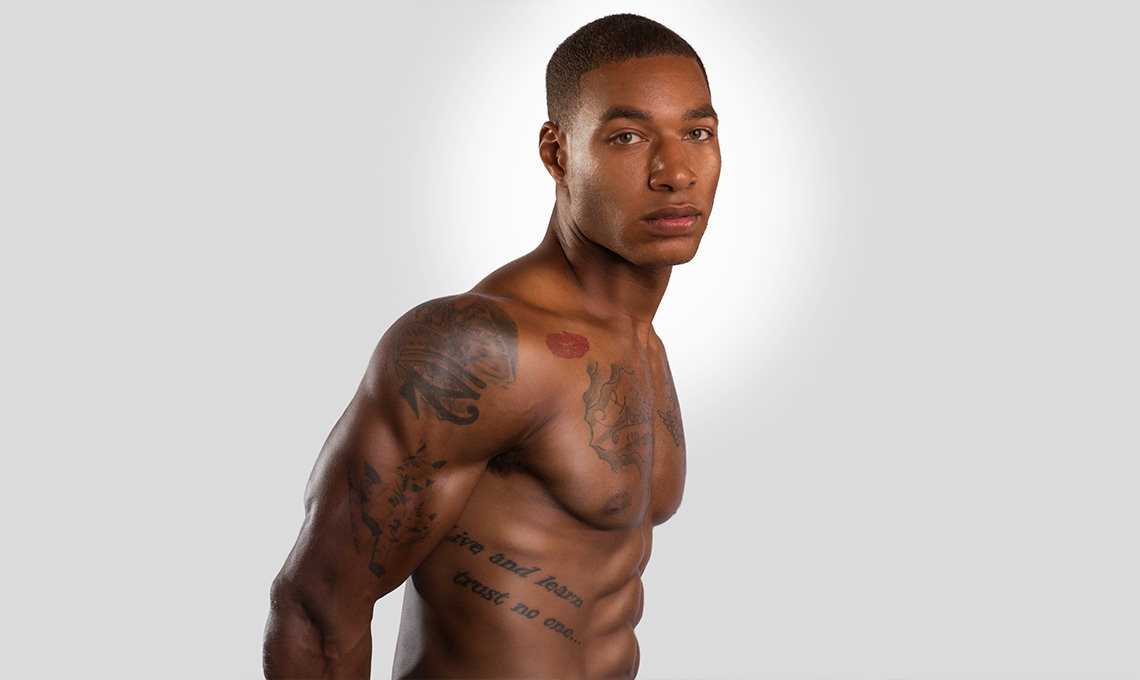
Retouching 101 Saves Time: Learn the Right Retouching Tools
Photoshop is an expansive program, and it can be difficult figuring out where to start. With so many options for photo editing, which tools are the best? Retouching 101 shows you the right tools for the job so you save time by focusing on what works.
Learn Proper Retouching
We have all seen photos that look “too retouched,” they have lost the details that make people look real. Retouching 101 teaches you to make people look their best while maintaining texture, detail and color.
Blemish Removal
Ever been asked to remove a pimple in Photoshop? It seems that everyone wants to be blemish-free in photos these days. Retouching 101 covers the right way to remove blemishes while maintaining skin texture and detail.
The Phlearn Method Dodge and Burn
Dodging and Burning is perhaps the most important part of Retouching 101. Learning to Dodge & Burn correctly will make a huge difference in the portraits you take, and your subjects will love you for it. Save time and increase accuracy by using the Phlearn Method Dodge & Burn – integrating new keyboard shortcuts and custom brushes.

Eyes
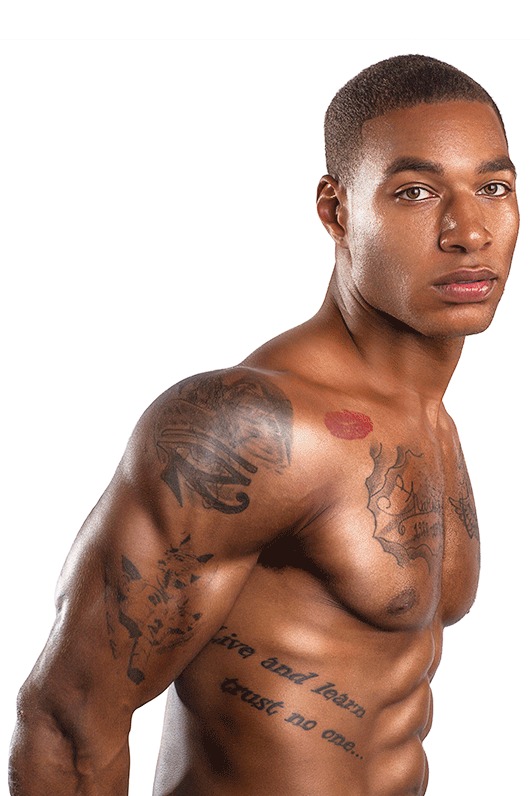
Eyes are the window to the soul, learn how to make them sparkle like never before. Add color, enhance details, remove veins, enhance eyelashes, and learn the right way to sharpen eyes.
Lips and Mouth
Lips get chapped, cracked, dried out and lose color. Learn how to repair skin damage and add natural color. Also, learn to add shine and smooth skin for the best-looking lips!
Transform Shape with Liquify
Not many people like the way they look in photos, help them out a little by making them look their best. In Retouching 101, learn to reshape hair, skin, muscles, fat, and clothing to bring out the best in a portrait.
Two Complete Retouch Exercises
Combine everything you learn from Retouching 101 sections 1-8 to retouch two portraits from start to finish. Where do I start? How do different techniques tie together? What don’t I know? Follow along the entire retouching process from Camera RAW to Exporting the Final Photos.
Professional Retouching
Take your images to the next level with tools and techniques of professional retouching. Learn how to remove distractions, fix exposure, dodge and burn, and much more!


Lightroom
For many professional photographers and retouchers, the journey begins in Lightroom. When it comes to file organization, exposure and white balance correction, there is no better tool. Learn the basic of photo retouching in Lightroom including blemish removal.
16-Bit RAW Images Included for Practice
Don’t have images of your own to practice on? No Problem! Every Phlearn PRO Tutorial includes images to perfect your technique on.
Included Photoshop Actions
Retouching 101 includes several Dodge & Burn Actions to make editing your photos easier than ever. Use these actions to smooth skin tone and enhance detail in a photo.
Retouch Multiple Skin Types
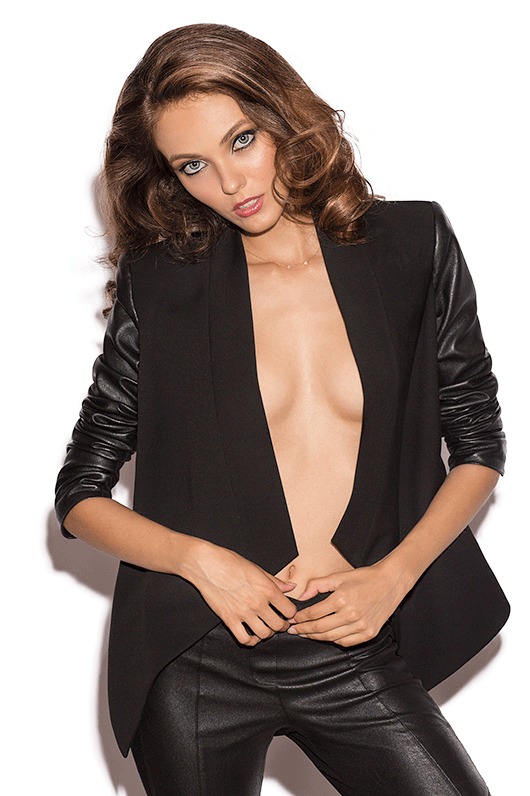
Everyone’s skin is different and requires slightly different retouching techniques. The included photos capture many different skin tones across different races and sexes.
Class Instructor
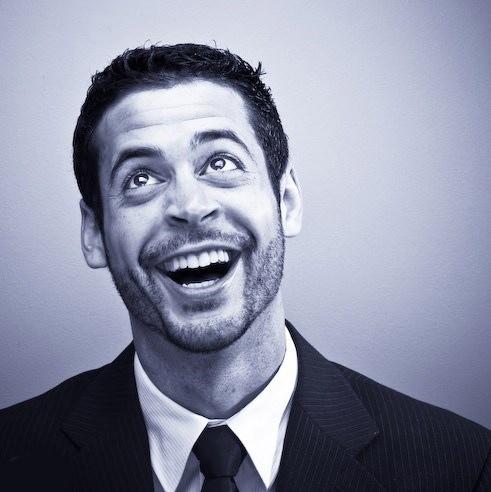
Aaron Nace
PHLEARN Founder & Lead Instructor
Aaron Nace is a photographer, digital artist, and the founder of PHLEARN. He has been teaching Photoshop, Lightroom, and photography since 2011, and has taught at Adobe MAX for more than eight years.
Aaron publishes a free tutorial every week and a new in-depth PRO course every month.
- 2M+YouTube subscribers
- 160M+video views
- 1,000+tutorials published
- 15years teaching Photoshop
Reviews
Master Photoshop, Lightroom and Photography
Join PHLEARN PRO for $12.99 a month, or $99.99 a year (save 36%). Cancel anytime, with a 30-day money-back guarantee.






This is exactly what I wanted to learn! Super easy to understand. I’m super happy to find this lesson! Thank you from Japan!
I am very happy can learn from a master as Aron. My knowledge growing after every minute from tutorials. Even you are more then beginner in photoshop I highly recommending watch videos without a skipping it.
This course was everything that I expected and more. It goes over the best practices of retouching in Photoshop which is really great in organizing files so that you can always come back to them later. It was definitely worth the money.
I bought the bundle, and have just finished going through 101
This is truly amazing stuff. My editing ‘tradition’ and practice has come from landscape and street work. I got into portraiture, because I love shooting people. My earlier retouching was very basic.
This has really opened my eyes to the world of retouching, and has given me a good deal of respect for professional retouchers. And, I am only 33% of the way through the bundle.
Aaron is a superb instructor. Very personable, and I like this. he does indeed make ‘unlearning’ fun, and does it in a very structured manner
The video tutorials are laid out very well, and are easy to follow. The dodge and burn actions are a great help, though I like to use the soft light one.
Excellent tips, especially the pen tool, which I had never really used till now. I love the constant reminders of the keyboard shortcuts.
I did buy the Wacom Intuous Small several months back, after watching Aaron’s YouTube video on that.
So, really marvellous stuff.
Now, I shall be getting into the next one.
The young lady I did in the attached file, would not have been possible without this series of videos