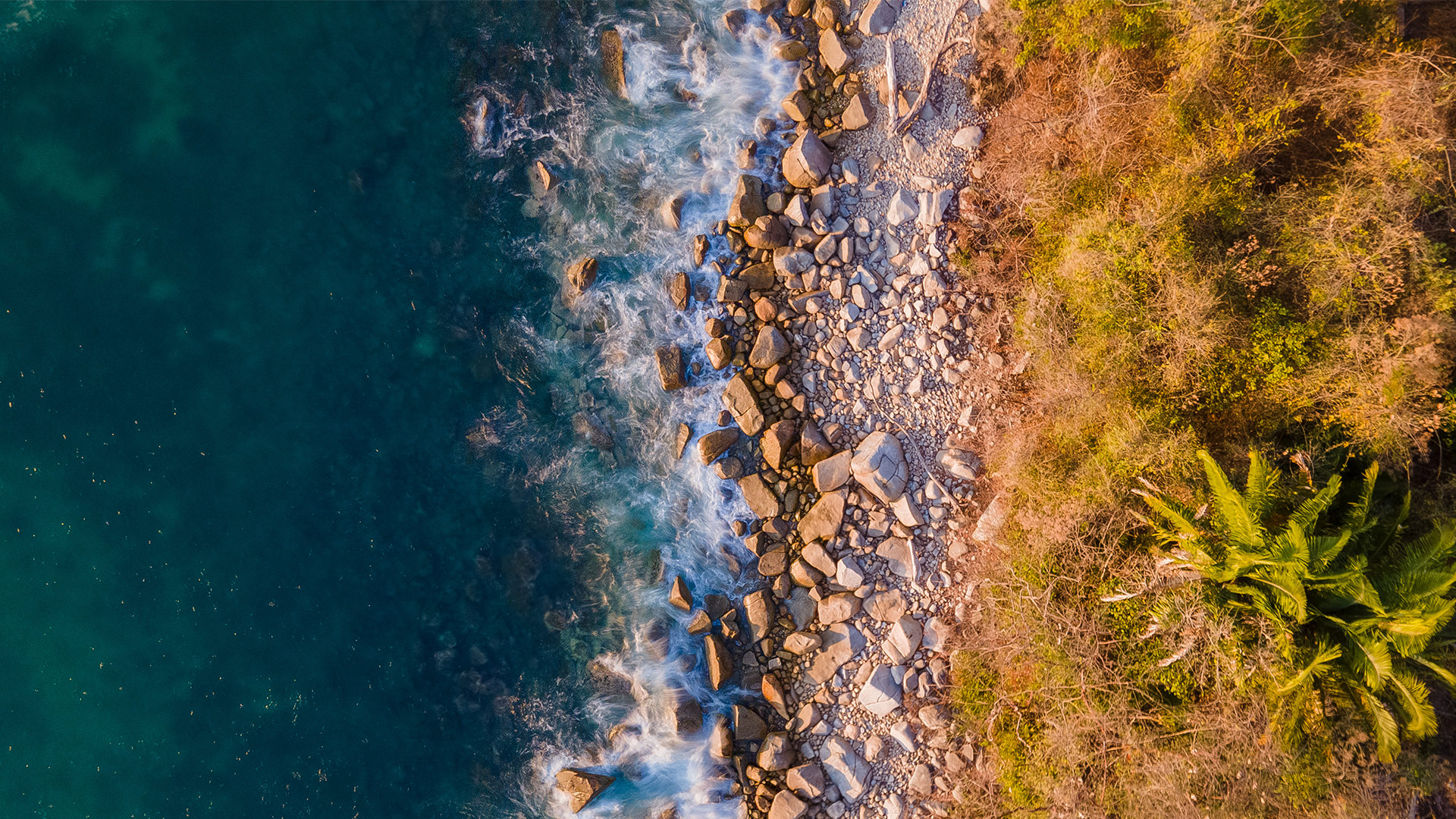

Download Assets
This tutorial includes 4 JPEG sample images, 4 RAW files and 1 PDF guide. Downloads are free with a PHLEARN account.
- Download the sample images and PSDs from every free tutorial on PHLEARN
- New free tutorials published every week
- One free account — sign up once, then download anything
Free PDF Guide · 3 Pages
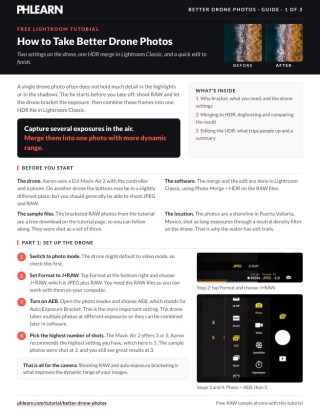
This Tutorial as a Step-by-Step PDF
The 3-page guide covers the drone settings (photo mode, J+RAW and AEB at the highest number of shots), then Photo Merge > HDR in Lightroom Classic with Deghost Amount and Show Deghost Overlay, Compare mode, and the finishing Graduated Filter, Brush, Radial Filter and Vibrance. Keep it next to your keyboard.
description
Better drone photos start in the air, not in Lightroom. Learn the two camera settings — RAW capture and Auto Exposure Bracketing — that give you far more detail to work with, then merge those bracketed exposures into a single HDR file in Lightroom Classic. We cover deghosting moving water, comparing the merge against a single exposure, and finishing with graduated and radial filters that pull focus exactly where you want it in the frame.
Enjoying This Free Tutorial?
We publish a new free tutorial every week, each one with sample images and PSDs you can download and follow along with. Sign up and they land straight in your inbox, along with early word on sales, events and subscriber-only offers.
How to Take Better Drone Photos
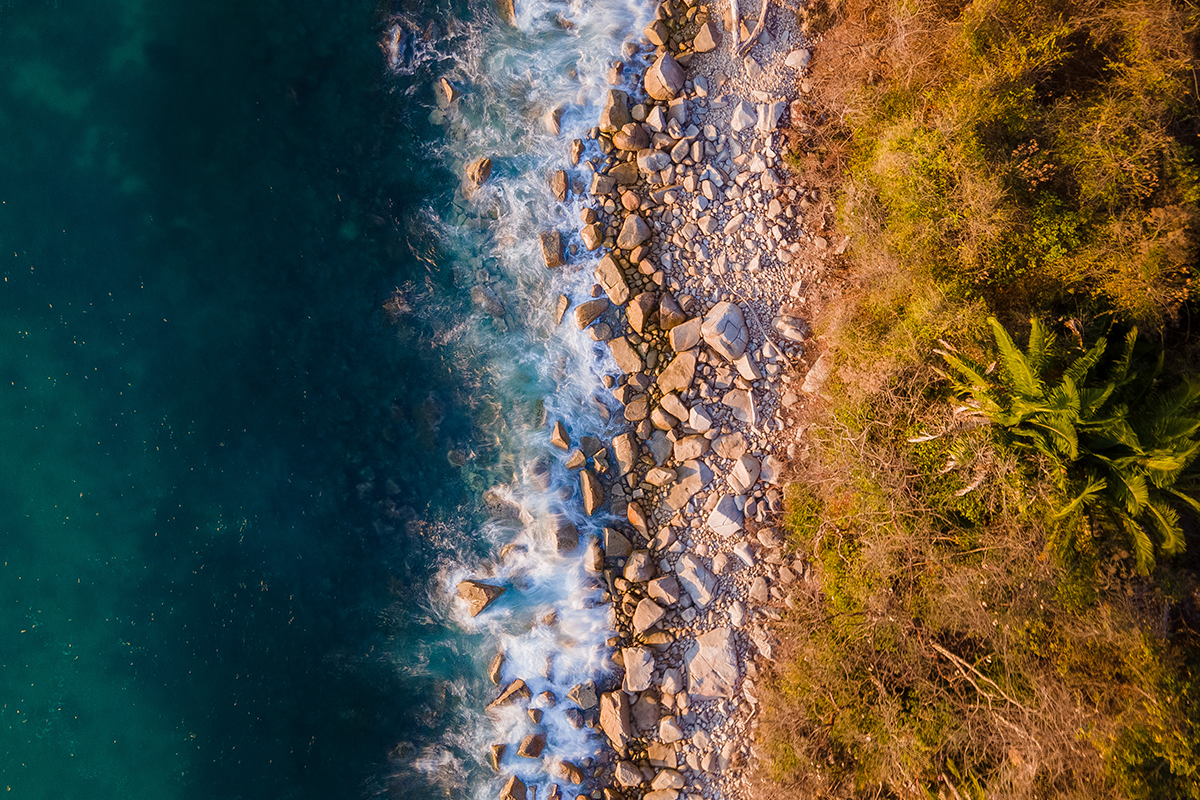
Getting more dynamic range and detail out of your drone photos starts before you ever open editing software — it comes down to two camera settings on the drone itself, and a merge technique in Lightroom that combines several exposures into one image with far more usable highlight and shadow detail than any single shot could capture.
Choosing the Right Camera Settings
Before taking off, two settings on the drone itself make a big difference in how much you can improve the image later.
-
Switch to Photo Mode
Make sure your drone is set to photo mode rather than video mode, since some drones default to video.
-
Shoot in JPEG Plus RAW
In your format settings, choose JPEG + RAW so you have a full raw file to edit on your computer, rather than only a compressed JPEG.
Turning On Auto Exposure Bracketing
The single most useful setting for this technique is Auto Exposure Bracket, which captures multiple exposures of the same shot automatically.
-
Enable AEB
In photo mode, find the AEB (Auto Exposure Bracket) setting, which lets your drone automatically capture a set of photos at different exposures in quick succession.
-
Choose the Highest Bracket Setting Available
Select the highest number of bracketed shots your drone offers — three or five, depending on the model — to capture as much of the scene’s dynamic range as possible. On the DJI Mavic Air 2 that means five. The sample photos were shot as a set of three, and three still gives great results.
Why Bracket at the Highest Setting Available
Each additional bracketed exposure gives the merge process in Lightroom more information to work with, particularly in the extreme highlights and shadows that a single exposure can’t capture cleanly. A three-shot bracket still produces a noticeable improvement, but five exposures, when your drone supports it, gives the merge even more range to draw from.
Understanding Why a Single Exposure Falls Short
Looking at the individual bracketed shots side by side makes it clear why merging them matters.
-
Review Your Bracketed Exposures
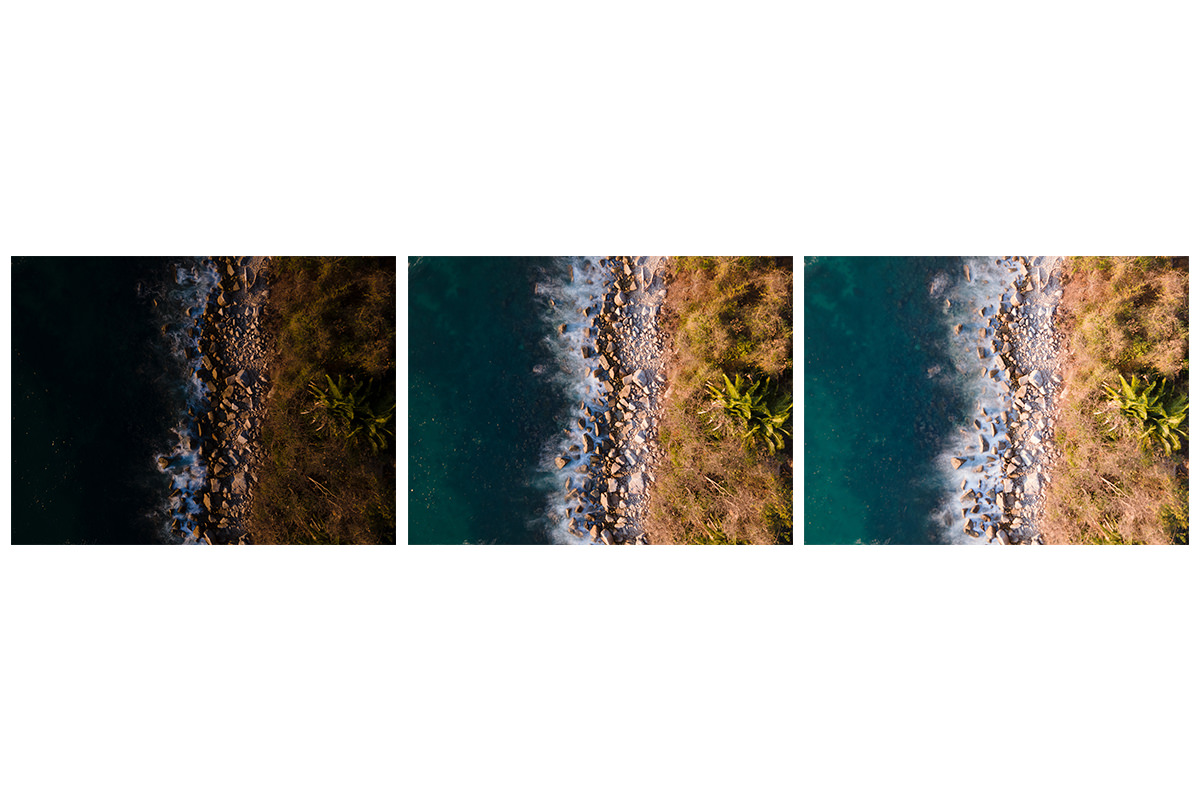
Open your set of bracketed raw files in Lightroom Classic — you’ll typically see one properly exposed shot, one underexposed, and one overexposed, each with a different shutter speed.
-
Identify the Dynamic Range Problem
Notice that the properly exposed shot alone is missing detail in either the highlights or the shadows — a long exposure taken through a neutral density filter, for example, can lose fine detail in bright water highlights that a differently exposed bracket shot still retains.
Merging Bracketed Shots into an HDR
With your bracketed raw files reviewed, Lightroom’s Photo Merge tool combines them into a single image with much greater dynamic range.
-
Select Your Bracketed Images
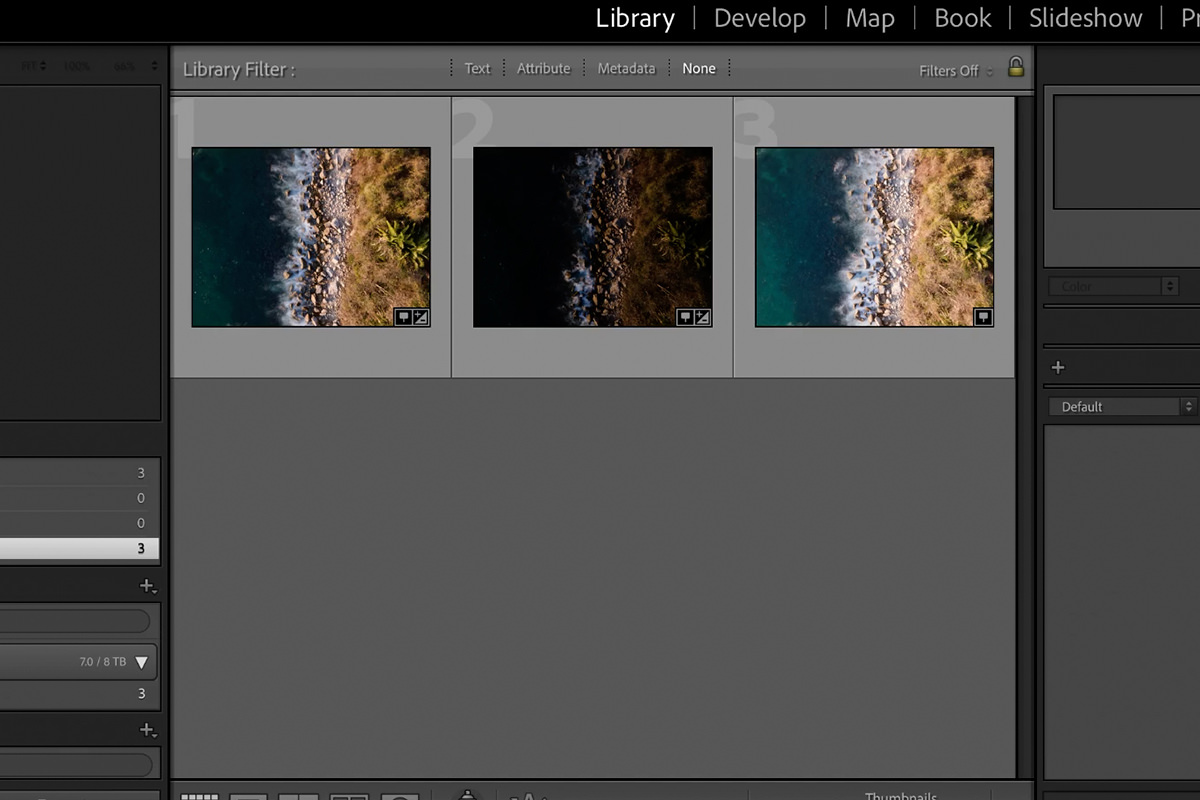
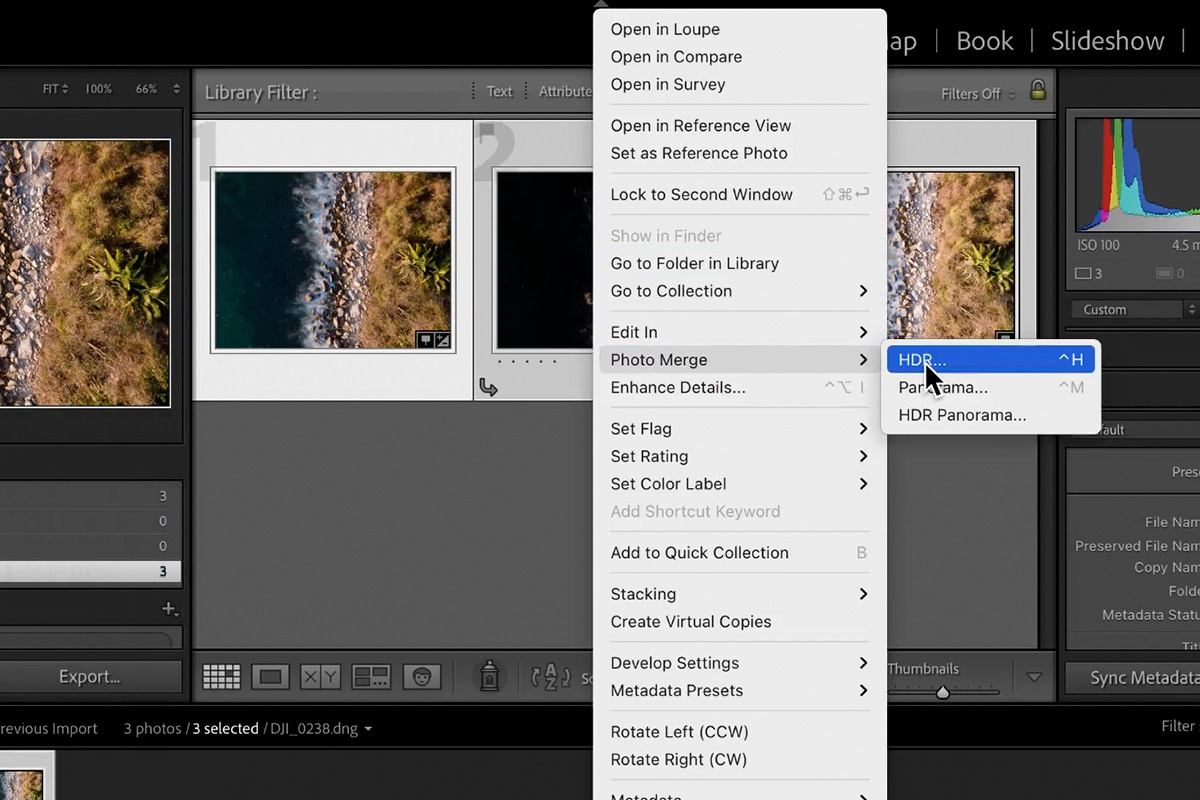
Select all of the raw files from one bracketed sequence in Lightroom’s filmstrip.
-
Merge to HDR
Right-click the selected images and choose Photo Merge > HDR to combine the dynamic range of every exposure into one file.
-
Adjust Deghost Amount if Needed
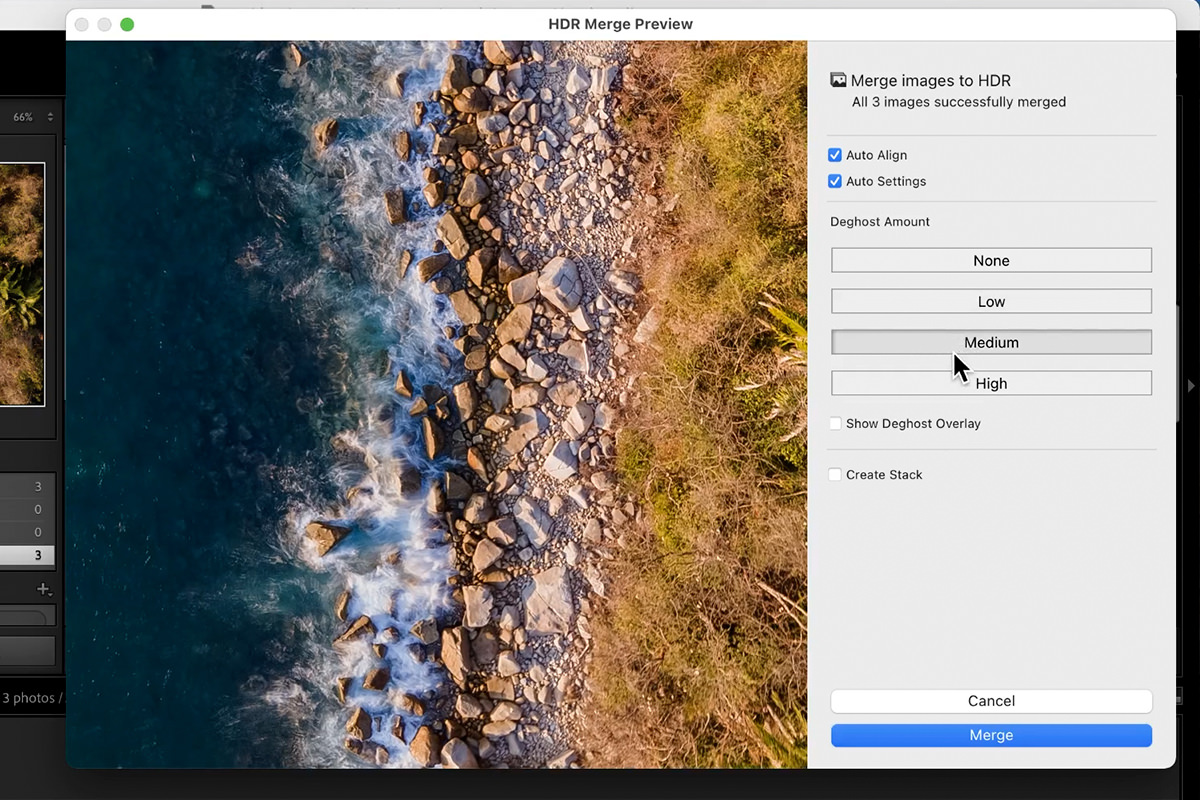
If moving elements like water or clouds create visible artifacts where the images don’t perfectly align, set the Deghost Amount starting at Low and moving to Medium, then High, only if you need to. On this photo, Medium got rid of pretty much everything. Check the Show Deghost Overlay option to see which areas are being pulled from a single source frame.
-
Click Merge
Click Merge to combine all of the bracketed exposures into a single HDR raw file, automatically tagged as HDR in your catalog.
What Deghosting Is Actually Fixing
Because each bracketed exposure is taken a fraction of a second apart, anything moving in the scene — water, clouds, foliage in the wind — ends up in a slightly different position in each frame. Deghosting tells Lightroom to favor the pixels from a single, best exposure in those moving areas instead of blending all of the bracketed frames together there, which is what prevents a blurry or doubled look wherever motion occurred during the bracket sequence.
Comparing the Single Exposure to the HDR Result
Seeing the merged result next to the original single exposure makes the improvement obvious.
-
Select Both Images and Compare
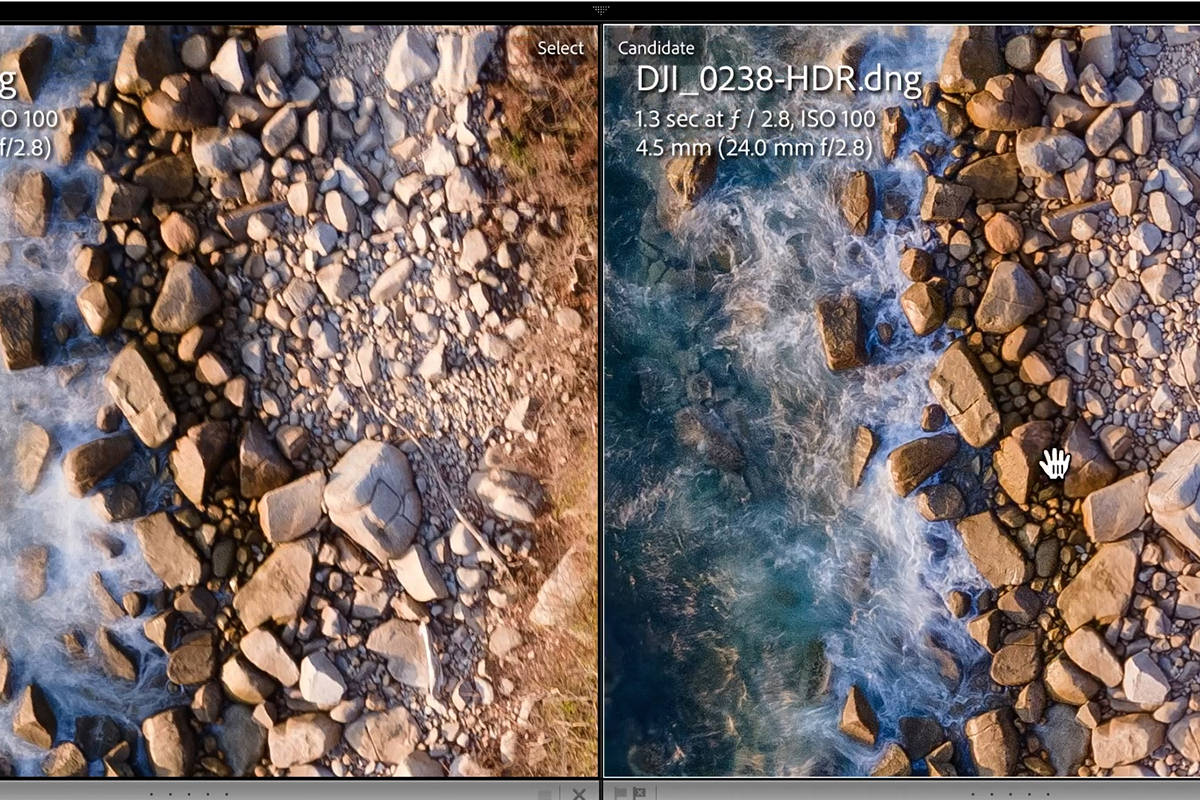
Select your original single exposure and your new HDR merge together, then press C to enter Compare mode in Lightroom.
-
Check Highlight and Shadow Detail
Zoom in on the brightest and darkest areas of the frame in both images — the single exposure typically clips detail in the highlights and lacks information in the shadows, while the HDR merge retains usable detail in both. The HDR also looks sharper: the merge uses the sharp parts of each frame, so it reads more like a freeze frame than the single 5-second exposure, which has a bit of motion blur, while keeping the detail of the long exposure.
Adding a Graduated Filter for Focus
With the technical merge finished, a few local adjustments help direct attention to the most interesting part of the frame.
-
Apply a Graduated Filter
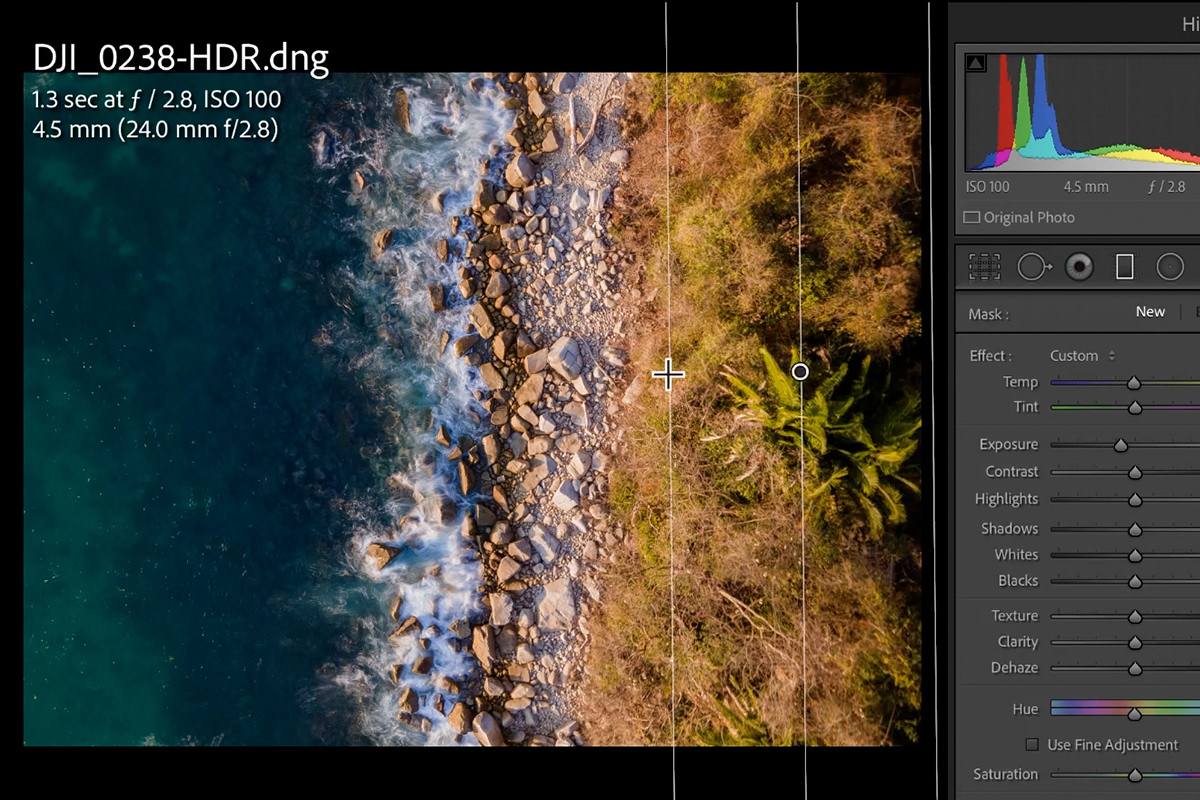
Select the Graduated Filter tool and drag it from the right toward the left, then lower the Exposure slightly to darken that area and pull focus toward the center of the frame.
-
Paint Additional Darkening with the Brush Tool
Grab the adjustment Brush tool with a very large brush size and paint over any additional area you want darkened, adding contrast and visual interest around your main subject.
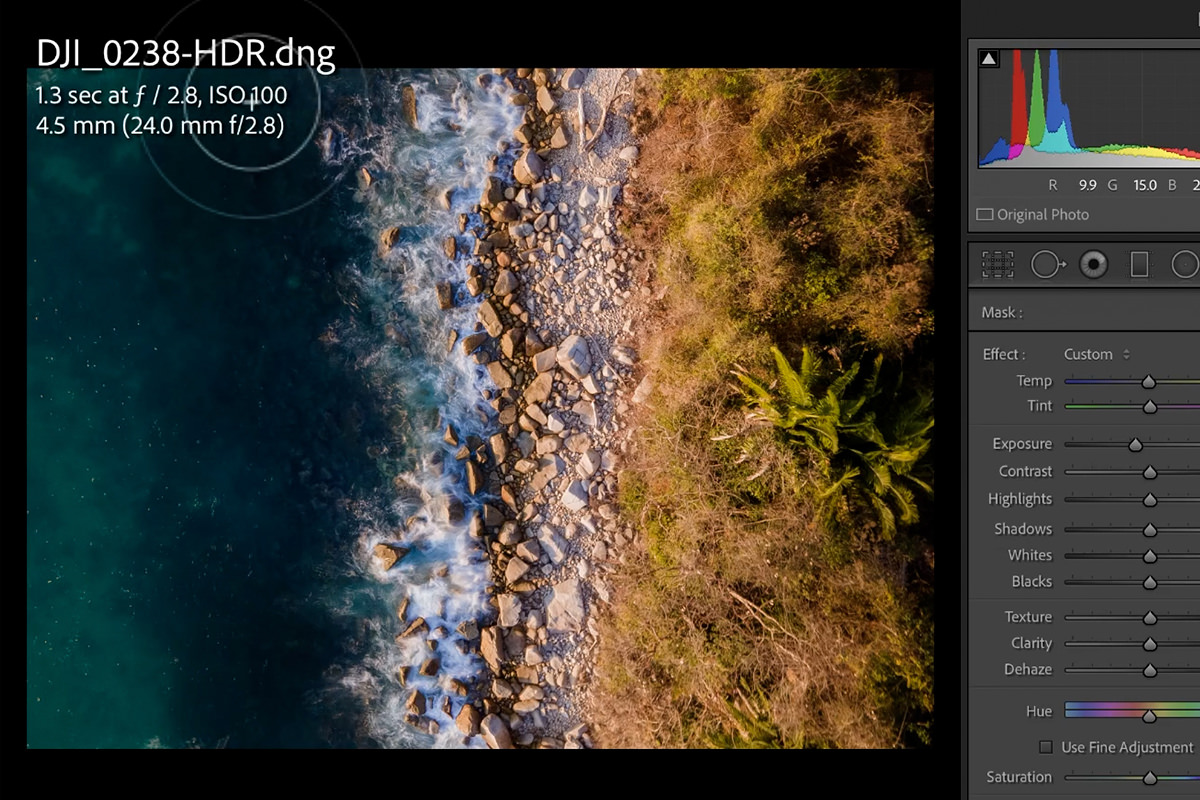
Using a Radial Filter for a Focal Point
A radial filter, inverted so its adjustment applies inside the circle rather than outside it, can highlight a specific focal point like waves crashing against rocks.
-
Draw and Invert a Radial Filter
Select the Radial Filter tool, drag out a circle around your intended focal point, and check the Invert option so the adjustment applies inside the circle.
-
Increase Exposure Within the Radial Filter
Raise the Exposure slider slightly within the radial filter to brighten and draw attention to that specific area of the image.
Why Local Adjustments Still Matter After an HDR Merge
An HDR merge solves the dynamic range problem, but it doesn’t automatically create a compelling composition on its own — the graduated and radial filters are what direct the viewer’s eye once the technical range is already there. Local adjustments like these are only effective because the merged file has enough recovered highlight and shadow detail to push around without breaking down, which is exactly what the bracketing and merging in the earlier steps made possible.
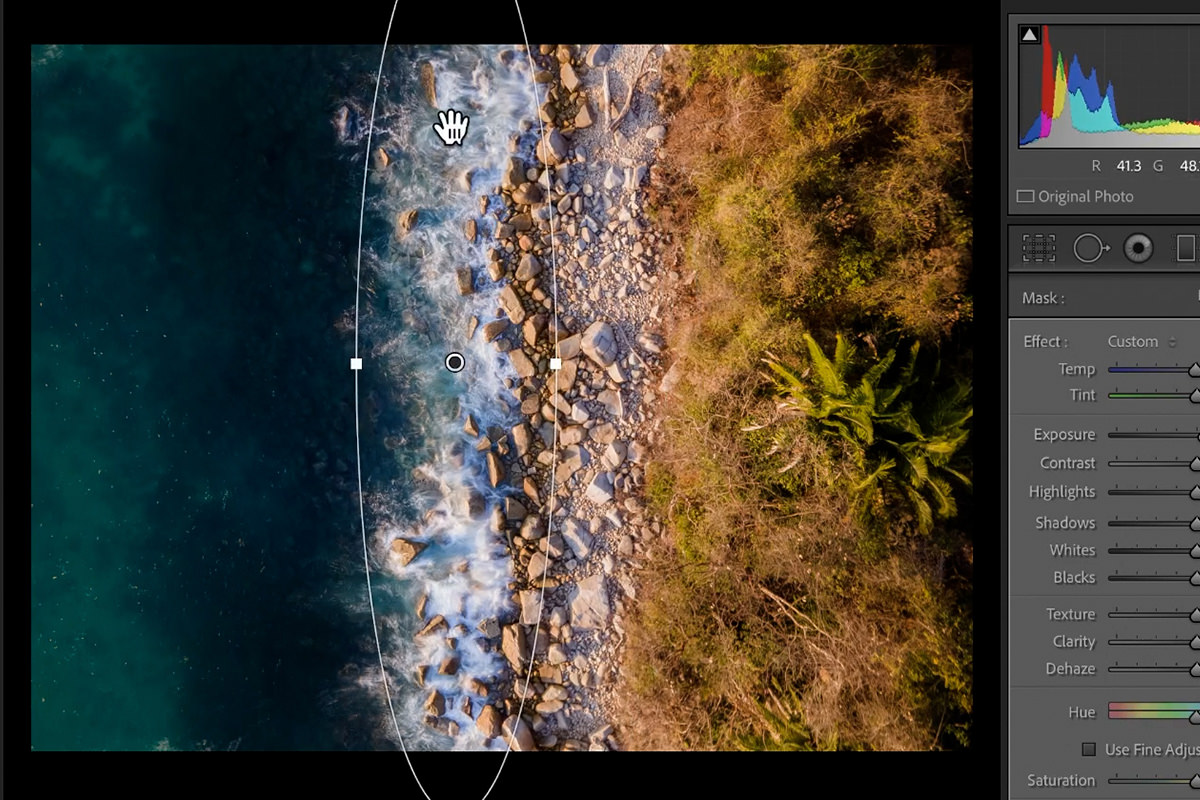
Finishing with Vibrance
One last global adjustment rounds out the edit.
-
Increase Vibrance
Raise the Vibrance slider just a little to add a bit more color intensity across the image and finish the edit.
Why This Approach Works
The technique works because it solves the dynamic range problem at the capture stage rather than trying to recover detail that was never recorded in the first place. Auto exposure bracketing captures a full range of exposures in seconds, and Lightroom’s HDR merge combines the best highlight detail from the darker frames with the best shadow detail from the brighter frames into a single raw file with far more information than any one shot alone. Deghosting keeps that merge clean even with moving elements like water in the frame. From there, the graduated and radial filters are just standard local adjustments — they’re only more effective here because there’s genuinely more recovered detail in the file to work with. This same principle of combining multiple exposures for more dynamic range extends into more advanced techniques like luminosity blending in Photoshop, for photographers who want even finer control over how different exposures are combined.
Final Thoughts
Better drone photos start with two simple camera settings — RAW capture and auto exposure bracketing — and the payoff comes later in Lightroom, where those bracketed shots merge into a single HDR file with dramatically more usable highlight and shadow detail than any single exposure could hold. None of the editing steps here are complicated on their own; the real gain comes from capturing the right raw material in the field, which is worth remembering the next time you’re setting up a shot rather than trying to fix a limited single exposure after the fact.
Quick Reference: Keys, Menus and Settings
- Drone settingsPhoto mode; Format: J+RAW; AEB at the highest number of shots (3 or 5)
- Merge the bracketSelect the RAW files, right-click > Photo Merge > HDR
- DeghostDeghost Amount: Low, then Medium (used here), then High; Show Deghost Overlay; Merge
- CompareSelect both images, C
- Darken the edgesGraduated Filter from the right, Exposure down a little; very large Brush on the other side
- Focal pointRadial Filter, Invert, Exposure up a little
- FinishVibrance up a little
No AI, no generative credits.
Free Downloads
Follow Along on the Same RAW Files
Get the drone photos from the video as 4 JPEG sample images and 4 RAW files, plus the 3-page PDF guide. Free with a PHLEARN account.
Drone Photos and HDR: Common Questions
What camera settings should I use on my drone?
Make sure the drone is in photo mode, since it might default to video. Set Format to J+RAW (JPEG plus RAW) and turn on AEB, Auto Exposure Bracket.
What does AEB do?
AEB stands for Auto Exposure Bracket. The drone takes several photos at different exposures in a row, so they can be combined later in software for more dynamic range.
Should I bracket three or five shots?
Use the highest setting your drone has. On the DJI Mavic Air 2 that is five, but the sample photos were shot as a set of three and still give great results.
How do I merge bracketed drone photos in Lightroom Classic?
Select every RAW file in the bracket, right-click and choose Photo Merge > HDR, then click Merge. Lightroom builds a new file with more dynamic range and tags it HDR automatically.
Why does my HDR preview show strange artifacts?
Something moved between frames, like the water here, so the photos do not line up. Set Deghost Amount to Low first, then Medium or High if you need to. Medium cleaned up this photo.
What does Show Deghost Overlay show?
It marks the area Lightroom takes from only one photo. The rest of the image is a combination of all the frames.
How do I compare the HDR with a single exposure?
Select the single exposure and the HDR together and press C for Compare mode, then zoom in on the highlights and shadows.
Why does the HDR look sharper than the single shot?
The merge uses the sharp parts of each frame. The single 5-second exposure has a bit of motion blur, while the HDR looks more like a freeze frame and keeps the detail of the long exposure.
How do I finish the merged drone photo?
Drag a Graduated Filter from the right and lower Exposure a little, darken the other side with a very large Brush, add an inverted Radial Filter with a little more Exposure on the focal point, then raise Vibrance a touch.
Are the sample files free?
Yes, with a free PHLEARN account. You get 4 JPEG sample images, 4 RAW files and 1 PDF guide: the drone photos from the video and a 3-page guide.
Master Photoshop, Lightroom and Photography
Join PHLEARN PRO for $12.99 a month or $99.99 a year. Cancel anytime, with a 100% money-back guarantee.





