Download Sample Images
description
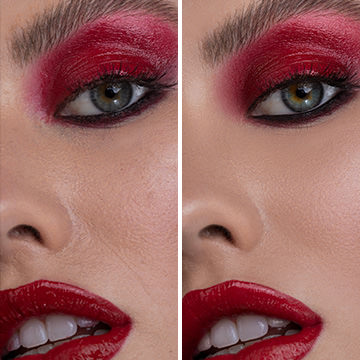
Creating your own duotone looks has never been easier! Learn how to use Channels to select both the highlights and the shadows in an image, and then use simple Solid Color Fill Layers to change the color of each for the perfect duotone effect.
Share
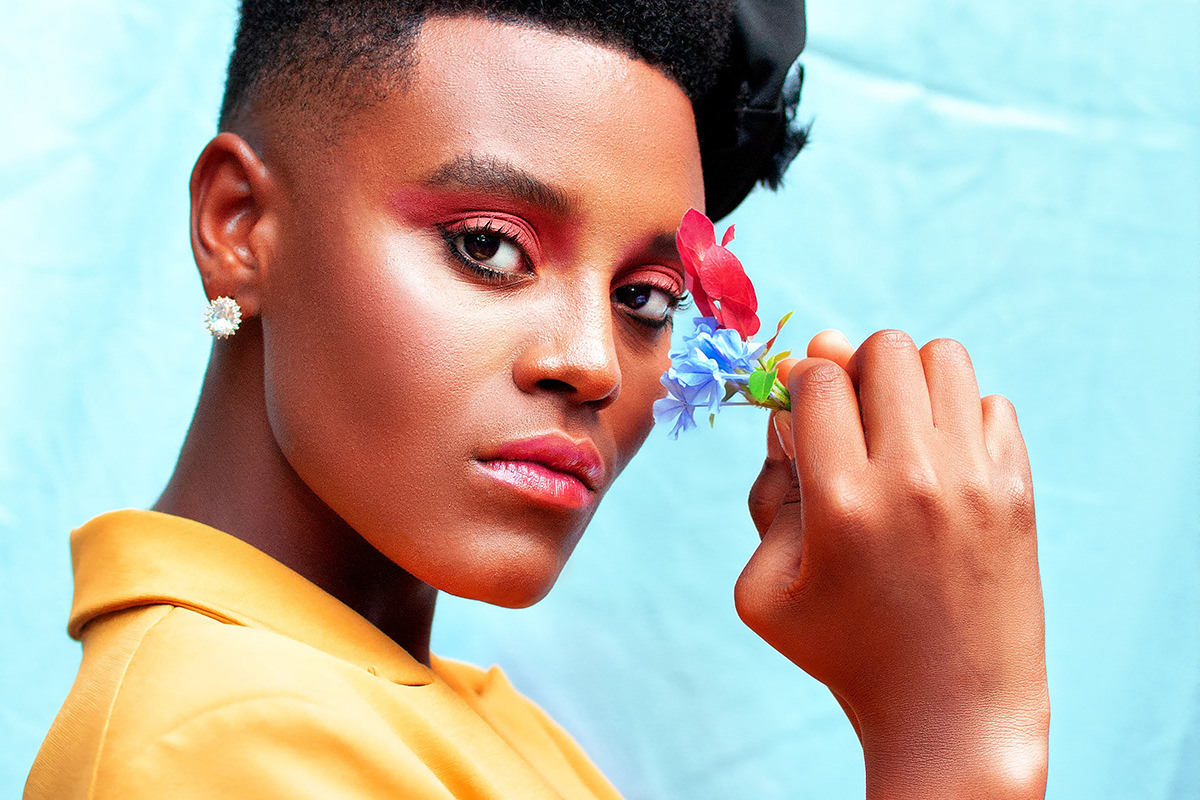
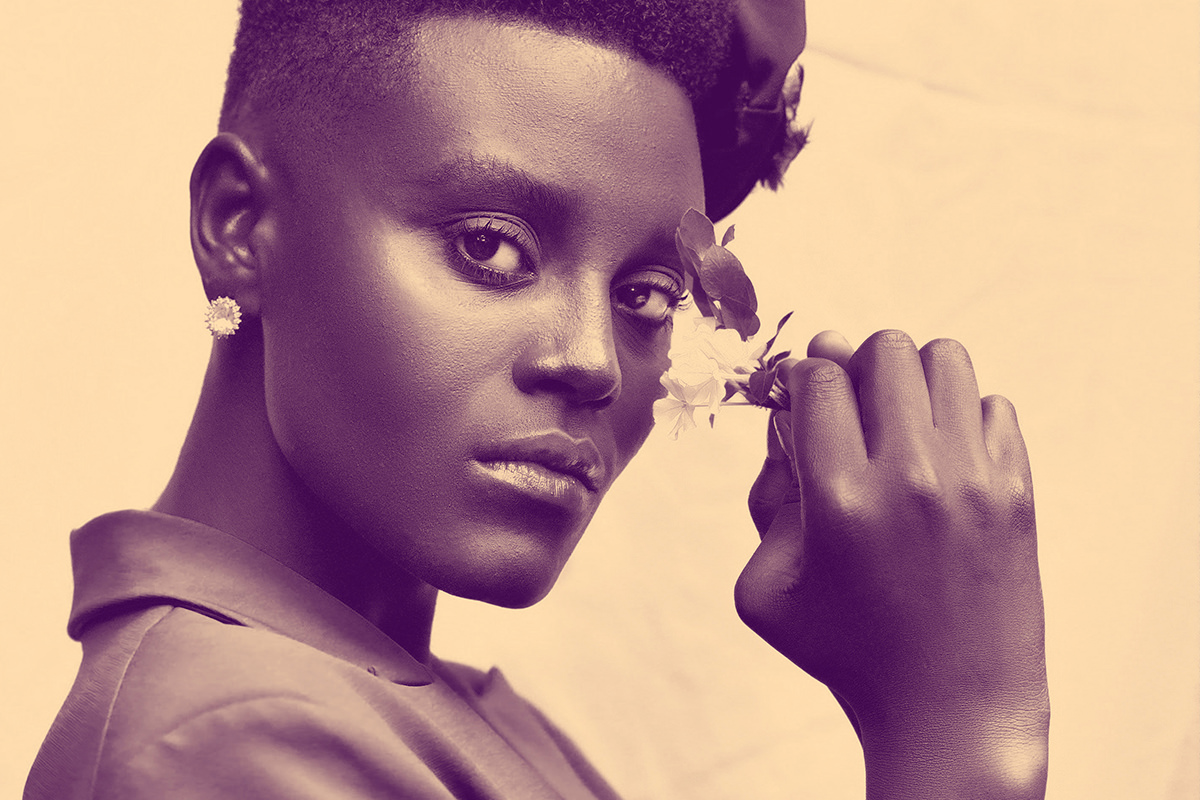

CREATE STUNNING DUOTONE LOOKS
BEFORE
Convert Any Photo Into Two Colors
What is Duotone Coloring?
Duotone coloring is a popular style that involves simplifying the colors in an image down to only two hues; one hue present in the highlights, and another in the shadows.

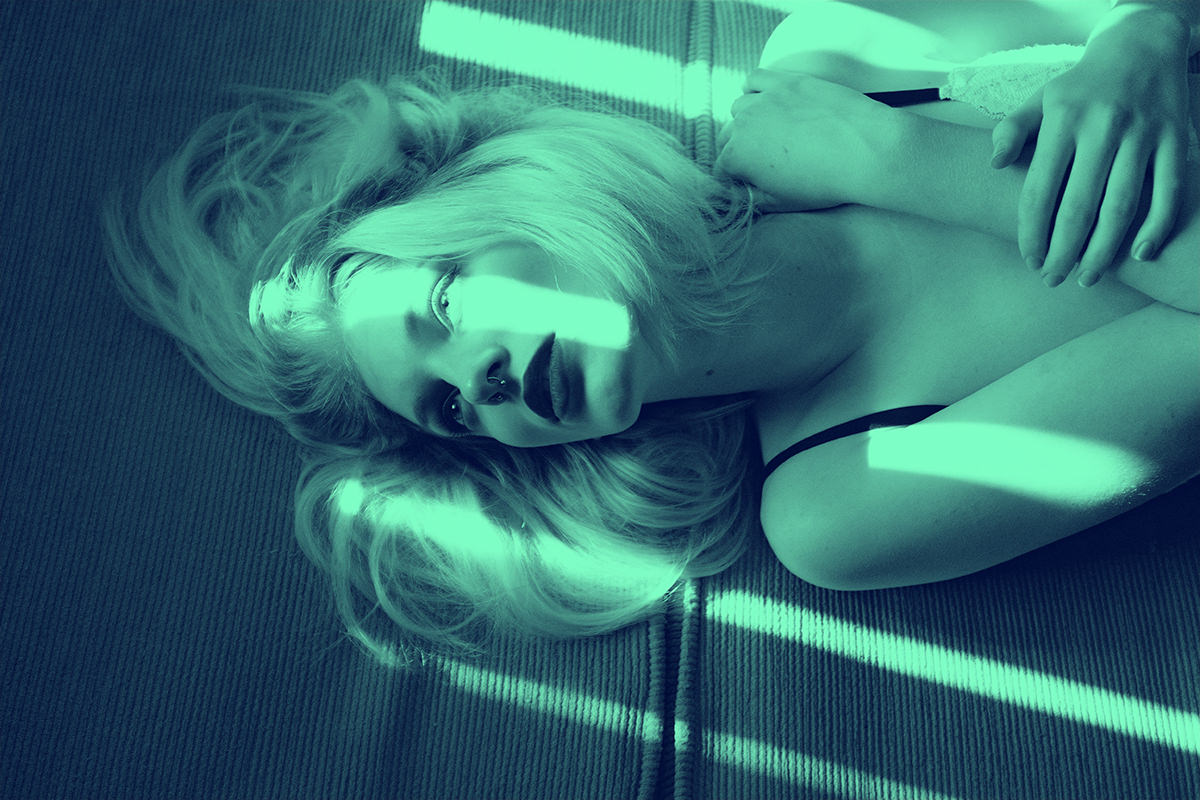
This is a great technique when you want to create something both graphic and eye-catching, like an image for a banner, advertisement, or poster. It’s also a great way to integrate a client’s color scheme into an image if you’re working on promotional photos for them.
Duotone Coloring in Photoshop
There are a lot of ways to approach duotone coloring in Photoshop. But all of them will involve some method for coloring the highlights and shadows independently from one another. When it comes to making detailed selections of highlights and shadows, Channels are our tool of choice.
Making Selections with Channels
Channels might be one of the most underrated and underutilized tools in Photoshop. Capable of making ultra-detailed selections, they’re great for everything from coloring to cutting out hair from a background. You can find Channels next to the Layers tab in the Layers Panel. Clicking on the Channels tab will open a list of all of the available color channels in the document you’re working on. Since we’re working in RGB, there’s an RGB Channel and then individual Channels for red, green, and blue.
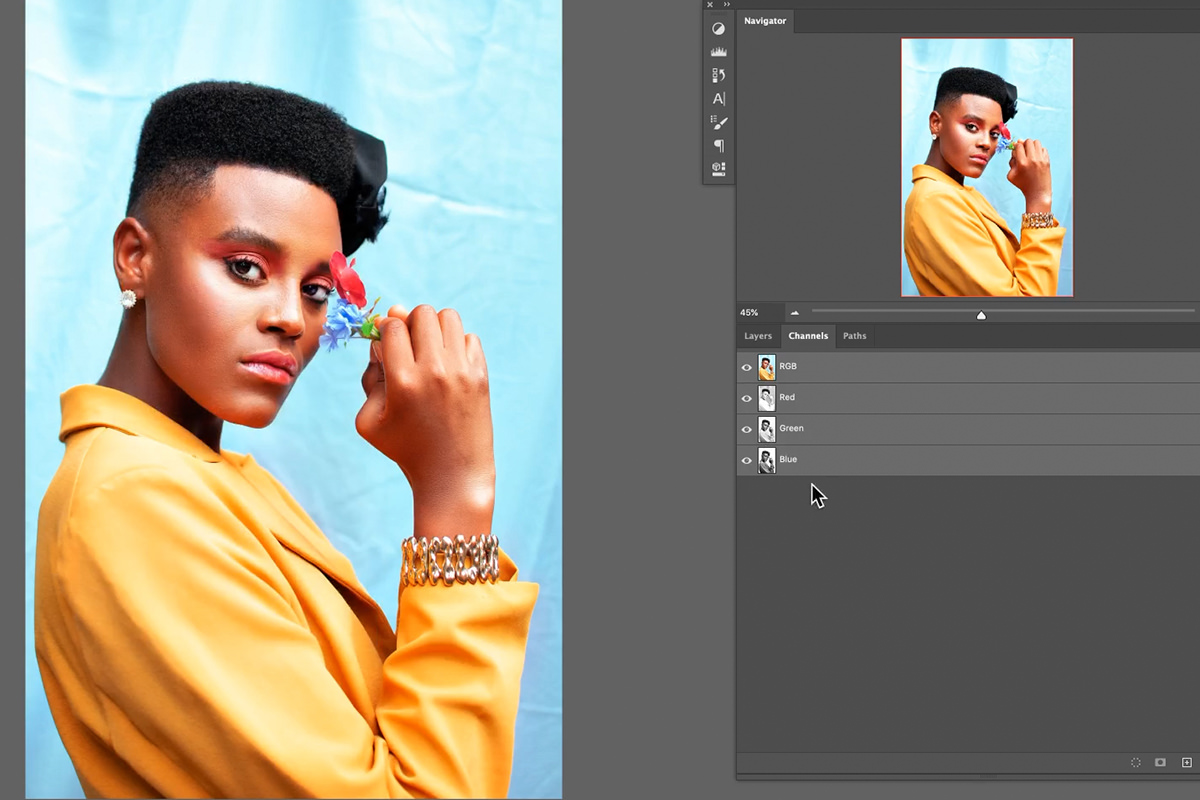
Viewing each Channel individually will show you a black and white version of the image. Not only that, the black and white preview also shows how much of that color is present in the image, where lighter areas mean there’s more of that color in an area and darker areas mean there is less of that color present. Say, for example, you had an image of a pure blue sky over a wheat field. If you were to look at the blue Channel, the sky would appear almost pure white and the ground would be a deep dark gray. Why? Because the blue channel is showing you where blues are present in the image, representing them as lighter areas in the black and white preview.
So how does this help us with duotone coloring?
Since we need an accurate way of selecting the highlights and shadows in an image, we can use the RGB color information in Channels to help us out. Loading the first example portrait we’ve provided, we need to go through each Channel and determine which one has the most contrast while also displaying the highlights and shadows in a way that looks most natural. Since we’re using this for coloring, choosing the right Channel is more of a subjective process, so choose the one that you think looks the best.
We decided to go with the blue Channel since it struck the right balance between contrast and having a more balanced look between the highlights and shadows. Now we just need to convert the blue Channel into a Selection.

You can do this by holding CTRL or CMD and clicking on the thumbnail of the blue Channel. Perfect! Now that we have our selection ready, let’s get into process of coloring our image!
Duotone Coloring with Solid Color Fill Layers
You might think that detailed and accurate coloring requires a full suite of ultra-detailed tools. In reality, once we have an accurate Selection of the highlights, we only need very basic tools to add a beautiful duotone effect to the image. Enter the Solid Color Fill Layer.
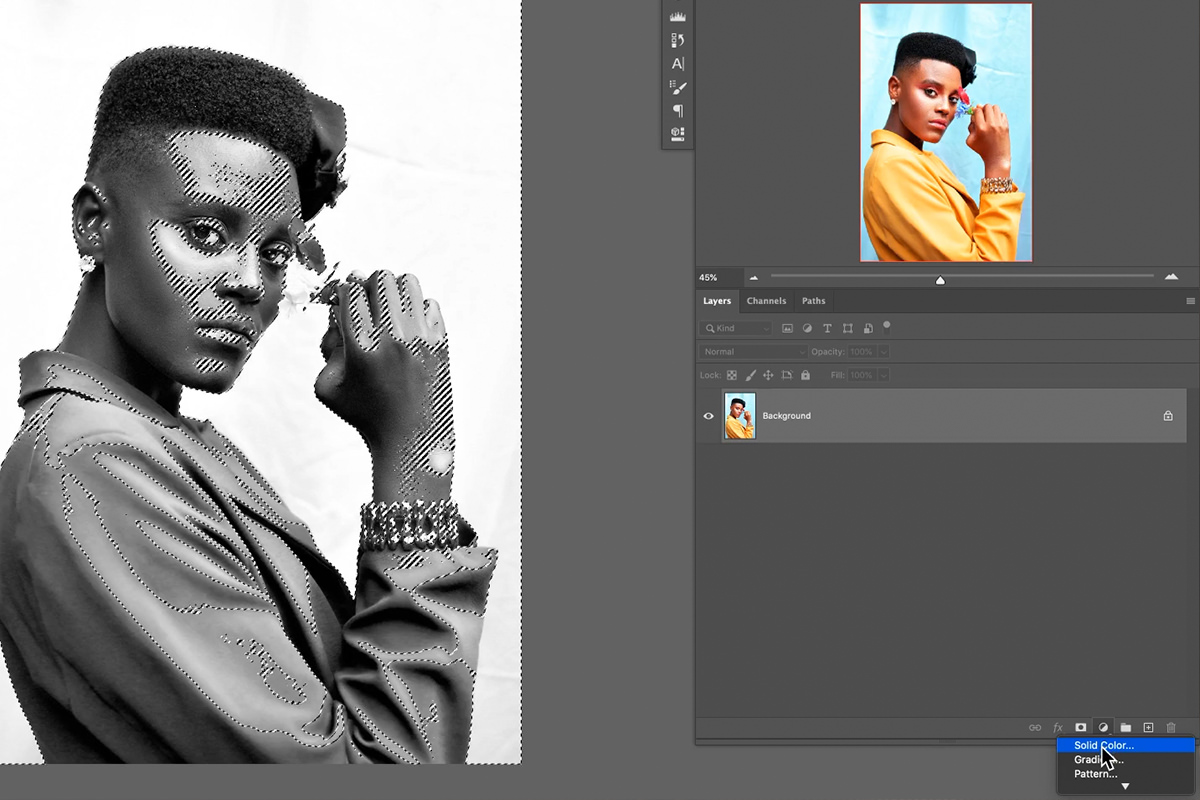
Solid Color Fill Layers are, by default, large blocks of a single color. But since we have a Selection active, it will automatically load as a Layer Mask in any Solid Color Fill Layer we create.
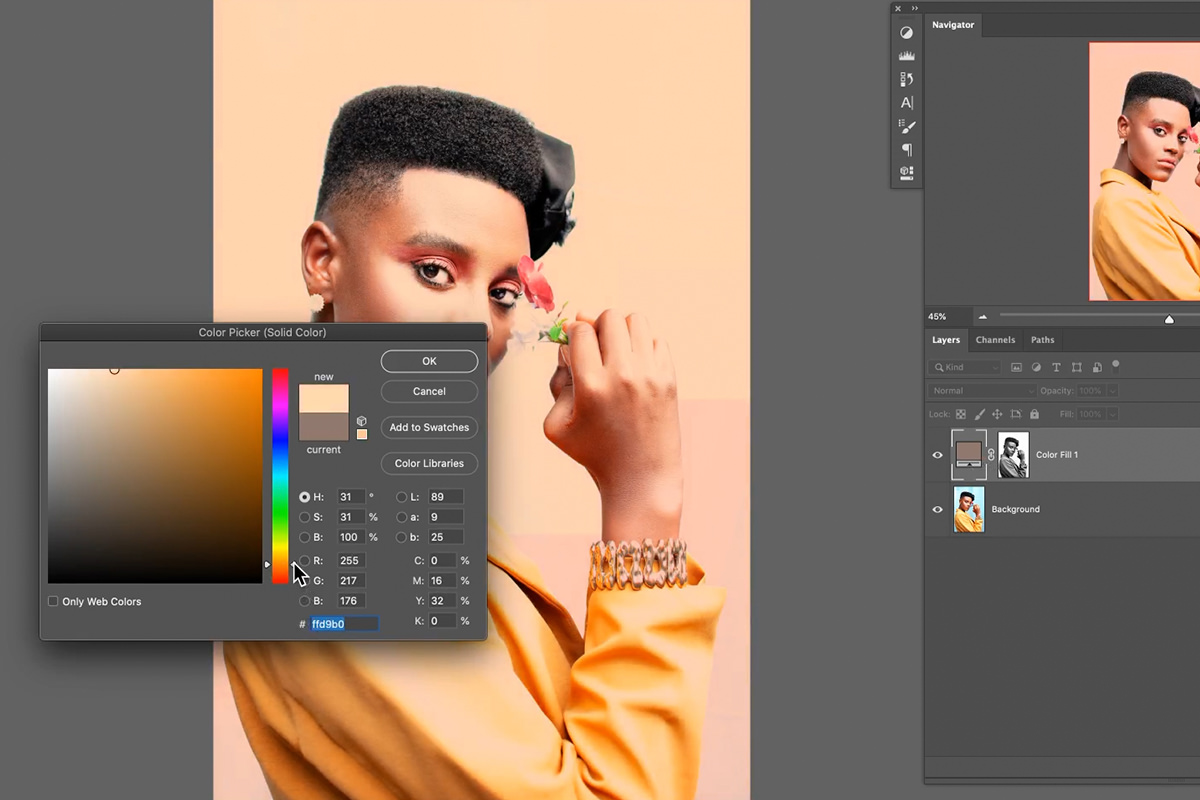
That means that the Fill Layer will only appear in highlights we isolated with Channels. Create a Solid Color Fill Layers and choose any color, but make sure it’s a lighter color since we’re working on coloring the highlights of the image first.
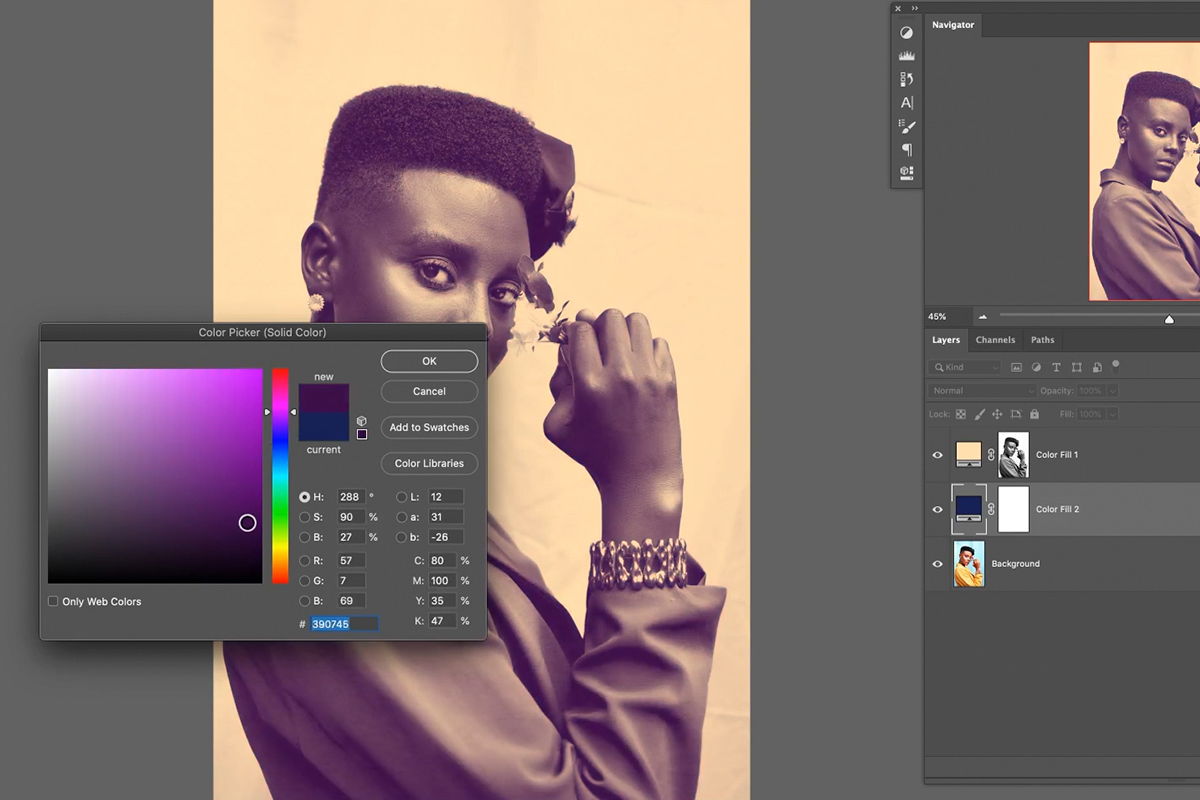
Once the highlight color is set, we need to color the shadows. Create another Solid Color Fill Layer underneath the first, choosing any color you want (just remember to keep it on the darker side). And that’s it!
Since we’re using Adjustment Layers, it’s easy to go back and change the colors at any time, or get back to our original image. Duotone coloring made easy!