
Download Assets
This tutorial includes 1 sample image, 1 Photoshop brush and 1 PDF guide. Downloads are free with a PHLEARN account.
- Download the sample files from every free tutorial on PHLEARN
- New free tutorials published every week
- One free account: sign up once, then download anything
Free PDF Guide · 4 Pages
This Tutorial as a Step-by-Step PDF
The 4-page guide loads the fog brush through Edit > Presets > Preset Manager, paints fog at 10% Flow with sampled colors, softens it with a Gaussian Blur of about 8 to 10 pixels, masks the shirt with the Magic Wand, then builds beams with Radial Blur set to Zoom and Ctrl/Command+F. Keep it next to your keyboard.
description
One custom brush does both jobs here. Its shape is irregular by design — every click lands at a different size, opacity and rotation — which is exactly why painted fog reads as atmosphere rather than as brush marks. Sample the gray from the photo itself, build it up at 10 to 20 percent flow, then soften with Gaussian Blur. The same brush, painted in white and run through Radial Blur set to Zoom, becomes beams of light.
Enjoying This Free Tutorial?
We publish a new free tutorial every week, each one with sample images and PSDs you can download and follow along with. Sign up and they land straight in your inbox, along with early word on sales, events and subscriber-only offers.
How to Add Fog & Light in Photoshop
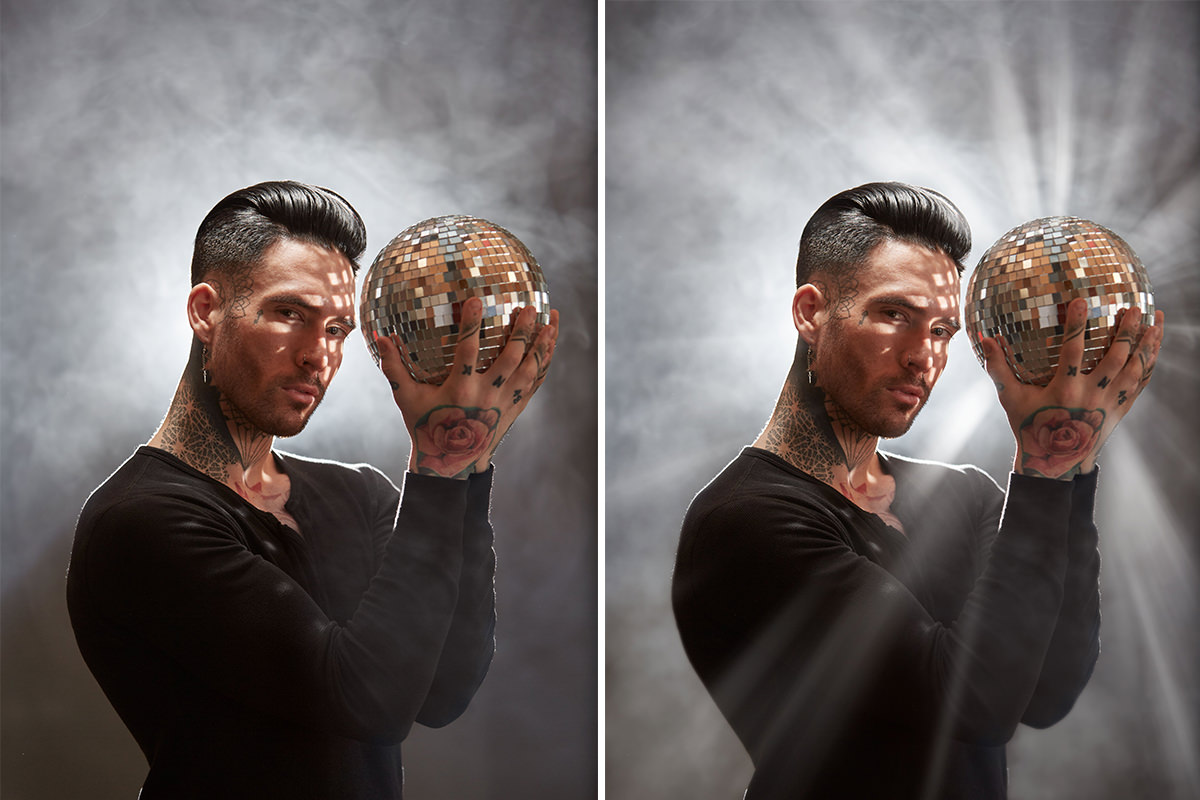
Working with a portrait shot in foggy, atmospheric conditions, there are two ways to push that mood even further in Photoshop: filling in fog where the original lighting left gaps, and adding streaks of light that look like they’re radiating from a light source in the scene. Both effects use the same custom brush, so once you understand how the brush behaves, you can apply the same technique to add fog, sunlight beams through trees, or any similar atmospheric effect to your own images.
Loading the Custom Fog Brush
Before painting anything, the custom fog brush needs to be loaded into Photoshop. Go to Edit, down to Presets, and over to Preset Manager. This is the same place you can load other kinds of presets like swatches, gradients, and custom shapes. Click on Brushes, hit Load, and navigate to the downloaded brush file. Once it loads, it appears at the very bottom of your brush list. In newer versions of Photoshop you can also load it from the Brushes panel menu with Import Brushes. It’s worth taking a moment to test the brush on a new layer with a bright, obvious color first, since the brush shape is irregular by design — every click produces a different size, opacity, and rotation of texture, which is what makes the fog it creates look natural instead of repetitive.
Painting Fog Into Your Image
Create a new layer for the fog before painting. Hold Alt (or Option on a Mac) to temporarily switch to the eyedropper and sample a gray tone directly from the image, so the fog color matches the scene instead of being guessed. The key to a natural result is using a low flow — press Shift+1 for 10 percent, or go lower — so that a single click doesn’t put down too much fog at once. Painting over the same area repeatedly builds the effect up gradually, which reads as much more natural than one heavy pass. Use the bracket keys to make the brush larger or smaller as needed for different areas of the image, and don’t worry about painting over your subject at this stage, since a layer mask will take care of that afterward.
Softening the Brush Texture with Gaussian Blur
Once the fog is painted in, the brush’s texture and edges can look a little too defined and obviously brush-shaped. To soften this, go to Filter, down to Blur, and over to Gaussian Blur. On this image the brush edges disappear at about 8 pixels, and a Radius of 10 erases them while the fog still reads clearly as fog. Zoom in on the area first so you can judge exactly how much blur removes the texture without making the fog look like a flat haze.
Protecting Your Subject with a Layer Mask
Since the fog was painted loosely over the whole image, including areas over the subject, a layer mask is what brings the subject back into focus. Click the layer mask icon to add a white mask to the fog layer, which starts fully visible. Painting is more forgiving than you might expect here — it’s actually better to paint fog slightly past the edge of your subject and then mask it back, since stopping a soft effect exactly at someone’s silhouette tends to look unnatural.
Selecting the Subject with the Magic Wand Tool
To mask out the fog covering the subject, make the fog layer temporarily invisible and use the Magic Wand tool (press W) to select the area you want protected, such as a shirt or jacket. Hold Shift to add to the selection and Alt or Option to subtract from it if the tool grabs part of the background by mistake. If the selection isn’t behaving well, lowering the tolerance setting (try around 8) narrows what the tool picks up and usually produces a cleaner selection. With the selection made, click the layer mask thumbnail, go to Edit and down to Fill, and fill the selection with black — black on a mask hides that area, white reveals it. Press Ctrl or Cmd+D to deselect. Any spots the selection missed, like fingers or stray edges, can be cleaned up afterward with a regular brush painted directly in black on the mask.
Creating Light Beams with Radial Blur
With the fog finished, the same custom brush can create dramatic beams of light appearing to radiate from a light source in the scene — in this case, a disco ball reflecting a light positioned behind the subject. Create a new layer, switch the brush color to white, and paint loose streaks of the fog brush radiating outward from the point you want the light to appear to come from. This is only a rough starting point — the radial blur filter applied next is what actually turns these streaks into convincing light beams.
Finding the Center Point of the Zoom Blur
Go to Filter, down to Blur, and over to Radial Blur. Radial Blur offers two blur types, Spin and Zoom — Zoom is what creates the light-beam effect by streaking the texture outward from a center point. The dialog lets you click to set where that center point sits, but since there’s no live preview, finding the right spot usually takes a couple of attempts. Set the center as close as you can to the actual light source in your image, bring the amount up, and click OK. Once you’ve dialed in a center point and amount that look right, you can reapply the exact same filter settings instantly by pressing Ctrl or Cmd+F, as in the video (or by choosing Radial Blur at the top of the Filter menu), which repeats the last filter used, including its exact settings and center point placement.
Refining the Light Beams Across Multiple Layers
Rather than trying to get the beams perfect on a single layer, spread the effect across several layers so each one can be adjusted independently. Paint a fresh set of streaks on a new layer, then hit Ctrl or Cmd+F to apply the same radial blur. Painting a little, reapplying the filter, and repeating builds up the light beams gradually. Working this way also means you can lower the opacity of any individual layer, which makes the light look more subtle and realistic than one strong, opaque burst.
Erasing and Adjusting Opacity for a Natural Look
Not every beam that comes out of the radial blur will look convincing — beams originating from an area of the image that isn’t actually bright, for example, tend to look fake. Switch to the Eraser tool (press E) and erase any beams that don’t sit naturally in the scene, then switch back to the Brush tool (press B) to add more where needed. For finer, smaller rays, zoom in and paint tighter streaks before reapplying the radial blur, and use additional Gaussian Blur afterward if any beam still looks too sharp-edged. Building the effect across several layers this way, each with its own opacity and its own touch of erasing, is what makes the final beams of light look like they’re actually part of the scene rather than an obvious effect pasted on top.
Why This Effect Works
Both the fog and the light beams rely on the same principle: an irregular, randomized brush texture combined with blur reads as natural, while a hard-edged, uniform shape reads as an obvious effect. Sampling fog color directly from the image and building it up slowly with a low flow keeps the tone consistent with the scene’s real lighting. For the light beams, spreading the effect across multiple layers with independent opacity, and erasing beams that don’t originate from a believably bright area, is what keeps the result looking like it was captured in camera rather than added afterward. Using Ctrl or Cmd+F to instantly reapply the exact same radial blur settings also means every beam shares a consistent look, even though each one is painted and adjusted individually.
Final Thoughts
Fog and light beams are a great example of how a single custom brush, paired with the right filters, can add a huge amount of atmosphere to an image. The fog fills in gaps left by the original lighting, while the radial-blur light beams suggest a source of light that feels like it belongs in the scene. Take your time refining the beams across multiple layers and masking the fog carefully around your subject, and you’ll end up with an effect that looks like it happened in camera rather than in Photoshop.
Quick Reference: Keys, Menus and Settings
- Load the brushEdit > Presets > Preset Manager > Brushes > Load
- Paint the fogShift + 1 for 10% Flow, Alt/Option-click to sample, [ and ] to resize
- Soften brush edgesFilter > Blur > Gaussian Blur, Radius about 8 to 10 px
- Select the shirtW Magic Wand, Tolerance 8; Shift adds, Alt/Option subtracts
- Mask the fogEdit > Fill > Black on the mask, Cmd/Ctrl + D to deselect
- Make light beamsWhite streaks, Filter > Blur > Radial Blur, Blur Method: Zoom
- Repeat the filterCmd/Ctrl + F in the video, or Radial Blur at the top of the Filter menu; E erases fake beams
No AI, no generative credits.

Free Downloads
Follow Along on the Same Photo
Get the foggy disco ball portrait, the PHLEARN fog brush and the 4-page PDF guide to painting fog and beams of light. Free with a PHLEARN account.
Add Fog and Light: Common Questions
How do I load the fog brush into Photoshop?
Go to Edit > Presets > Preset Manager, choose Brushes, click Load and open the PHLEARN fog brush file. It appears at the very bottom of your brush list; with the Brush Tool active, right-click the image and scroll to the end to pick it.
What flow should I paint fog with?
A really low flow. Aaron presses Shift + 1 for 10% Flow, then goes over the same area again and again so the fog builds up slowly and looks natural.
How do I pick the right color for the fog?
Sample it from the photo. While painting, hold Alt/Option to switch to the Eyedropper and click the gray of the real fog. Sample darker tones for darker fog in the corners.
Why can I see the shape of the brush in my fog?
The texture and outline of the brush are still too defined. Zoom in and go to Filter > Blur > Gaussian Blur. On this image the edges disappear at about 8 pixels, and Aaron uses a Radius of 10.
How do I keep fog off my subject?
Paint past the subject first, then add a layer mask. Hide the fog layer, select the shirt with the Magic Wand Tool (W), click the mask and use Edit > Fill with Black. Paint black on the mask over anything the selection missed, like the hands.
The Magic Wand keeps selecting the background. What do I do?
Lower the Tolerance; the lower it is, the less each click selects. Aaron uses a Tolerance of 8. Hold Alt/Option and click to subtract, or undo the click.
How do I turn brush strokes into beams of light?
On a new layer, paint white streaks with the same fog brush, running out from the light source. Then go to Filter > Blur > Radial Blur, choose Zoom, place the center on the light source and raise the Amount.
Why do my beams point to the wrong spot?
The Blur Center in Radial Blur has no live preview, so the first try is a guess. Run it on a test layer, see where the beams meet, open Radial Blur again and nudge the center.
My light beams look fake. How do I fix them?
Spread them across several layers and lower each layer’s opacity a lot. Erase beams that come from a part of the image that isn’t bright, or that cross the face, and add a touch of Gaussian Blur to any that are still too sharp.
Are the sample files free?
Yes, with a free PHLEARN account. You get 1 sample image, 1 Photoshop brush and 1 PDF guide: the foggy disco ball portrait, the PHLEARN fog brush (.abr) and a 4-page guide to every step.
Master Photoshop, Lightroom and Photography
Join PHLEARN PRO for $12.99 a month or $99.99 a year. Cancel anytime, with a 100% money-back guarantee.





