

Download Assets
This tutorial includes 1 Photoshop brush and 1 PDF guide. Downloads are free with a PHLEARN account.
- Free sample files with every tutorial on PHLEARN
- New tutorials published every week
- Unlimited downloads with your free PHLEARN account
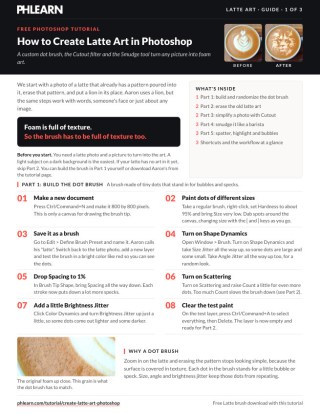
Free PDF Guide · 3 Pages
This Tutorial as a Step-by-Step PDF
This guide covers the latte art build: an 800 by 800 dot brush made with Edit > Define Brush Preset, Size and Angle Jitter, Spacing at 1% and Scattering, erasing the old art at 50% Flow, Filter Gallery > Cutout, Screen blend mode, Smudge at 100% Strength and a Spatter finish. Use it to turn any picture into foam.
description
Faking latte art takes three tools working together. Aaron builds a scattered dot brush with size, angle and brightness jitter to erase the existing foam pattern, runs a new photo through the Cutout filter to reduce it to a bold shape, then drags every edge outward with the Smudge tool at full strength so nothing photographic survives. Spatter and painted bubbles finish it.
Enjoying This Free Tutorial?
We publish a new free tutorial every week, each one with sample images and PSDs you can download and follow along with. Sign up and they land straight in your inbox, along with early word on sales, events and subscriber-only offers.
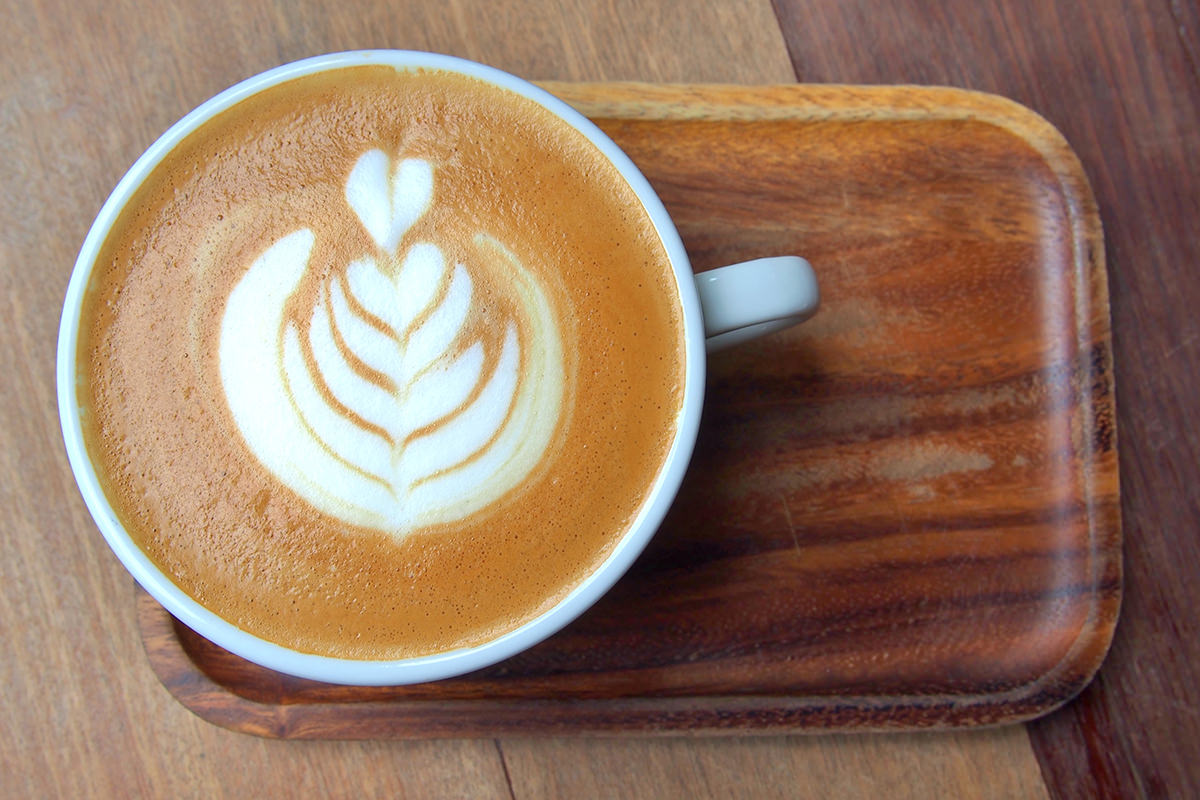
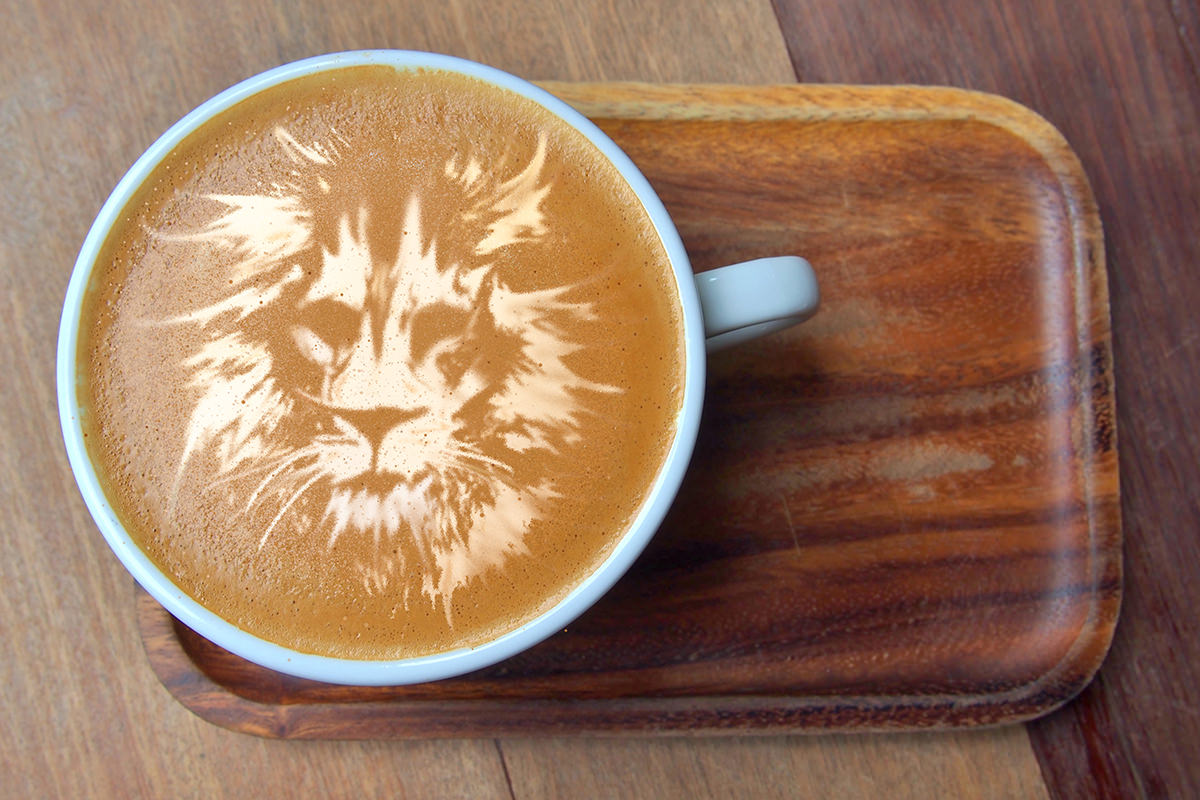
Building a picture out of “latte art” digitally combines a textured dot brush for erasing or recreating foam texture, the Cutout filter for simplifying an image into a bold graphic shape, and the Smudge tool for making that shape look like it was actually dragged through foam by a barista’s tool. This tutorial covers building the custom textured brush, erasing existing latte art with it, converting a photo into a simplified cutout shape, smudging that shape to look hand-drawn, and finishing with a Spatter filter and painted bubble texture.
Building a Custom Textured Dot Brush
A brush covered in small, varied dots, saved as its own preset, provides the fine texture needed to convincingly erase or recreate the look of foam.
-
Create a New Document for the Brush
Press Cmd/Ctrl+N and create an 800 by 800 pixel document.
-
Paint a Variety of Small Dots
Select a hard round brush at around 95% hardness, use the bracket keys to vary its size, and paint a scattering of dots of different sizes across the canvas.
-
Define the Brush Preset
Go to Edit > Define Brush Preset, name it, such as “Latte,” and confirm.
Customizing the Brush With Scattering, Jitter, and Color Dynamics
Turning on Shape Dynamics, Scattering, and Color Dynamics in the Brush panel (Window > Brush) gives the dot brush the randomized size, spacing, and brightness variation needed to mimic real foam texture.
-
Enable Shape Dynamics
Turn on Shape Dynamics and raise both Size Jitter and Angle Jitter all the way up for random variation in each dot’s size and rotation.
-
Lower Spacing for Denser Coverage
In Brush Tip Shape, lower Spacing to 1% so painting lays down many more dots per stroke.
-
Enable Scattering
Turn on Scattering and raise the Count for even more randomized dot placement, keeping the Count moderate to avoid slowing down the brush too much.
-
Enable Color Dynamics
Turn on Color Dynamics and raise Brightness Jitter slightly so some dots come out lighter and some darker.
Why Balancing Scattering Count Against Performance Matters
Raising the Scattering Count higher produces a denser, more convincing texture, but it also means Photoshop has to render far more individual dots per brush stroke, which can noticeably slow down painting. Finding a moderate Count that still looks textured but keeps the brush responsive is what keeps this technique practical to actually paint with, rather than waiting on the computer to catch up after every stroke.
Erasing Existing Latte Art With the Textured Brush
Sampling colors directly from an existing latte photo and painting over its foam pattern with the textured dot brush replaces the original design with a blank, textured surface.
-
Create a New Layer for the Erasing Work
Add a new layer above the original latte photo.
-
Sample Colors and Paint Over the Existing Pattern
Hold Alt/Option to sample nearby colors, then paint with the textured brush directly over the existing latte art pattern, following the original highlights and shadows.
-
Lower Flow for Smoother Blending
Press Shift + 5 to drop the brush Flow to 50% and blend more gradually between darker and lighter sampled areas.
-
Sample and Paint In Any Remaining Dark Specks
Sample any leftover dark bubble specks and click a few times to reintroduce a bit of that same texture on top of the newly painted area.
Simplifying a New Image With the Cutout Filter
Running a chosen image through the Cutout filter reduces it to a bold, simplified shape well suited to standing in as a piece of latte art.
-
Bring In a New Image
Select and drag in the subject to turn into latte art, such as a photo of a lion, and scale it to size.
-
Open the Cutout Filter
Go to Filter > Filter Gallery and select the Cutout filter.
-
Adjust Edge Simplicity and Fidelity
Lower Edge Fidelity and raise Edge Simplicity until the image reduces to a bold, simplified shape rather than fine photographic detail.
Why Screen and Color Range Are Two Roads to the Same Result
Screen blend mode works quickly when the background is already solid black, since Screen mathematically ignores black and shows only lighter tones. Color Range instead works on any background regardless of color, by directly selecting whichever tones should remain visible, making it the more flexible option when a dark background isn’t already available.
Isolating the Cutout Shape With a Blend Mode or Color Range
Switching the cutout layer’s blend mode to Screen, when the background is dark, cleanly isolates the light-colored shape as if it were floating on the latte’s dark surface.
-
Change the Blend Mode to Screen
Change the cutout layer’s blend mode from Normal to Screen if it has a dark background and a lighter subject shape.
-
Use Color Range for a Non-Dark Background
If the image doesn’t have a dark background, use Select > Color Range to select the color to keep and load that selection as a layer mask instead.
Smudging the Shape to Look Hand-Drawn With a Tool
The Smudge tool, dragged outward from the shape’s edges at full strength, creates the streaky, dragged appearance of foam actually pulled through a cup by a barista’s tool.
-
Duplicate the Layer Before Smudging
Duplicate the cutout layer with Cmd/Ctrl + J, since smudging is difficult to reverse cleanly. If the dark background still shows through, press Cmd/Ctrl + L and move the black slider in a little until it disappears.
-
Set Smudge Strength to 100%
Select the Smudge tool (grouped with Blur and Sharpen), raise Strength to 100% and leave Finger Painting off.
-
Click and Drag Outward From Edges
Click and drag outward from the shape’s edges to spread and stretch the color, simulating a tool dragged through wet foam.
-
Use a Lighter Touch Near Fine Detail
Use smaller, more careful smudge strokes near delicate areas, such as a face, to preserve important detail while smudging bolder areas like fur more aggressively.
Why Smudging Every Edge Matters for a Convincing Result
Leaving any of the cutout shape’s original crisp photographic edges intact makes that area immediately read as a digital filter effect rather than something drawn in foam. Deliberately smudging and dragging out every edge, even where it would normally be avoided in ordinary photo editing, is what removes any trace of the shape’s photographic origin and sells the illusion of latte art.
Finishing With a Spatter Filter and Painted Bubble Texture
A Spatter filter along the smudged shape’s edges, followed by dots of the custom textured brush on top, adds the final foamy, bubbly texture that completes the illusion.
-
Apply the Spatter Filter
Go to Filter > Filter Gallery, select Spatter under Brush Strokes, and adjust Spray Radius until the edges look foamy.
-
Add a Highlight With a Duplicated Screen Layer
Duplicate the layer (on Screen it lightens on its own), hold Alt/Option and click the Layer Mask icon to add a black mask, and paint white with a large brush to add a subtle highlight where light would naturally hit the foam.
Then add a mask to the bottom art layer and mask a little of it away, especially toward the edges, since more variation looks more natural. If the art needs to be brighter, press Cmd/Ctrl + J once more.
-
Paint Bubble Texture on a New Layer
Create a new layer, select the custom textured brush, sample a coffee color, lower Flow a little, and click a few times to add bubble-like dots across the design. On another new layer, sample a dark bubble and click in a few dark ones.
Why This Approach Works
Building a heavily textured, randomized dot brush first is what makes it possible to erase or recreate the fine, uneven grain of real foam, since a plain solid brush would leave an obviously flat, painted-over area. Running a chosen image through the Cutout filter before smudging is what gives the Smudge tool a bold, simplified shape to work with, since fine photographic detail would just turn to mush under heavy smudging. Deliberately smudging every edge outward, rather than preserving the shape’s clean photographic boundary, is what transforms a digital filter effect into something that reads as genuinely hand-poured and dragged foam art.
Final Thoughts
This technique doesn’t aim for perfection, since real latte art has its own imperfect, handmade quality, and the combination of cutout simplification, smudging, and spatter texture captures that quality convincingly. The same workflow works with any subject, a face, a word, an animal, or any other bold shape, standing in for whatever design someone might imagine appearing in a cup of coffee.
Quick Reference: Keys, Menus and Settings
- Make the dot brushCmd/Ctrl + N, 800 x 800 px, hard brush at 95%, then Edit > Define Brush Preset
- Randomize itWindow > Brush: Size and Angle Jitter up, Spacing 1%, Scattering and Count, a little Brightness Jitter
- Paint over the old artB, Alt/Option-click to sample, Shift + 5 for 50% Flow
- Simplify the imageFilter > Filter Gallery > Cutout: Edge Fidelity down, Edge Simplicity up
- Drop the backgroundBlend mode Screen; Cmd/Ctrl + L to darken what’s left
- Drag it like foamSmudge Tool, Strength 100%, Finger Painting off, on a Cmd/Ctrl + J copy
- Foamy edgesFilter > Filter Gallery > Brush Strokes > Spatter: Spray Radius
No AI, no generative credits.
Free Downloads
Get the Latte Brush
Get the custom dot brush from the video, used to erase the old foam pattern and paint the bubbles, plus the PDF guide. Free with a PHLEARN account.
Latte Art in Photoshop: Common Questions
How do I erase the latte art that’s already in the cup?
On a new layer, paint over it with a textured dot brush, holding Alt/Option to sample the foam colors nearby. Follow the highlights and shadows of the cup so the new foam matches.
Why not use a normal soft brush?
Foam is full of tiny specks and bubbles, so a smooth brush leaves a flat, painted patch. A brush made of small dots of different sizes puts that texture back as you paint.
How do I make the dot brush?
Make an 800 by 800 pixel document, paint dots of different sizes with a hard brush at about 95% hardness, and choose Edit > Define Brush Preset. In the Brush panel, turn on Shape Dynamics, Scattering and Color Dynamics and set Spacing to 1%.
Why is my brush so slow?
A high Scattering Count makes Photoshop draw a lot of dots per stroke. Lower the Count a little and the brush keeps up much better.
How do I turn a photo into a simple latte shape?
Go to Filter > Filter Gallery and choose Cutout. Lower Edge Fidelity and raise Edge Simplicity until the photo becomes a few simple shapes.
How do I get rid of the background around the shape?
With a dark background and a light subject, set the layer’s blend mode to Screen. Otherwise, use Select > Color Range to pick the color to keep and click the layer mask icon.
What Smudge Tool settings make it look poured?
Strength at 100% with Finger Painting off. Click and drag outward from every edge, and use smaller strokes around the face to keep the detail. Work on a duplicate, because smudging is hard to undo.
How do I make the edges look like foam?
Apply Spatter from the Brush Strokes group in the Filter Gallery and adjust Spray Radius and Smoothness. Then click a few dots of coffee color with the dot brush on a new layer for bubbles.
Are the sample files free?
Yes, with a free PHLEARN account. You get 1 Photoshop brush and 1 PDF guide: the latte dot brush from the video.
Master Photoshop, Lightroom and Photography
Join PHLEARN PRO for $12.99 a month or $99.99 a year. Cancel anytime, with a 100% money-back guarantee.





