

description
Part 2 of the Quick Start Guide to Photoshop moves from the fundamentals into the tools used most in everyday editing. Duplicate and transform a layer with the Move tool, build and combine selections, paint on layer masks with the Brush tool, clean up blemishes with the Healing Brush and Clone Stamp, and target specific colors with Hue/Saturation and Curves. It also clears up two things that confuse almost everyone starting out: Opacity versus Flow, and Curves versus Levels.
Enjoying This Free Tutorial?
We publish a new free tutorial every week, each one with sample images and PSDs you can download and follow along with. Sign up and they land straight in your inbox, along with early word on sales, events and subscriber-only offers.
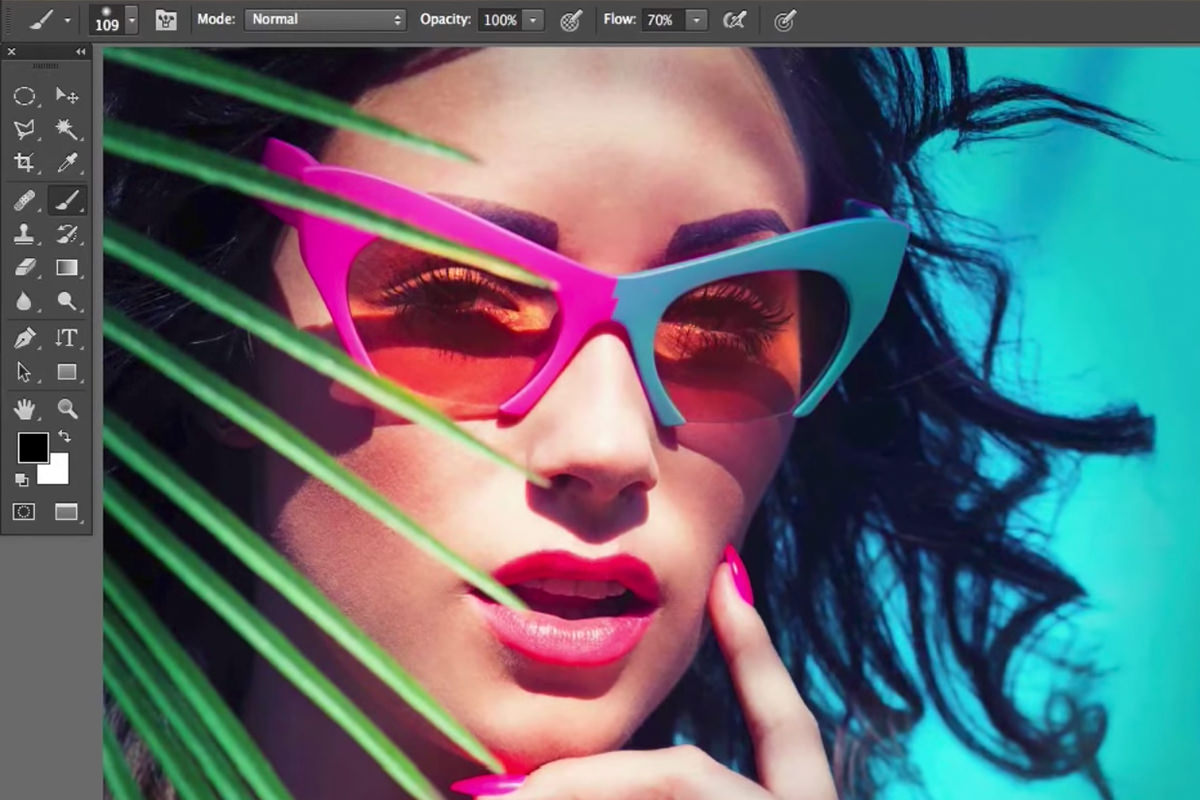
The Quick Start Guide to Photoshop (Part 2)
Picking up from the fundamentals in Part 1, this second part of the series covers the tools used most often in day-to-day Photoshop editing: the Move tool, selections, the Brush tool and layer masks, the Healing Brush and Clone Stamp, and the adjustment layers that make Photoshop so flexible without needing dozens of specialized tools.
Duplicating the Background and Transforming With the Move Tool
The background layer stays locked by default, so duplicating it first is the standard first step before moving or transforming anything.
-
Duplicate the Background Layer
Press Cmd/Ctrl+J to duplicate the locked background layer into an editable copy.
-
Move the Layer
Select the Move tool and click and drag to reposition the layer.
-
Transform With Width, Height, and Rotation Fields
Press Cmd/Ctrl+T to bring up Free Transform, then type exact values into the width, height, and rotation fields at the top, locking width and height together to keep the same aspect ratio.
Why the Background Layer Stays Locked
Photoshop locks the background layer by default specifically to discourage editing directly on the original image data. Duplicating it into a new layer before making any changes keeps that original background completely safe underneath, ready to fall back on if anything later in the edit needs to be undone.
Making and Combining Selections
A selection restricts any tool, whether it’s a brush, a transform, or a fill, to only affect the area inside it, and several selection tools can be combined to build more complex shapes.
-
Make a Selection With the Marquee Tool
Select the Marquee tool and drag to select a rectangular or elliptical area.
-
Transform Just the Selected Area
Press Cmd/Ctrl+T while a selection is active to transform only the pixels inside that selection rather than the entire layer.
-
Add to a Selection With Shift
Hold Shift while using a selection tool like the Lasso to add additional areas to the current selection.
-
Subtract From a Selection With Option/Alt
Hold Option/Alt while using a selection tool to remove an area from the current selection.
-
Deselect When Finished
Press Cmd/Ctrl+D to deselect once a selection is no longer needed.
Painting and Defining a Layer Mask With the Brush Tool
The Brush tool works directly on an image the way a canvas would, and that same brush also controls visibility when used on a layer mask.
-
Create a New Layer and Paint
Create a new layer, press B for the Brush tool, choose a color, and paint on the canvas.
-
Add a Layer Mask
Click the Add Layer Mask button to attach a layer mask to that layer.
-
Paint Black to Hide, White to Reveal
Select the layer mask and paint with black to hide parts of the layer, or white to bring them back, switching freely between the two.
-
Adjust Brush Size and Hardness Quickly
Hold Control+Option (Mac) or Alt+right-click (PC) and drag left or right to change brush size, or up and down to change hardness, all in one motion.
Removing Blemishes With the Healing Brush and Clone Stamp Tools
The Healing Brush blends sampled texture into a new area’s existing color, while the Clone Stamp copies pixels directly without any blending at all.
-
Set the Healing Brush to Sample Current and Below
Select the Healing Brush tool and, when working on a new empty layer, set its sample option to Current & Below so it can sample the layers underneath.
-
Sample and Heal a Blemish
Hold Option/Alt to sample a clean area, then paint over a blemish to blend it away automatically.
-
Sample and Paint With the Clone Stamp
Hold Option/Alt to sample a source area with the Clone Stamp tool, then paint to create a direct, unblended copy of that sampled area elsewhere.
Why Sample Current and Below When Healing on an Empty Layer
A brand-new layer starts out completely transparent, so a healing tool set to sample only the current layer has nothing to actually sample from and won’t do anything. Setting it to Current & Below instead lets it sample the visible layers underneath while still painting its result onto the new, non-destructive layer above.
Understanding Opacity vs Flow
Opacity and Flow both control how strongly a brush stroke appears, but they behave very differently once a stroke is painted over more than once in the same spot.
-
Test Opacity
Lower the Brush tool’s Opacity, such as to 50%, and paint a stroke; painting over the same stroke again without lifting the brush won’t make it any more opaque.
-
Test Flow
Reset Opacity to 100%, lower Flow instead, such as to 10 to 20%, and paint repeatedly over the same area without lifting the brush to see the effect build up gradually.
Why Low Flow With Full Opacity Builds a More Natural Effect
Painting with reduced Opacity caps a stroke’s strength the moment it’s laid down, so going over the same area again in one continuous stroke does nothing more. Keeping Opacity at 100% and lowering Flow instead allows repeated passes over the same spot to build up gradually and naturally, which is why a low-Flow brush is generally the better choice for blending colors or building up an effect like dodging and burning.
Targeting a Color With Hue/Saturation and a Layer Mask
Hue/Saturation’s channel-specific eyedropper narrows a color change to just one part of an image, and a layer mask then controls exactly where that change actually shows.
-
Target a Specific Color With the Eyedropper
Add a Hue/Saturation adjustment layer, switch from Master to a specific channel like Reds, and use the eyedropper to click the exact color to target.
-
Adjust Hue for That Color Only
Adjust the Hue slider to shift just that targeted color range, leaving the rest of the image unaffected.
-
Invert the Mask and Paint White to Reveal
Press Cmd/Ctrl+I to make the whole adjustment invisible, then paint white on the layer mask only where the color change should show.
Combining a Lasso Selection With the Brush Tool on a Mask
A polygonal lasso selection can define a precise straight-edged boundary on a layer mask, while the brush tool fills in the rest by hand within that boundary.
-
Make a Straight-Edged Selection
Select the Polygonal Lasso tool, raise Feather slightly, and click to create a straight-edged selection shape on the canvas.
-
Paint Inside the Selection on the Mask
With the selection active, paint white on the layer mask to reveal the adjustment only within that precise shape, since the brush can’t paint outside an active selection.
Warming and Cooling an Image With Curves
Curves adjusts individual color channels directly, and pairing two separate Curves layers with layer masks makes it possible to warm one part of an image while cooling another.
-
Add More Blue With a Curves Layer
Add a Curves adjustment layer, select the Blue channel, and drag the middle point up to add more blue, then invert the mask and paint white where that coolness is wanted.
-
Add More Red for Warmth With a Second Curves Layer
Add another Curves adjustment layer, select the Red channel and drag the middle point up for more red, then pull the middle of the Blue channel down for a little less blue (more yellow) so the two make orange, then invert its mask and paint white where the warmth is wanted.
Why Curves and Levels Do the Same Job Differently
Levels and Curves both ultimately move the same brightness and color values, but Levels shows that adjustment as a single point along a simplified graph, while Curves shows it as a line that can be shaped with multiple points for more complex control. Either one works well for basic brightening, darkening, and color shifts, so there’s no need to master both if one already feels more comfortable.
Grouping Layers and Exploring Blend Modes
Grouping related layers together keeps a complex file organized and adds one more shared layer mask, while blend modes reshape how a painted color interacts with everything beneath it.
-
Group Related Layers
Shift-click to select related layers and press Cmd/Ctrl+G to group them together.
-
Mask the Entire Group
Add a layer mask to the group itself to control the visibility of every layer inside it at once, without changing each layer’s individual mask.
-
Try Different Blend Modes
Paint a color on a new layer and cycle through blend modes such as Multiply, Screen, Overlay, and Soft Light to see how each interacts differently with the layers beneath.
Why This Approach Works
Mastering just the Move tool, selections, the Brush tool, the Healing Brush, and the Clone Stamp covers the majority of hands-on editing in Photoshop, since nearly every technique elsewhere builds on this same small toolkit. Pairing adjustment layers with layer masks, rather than editing an image directly, is what makes it possible to target a specific color or area precisely and undo or refine that choice at any point later. Understanding the difference between Opacity and Flow, and between Curves and Levels, is what turns these tools from confusing near-duplicates into two genuinely different options suited to different situations.
Final Thoughts
Between Part 1‘s fundamentals and this Part 2 tour of commonly used tools, the core of everyday Photoshop editing is now covered. Part 3 finishes the series with what happens after editing is done, including saving, exporting, and naming files correctly.
Quick Reference: Keys, Menus and Settings
- Duplicate and transformCmd/Ctrl + J, then Cmd/Ctrl + T; width, height and angle in the options bar
- SelectionsShift adds, Alt/Option subtracts; Cmd/Ctrl + D deselects
- Brush size and hardnessCtrl + Option drag (Mac); Alt + right-click drag (PC)
- Heal and cloneAlt/Option-click to sample; Sample: Current & Below on a new layer
- Opacity and FlowNumber keys set Opacity (5 = 50%); Shift + number sets Flow
- MasksCmd/Ctrl + I inverts; Alt/Option-click the mask to view it
- GroupShift-click layers, Cmd/Ctrl + G; add a mask to the group
Essential Photoshop Tools: Common Questions
Why can’t I move my background layer?
The background layer is locked so the original stays safe. Press Cmd/Ctrl + J to duplicate it, then move and transform the copy.
How do I resize a layer to an exact size?
Press Cmd/Ctrl + T and type values into the width and height fields in the options bar, in percent or with px for pixels. Link them to keep the aspect ratio; the angle field rotates by degrees.
How do I add to or subtract from a selection?
With a selection tool active, hold Shift to add and Alt/Option to subtract. The same keys do different things on other tools, so check which tool is selected.
Is there a fast way to change brush size and hardness?
On a Mac, hold Control + Option and drag: left and right for size, up and down for hardness. On a PC, hold Alt and right-click drag.
What’s the difference between the Healing Brush and the Clone Stamp?
Both sample with Alt/Option-click. The Healing Brush blends the sampled texture into the color where you paint; the Clone Stamp makes a straight copy with no blending.
Why does the Healing Brush do nothing on a new layer?
It is sampling the current layer, which is empty. Set Sample to Current & Below in the options bar.
What’s the difference between Opacity and Flow?
Opacity caps a stroke, so going back over it without lifting does nothing more. Flow builds up each time you pass over an area. Aaron keeps Opacity at 100% and Flow around 10 to 20%.
How do Curves channels change color?
In the Red channel, up adds red and down adds cyan. Green up adds green, down adds magenta. Blue up adds blue, down adds yellow.
Do I need to learn both Curves and Levels?
No. They do the same job and just display it differently, so learning Curves alone is fine.
Master Photoshop, Lightroom and Photography
Join PHLEARN PRO for $12.99 a month, or $99.99 a year (save 36%). Cancel anytime, with a 100% money-back guarantee.





