
Download Assets
This tutorial includes 1 PDF guide. Downloads are free with a PHLEARN account.
- Download the sample files from every free tutorial on PHLEARN
- New free tutorials published every week
- One free account: sign up once, then download anything
Free PDF Guide · 4 Pages
This Tutorial as a Step-by-Step PDF
This four-page guide walks through Filter > Blur Gallery > Iris Blur on a Smart Object copy set to 80, selecting the window light with Select > Color Range and filling it with white, two Gaussian Blur layers at different opacities, and a Levels layer toned in the Blue channel. Keep it next to your keyboard.
description
The soft, glowing look that suits wedding and portrait work comes from three separate adjustments, not one heavy blur. Aaron softens the frame around the subject with an Iris Blur, isolates the window light with Color Range and blurs it on its own layers to build a natural glow, then finishes with a subtle Levels color tone. Smart objects keep every step editable afterward.
Enjoying This Free Tutorial?
We publish a new free tutorial every week, each one with sample images and PSDs you can download and follow along with. Sign up and they land straight in your inbox, along with early word on sales, events and subscriber-only offers.
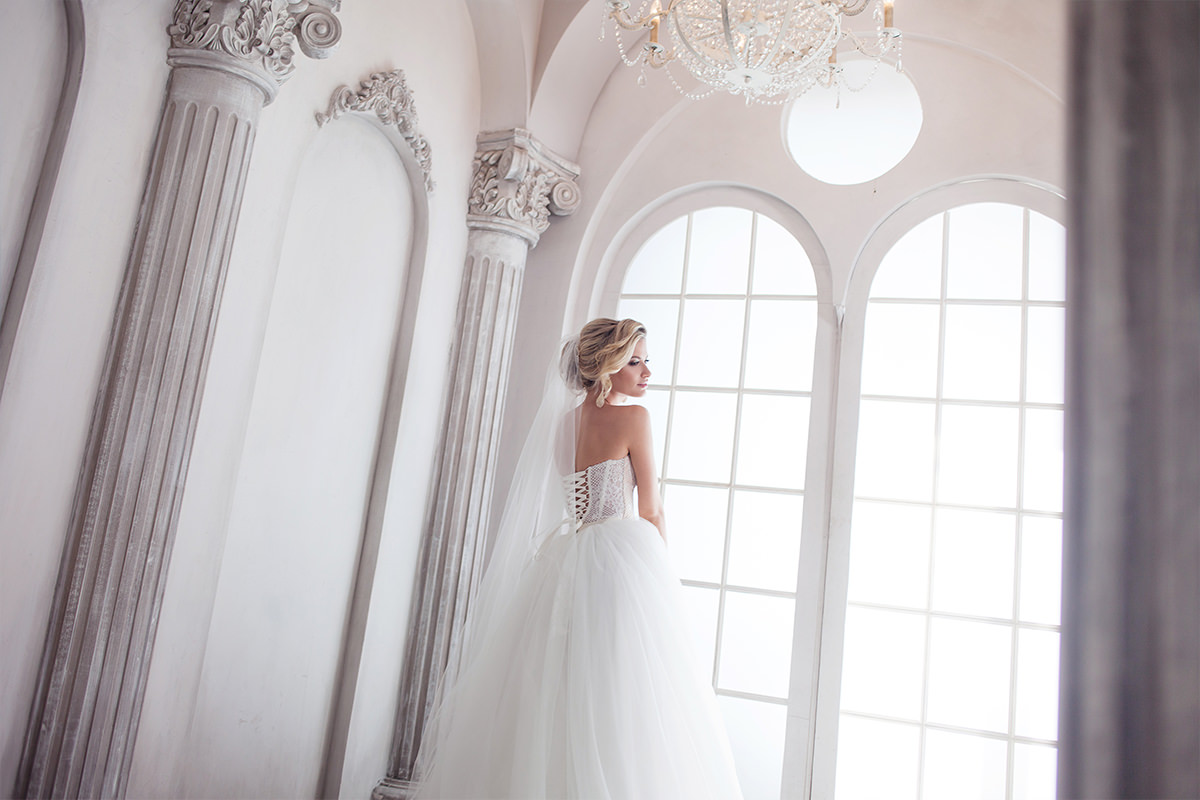

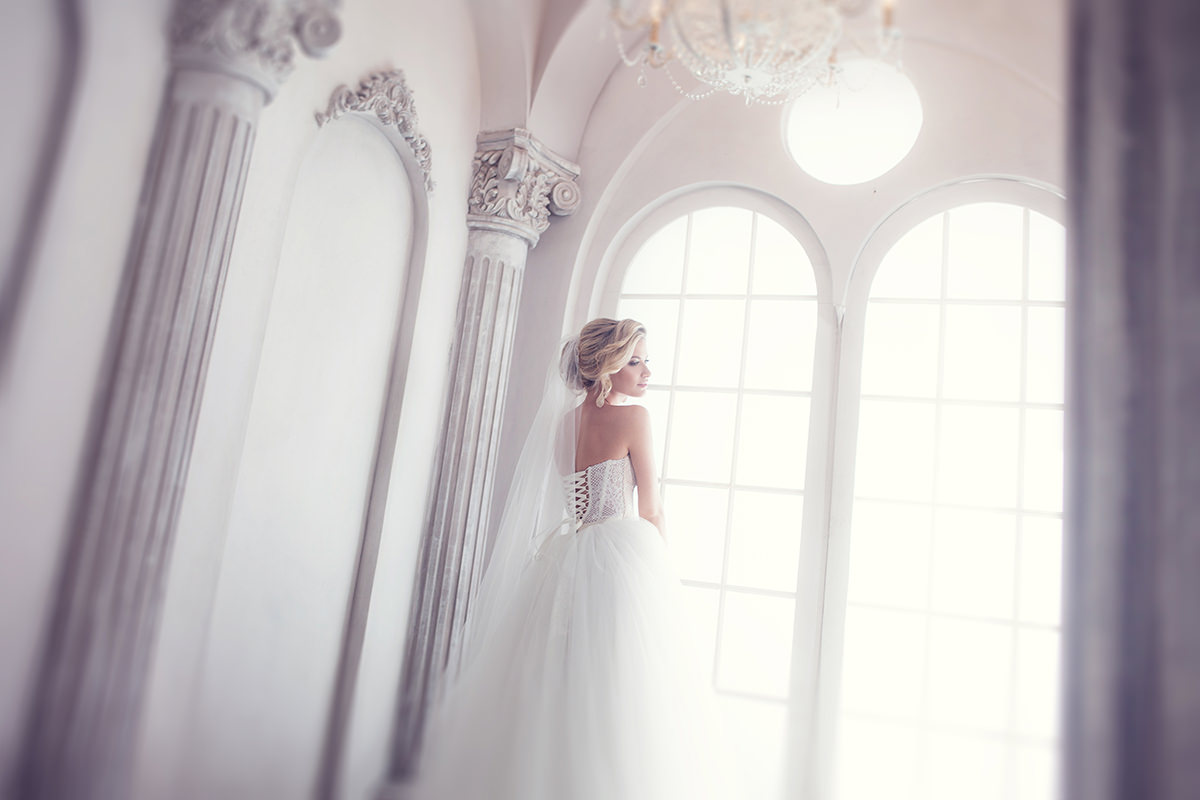
That soft, glowing, dreamy look is a favorite for wedding, portrait, and children’s photography, and it’s easier to create than it looks. In this tutorial we’ll take an image with a strong window light source and give it that airy, romantic feel using an iris blur around the edges, a separate blur applied only to the light itself, and a touch of color toning to finish it off. All of it stays fully editable the whole way through by working with smart objects and smart filters.
What Makes a Good Candidate Image
This effect works especially well on images with a lot of white and a strong, large light source, particularly when the light is coming from behind your subject. A bride standing near a bright window, for example, gives you exactly the kind of backlit, high-key scene that makes the soft dreamy look feel natural rather than heavy-handed. If your image already has a nicely blurred background, that’s a bonus, but it isn’t required since this technique builds its own blur directly into the edit.
Preparing Your Background as a Smart Object
Start by duplicating your background layer, clicking and dragging it to the New Layer icon. Right-click the duplicate and choose Convert to Smart Object. Once you see the small smart object icon on the layer thumbnail, you’re set up to use Smart Filters, which means any blur you apply next can be adjusted or removed later without starting over.
Applying an Iris Blur to Soften the Edges
With your smart object selected, go to Filter > Blur Gallery > Iris Blur. This gives you an on-image control ring that lets you decide exactly where the blur starts and how far it spreads.
Adjusting the Blur Center, Feather, and Amount
Click and drag the blur center point directly onto your subject’s face, since that’s the area you want to keep sharp. Drag the inner ring outward to about halfway across the frame, and drag the outer ring nearly to the edges of the photo, aiming for a gradual, gentle transition rather than a hard line. You can reshape the blur from round to more square by clicking the small square icon if your image’s proportions call for it. Increase the blur amount using the ring in the center of the control; Aaron tries about 87, then types in 80 for this image, keeping the detail on your subject while gently blurring the outer frame. Check the preview box to compare before and after as you dial it in.
Editing Smart Filters Later
Once you click OK, the Iris Blur appears as a Smart Filter beneath your layer in the Layers panel. Click the eye icon next to it at any time to toggle the effect on or off, or double-click the filter name to reopen the Blur Gallery dialog and adjust the amount, all without redoing any of your previous work. This is exactly why converting to a smart object first is worth the extra step.
Selecting the Light in Your Image
Next, create a new layer and go to Select > Color Range. Use the eyedropper tool to click directly on the bright light source in your photo, such as a window. Adjust the Fuzziness slider lower for a tighter selection of just the brightest areas, or higher to include more of the surrounding light; a slightly lower setting works well here since you only want the truly light areas selected. Click OK to load the selection, then fill it with white using Shift+Delete (Shift+Backspace) and choosing White from the Fill dialog, then deselect with Ctrl+D (Cmd+D on Mac). You now have a layer that contains just the light from your image, isolated from everything else.
Blurring the Selected Light
Right-click your new light layer and convert it to a smart object as well, since you’ll want to adjust this blur later too. Go to Filter > Blur > Gaussian Blur and increase the radius until the light glows softly across the frame. Because only the light was on this layer, increasing the blur radius spreads that glow outward without affecting the rest of the image beneath it.
Layering Multiple Blur Amounts
For more control over the glow, duplicate the blurred light layer by dragging it to the New Layer icon. Give each copy a different Gaussian Blur amount, one smaller and tighter, one larger and softer, then lower the opacity of one or both layers so they blend together rather than stacking into an overpowering glow. Since both layers are smart objects, you can always double-click back into either blur setting to fine-tune the amount, even after you’ve already adjusted opacity and compared the result.
Adding Color Toning with a Levels Adjustment
To finish the look, go to Layer > New Adjustment Layer > Levels. In the Levels panel, switch the channel dropdown from RGB to Blue. Drag the black Output Levels slider slightly to the right to add a touch of blue into the darker tones, then drag the white Output Levels slider from the right toward the left slightly to add a bit of yellow into the highlights. Keep the adjustments subtle, since a small shift in each direction is enough to give the image a warm, gentle color cast without looking artificial. Toggle the adjustment layer’s visibility on and off to compare, and lower its opacity if the effect feels too strong.
Why This Approach Works
This effect works because it separates three distinct adjustments, edge softness, light glow, and color, into their own smart-object layers rather than flattening everything into one heavy-handed blur. The Iris Blur keeps your subject’s face sharp while softening the frame around it, so the eye is still drawn exactly where it should be. Isolating just the light with Color Range before blurring it means the glow spreads only from actual bright areas, which reads as natural light bloom rather than a generic haze over the whole photo. And because every blur lives inside a smart filter, you can go back weeks later and dial any of it up or down without reconstructing the effect from scratch.
Final Thoughts
The soft, dreamy look comes together in just a few editable steps: an Iris Blur to soften the edges around your subject, a separate glow built from just the image’s light source, and a subtle color-tone shift with Levels. Because every part of this technique relies on smart objects and smart filters, you’re never locked into your first attempt, feel free to experiment with stronger or lighter blur amounts until you find the balance that suits your image.
Quick Reference: Keys, Menus and Settings
- Prepare the layerDuplicate the background, right-click > Convert to Smart Object
- Soften the edgesFilter > Blur Gallery > Iris Blur; center on the face, blur 80
- Select the lightNew layer; Select > Color Range, eyedropper on the window, Fuzziness a little low
- Fill with whiteShift + Delete > White; Cmd/Ctrl + D to deselect
- Make the glowConvert to Smart Object; Filter > Blur > Gaussian Blur; duplicate for a second blur, lower opacity
- Color toneLevels adjustment layer, Blue channel: black Output slider right, white Output slider left
No AI, no generative credits.

Free Downloads
Take the Guide With You
Get the PDF guide to the soft dreamy look, from the Iris Blur and the Color Range light layer to the Gaussian Blur glow and Levels color toning. Free with a PHLEARN account.
Soft Dreamy Photos: Common Questions
How do you make a photo look soft and dreamy in Photoshop?
Blur the edges with an Iris Blur, then select the light in the photo, fill it with white on its own layer and blur it into a glow. A little color toning with Levels finishes it.
What kind of photo works best for this?
Images with lots of white and a large light source, especially backlit ones where the light is behind the subject, like a bride by a window. It suits wedding, portrait and children’s photos.
Why convert the layer to a Smart Object first?
Filters on a Smart Object become Smart Filters. You can turn them off with the eye icon or double-click them to change the amount at any time.
How do I blur only the edges of a photo?
Go to Filter > Blur Gallery > Iris Blur. Put the center on the subject’s face, drag the inner points about halfway out and the outer ring nearly to the edges.
How much Iris Blur should I use?
Keep it subtle. Aaron sets the blur ring to 80, which keeps the detail on the subject and softens only the edges.
How do I select just the light in a photo?
On a new layer, go to Select > Color Range and click the brightest area, like the window, with the eyedropper. Set Fuzziness a little low so only the light areas are selected.
How do I turn the selected light into a glow?
Press Shift + Delete and fill the selection with White, then deselect with Cmd/Ctrl + D. Convert the layer to a Smart Object and add Filter > Blur > Gaussian Blur.
Why use two blurred light layers?
Duplicating the light layer lets you give one a small blur and one a large blur, then lower the opacity so they blend. It gives you more control over the glow.
How do I add the blue and yellow color tone?
Add a Levels adjustment layer and switch to the Blue channel. Move the black Output slider right a little for blue shadows and the white Output slider left a little for yellow highlights, then lower the opacity.
Is there a free download?
Yes, with a free PHLEARN account. You get 1 PDF guide with the steps and settings from this tutorial.
Master Photoshop, Lightroom and Photography
Join PHLEARN PRO for $12.99 a month, or $99.99 a year (save 36%). Cancel anytime, with a 100% money-back guarantee.





