Post Production Tutorials
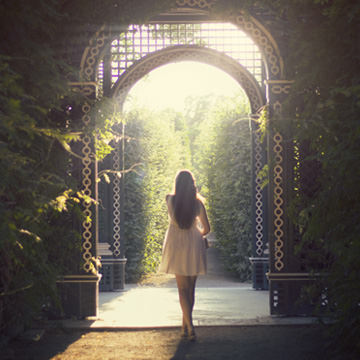
Get complete control over the highlights and shadows of any photo for perfect color toning, lighting effects, exposure adjustments, and seamless composites. Luminosity Blending is the best way to edit photos in Photoshop!
Photoshop | Advanced | 3.5 hours
10 Sample Images | 1 Sample PSD
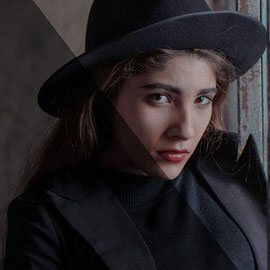
In this tutorial, we’ll show you how to brighten a dark photo, bring up shadows, restore lost details, and rescue the original color in an image. Follow along with the free sample image!
Sample Images Included

A shadow helps any subject look grounded in its Background. This tutorial makes creating the perfect Shadow easy and fun!
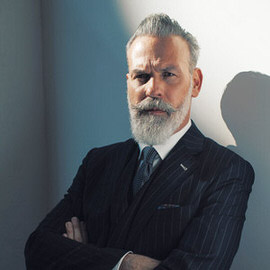
Use the Shadow/Highlights options adjust and correct dark shadows or highlights in your images. This is a very precise tool that also allows you to introduce color into the shadows or highlights as well.
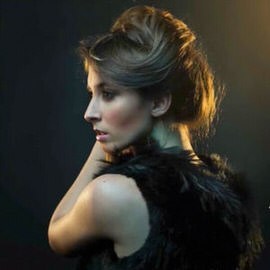
It can be hard to capture detail in both the Shadows and Highlights of an image because the dynamic range of most cameras is too small. We show you an amazing trick to recover Shadow detail in Photoshop without disturbing the Highlights.

Today we’re using this incredible image from Chris to show how to use Photoshop to bring back detail into the Shadows of an image and then doing some Coloring and stylizing.
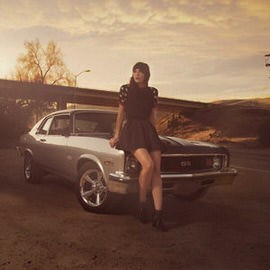
In today’s episode we start off with an image that has been resized for the Web and saved as a .jpg. It is a very small and compressed image yet we are still able to bring out a ton of detail.
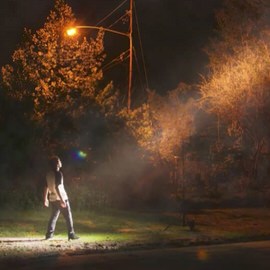
Here is some great Insight on creating beams of light in Photoshop. Check it out.

In this episode we discuss something that sounds extremely boring but is actually quite interesting: Light Falloff.

It’s always great to have shadows in your photographs to add definition, but sometimes they become too dark and Subtract from the detail in your image.

In order to make the existing Highlights in this image stand out even more, first we make the Lights and Midtones of the image darker using a Levels Adjustment Layer.

For adding Light rays to your image, make sure you first have an image that will properly support light coming through. You want to have an image that is either lit from the back or from the side.

We are going to focus on what to edit in Photoshop. The first thing I noticed when looking at this photo is that the paintings in the Background are a little distracting.