Download Assets
description
Learn how to change your subject’s background and clothing using Photoshop’s new Nano Banana Pro with Gemini three Generative Fill. This tutorial shows you how to select your image, use natural language prompts to place your subject in diverse scenes, and even automatically match lighting and outfits.
Go PRO:
Dive deeper into the world of Photoshop with our in-depth PRO Photoshop Learning Path . Across 11 courses and 53 hours of engaging content, you’ll learn Photoshop’s ins and outs, master pro-level tools, and tackle fun and challenging projects..
Image Source
We use FREE Adobe Stock images in this tutorial. The download folder includes a PDF guide with direct links to them.
Images sourced from Adobe Stock.
Share


AFTER
BEFORE
Learn. Create. Inspire.
The new Nano Banana Pro model, powered by Gemini 3, simplifies complex scene changes in Photoshop’s Generative Fill. This version can effectively place your subject into new backgrounds while keeping details like lighting and clothing realistic. This guide will show you the simple steps to select your image, use clear text prompts for transformations, and review the amazing results, utilizing this tool now available in Photoshop 2026.
Select & Prepare
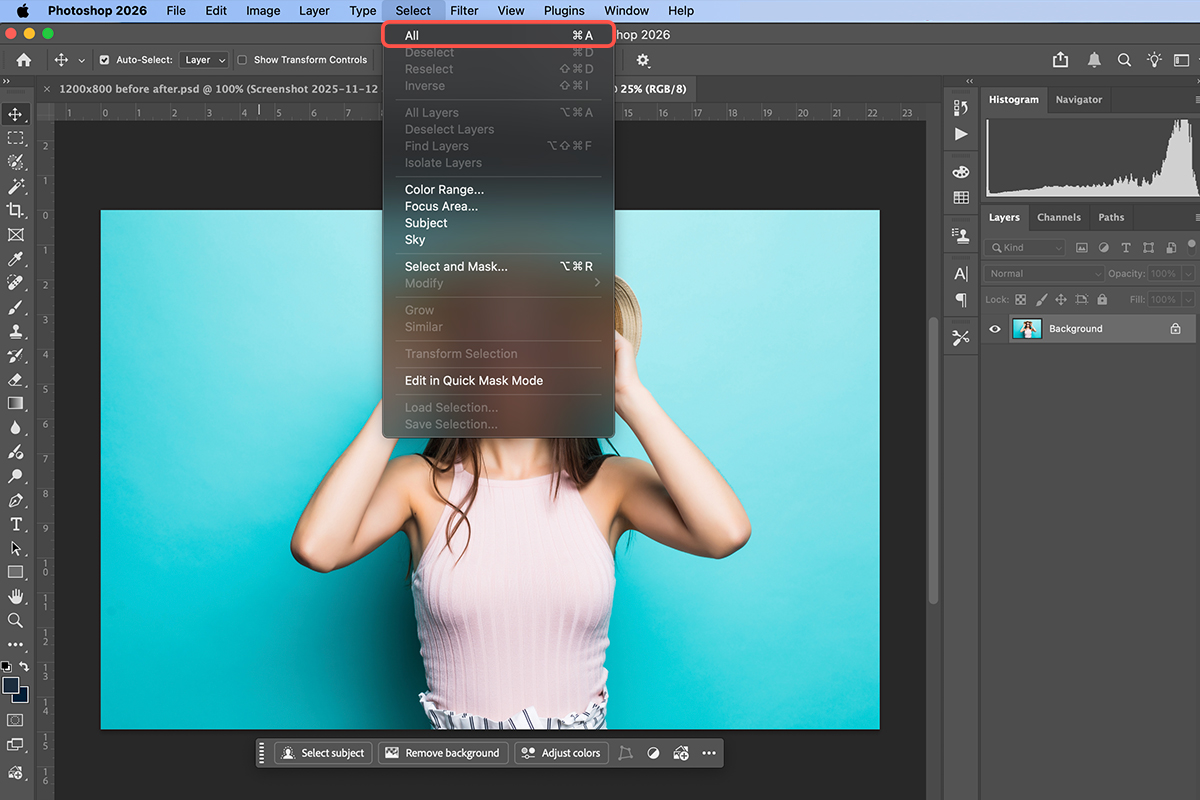
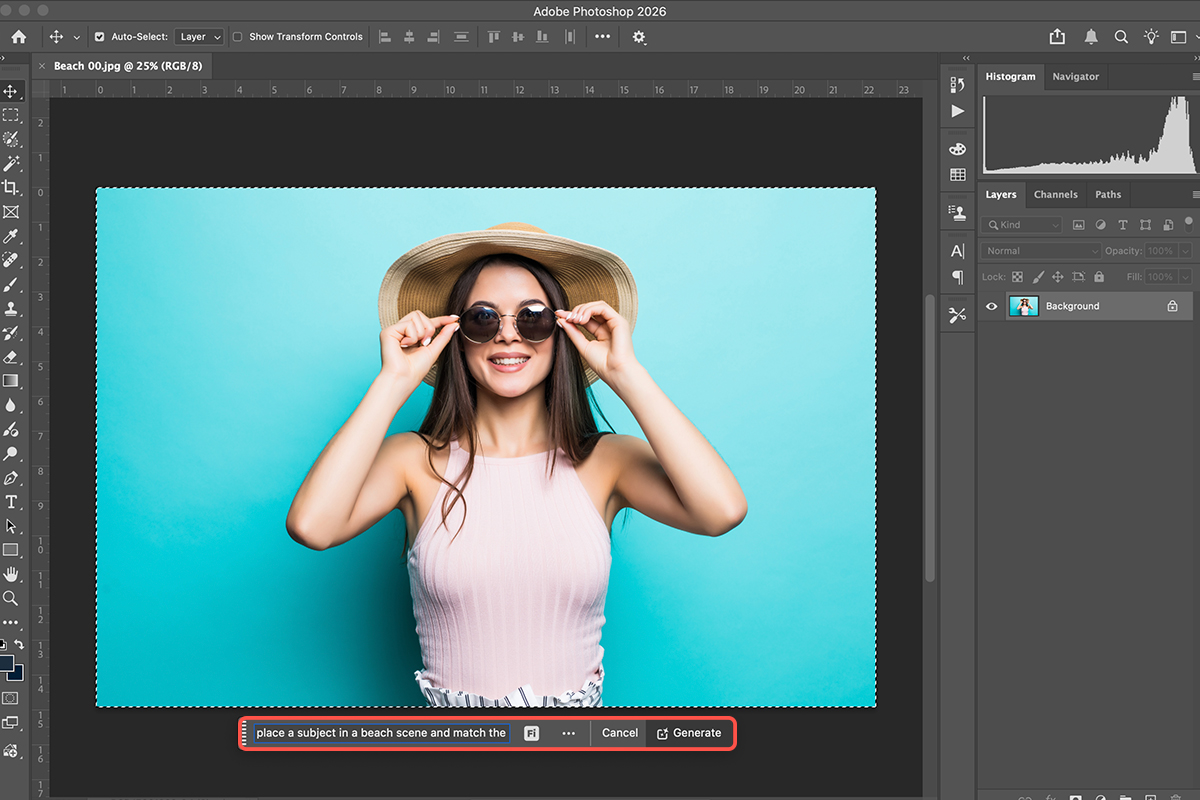
1. To begin any generative transformation, you must first select the entire canvas. This tells the AI model that the entire image is available for editing. Navigate to the top menu and click Select, then All. Alternatively, you can use the keyboard shortcut: Ctrl/Command + A for a fast, full selection.
2. With the selection active, click the Generative Fill button that appears. Make sureyou have chosen the most advanced model in the Generative Fill panel.
Prompt the Change
3. The next step is to enter your natural language text prompt. You can describe your desired outcome clearly and conversationally, allowing for specific instructions. For instance, you can request to “place a subject in a beach scene and match the lighting to the background” or “place the subject on top of a rooftop in a major city”. For the most dramatic changes, you can even combine background and clothing changes in a single prompt, like: “place our subject into a stadium and change your clothing to match the colors of that stadium”. Once your detailed prompt is entered, click Generate.
Review & Refine
After clicking Generate, the new Nano Banana Pro model will quickly produce your initial image variation. You can view all generated variations within the Properties panel and click through them to find your favorite. Each result is placed on a new generative layer, preserving your original image. The subject’s identity and features will remain consistent, seamlessly blended into the new environment.
Credit Usage
Generative Fill tools, including the advanced Nano Banana Pro model, use Adobe’s generative credit system. For users on premium plans (like Creative Cloud Pro), standard Generative Fill actions powered by Adobe Firefly are typically unlimited. However, advanced partner models like Nano Banana Pro and other premium AI features often consume a higher number of credits per use (10 credits per generation is currently noted for a limited time for Nano Banana Pro, compared to the general 1 credit for standard Firefly features). If you have a plan with limited monthly credits, using Nano Banana Pro will deplete your balance faster than standard Firefly features.