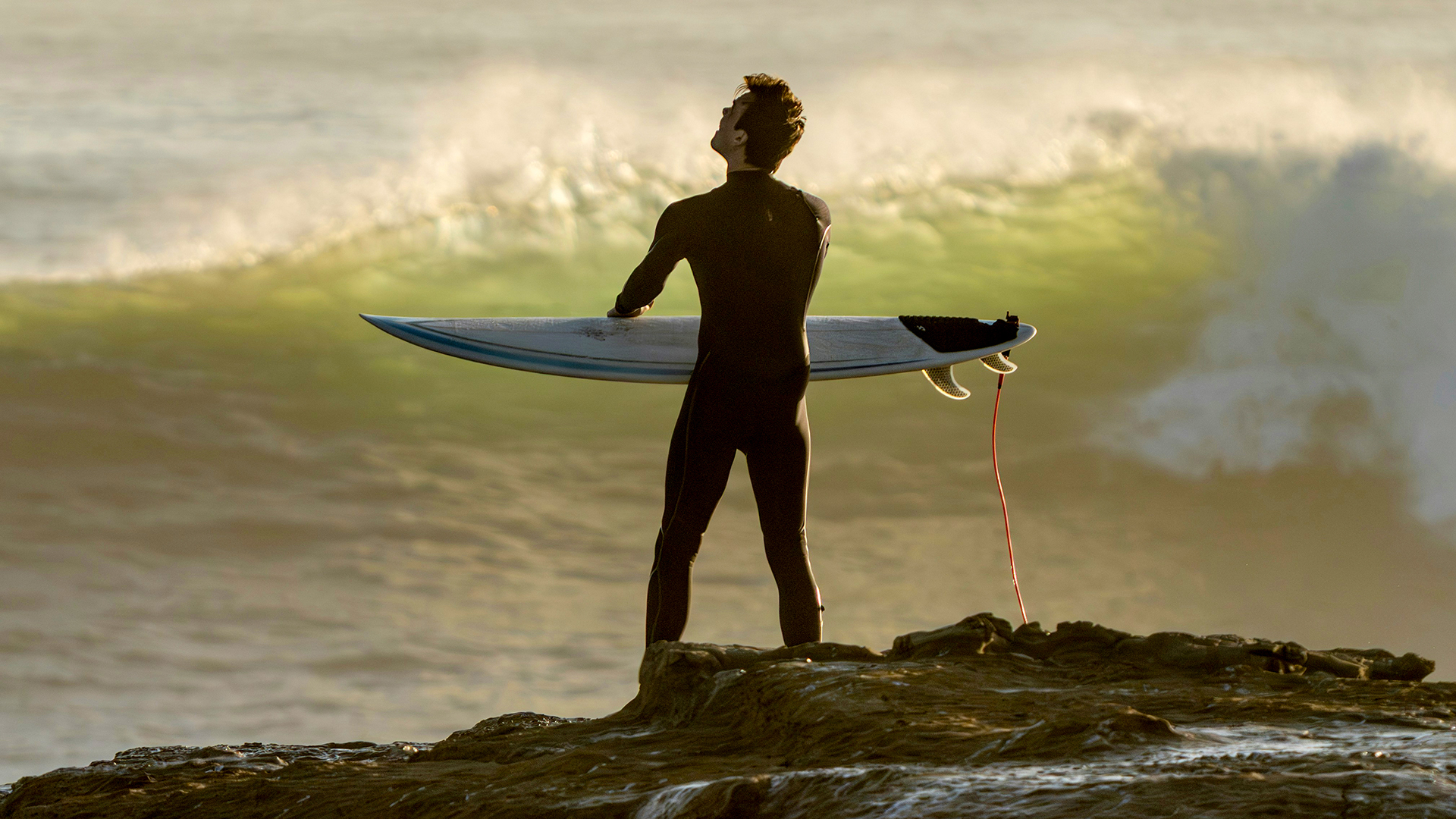

Use contrast and clarity properly in Photoshop: drag the Camera Raw histogram instead of the Contrast slider, and mask before applying any clarity.
Free practice files
Practice Files for This Tutorial
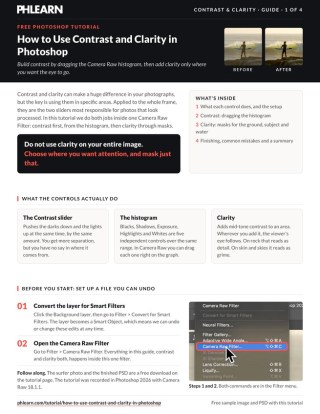
The sample image, the layered PSD and the 4-page PDF guide from the video, so you can follow every step on the same files.
This tutorial includes 1 sample image, 1 sample PSD and 1 PDF guide.
Create a free PHLEARN account to download, or log in if you already have one. One account gets you the files for every free tutorial.
description
Enjoying This Free Tutorial?

Use Contrast and Clarity Where the Image Needs Them, Not Everywhere
Contrast and Clarity are the two sliders most responsible for photos that look processed. Not because they’re bad tools — because they’re almost always applied to the entire frame, and no photograph needs the same treatment in every corner.
There’s a better version of both. For contrast, drag directly on the histogram instead of using the Contrast slider. For clarity, mask first and apply it only to the areas that benefit. Neither takes longer; both look markedly less edited.
What the Two Sliders Actually Do
Contrast Stretches the Whole Tonal Range
The Contrast slider pushes darks down and lights up simultaneously and uniformly. You get more separation, but you have no say in where it comes from — which is why it so often crushes shadow detail you wanted to keep.
Clarity Works on Mid-Tone Local Contrast
Clarity finds edges within the mid-tones and increases the contrast across them. On rock, bark and architecture that reads as detail. On skin and skies it reads as grime.
The Histogram Gives You Both Ends Separately
Blacks, Shadows, Exposure, Highlights and Whites are five independent controls over the same range the Contrast slider handles with one. Dragging them individually is how you add punch without losing the ends.
Set Up a File You Can Undo
-
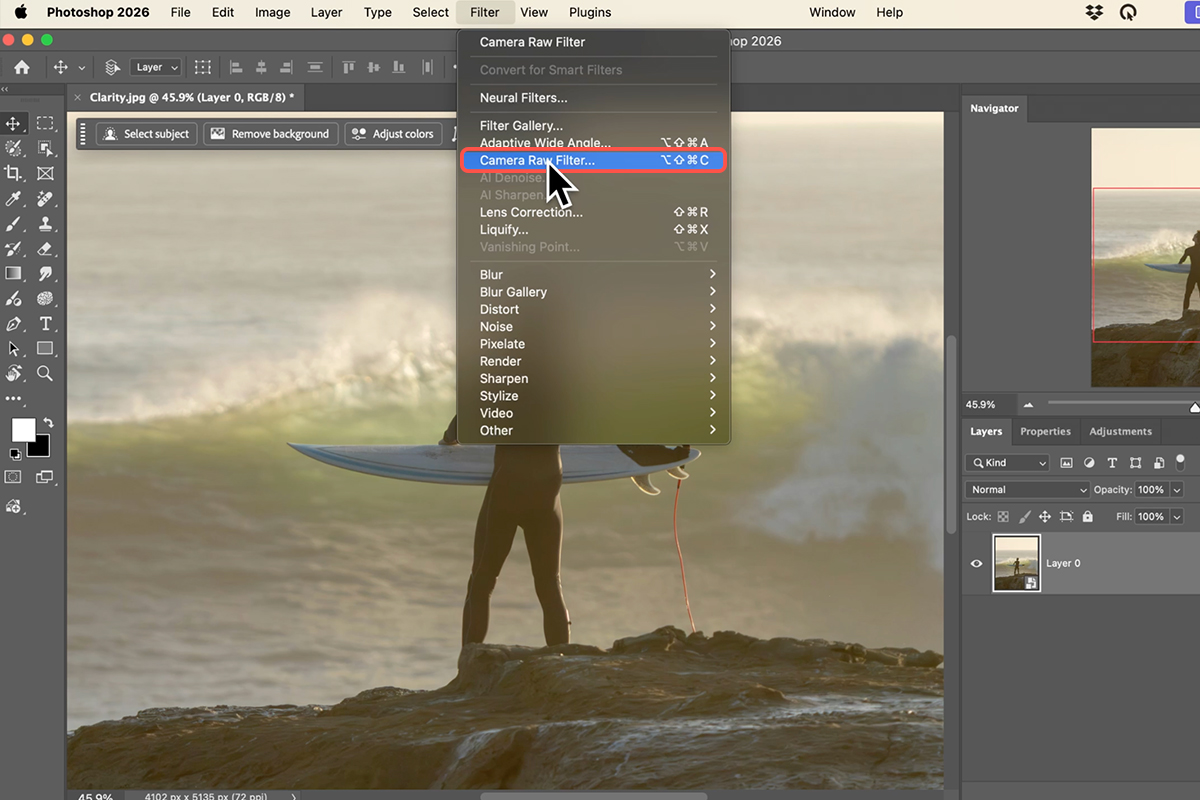
Filter > Convert for Smart Filters
On the background layer. It becomes a Smart Object, which means the Camera Raw settings you’re about to build stay live and re-editable forever.
-
Open Filter > Camera Raw Filter
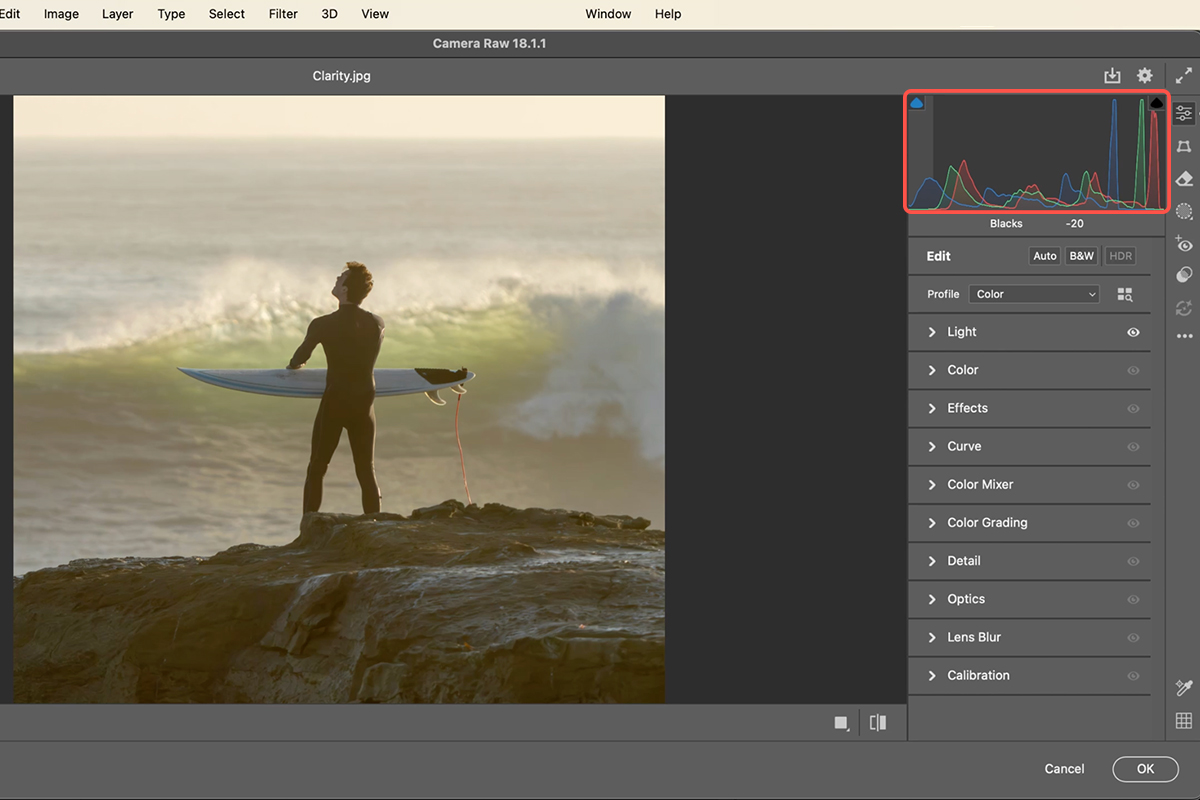
The full Camera Raw interface, running on a Photoshop layer. Everything below happens in here.
Drag the Histogram, Not the Contrast Slider
Most people never realize the histogram at the top of the panel is interactive. Hover over it and it splits into five zones, each of which drags.
-
Zoom In First
Cmd/Ctrl + plus. You’re about to make decisions about shadow detail, and you can’t see shadow detail at fit-to-screen.
-
Pull the Blacks and Shadows Left
Click on the left portion of the histogram and drag. This deepens the dark end and is where most of the sense of depth comes from. Watch for the point at which texture in the shadows disappears — stop just before it.
-
Lift the Exposure and Whites
Drag the right portion. Now you have separation at both ends that you chose independently, rather than a symmetrical stretch the Contrast slider imposed on you. It reads as punchier and, oddly, more natural.
Mask Before You Touch Clarity
Global clarity is the single fastest way to make an image look over-processed. Give it a target instead.
-
Open the Masking Tab
Camera Raw will build the selection for you. Landscape breaks the scene into sky, ground, water, vegetation and buildings; Select Subject isolates the main subject. Pick whichever matches what you want to sharpen.
-
Raise Clarity and Texture Inside That Mask
Both live in the Effects section of the mask’s controls. Texture handles fine detail, Clarity handles mid-tone contrast — on organic surfaces use both, on anything near skin lean on Texture and keep Clarity low.
-
Consider a Second Mask Going the Other Way
Adding clarity to your subject while leaving the background alone creates separation. Reducing it slightly on the background creates more. This is the same separation logic behind AI depth masking, achieved with Camera Raw’s own tools.
Check Your Work Honestly
-
Toggle the Masks and the Before/After
Click the eye icon beside each mask to see what it contributed, and use the before/after toggle at the bottom right for the whole edit. Your eye adapts within a minute or two of pushing sliders; the toggle is the only reliable correction for that.
-
Click OK and Keep the Smart Filter
Back in Photoshop, Camera Raw Filter appears as a sub-layer you can switch on and off. That toggle is also your best sanity check tomorrow, when you look at the file with fresh eyes.

The Mistakes That Give It Away
Global Clarity on a Portrait
It finds every pore and enlarges it. If a face is anywhere in frame, clarity needs a mask.
Using the Contrast Slider at All
It’s not wrong, it’s just blunt. The histogram gives you the same result with control over which end moves.
Crushing the Blacks
Pulling the dark end too far looks dramatic on screen and prints as a black hole. Keep some texture in the deepest area.
Never Toggling Before/After
After ten minutes your baseline has moved. Whatever felt subtle almost certainly isn’t.
Global Versus Local
Nearly every adjustment in photography has a global version and a local one. The global version is one slider and takes three seconds. The local version needs a mask and takes thirty.
That extra half-minute is most of the difference between an edit that looks applied and one that looks like the light was that way. Contrast and clarity are simply the clearest example, because their global versions fail so visibly — but the same choice exists for sharpening, saturation, exposure and noise reduction, and the answer is usually the same one.
Run It on a Flat Photo
Convert for Smart Filters, Camera Raw Filter, zoom in, drag the histogram’s dark end left and its light end right, then mask with Landscape or Select Subject and raise Clarity and Texture only there. Download the free sample image and PSD and follow the exact edit — then try it on something shot in overcast light, where flatness is worst and the difference is largest. To go further across Photoshop, our PRO Photoshop Learning Path is where to go next.
Quick Reference: Keys, Menus and Settings
- Set upFilter > Convert for Smart Filters, then Filter > Camera Raw Filter
- Contrast from the histogramHover the histogram to see Blacks, Shadows, Exposure, Highlights, Whites; click and drag each section left or right
- ZoomCmd/Ctrl + + and -; Fit at the bottom left
- Masks for clarityMasking > Landscape (ground, water, mountains, sky), tick the ones you want, Create; Create New Mask > Select Subject
- Clarity on the ground and subjectIn each mask, Effects > Clarity to the right, a little Texture too
- WaterIn its mask, Color > Saturation up slightly
- CompareThe eye next to Create New Mask toggles the masks; the compare icon shows before and after
- Edit againToggle or double-click Camera Raw Filter under the Smart Object
Mac first, then Windows where they differ.
Free Downloads
Follow Along on the Same Photo
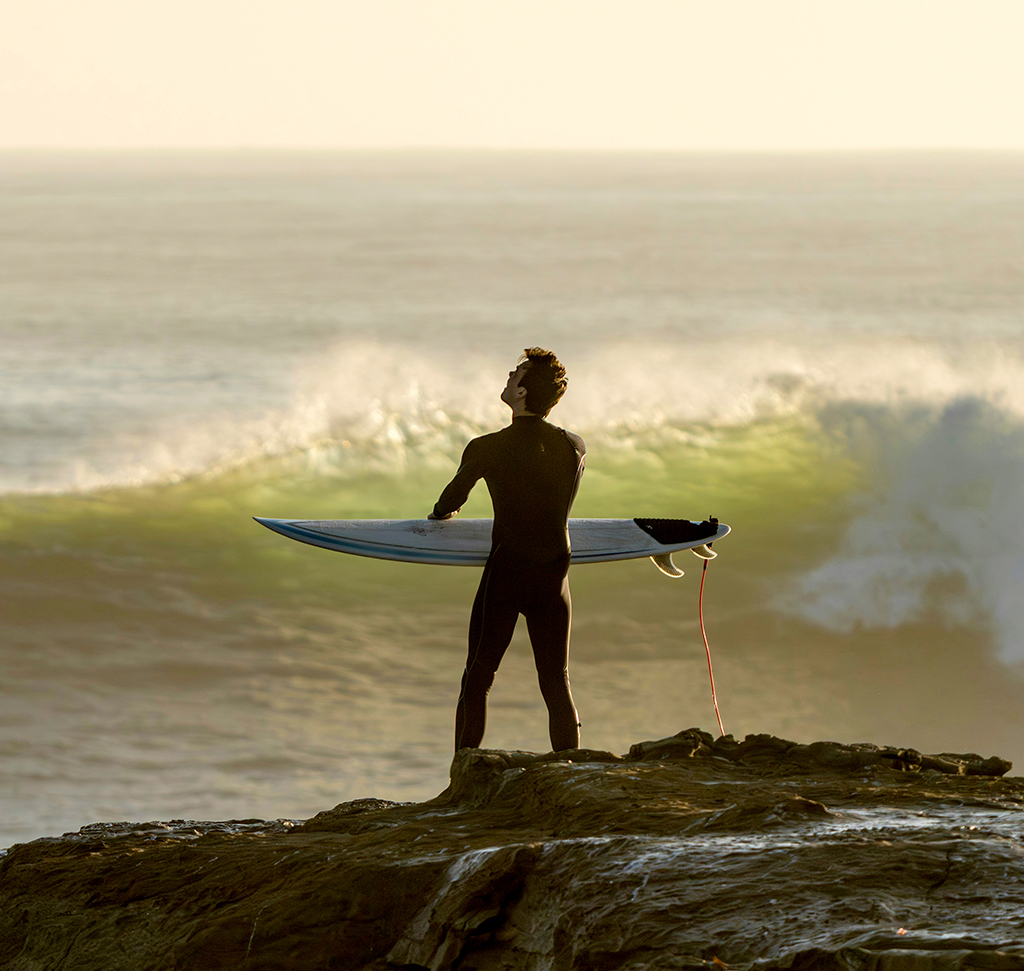
Get the sample image, the PSD with the Camera Raw Smart Filter and its Landscape and Subject masks, and the PDF guide. Free with a PHLEARN account.
Contrast and Clarity: Common Questions
What’s the difference between contrast and clarity?
Contrast is the spread between the darkest and lightest parts of the whole photo. Clarity adds contrast to the midtones, which makes an area look crisper, and it’s meant for specific parts of the image, not the whole thing.
Why drag the histogram instead of the Contrast slider?
The histogram in Camera Raw is interactive. Hover over it and it names each section (blacks, shadows, exposure, highlights, whites); click and drag a section and that part of the tonal range moves. You get finer control than one contrast slider, and you can see where the data is going.
Why convert to a Smart Object first?
Filter > Convert for Smart Filters makes Camera Raw a Smart Filter you can toggle, reopen and adjust later. Nothing is baked into the pixels.
Why not add clarity to the whole photo?
Because then nothing stands out. Clarity works by pulling the eye to the areas that have it, so it only means something next to areas that don’t. Mask it onto the subject and the ground, and leave the background alone.
How do I mask just the ground or the subject?
In Masking, click Landscape: Camera Raw splits the photo into natural ground, water, mountains and sky, and you tick the ones you want. Then Create New Mask > Select Subject for the person. In each mask, raise Clarity in the Effects tab and add a touch of Texture.
What did you do to the water?
Only a small saturation boost in its own mask, right behind the subject. No clarity there.
How do I check I haven’t overdone it?
Use the compare icon for a before and after, and the eye next to Create New Mask to switch all the masks off and on. Back in Photoshop, the eye on the Camera Raw Smart Filter does the same for the whole edit.
Does this use AI or credits?
The Landscape and Select Subject masks use AI to find the areas, but nothing spends generative credits.
Are the sample files free?
Yes, with a free PHLEARN account. You get the sample image, the PSD and the PDF guide.
Master Photoshop, Lightroom and Photography
Join PHLEARN PRO for $12.99 a month or $99.99 a year. Cancel anytime, with a 100% money-back guarantee.