
THIS COURSE INCLUDES
- 7 Lessonsin 2 sections
- 2h 18mof 4K video
- Intermediatesome Photoshop basics
- 9 Sample Images8 RAW + 1 JPEG
- 7 Sample TIFFs+ Frequency Separation action
- Captionsand chapters on every lesson
Part of a Learning Path
Join PHLEARN PRO for instant access to this course and every tutorial on PHLEARN.
- Stream in up to 4K on any device
- Closed captions and chapters on every course
- Download all sample images and PSDs
- New PRO tutorials every month
- Cancel anytime
Description
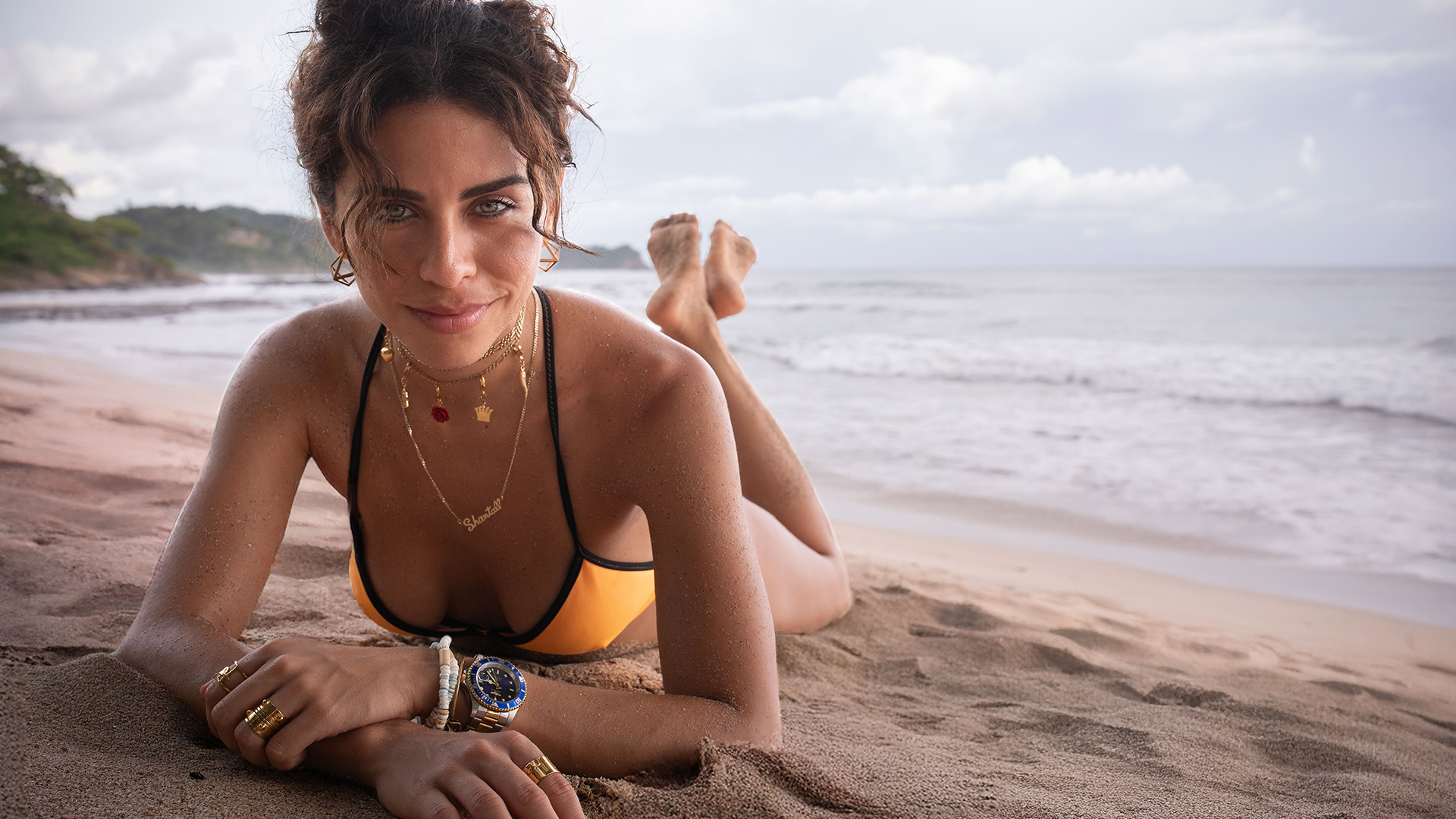
Master natural light portrait editing in Photoshop. In this PRO tutorial, we show you how to edit portraits shot in natural light, from Adobe Camera Raw to the finishing touches in Photoshop. We cover every challenge, including backlight, dark subjects, harsh shadows, and more. In 7 lessons, you’ll learn to shape the light so the viewer’s eye goes straight to your subject, and we are even including RAW files and a Photoshop action so you can follow along with every step.
Each lesson tackles a different kind of light: a hazy backlit portrait with lens flare, two sunset portraits edited together, an underexposed subject, a couple in soft light, hard shadows, a bright background behind a shaded face, and a bright indoor scene. You’ll learn to brighten your subject and darken the background with Camera Raw masking, replace a blown-out sky so it looks real, and widen a tight crop with Generative Expand. We clean up sand, flyaway hairs and distractions with Generative Fill and the Remove Tool, and show you where traditional tools still earn their place, from frequency separation for evening out skin to the Brush Tool for softening folds in clothing. Layered sample files are included too, so you can see how the edits were built.
What You’ll Learn
- Fix backlit and underexposed portraits with confidence
- Remove lens flare and sculpt light with radial gradients
- Batch-edit portraits to keep every shot consistent
Table of Contents
Course Downloads
Get The Perfect Edit
Natural Light Portrait Editing in Photoshop
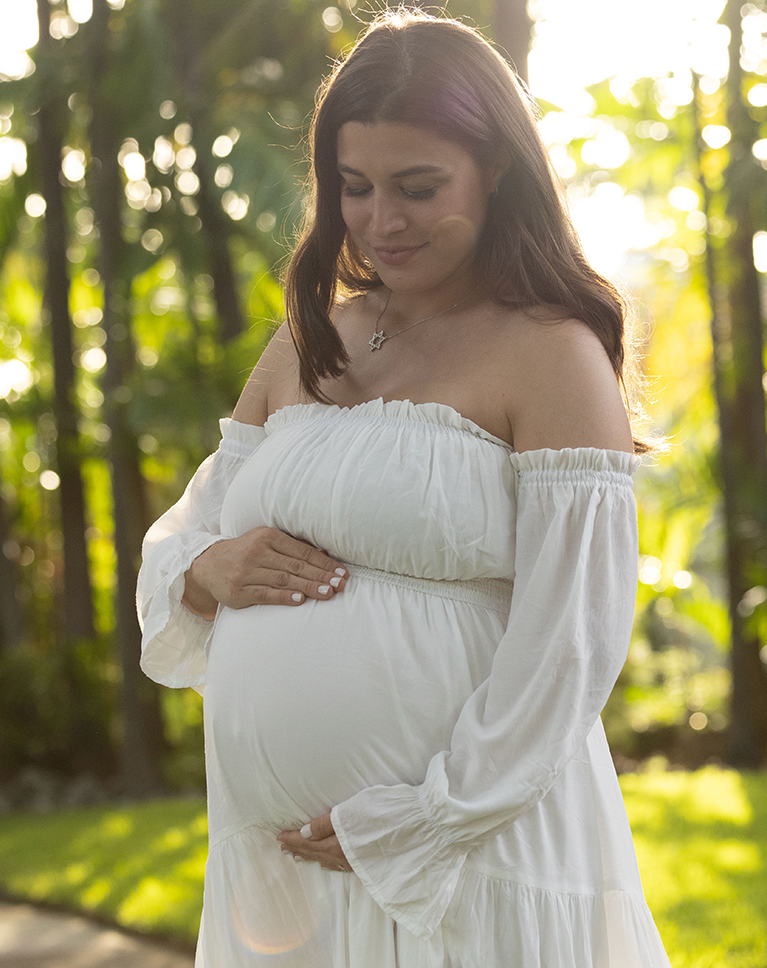
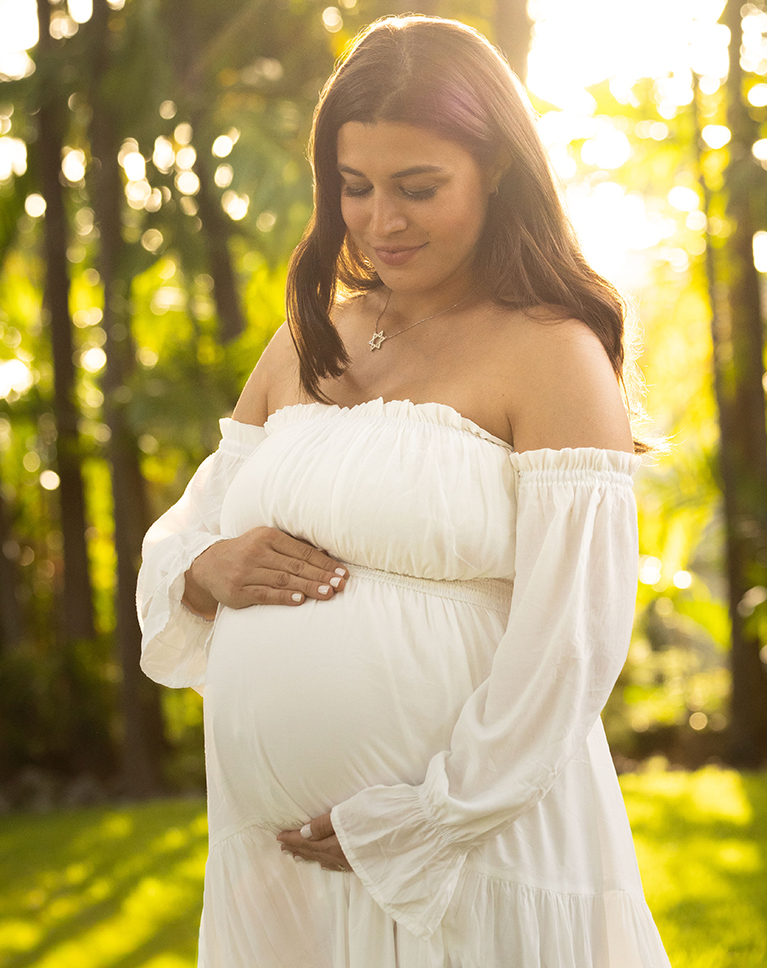
Portrait editing in Photoshop starts outdoors, and natural light presents unique challenges. You often face harsh shadows and blown-out highlights when light is direct. Backlit subjects can become dark, requiring careful recovery of shadow detail without introducing noise. In this tutorial, we’ll cover the most common scenarios and we’ll show you the workflow that will give you natural color balance and polished result.
Starting in ACR
Our portrait editing in Photoshop process starts in Adobe Camera Raw. This tool lets you instantly fix your light and color before you even touch Photoshop! In this tutorial, you will learn the fundamental settings, like opening files as Smart Objects—and the workflow we use to lay the perfect foundation for every portrait edit.
Making Selections
One of the most important secrets to mastering portrait editing in Photoshop is making accurate, local adjustments. This tutorial shows you the simple way to make perfect selections of your subject, clothes, and skin. By learning our easy masking tricks, you can boost light or fix colors exactly where you need them. This makes your changes powerful, totally natural, and gives you incredible control over every portrait.
Sky Replacement
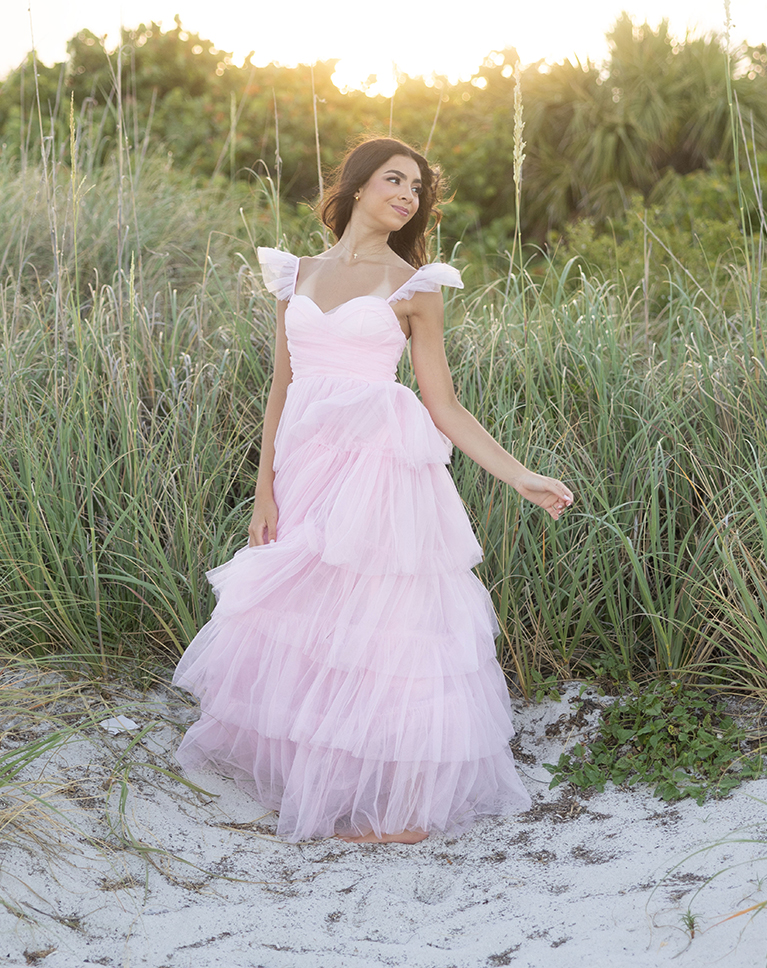
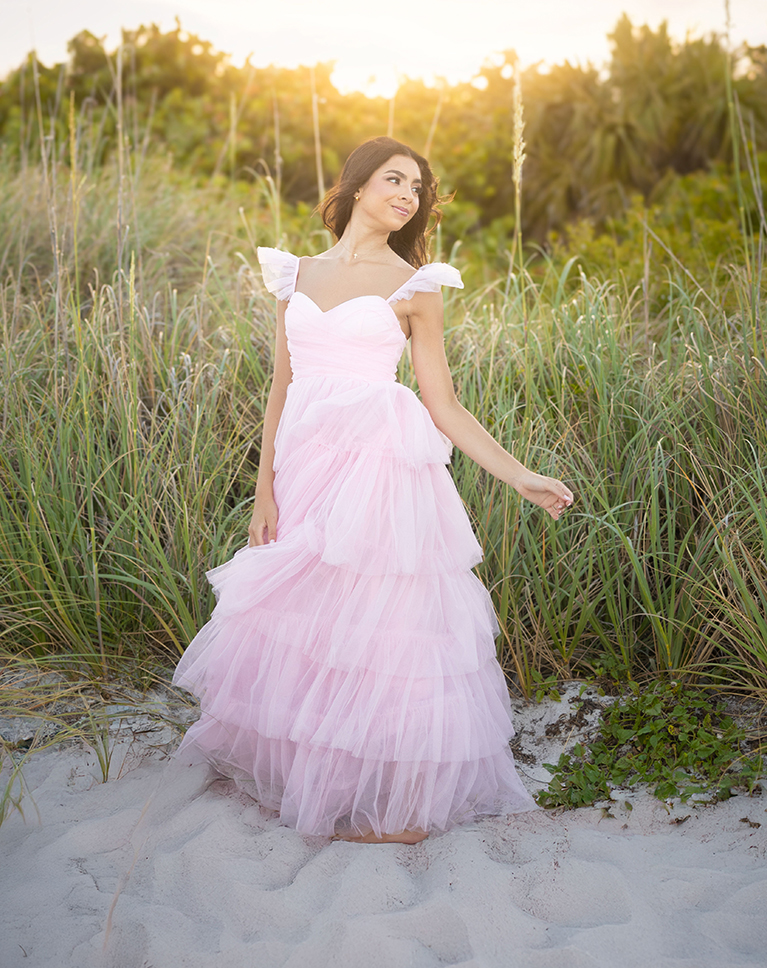
In natural light portrait editing in Photoshop, the sky is often the first element to lose detail. In this tutorial you’ll learn the best approach to fix your skies in no time. We’ll show you how to use advanced tools to accurately replace a blown-out sky, then use advanced blending and focus techniques to integrate the new sky flawlessly. The result is a realistic, detailed background that elevates your entire portrait.
Blending Elements
Discover blending techniques that ensure all elements, from a new sky to edited subjects, look natural together. You’ll learn to use Levels for matching brightness across layers and the Lens Blur Filter to harmonize focus and depth. This eliminates harsh edges and focus mismatches, delivering realistic results where all adjustments are perfectly integrated.
Removing Distractions
Our portrait editing in Photoshop tutorial goes beyond fixing light; we’ll show you how to create the best possible image. You’ll learn the best techniques for removing every distraction, including flyaway hair, blemishes, and unwanted debris, using powerful generative tools. By mastering these final, critical cleanup steps, you ensure your subject remains the undeniable focus, delivering a polished, high-impact result every time.

Highlight Your Subject
Learn how to isolate and lighten dark areas of your subject, restoring crucial detail without sacrificing the balanced exposure of the rest of your image. This is one of the most useful skills in natural light portrait editing in Photoshop, since outdoor light rarely falls on your subject and background evenly.


Indoor & Outdoor Scenarios
We want you to conquer every lighting situation! That’s why our portrait editing in Photoshop lessons cover both challenging outdoor natural light, from harsh sun to soft shade, and intricate indoor lighting scenarios. You’ll learn specific, proven techniques to correct exposure, sculpt highlights, and manage shadows, allowing you to take flawless care of any image, regardless of where the light falls.
Retouching Basics
At PHLEARN, our goal is to equip you with the complete portrait editing in Photoshop workflow, covering every step from exposure correction to final polish, ensuring your images achieve maximum visual impact.In this tutorial, you’ll learn to use the Selection Brush Tool and Generative Fill for rapid, high-detail retouching, eliminating distracting blemishes and spots. This ensures your newly lit subject is polished and flawless, guaranteeing that attention remains exclusively on the beautiful details of your portrait.
Frequency Separation Action
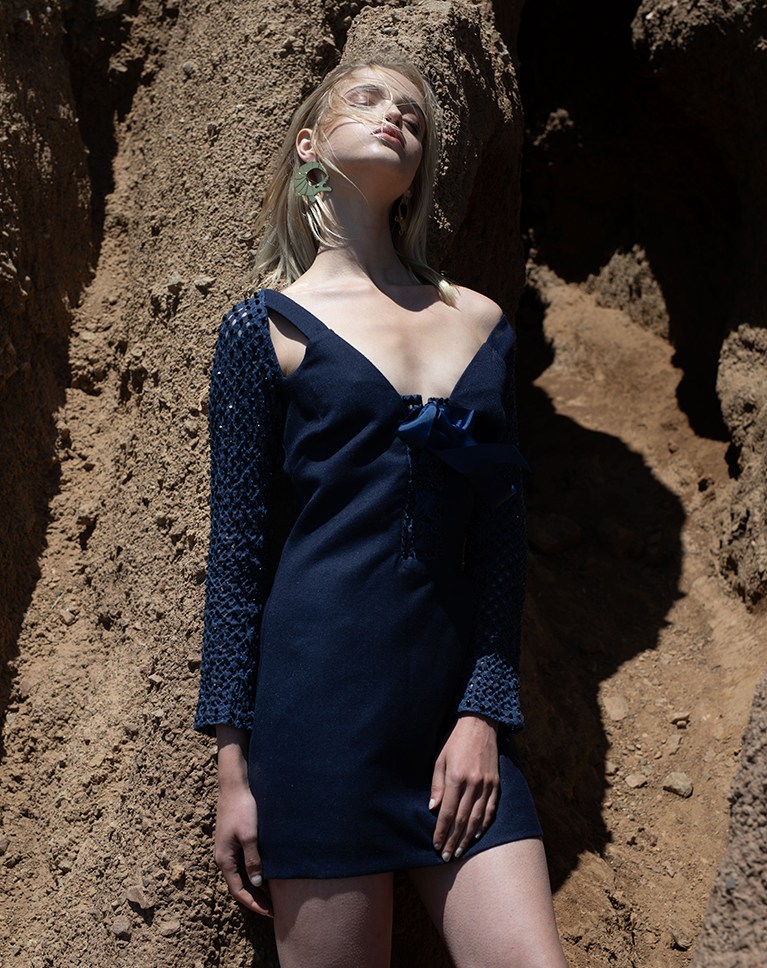
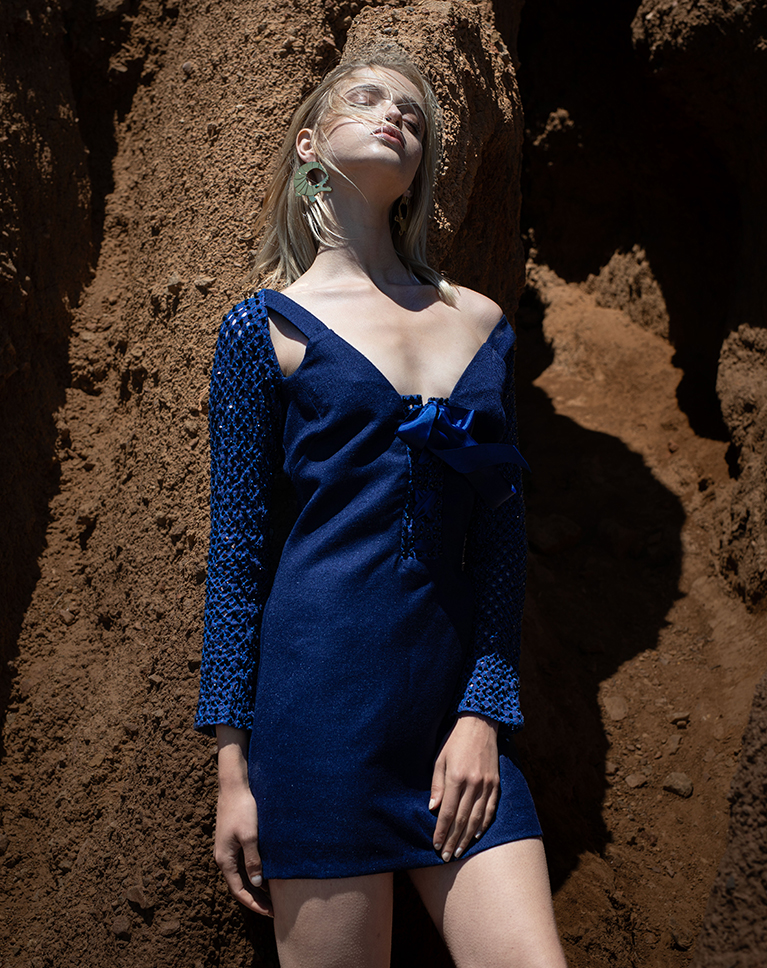
Your time is valuable. The faster you can finish an edit, the faster you can get on to your next project or photoshoot. Our included Frequency Separation Photoshop action will automatically separate the high and low frequencies in any image, saving you time and getting you right into retouching.
Non-Destructive Workflow
We’ll show you how to approach portrait editing in Photoshop without fear, using powerful non-destructive techniques like Smart Filters and Masking. This ensures your original pixels are always safe, allowing you to refine, revert, and re-edit any adjustment instantly. This professional approach guarantees maximum flexibility and control, future-proofing your workflow for perfect results.
Hands-On Learning
We believe in learning by doing, which is why this tutorial includes 8 high-resolution RAW and 7 TIFF files. You get immediate access to the exact images used in every lesson, allowing for a fully hands-on experience. Follow along with every step, practice the techniques, and apply the professional adjustments directly to the same source files.
Photoshop Learning Path
Dive deep into the world of Photoshop with our Photoshop Learning Path. Across 7 courses and 31+ hours of engaging content, you’ll learn Photoshop’s ins and outs, master pro-level tools, and tackle fun and challenging projects. From the fundamentals to advanced techniques, this comprehensive guide will help you make the most of this powerful software and bring your creative vision to life.

Class Instructor
Aaron Nace
PHLEARN Founder & Lead Instructor
Aaron Nace is a photographer, digital artist, and the founder of PHLEARN. Since 2011 he has taught millions of people to edit with confidence in Photoshop and Lightroom, on YouTube and in PHLEARN PRO, and he has been a featured speaker at Adobe MAX for more than eight years.
Every PRO course comes with the sample images and PSDs to follow along step by step, and Aaron adds new courses and free tutorials all year.
- 2M+YouTube subscribers
- 160M+video views
- 1,000+tutorials published
- 15years teaching Photoshop
A big thanks to fashion photographers Yorch Sans and Rob Wilkinson for providing the RAW images used throughout this tutorial; every JPEG, RAW file, TIFF, and Photoshop action is included in your download.
Reviews
Master Photoshop, Lightroom and Photography
Join PHLEARN PRO for $12.99 a month or $99.99 a year. Cancel anytime, with a 100% money-back guarantee.






In the past, I’ve watched so many tutorials about Photoshop and Lightroom, but I’ve never found anything quite like PHLEARN. The tutorials are incredibly useful, well explained, and easy to follow. I really like how the website is structured around specific tasks I want to accomplish, such as increasing the lighting on a face, improving a landscape, or solving a particular retouching problem. What I especially appreciate is the way Aaron explains not only what to do, but also why we need to do it that way. That makes it much easier to understand how Photoshop works and to apply the techniques in my own work, without having to memorize so many different techniques. Thank you Aaron!
Thank you for taking the time to write this review Roberta!
Thank you
I loved how you all simplified the process, the subtract feature in masking was a major help!
Really solid tutorial. Clear, practical, and easy to follow without feeling dumbed down. It focuses on understanding natural light and making edits that look clean and realistic not overdone. The workflow is professional, non-destructive, and actually useful for real portrait work. Definitely worth watching if you want better natural light edits in Photoshop.
Great tutorial!!! Thanks a lot!!!
Another great tutorial, love your delivery style!
Great lesson! I would also love to see a course on Lightroom Photo Book creation. Thanks
Aaron, as always, amazes me. I can’y get over how many radial and linear masks one can use to enhance a photo. Always Phlearning lol
Thank you Aaron Nance. You do a great presentation. Your expertise and humor keep my interest! Thanks again!
Great Course (as always) In de last lesson the blur did not work out because you did not use the ‘KI Status Button’ (in my opinion)
Great stuff Arron, loved it.