
description
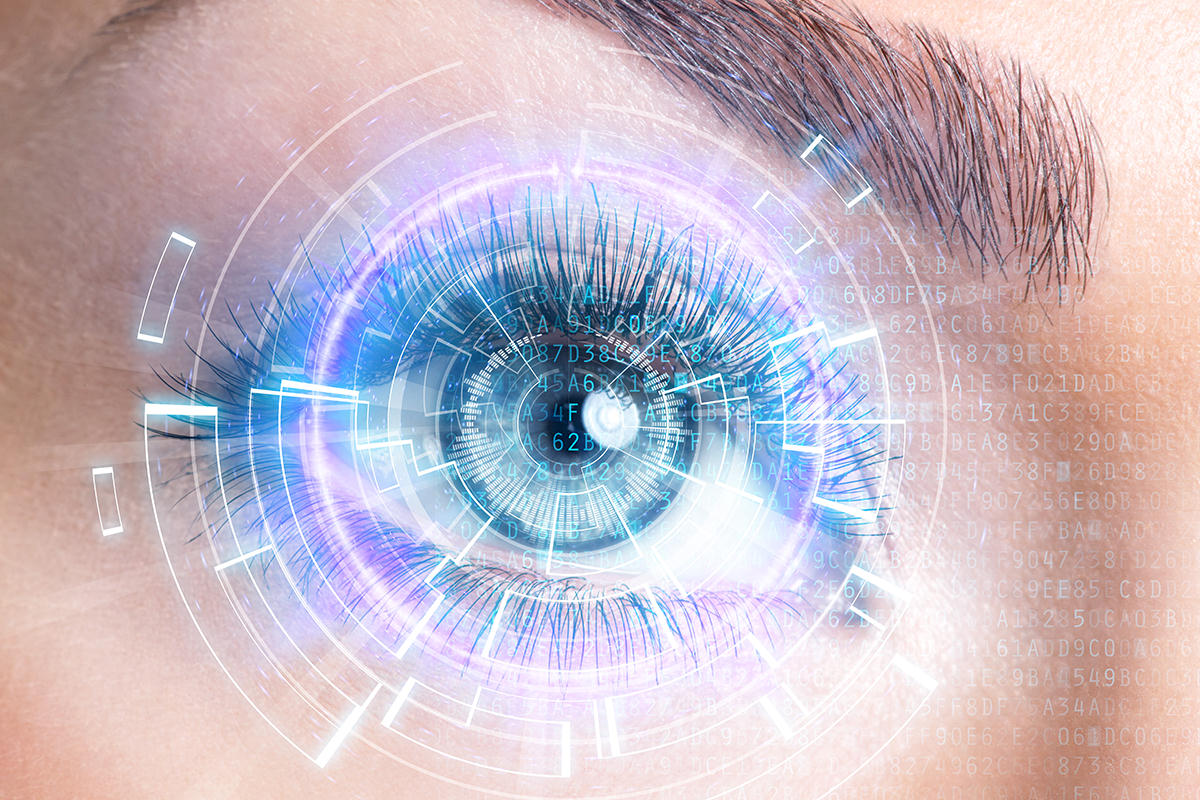
This stylized effect, the kind of glowing, data-projecting eye seen in sci-fi movies, comes together from a handful of simple shapes and textures wrapped into circles with the Polar Coordinates filter, then blended onto a close-up eye photo with a mix of blend modes, glow effects, and color. This tutorial covers building the radial patterns, transferring them onto the eye, and finishing with layered glow and color adjustments.
Enjoying This Free Tutorial?
We publish a new free tutorial every week, each one with sample images and PSDs you can download and follow along with. Sign up and they land straight in your inbox, along with early word on sales, events and subscriber-only offers.
This stylized effect, the kind of glowing, data-projecting eye seen in sci-fi movies, comes together from a handful of simple shapes and textures wrapped into circles with the Polar Coordinates filter, then blended onto a close-up eye photo with a mix of blend modes, glow effects, and color. This tutorial covers building the radial patterns, transferring them onto the eye, and finishing with layered glow and color adjustments.
Creating a Square Working Document
A perfectly square document is required before the Polar Coordinates filter can wrap shapes into a clean circle.
-
Check the Original Photo’s Dimensions
Go to Image > Image Size to check the eye photo’s width and height.
-
Create a New Square Document
Press Cmd/Ctrl+N and set both width and height to the same value, roughly matching the original photo’s resolution.
Why the Document Must Be Perfectly Square
Polar Coordinates maps a rectangular canvas onto a circle based on its width and height, and any mismatch between the two dimensions distorts that circle into an oval instead. Starting from a perfectly square document, no matter how large, guarantees the filter produces a clean, evenly proportioned circle every time.
Understanding Polar Coordinates on Simple Shapes
Running a few simple black rectangles through the Polar Coordinates filter shows exactly how straight lines turn into concentric circles or radial spokes depending on their orientation.
-
Draw a Few Simple Shapes
Create a new layer, use the Marquee tool to draw a few rectangles of different sizes, and fill them with black.
-
Apply Polar Coordinates
Go to Filter > Distort > Polar Coordinates, choose Rectangular to Polar, and click OK.
-
Compare Horizontal and Vertical Orientations
Rotate the same shapes 90 degrees and reapply the filter to see how orientation changes the result between concentric rings and radial spokes.
Building Radial Patterns From Rectangle Grids
Stroked, unfilled rectangles merged onto a single layer before running Polar Coordinates create a grid-like radial pattern that reads as a futuristic overlay.
-
Draw Multiple Stroked Rectangles
Select the Rectangle tool, set the fill to none and the stroke to black at around 10 pixels, and draw several rectangles on a new layer.
-
Merge and Rasterize the Rectangles
Select all the rectangle layers, press Cmd/Ctrl+E to merge them, then rasterize the result.
-
Apply Polar Coordinates
Go to Filter > Distort > Polar Coordinates and click OK to wrap the grid into a radial pattern.
-
Repeat With a Different Stroke Weight
Create another layer of rectangles with a different stroke weight, such as 20 pixels, and repeat the merge, rasterize, and Polar Coordinates process for variety.
Applying Polar Coordinates to Textures
Photographed textures, like sound waves or light sparkles, become entirely different radial patterns once run through the same filter.
-
Bring In a Texture Image
Add a texture image, such as a sound wave graphic, into the same document.
-
Apply Polar Coordinates to the Texture
Go to Filter > Distort > Polar Coordinates and click OK to convert the linear texture into a radial one.
-
Repeat With Additional Textures
Apply the same filter to any other textures brought in, building up a set of radial pieces to choose from.
Grouping Effects and Transferring Them Onto the Eye
Grouping all the radial pieces together and dragging them into the eye document at once keeps them organized as they’re positioned over the actual eye.
-
Group All the Radial Layers
Select every radial pattern layer and press Cmd/Ctrl+G to group them, naming the group Eye Effects.
-
Drag the Group Into the Eye Document
Use the Move tool to drag the entire group into the eye photo’s document.
-
Lower Opacity to Judge Center Placement
Temporarily lower the group’s opacity to see through it while positioning it over the center of the eye, then restore full opacity.
Blending Layers With Soft Light, Multiply, and Screen
Different blend modes control whether a layer’s dark areas, light areas, or a softened combination of both show through onto the eye.
-
Invert a Black Pattern to White
Press Cmd/Ctrl+I on a black-on-transparent pattern layer to make it white instead.
-
Set the Blend Mode to Soft Light
Change the layer’s blend mode from Normal to Soft Light to blend it gently into the eye’s existing tones.
-
Use Multiply to Show Only Darks
Change a different layer’s blend mode to Multiply when only its dark areas should remain visible.
-
Use Screen to Show Only Lights
Invert a layer and change its blend mode to Screen when only its light areas should remain visible.
Why Screen and Multiply Isolate Lights and Darks
Multiply blend mode keeps only a layer’s darker values visible while ignoring lighter ones, and Screen does the opposite, keeping only lighter values visible while ignoring darker ones. Choosing between them, and inverting a layer first if needed, is what lets a single pattern be treated as either its glowing highlights or its solid dark shapes, whichever effect fits the composition better.
Adding an Outer Glow Layer Effect and Copying It
An Outer Glow layer style, set to Screen blend mode and colored blue, gives the radial patterns a glowing, futuristic edge that can be copied instantly to other layers.
-
Open Layer Styles
Double-click a pattern layer to open the Layer Style dialog.
-
Enable Outer Glow
Check Outer Glow, set its blend mode to Screen, and raise the Opacity and Size until the glow is clearly visible.
-
Choose a Glow Color
Click the glow’s color swatch and choose a light blue for a futuristic tone.
-
Copy the Effect to Another Layer
Hold Alt/Option and drag the FX icon from one layer to another to copy the same glow settings instantly.
Why Copying Layer Effects Beats Rebuilding Them
Manually recreating the same Outer Glow settings, color, size, and opacity, on every new layer risks small inconsistencies that make the overall glow look mismatched between elements. Dragging the FX icon from an already-styled layer copies every setting exactly, keeping the glow consistent across as many duplicated or new layers as needed.
Masking Effects to the Eye’s Center and Recoloring With Hue/Saturation
A black layer mask painted with white confines an effect to just the center of the eye, and Hue/Saturation shifts each layer’s default color into a consistent palette.
-
Add a Black Layer Mask
Hold Alt/Option and click the layer mask button to add a mask filled entirely with black.
-
Paint White Near the Center
Paint white with the Brush tool near the center of the eye, letting the effect fade out before reaching the edges.
-
Shift the Layer’s Hue
Press Cmd/Ctrl+U and drag the Hue slider to shift a layer’s default color, such as yellow, into a consistent blue or teal.
Adding Matrix-Style Text and a Final Color Glow
A falling-code texture blended with Screen mode, plus a final masked Curves adjustment, add a last layer of futuristic texture and an overall color glow.
-
Bring In a Falling-Code Texture
Hold Shift and drag in a Matrix-style falling code texture into the effects group.
-
Set the Blend Mode to Screen and Recolor
Change its blend mode to Screen, then use Hue/Saturation to shift its color to match the chosen palette.
-
Mask the Text to Fade In Naturally
Add a layer mask and paint black with a soft brush so the text fades in gradually rather than appearing as a hard-edged block.
-
Darken the Background With a Curves Layer
Add a Curves adjustment layer at the bottom of the stack, invert its mask, and paint white to darken just the eye for more contrast against the effects.
-
Add a Final Color Glow With Curves
Add one more Curves adjustment layer above everything, raise the green and blue channels, invert its mask, and paint in color exactly where extra glow is wanted.
Why This Approach Works
Starting from a perfectly square document is what makes the Polar Coordinates filter produce clean, evenly proportioned circles rather than distorted ovals. Choosing between Soft Light, Multiply, and Screen blend modes gives precise control over whether a pattern’s darks, lights, or a gentle combination of both actually show up on the eye. Copying layer effects instead of rebuilding them keeps every glowing element consistent, which matters a great deal once a dozen or more radial patterns are layered together.
Final Thoughts
Nearly every element here, the lines, the rectangle grids, the textures, started as something simple that only became interesting once wrapped into a circle and blended with the right mode and glow. There’s no single correct combination of shapes and colors for this effect, so the real takeaway is the technique itself: any linear pattern or texture can become part of a similar futuristic composite once it’s run through Polar Coordinates.
Quick Reference: Keys, Menus and Settings
- Square documentImage > Image Size to check; Cmd/Ctrl + N, 5,000 x 5,000 px
- Wrap into a circleFilter > Distort > Polar Coordinates, Rectangular to Polar
- Grid shapesRectangle tool, Fill none, Stroke black 10 px; Cmd/Ctrl + E, then rasterize
- Black to whiteCmd/Ctrl + I; Soft Light, Multiply for darks, Screen for lights
- GlowDouble-click the layer, Outer Glow, light blue; Alt/Option-drag fx to copy
- RecolorCmd/Ctrl + U, drag Hue
- Center onlyAlt/Option-click the mask icon, paint white; Curves on Green and Blue for the final glow
No AI, no generative credits.
The Futuristic Eye Effect: Common Questions
Why does the pattern document have to be square?
Polar Coordinates works best on a square, so the shapes wrap into an even circle. The eye photo is about 6,000 by 4,900 pixels, so the video makes a new 5,000 by 5,000 document with Cmd/Ctrl + N.
What does the Polar Coordinates filter do?
Filter > Distort > Polar Coordinates, set to Rectangular to Polar, wraps straight lines around a center point into circles. Vertical and horizontal lines give completely different patterns, so try both.
How do I make the grid pattern?
Choose the Rectangle tool with Fill set to none and a black 10 px Stroke, and draw several rectangles. Merge them with Cmd/Ctrl + E, rasterize, then run Polar Coordinates. A second set with a 20 px stroke adds variety.
Can I use photos and textures, not just shapes?
Yes. Anything linear turns radial, so a sound-wave texture becomes a radial pattern. Bring it into the square document and run the same filter.
How do I line the patterns up with the center of the eye?
Group them with Cmd/Ctrl + G, drag the group into the eye photo and lower its opacity to see where the center is, then set it back to 100. When you scale a copy with Cmd/Ctrl + T, move the pivot point to the center of the eye first.
Should I use Multiply or Screen?
Multiply shows only a layer’s darks and Screen shows only its lights. The patterns start black, so press Cmd/Ctrl + I to invert them to white before setting Screen or Soft Light.
How do I add the blue glow?
Double-click the layer, turn on Outer Glow with Screen blend mode, raise Opacity and Size and pick a light blue. Alt/Option-drag the fx icon to copy the glow to another layer.
How do I turn a yellow or green texture blue?
Select the layer, press Cmd/Ctrl + U and drag the Hue slider until it matches your palette; the video lands on blue and teal.
How do I keep an effect near the center of the eye?
Alt/Option-click the layer mask icon to add a black mask, then paint white with the Brush tool around the center so the effect fades out before the edge.
Master Photoshop, Lightroom and Photography
Join PHLEARN PRO for $12.99 a month or $99.99 a year. Cancel anytime, with a 100% money-back guarantee.





