

Download Assets
This tutorial includes 1 PDF guide. Downloads are free with a PHLEARN account.
- Download the sample files from every free tutorial on PHLEARN
- New free tutorials published every week
- One free account: sign up once, then download anything
Free PDF Guide · 3 Pages
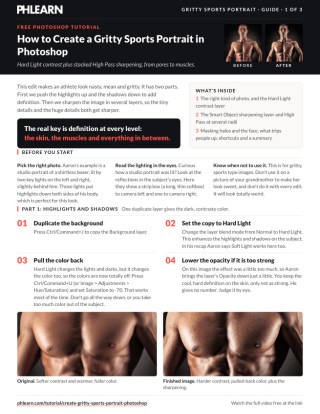
This Tutorial as a Step-by-Step PDF
The guide walks through a Hard Light contrast layer tamed with Hue/Saturation at -70, a desaturated Smart Object for sharpening, Filter > Other > High Pass in Soft Light at a radius of about 65, stacked lower radius copies for skin, and one group mask for halos and a 30% pass on the face. Use it while you edit.
description
The gritty sports look is contrast plus sharpening at several scales at once. Aaron boosts highlights and shadows with a Hard Light copy, pulls saturation back down so skin doesn’t go lurid, then builds a desaturated Smart Object and stacks High Pass copies at different radii, big ones for muscle definition and small ones for skin texture, before masking the whole group to kill haloing and soften the face.
Enjoying This Free Tutorial?
We publish a new free tutorial every week, each one with sample images and PSDs you can download and follow along with. Sign up and they land straight in your inbox, along with early word on sales, events and subscriber-only offers.
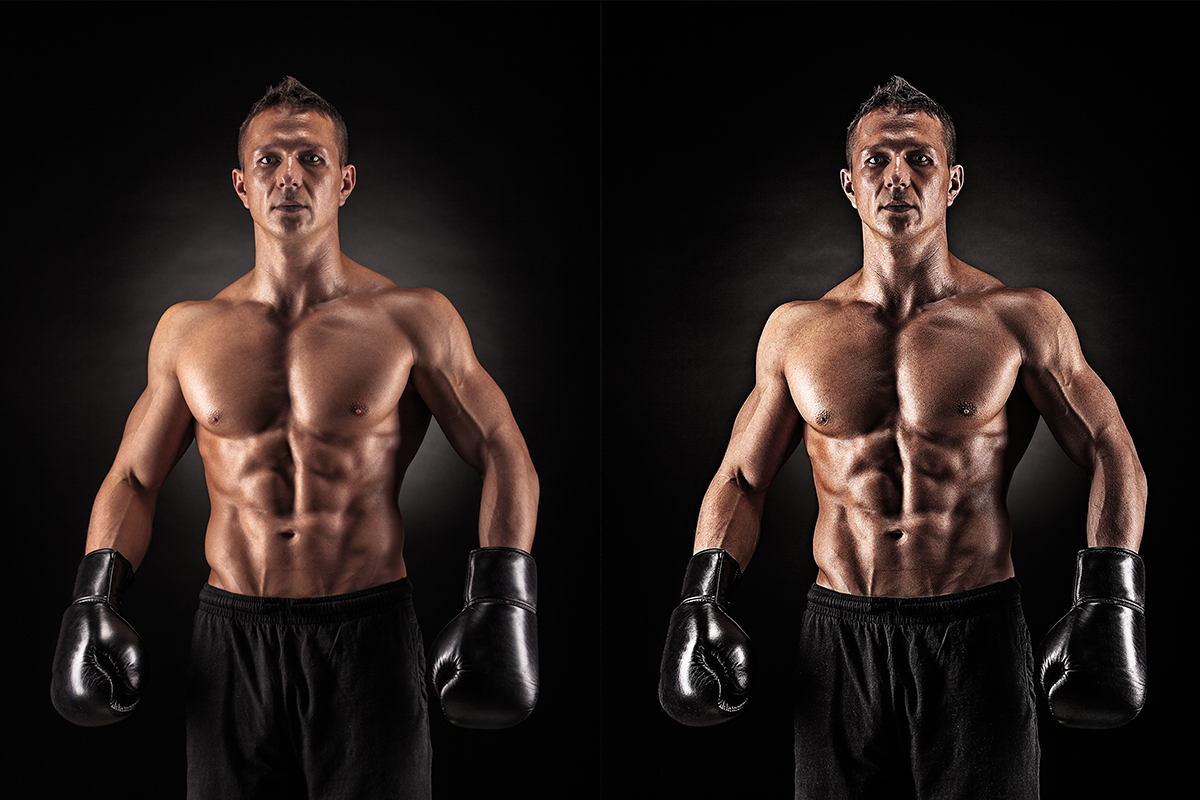
A gritty, aggressive sports portrait leans on strong contrast and heavy multi-layered sharpening to bring out every level of detail, from fine skin texture up to large muscle definition. This tutorial covers using a Hard Light blend mode with desaturated Hue/Saturation to enhance contrast, converting a layer to a Smart Object for a stackable High Pass sharpening filter, and masking that sharpening away from areas like the face where it should stay lighter.
Enhancing Highlights and Shadows With a Hard Light Layer
Duplicating the background and setting its blend mode to Hard Light intensifies the existing highlights and shadows on the subject, adding dramatic contrast and definition.
-
Duplicate the Background Layer
Press Cmd/Ctrl+J to duplicate the background layer.
-
Change the Blend Mode to Hard Light
Change the duplicated layer’s blend mode from Normal to Hard Light to enhance the subject’s highlights and shadows. Soft Light works here too, for a gentler result.
Correcting the Resulting Color Shift With Hue/Saturation
Hard Light strengthens color along with contrast, so pulling saturation down afterward keeps the subject’s skin tone from looking oversaturated and unnatural.
-
Open Hue/Saturation
Press Cmd/Ctrl+U to open Hue/Saturation.
-
Lower Saturation Significantly
Bring the Saturation slider down to around negative 70 to reduce the strong color shift introduced by the Hard Light layer.
-
Adjust Layer Opacity if Needed
Lower the Hard Light layer’s opacity if the overall contrast effect feels too strong.
Preparing a Desaturated Smart Object for Sharpening
Duplicating the background again, removing all its color, and converting it to a Smart Object sets up a layer dedicated purely to sharpening, using a High Pass filter that can be re-edited at any time.
-
Duplicate the Background Again
Duplicate the original background layer and drag the copy to the top of the layer stack.
-
Desaturate the Layer
Go to Image > Adjustments > Desaturate to remove all color, since this layer is only for sharpening.
-
Convert the Layer to a Smart Object
Right-click the layer and choose Convert to Smart Object so the upcoming High Pass filter can be applied as an editable Smart Filter.
Why the High Pass Filter Needs to Be a Smart Filter
Applying High Pass directly to a regular layer would lock in whatever radius was chosen, requiring the whole step to be undone and redone to try a different amount. Converting the layer to a Smart Object first means the High Pass filter attaches as a Smart Filter, which can be reopened and adjusted at any time without redoing the conversion or losing other work.
Sharpening Large Details With a High Pass Filter
A larger High Pass radius, blended with Soft Light, brings out bigger structural detail like overall muscle definition rather than fine skin texture.
-
Apply the High Pass Filter
Go to Filter > Other > High Pass and apply an initial radius.
-
Change the Blend Mode to Soft Light
Change the layer’s blend mode from Normal to Soft Light to turn the High Pass result into visible sharpening.
-
Increase the Radius for Larger Detail
Double-click the High Pass Smart Filter and raise the radius significantly, such as to around 65, to sharpen larger areas like an entire muscle group.
Sharpening Fine Skin Detail With a Lower Radius
Duplicating the High Pass layer and lowering its radius shifts the sharpening focus down to small-scale detail like skin texture and pores.
-
Duplicate the High Pass Layer
Press Cmd/Ctrl+J to duplicate the large-detail High Pass layer.
-
Lower the Radius for Fine Detail
Double-click the duplicated layer’s High Pass filter and bring the radius down significantly to target small details like skin texture instead of large muscle shapes.
-
Stack Additional Copies as Needed
Duplicate the fine-detail layer further to build up more intense small-scale sharpening, adjusting opacity on individual copies as needed. Then duplicate the large-detail layer too, set its radius a little higher or lower for an in-between level, and lower the opacity of that copy if it looks too strong.
Why Sharpening at Multiple Radii Together Looks Better Than One Pass
A single High Pass pass at one fixed radius can only emphasize detail at roughly one scale, either fine skin texture or larger muscle definition, but not both at once. Layering several High Pass copies at different radii, from very fine to more macro, is what builds up definition at every level simultaneously, which is what actually creates that intensely gritty, sharpened look.
Why a Group Mask Is Faster Than Masking Every Layer Separately
Painting a separate mask on each individual High Pass copy would mean repeating the exact same haloing fix seven or more times across every stacked layer. Grouping all the sharpening layers together first means a single mask on the group controls where all of them show up at once, so one pass with the brush handles haloing or face softening for the entire stack.
Masking Away Haloing and Reducing Sharpness on the Face
Grouping the sharpening layers together and painting on a group mask removes visible haloing around edges and reduces sharpening on areas like the face that should stay softer.
-
Group All the Sharpening Layers
Shift-click all the High Pass sharpening layers and group them together.
-
Paint Black to Remove Haloing
Add a mask to the group and paint black with the Brush tool over any area showing a visible white halo, such as around an arm or bicep.
-
Paint at Reduced Opacity to Soften the Face
Lower the brush opacity to around 30% and paint over the face to partially reduce sharpening there while keeping full sharpening on the rest of the body.
Why This Approach Works
Converting the sharpening layer to a Smart Object before applying High Pass is what makes the aggressive, iterative process of stacking multiple sharpening passes practical, since each one can be reopened and adjusted rather than committed permanently. Building sharpening at several different radii, rather than relying on one setting, is what achieves definition at every scale from pores to muscles simultaneously. Masking the grouped sharpening layers afterward is what keeps the effect from creating obvious white haloing or over-sharpening areas like the face that should stay comparatively soft.
Final Thoughts
This kind of heavy contrast and layered sharpening is intentionally aggressive and suits a specific look, gritty sports or action portraits, rather than every type of photo. The same Hard Light contrast boost and multi-radius High Pass sharpening stack works on any subject calling for that same nasty, mean, defined aesthetic.
Quick Reference: Keys, Menus and Settings
- Contrast layerCmd/Ctrl + J, blend mode Hard Light
- Tame the colorCmd/Ctrl + U, Saturation -70; lower the layer opacity
- Sharpening layerDuplicate the background to the top; Image > Adjustments > Desaturate (Shift + Cmd/Ctrl + U); right-click > Convert to Smart Object
- High PassFilter > Other > High Pass; blend mode Soft Light; radius about 65 for large detail
- Fine detailCmd/Ctrl + J, double-click High Pass and lower the radius; duplicate again to stack
- Halos and faceGroup the sharpening layers, add a mask; paint black on halos, 30% brush (3) on the face
No AI, no generative credits.
Free Downloads
Take the Guide With You
Get the PDF guide to the gritty sports look: a Hard Light contrast layer, stacked High Pass Smart Filters at different radii and a group mask for the halos. Free with a PHLEARN account.
Gritty Sports Portraits: Common Questions
How do I add hard contrast to a sports portrait?
Press Cmd/Ctrl + J to duplicate the background and change the copy’s blend mode from Normal to Hard Light. It strengthens the highlights and shadows on the subject.
Why do the colors look wrong after Hard Light?
Hard Light changes color as well as lights and darks. Press Cmd/Ctrl + U for Hue/Saturation and set Saturation to about -70, then lower the layer’s opacity if it’s still too strong.
Why desaturate the sharpening layer?
That layer is only for sharpening, not color. Duplicate the background, drag it to the top and use Image > Adjustments > Desaturate (Shift + Cmd/Ctrl + U).
Why convert to a Smart Object before High Pass?
On a Smart Object, High Pass becomes a Smart Filter. Double-click it at any time to change the radius instead of redoing the step.
Where is the High Pass filter and what blend mode does it need?
Go to Filter > Other > High Pass. Set the layer’s blend mode from Normal to Soft Light so the gray result turns into sharpening.
What High Pass radius should I use?
Both a high and a low one. A radius of about 65 sharpens large shapes like a whole shoulder muscle; a low radius picks out skin and pores. Duplicate the layer with Cmd/Ctrl + J and change the radius for each scale.
How many sharpening layers do I need?
There’s no formula; the video ends up with seven copies at different radii. Judge it by eye and lower the opacity of any copy that’s too strong.
How do I get rid of white halos around the arms?
Shift-click the sharpening layers, group them and add a mask to the group. Paint black over the halos to hide every sharpening layer there at once.
Can I keep the face less sharp than the body?
Yes. On the group mask, paint black with the Brush at 30% opacity (press 3) over the face so only part of the sharpening comes off.
Is there a free download?
Yes, with a free PHLEARN account. You get 1 PDF guide with the Hard Light, High Pass and masking steps from the video.
From the Magazine View all
Stories, interviews and guides for photographers, new every week.
 BusinessHow to Compete With AI: Give Your Clients MoreEveryone has the same tools now, and your clients know it. The way to compete is to give them more.
 EditingLightCraft vs Lightroom: Is the Free Clone Any Good?The free clone on the same RAW files: what matches, what breaks and who should switch.
 EditingHow to Tell If a Photo Is AI, and Prove Yours Is RealThe tells that still work in 2026, why detectors disagree, and how to prove your own photos.
Master Photoshop, Lightroom and Photography
Join PHLEARN PRO for $12.99 a month, or $99.99 a year (save 36%). Cancel anytime, with a 100% money-back guarantee.





