

description
Learn how to create a logo in Photoshop where the type actually belongs to the artwork behind it. Pick a font by previewing the real logo text, then build each word as its own type layer, resized through the Character panel rather than Free Transform. Align and reshape individual letters, even the gaps with a square selection used as a ruler, mix outlined and filled letters with Fill Opacity, and clip sampled colors and textures onto the whole group.
Enjoying This Free Tutorial?
We publish a new free tutorial every week, each one with sample images and PSDs you can download and follow along with. Sign up and they land straight in your inbox, along with early word on sales, events and subscriber-only offers.
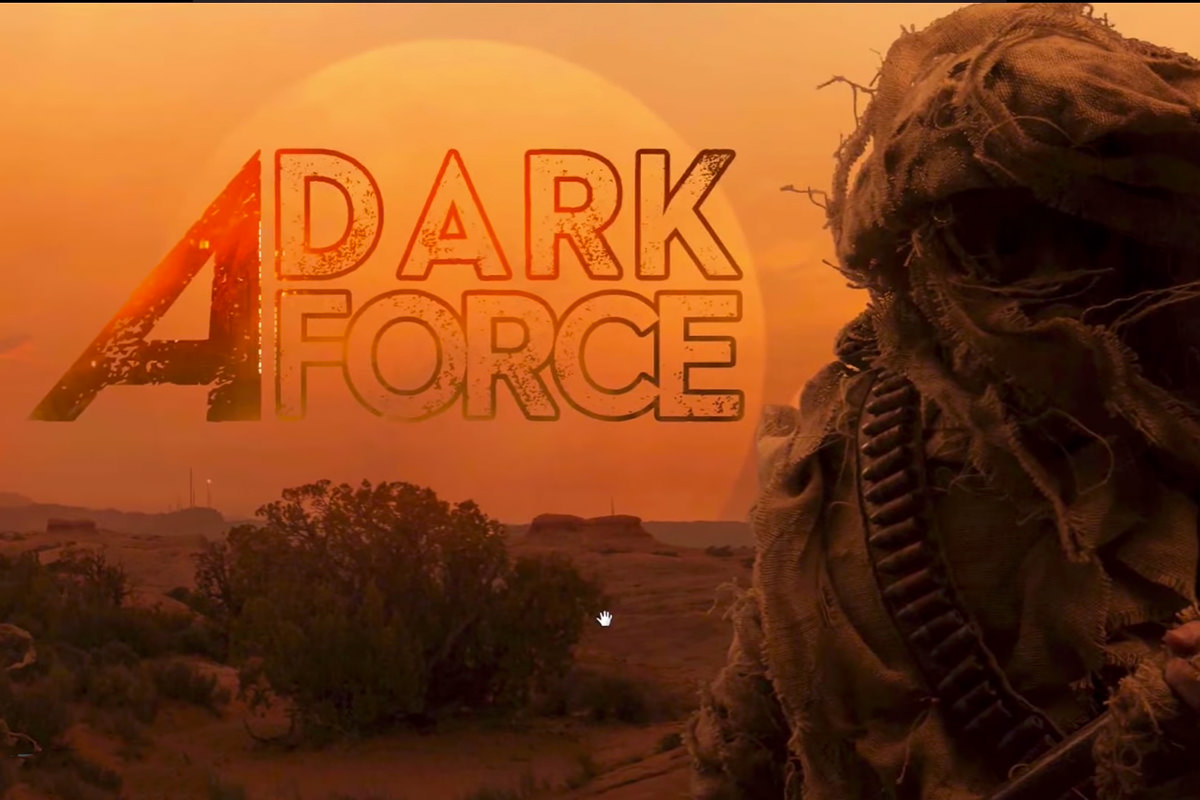
Creating A Logo In Photoshop
A themed logo comes together from more than just picking a good font, it’s the spacing, alignment, and layered textures on top that make it feel intentional and unique. This tutorial finds a fitting font, aligns and adjusts individual letters by hand, evens out letter spacing, then clips textures and colors from the source image directly onto the text to tie the logo to the artwork it belongs to.
Finding a Font That Matches the Project’s Theme
Searching for a font by typing the actual logo text into a font site’s preview makes it easy to judge how a font will look before downloading it.
-
Search a Font Site Using the Logo Text
Visit a font site and type the actual words the logo will use into the preview field to see them rendered in different fonts.
-
Choose a Font That Matches the Project’s Theme
Pick a font whose style fits the overall theme of the artwork the logo belongs to, and check its license allows the use you have in mind.
-
Download and Install the Font
Download the chosen font file and double-click it to install it so it becomes available inside Photoshop.
Setting Up the Logo’s Type Layers
Building the logo starts with separate type layers for each word, sized using the Type tool’s own controls rather than Free Transform.
-
Add the First Letter or Word
Press T for the Type tool and click to add the first letter or word of the logo.
-
Resize Using the Character Panel, Not Free Transform
Go to Window > Character to open the Character panel, and use its font size field to resize text rather than Cmd/Ctrl+T, which can distort other type properties.
-
Duplicate the Layer for Additional Words
Press Cmd/Ctrl+J to duplicate the type layer, then double-click it to edit the text into the next word needed.
Why the Character Panel Is Better Than Free Transform for Resizing Text
Scaling a type layer with Free Transform can distort the underlying type properties in ways that cause problems later, such as when adjusting other attributes of the text. Resizing directly through the Character panel’s font size field keeps the text layer’s properties clean and predictable throughout the rest of the editing process.
Aligning and Reshaping Individual Letters
The Align tool and Free Transform work together to line up separate letter and word layers precisely against each other.
-
Left-Align Multiple Text Layers
Select two or more text layers, click the Move tool, and use the left-align option to snap them to the same horizontal position.
-
Transform a Single Letter to Fit Precisely
Press Cmd/Ctrl+T on an individual letter, then hold Cmd/Ctrl while dragging a corner handle to distort just that letter until it lines up the way you want against the surrounding text.
Evening Out Letter and Word Spacing
A simple square selection becomes a quick, repeatable ruler for measuring the gap between words consistently.
-
Create a Reference Square With the Marquee Tool
Hold Shift while dragging with the Marquee tool to create a perfectly square selection matching the gap between two elements, then fill it with a color using Option/Alt+Delete.
-
Use the Reference Square to Match Spacing Elsewhere
Move the reference square to another gap in the logo and use it to judge and adjust that spacing to match.
-
Adjust Tracking for Even Letter Spacing
Select a word’s type layer and adjust the Tracking value in the Character panel to spread or tighten the spacing between its individual letters.
Creating a Mix of Outlined and Filled Letters
A Stroke effect combined with a Fill Opacity of zero turns solid letters into outline-only text while keeping the layer style separately editable.
-
Add a Stroke Layer Style
Double-click a type layer, add a Stroke effect, and increase its size using the up arrow to make it clearly visible.
-
Reduce Fill Opacity to Zero
In the layer’s Blending Options, lower Fill Opacity to zero, which hides the letter’s solid fill while keeping the stroke effect fully visible.
-
Copy the Layer Style to Other Words
Hold Alt/Option and drag the layer effects icon from one type layer onto another to copy the same stroke and fill settings, then adjust each layer’s Fill Opacity individually.
Why Fill Opacity Is Different From Regular Layer Opacity
Regular layer opacity fades everything on a layer uniformly, including any applied layer effects like a stroke. Fill Opacity specifically controls only the layer’s own filled content, which makes it possible to hide a letter’s solid fill entirely while keeping a Stroke effect at full strength, creating an outline-only look.
Clipping Colors and Textures From the Artwork Onto the Text
Grouping the finished type layers and clipping new painted layers to that group brings colors and textures directly from the source image into the lettering.
-
Group the Type Layers
Select all the finished type layers and press Cmd/Ctrl+G to group them together.
-
Add a New Layer Clipped to the Group
Create a new layer above the group and press Option/Alt+Cmd/Ctrl+G to clip it specifically to that group.
-
Sample Colors From the Background Image
Sample colors directly from areas of the background artwork, such as rocks, sky, or lit surfaces, and paint them onto the clipped layer.
-
Vary Blend Modes Across Multiple Clipped Layers
Add several more clipped layers using different sampled colors and textures, experimenting with blend modes like Overlay, Multiply, and Screen on each.
Why Clipping to a Group Keeps Every Effect Editable
Because every color and texture layer is clipped to the type group rather than merged into the letters directly, each individual layer effect, blend mode, and opacity setting stays fully adjustable at any point. Even a change made afterward, like increasing a stroke’s size, automatically ripples through the whole stack without breaking any of the clipped color work already done.
Finalizing and Placing the Logo
Once every layer is grouped together, the finished logo can be resized and repositioned as a single unit, with adjustments made to fit different placements.
-
Group Everything Into a Single Logo Group
Select every layer that makes up the finished logo and press Cmd/Ctrl+G to group them all together.
-
Adjust Brightness for Different Placements
Turn individual clipped layers on or off, or adjust their opacity, to make the logo lighter or darker depending on where it will sit in the final composition.
Why This Approach Works
Building the logo from separate, groupable type layers, rather than flattening text early, is what makes it possible to keep adjusting alignment, spacing, and stroke effects throughout the whole process. Clipping sampled colors and textures from the source artwork directly onto a group of letters, instead of picking arbitrary colors, is what visually ties the logo back to the image it belongs to. Keeping every piece editable through clipping masks and layer styles means the logo can keep evolving, and even be relit or recolored for a different placement, without starting over.
Final Thoughts
A themed logo doesn’t require professional graphic design training, just a font that fits the mood, some careful hand-alignment, and a willingness to sample colors and textures directly from the artwork it’s paired with. The same underlying approach, matched fonts, evened-out spacing, and clipped texture layers, works just as well for a birthday card, a holiday greeting, or any other project that calls for custom lettering.
Quick Reference: Keys, Menus and Settings
- Type and sizeT for the Type tool; Window > Character for size and Tracking
- Next wordCmd/Ctrl + J, double-click to edit, Cmd/Ctrl + Enter to commit
- Line up layersMove tool (V), left-align button
- Reshape a letterCmd/Ctrl + T, Cmd/Ctrl-drag a corner
- Spacing rulerMarquee with Shift for a square, Alt/Option + Delete to fill
- Outline lettersStroke, then Fill Opacity 0; Alt/Option-drag the fx icon to copy
- Clip to the groupCmd/Ctrl + G, then Option/Alt + Cmd/Ctrl + G on each new layer
Text Logos in Photoshop: Common Questions
Where can I find a font that fits my theme?
Aaron uses dafont.com, where you can type your logo’s words into the preview to see them in each font. Download the font and double-click it to install it.
Should I resize text with Free Transform?
Use the font size in the Character panel (Window > Character) instead. Scaling type with Cmd/Ctrl + T can throw off its other settings.
How do I add the other words?
Press Cmd/Ctrl + J to copy the type layer, double-click it, type the new word and press Cmd/Ctrl + Enter to commit it.
How do I line up separate text layers?
Cmd/Ctrl-click the layers, choose the Move tool and click the left-align button in the options bar.
How do I stretch one letter to fit?
Press Cmd/Ctrl + T on that letter’s layer and hold Cmd/Ctrl while you drag a corner handle. Small changes look fine; big stretches tend to look bad.
How do I keep the gaps between words even?
Hold Shift and drag a square with the Rectangular Marquee tool to match one gap, fill it with Alt/Option + Delete and use it as a ruler for the others. Tracking in the Character panel spreads or tightens the letters; Aaron tries values like -100 and -150.
How do I make outline-only letters?
Double-click the type layer, add a Stroke, then set Fill Opacity to 0 in Blending Options. The fill disappears while the stroke stays. Alt/Option-drag the fx icon to copy the style to another layer.
How do I put colors from the photo inside the letters?
Group the type layers with Cmd/Ctrl + G, add a new layer and press Option/Alt + Cmd/Ctrl + G to clip it to the group. Sample colors from the image and paint, trying Overlay, Soft Light, Multiply or Screen.
Can I still change the stroke after adding the colors?
Yes. The color layers are clipped, not merged, so you can double-click the fx and change the Stroke size, and the color work follows.
Master Photoshop, Lightroom and Photography
Join PHLEARN PRO for $12.99 a month or $99.99 a year. Cancel anytime, with a 100% money-back guarantee.





