
Download Assets
description
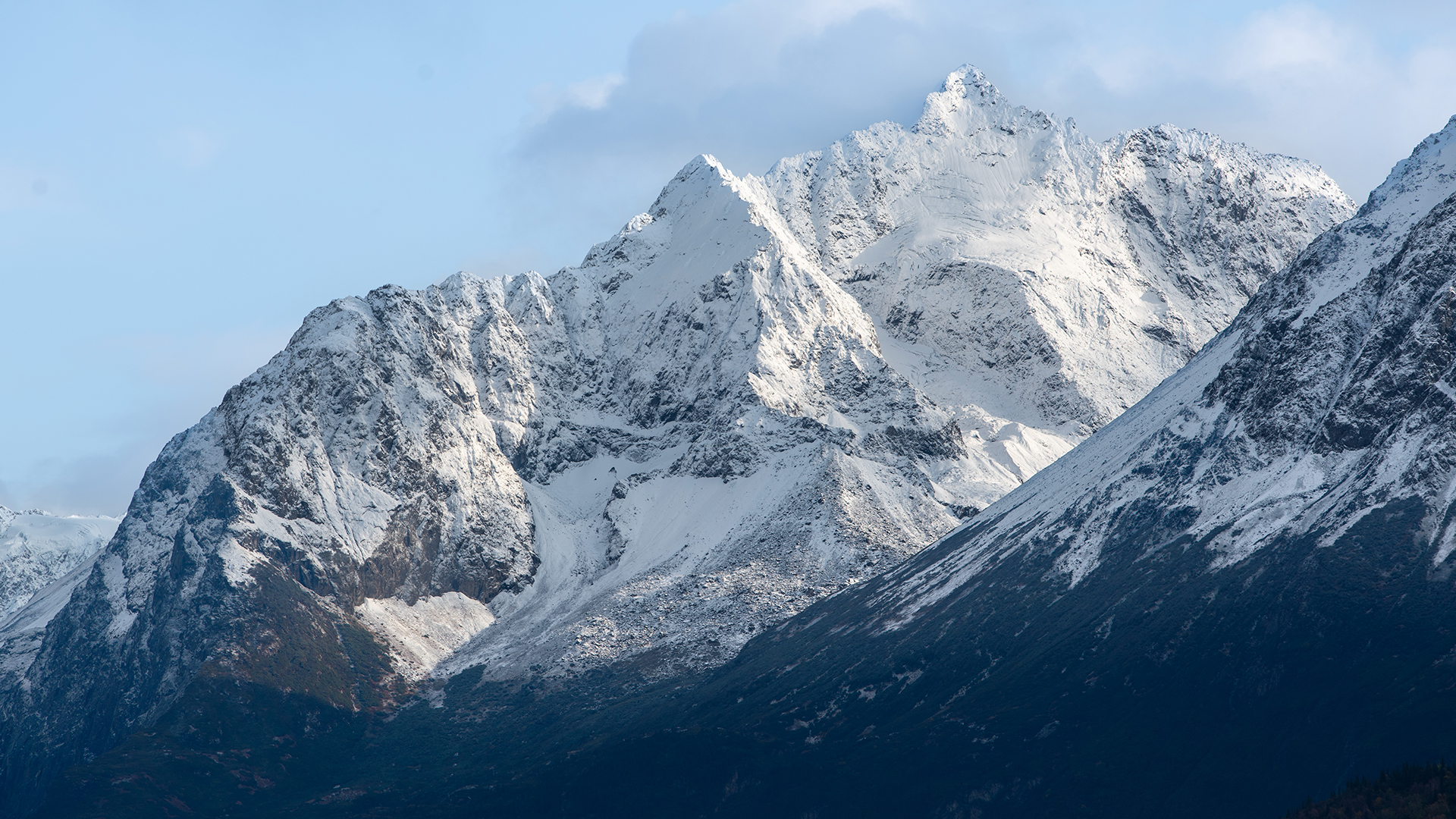
Learn how to use Adobe’s AI Landscape Masking tool to automatically select and edit snow in your photos. This tutorial covers both Lightroom and Adobe Camera Raw workflows, showing you how to enhance landscapes with just a few clicks. Learn to adjust highlights and clarity for professional results while keeping your edits fully flexible. Download the included RAW file, so you can follow along!.
Go PRO:
Dive deeper into the world of Photoshop with our in-depth PRO Photoshop Learning Path . Across 11 courses and 53 hours of engaging content, you’ll learn Photoshop’s ins and outs, master pro-level tools, and tackle fun and challenging projects..
Share
AFTER
BEFORE
Masking Made Simple
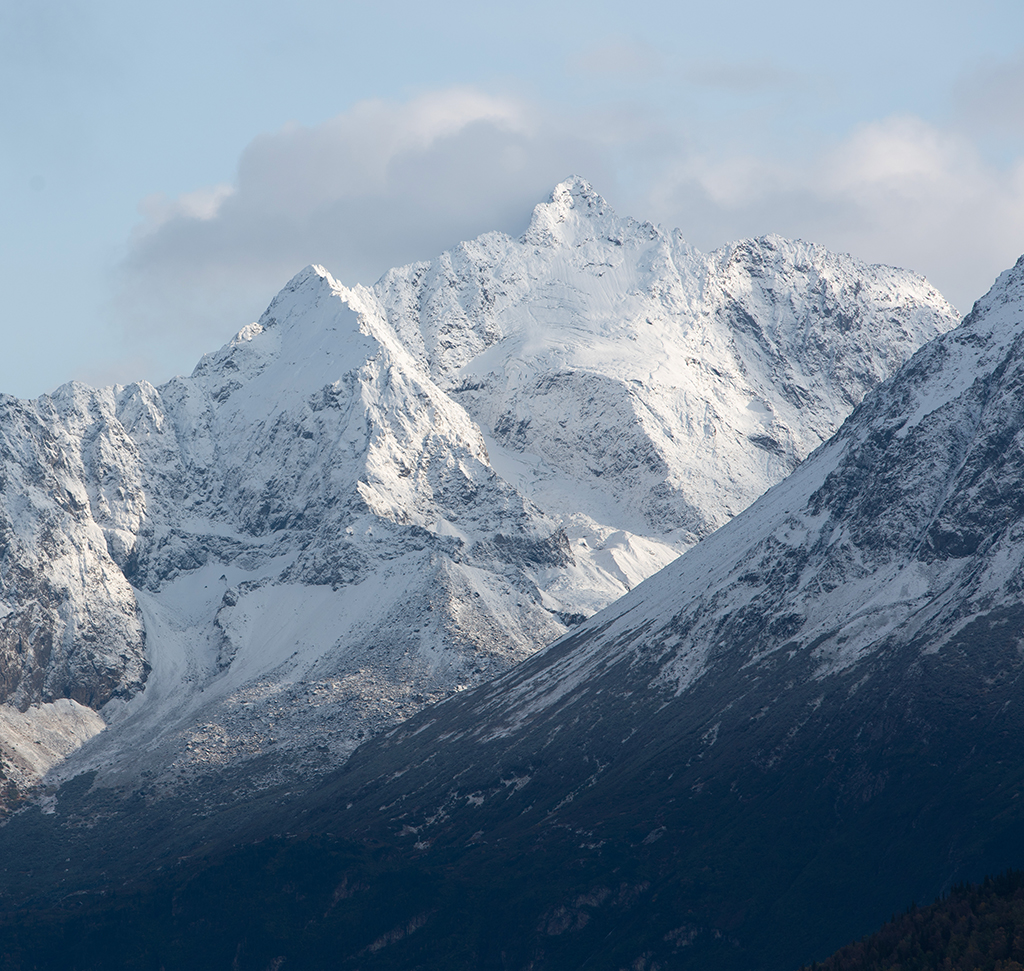
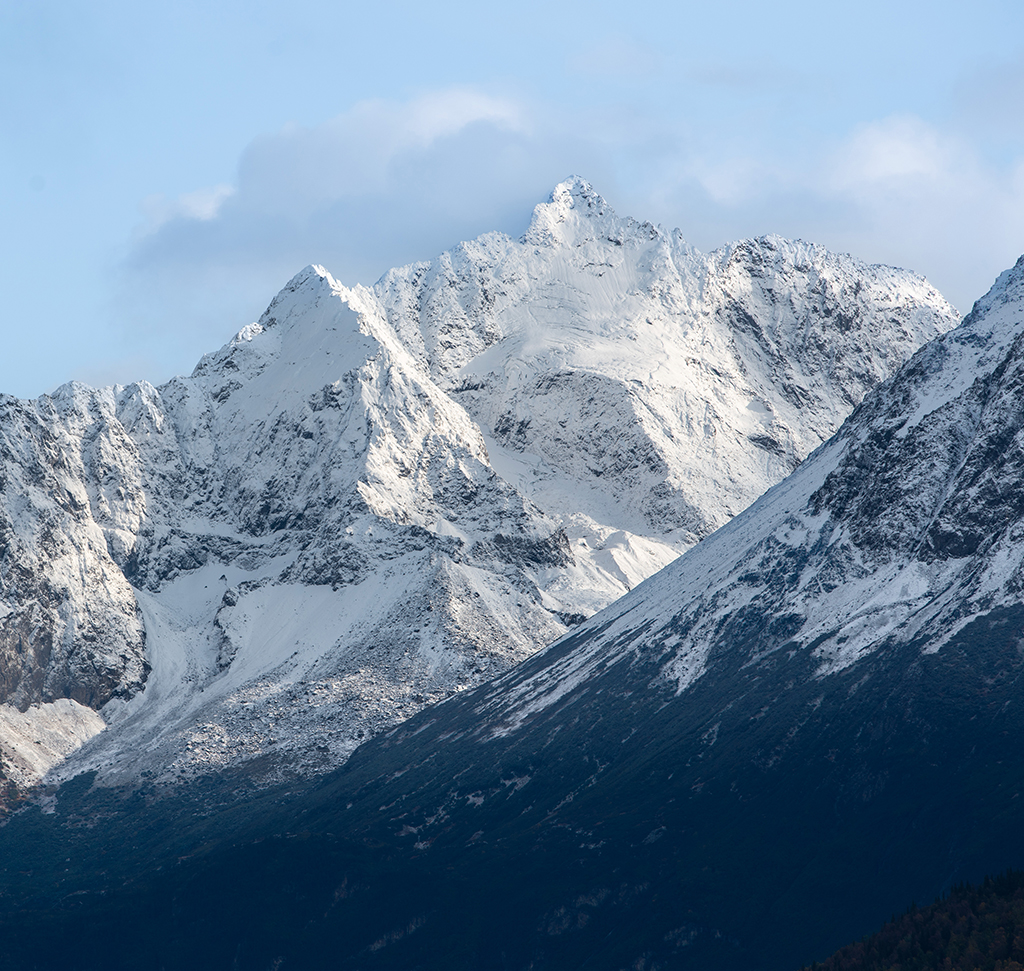
Adobe’s latest update adds snow detection to its AI landscape masking tool. This feature automatically identifies and separates different parts of a scene into individual layers. This tutorial explains how to use these new masks in both Lightroom and Adobe Camera Raw to speed up your editing workflow.
Getting Started in LR
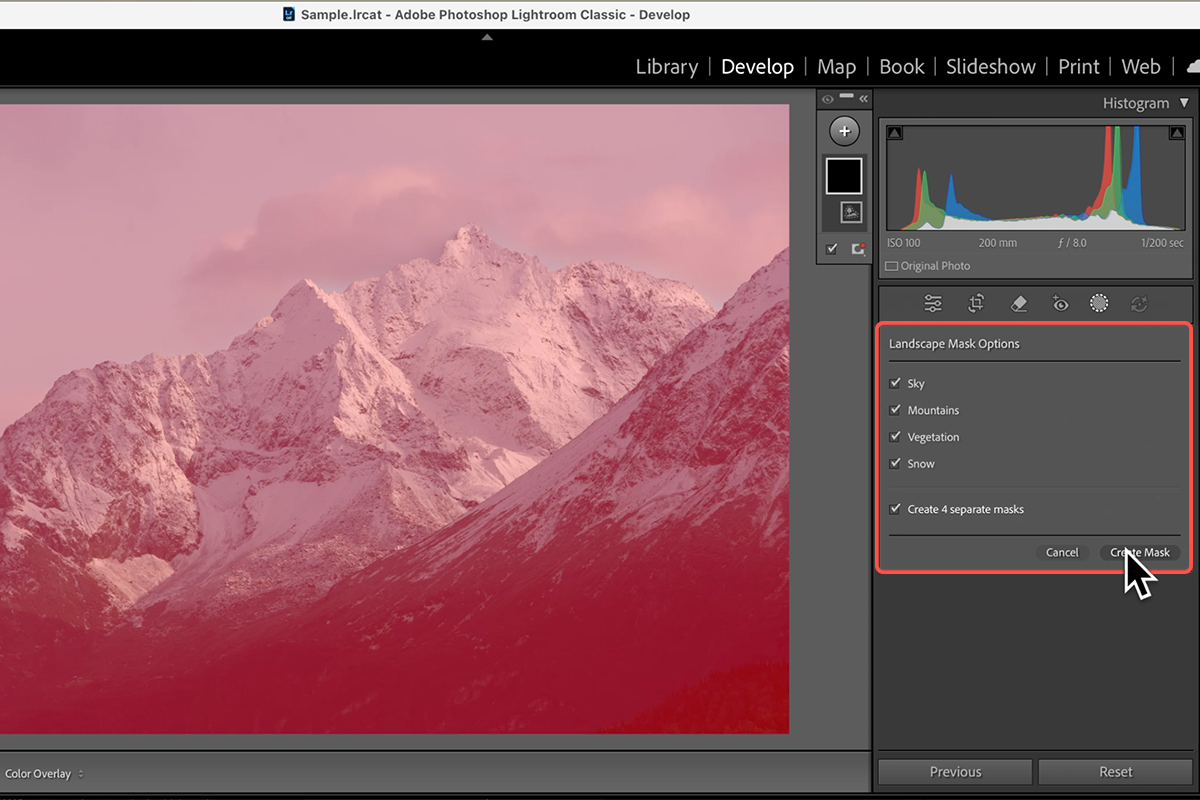
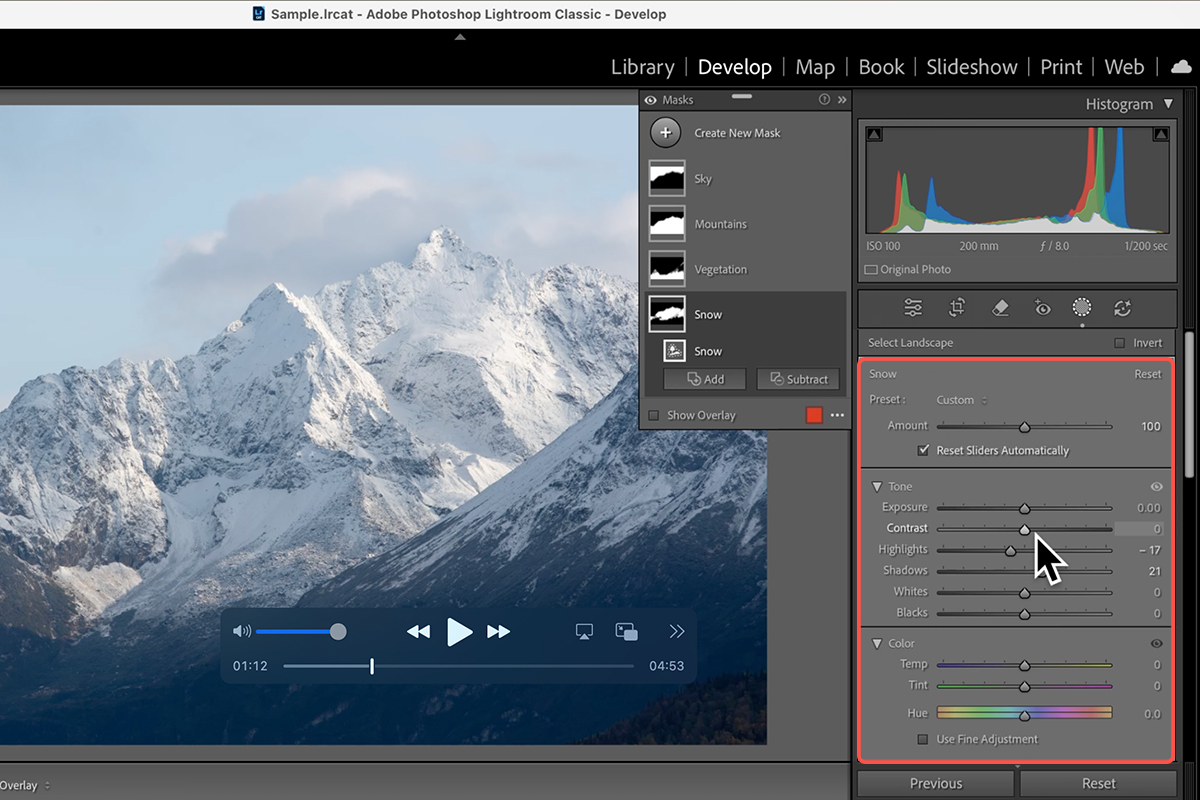
1. Open your photo in Lightroom, select the Develop module (Keyboard Shortcut “D”) and go to the Masking panel (Keyboard Shortcut “M”).
2. Click the “Landscape” button to let the AI scan your image.
3. Once it identifies the snow, sky, and trees, click “Create Masks” to generate separate layers for each area. You can press O at any time to toggle the red mask overlay on or off to see exactly what the AI has selected.
Editing Snow
4. Select the new snow mask from the list to adjust its appearance.
5. If the snow looks too bright, lower the Highlights and bring up the Shadows.
6. To improve the texture and detail, go to the Effects tab and increase the Clarity slider. This adds immediate definition to the white areas without affecting the rest of the landscape.
Photoshop ACR Workflow
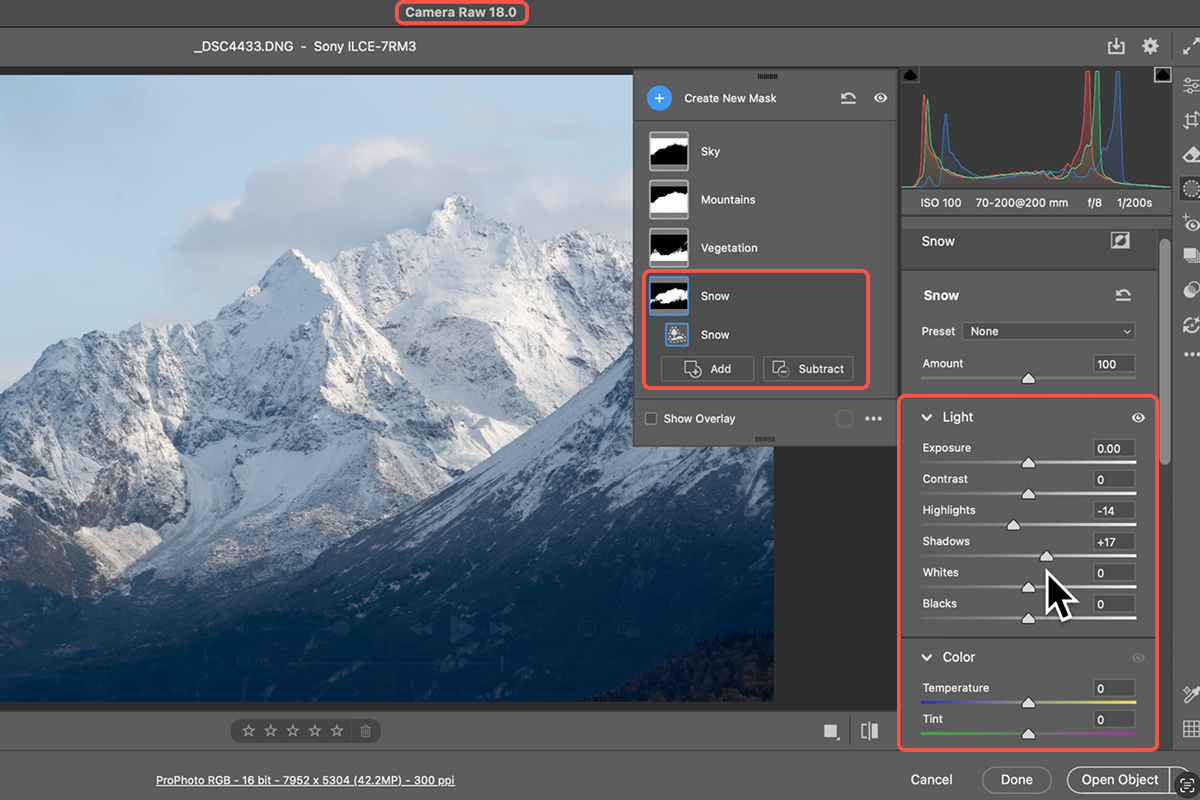
1. To use this tool in Photoshop, drag your Raw file directly into the workspace to launch Adobe Camera Raw (Keyboard Shortcut “Shift + Command + A”).
2. Navigate to the same Masking tools and select “Landscape” to generate your snow and vegetation masks.
3. When finished, hold Shift and click “Open Object” to bring the file into Photoshop as a Smart Object, which keeps your AI selections fully editable.
Adjust Other Areas
4. Switch between the other AI-generated masks to finish the photo. You can select the Sky mask and cool down the Temperature to enhance the blues, or boost the Saturation on the Vegetation mask to make the foreground pop. This method allows you to edit each part of the landscape independently in just a few seconds.
Keep Edits Flexible
When working in Photoshop, opening your file as a Smart Object is key. This keeps your AI masks non-destructive, letting you double-click the layer thumbnail to go back into Camera Raw and change your settings at any time.