

Download Assets
This tutorial includes 1 photoshop brush. Downloads are free with a PHLEARN account.
- Download the sample images and PSDs from every free tutorial on PHLEARN
- New free tutorials published every week
- One free account — sign up once, then download anything
description
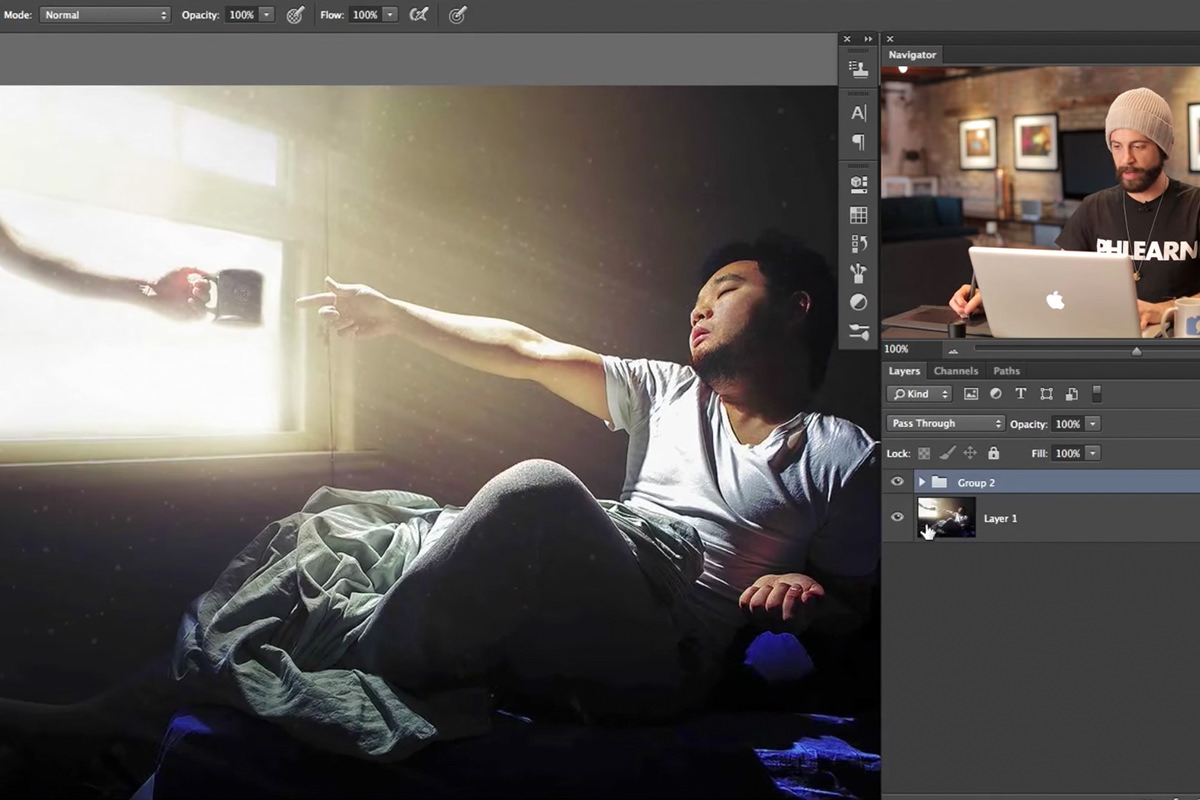
A normal Photoshop brush can only scatter particles within an area tied to its own size, so small particles clump together instead of drifting through the frame. This free brush paints a tiny dot but carries an oversized canvas behind it, which gives Scattering room to spread particles believably. Paint it low-opacity on Soft Light for floating dust, or cluster it near a light source and add Motion Blur for light rays.
Enjoying This Free Tutorial?
We publish a new free tutorial every week, each one with sample images and PSDs you can download and follow along with. Sign up and they land straight in your inbox, along with early word on sales, events and subscriber-only offers.
Free Photoshop Brush: Light Rays and Dust Particles
This brush is built with a small trick that solves a real limitation in how Photoshop scatters particles: a normal brush can only scatter within an area tied to its own size, so small particles always end up clumped tightly together instead of spread naturally through the air. This one paints a tiny visible dot but carries an oversized canvas behind the scenes, which gives Scattering enough room to spread particles believably across an entire frame — whether you’re using it for floating dust or for streaked light rays. It’s the exact brush built step by step in the paired tutorial, saved here so you can skip straight to using it.
What’s in the Download
The download includes the same scatter brush preset built in the paired tutorial, with its Shape Dynamics, Scattering, and sizing already configured, so the particles spread out naturally the moment you start painting instead of clumping together the way a default brush would. Exact file contents can vary, so check the download link on this page for the current version rather than assuming a fixed format or file count.
How to Load the Brush into Photoshop
After downloading, open Window > Brush Presets, click the panel menu icon, and select Load Brushes. Choose the downloaded .abr file and hit Open — the brush lands at the bottom of your existing brush list and is ready to select right away, with all of its scattering and jitter settings already dialed in.
One Brush, Two Very Different Effects
The same preset does double duty. Paint it as-is across an image at a low opacity on Soft Light for drifting dust particles, or paint a cluster near a light source and run Motion Blur over it to stretch those same particles into visible light rays. Nothing about the brush itself changes between the two uses — only what you do with it afterward. It also works well layered at different sizes across a few passes, since real dust in the air is rarely one uniform size.
Where This Brush Comes In Handy
Reach for it on any photo with a visible light source — a window, a gap in trees or blinds, an open doorway — where a beam of light would look more convincing with a bit of atmosphere floating in it. It’s equally useful on quieter shots that just need a subtle scattering of dust to feel less sterile, even without an obvious light beam involved.
See the Full Technique
This page is just the download. For the full walkthrough — including why the brush is built the way it is, layering multiple particle sizes for realistic dust, and turning the same brush into motion-blurred light rays — see the complete tutorial: How to Create Light Rays and Dust Particles with a Custom Brush in Photoshop.
Related Tutorials
Master Photoshop, Lightroom and Photography
Join PHLEARN PRO for $12.99 a month, or $99.99 a year (save 36%). Cancel anytime, with a 100% money-back guarantee.





