
description
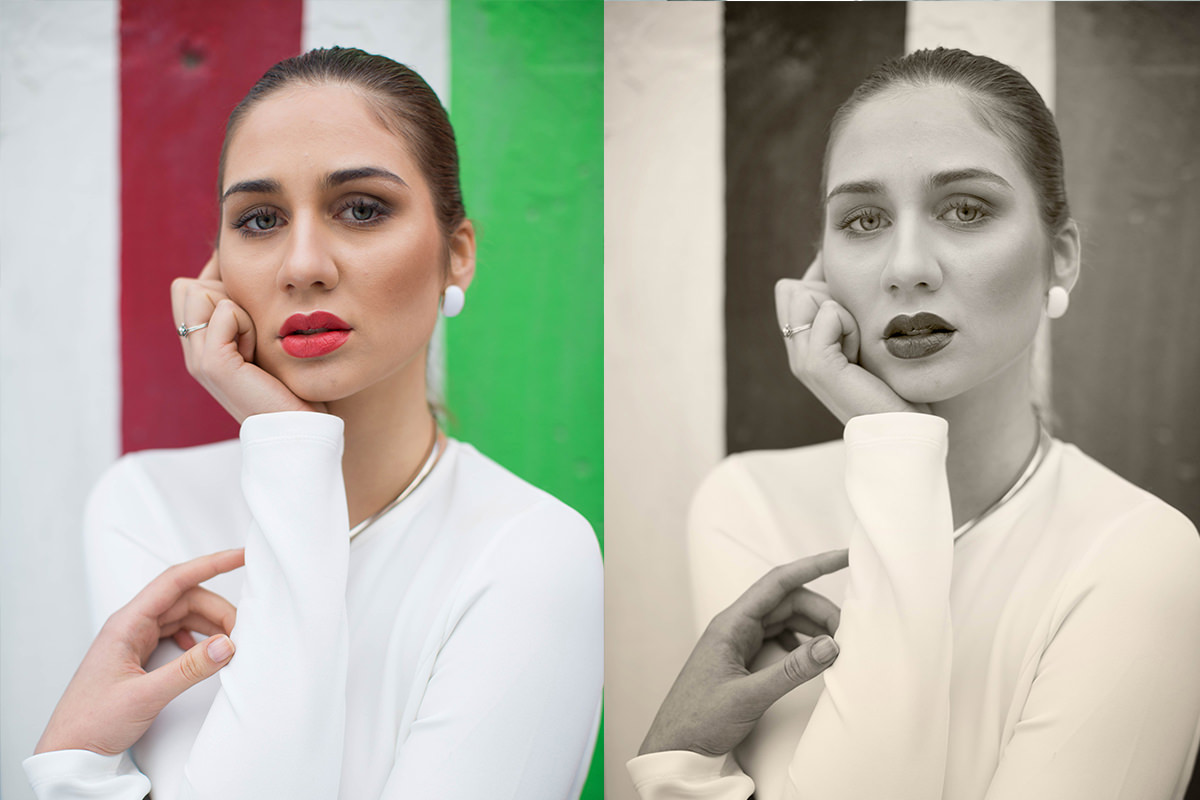
A single Black and White adjustment layer, fine-tuned with its color sliders rather than left on the default conversion, is the foundation of a genuinely polished black and white portrait. This tutorial covers balancing the Reds and Yellows sliders for natural skin tones, using the on-image targeting tool, shaping the background with the other color ranges, adding a warm tint, saving a reusable preset, and finishing with a Luminosity blend mode trick and a soft radial vignette.
Enjoying This Free Tutorial?
We publish a new free tutorial every week, each one with sample images and PSDs you can download and follow along with. Sign up and they land straight in your inbox, along with early word on sales, events and subscriber-only offers.
A single Black and White adjustment layer, fine-tuned with its color sliders rather than left on its default conversion, is the foundation of a genuinely polished black and white portrait. This tutorial covers balancing the Reds and Yellows sliders for natural skin tones, adjusting other colors to shape the background, adding a warm tint, saving a reusable preset, and finishing with a Luminosity blend mode trick and a soft radial vignette.
Converting to Black and White With an Adjustment Layer
A Black and White adjustment layer converts a color image automatically, but its real value comes from the sliders available underneath that basic conversion.
-
Add a Black and White Adjustment Layer
Go to the Adjustment Layers menu and choose Black and White to convert the image automatically.
-
Recognize the Sliders as the Real Tool
Notice the sliders for Reds, Yellows, Greens, Cyans, Blues, and Magentas beneath the basic conversion, each controlling how bright or dark that color range appears in the black and white result.
Balancing Reds and Yellows for Natural Skin Tones
Skin tone in a black and white conversion is controlled almost entirely by the Reds and Yellows sliders, and finding the right balance between the two is what keeps skin looking natural rather than artificial.
-
Adjust the Reds Slider
Move the Reds slider brighter and darker to see its distinct effect on skin tone.
-
Adjust the Yellows Slider
Move the Yellows slider to see how it affects skin tone differently than Reds.
-
Find the Natural Balance Between the Two
Balance the two sliders together, such as lowering Reds slightly and raising Yellows, until the skin tone looks natural rather than overly infrared or flat.
Adjusting Other Colors to Shape the Background
The remaining sliders, like Greens, work the same way on background elements as Reds and Yellows work on skin.
-
Identify Colors Present in the Background
Toggle the adjustment layer off and on while looking at the original color image to identify which colors, such as greens, appear in the background.
-
Darken or Lighten That Color Range
Adjust the corresponding slider, such as Greens, darker to help a subject stand out more against the background.
Using the On-Image Targeting Tool Instead of Sliders
Clicking and dragging directly on the image with the Black and White adjustment layer’s targeting tool adjusts whichever color range sits under the cursor, without needing to identify which slider controls it.
-
Select the On-Image Targeting Tool
Click the targeting tool icon in the top-left of the Black and White adjustment panel.
-
Click and Drag on the Image to Adjust
Click on an area of the image, such as skin on the forehead, and drag right to lighten or left to darken that color range throughout the image.
Why the On-Image Tool Isn’t a Local Adjustment
Clicking and dragging on one specific spot, like a hand, might suggest only that area is being changed, but the tool actually affects every pixel in the image sharing that same color range. A true local change, limited to just one part of the image, would still require a layer mask on top of the adjustment, since the on-image tool itself always adjusts globally by color rather than by location.
Adding a Tint to a Black and White Image
The Tint option inside the Black and White adjustment layer adds a single color cast over the desaturated image, and staying toward lower saturation keeps that tint looking natural.
-
Turn On Tint
Click the Tint checkbox in the Black and White adjustment panel.
-
Choose a Warm Color
Click the tint’s color swatch and choose a warm hue, such as somewhere between orange and yellow, for a sepia-like effect.
-
Keep Saturation on the Lower Side
Keep the tint’s saturation toward the lower end, since a heavily saturated tint tends to look worse rather than more polished.
Saving and Reusing a Black and White Preset
Saving a dialed-in combination of sliders and tint as a preset makes the exact same look available instantly on a future image.
-
Save the Current Settings as a Preset
Click the panel menu icon, choose Save Black and White Preset, and give it a descriptive name.
-
Apply the Preset to a New Adjustment Layer
Create a new Black and White adjustment layer and select the saved preset from the presets list to apply the same settings instantly.
Why Presets Are a Starting Point, Not a Final Answer
Photoshop’s built-in presets, like Infrared or Neutral Density, can be a helpful starting point when it’s unclear where to begin adjusting an image. None of them are guaranteed to look right on every photo though, which is why manually adjusting the sliders to fit each specific image, rather than relying on a preset alone, tends to give a more tailored final result.
Using a Black and White Adjustment Layer in Luminosity Blend Mode
Changing a Black and White adjustment layer’s blend mode to Luminosity turns its color sliders into a fast way to fine-tune the lightness of specific colors in the original color image, rather than converting it to black and white at all.
-
Add Another Black and White Adjustment Layer
Create a new Black and White adjustment layer above the original color image.
-
Change the Blend Mode to Luminosity
Change the layer’s blend mode from Normal to Luminosity, which affects only the lightness of the image rather than converting it to black and white.
-
Adjust the Sliders to Fine-Tune Skin and Color
Use the same color sliders to quickly brighten or darken specific color ranges in the still-colored image, especially useful for fast skin tone adjustments.
Why Luminosity Blend Mode Turns a B&W Layer Into a Color Tool
Set to its default Normal blend mode, a Black and White adjustment layer removes all color from the image beneath it. Switching that same layer to Luminosity blend mode instead limits its effect to lightness only, repurposing its familiar color-range sliders into a genuinely fast way to brighten or darken specific colors, like skin tones, without ever touching the image’s actual color.
Adding a Radial Gradient Vignette
A radial gradient set to a soft blend mode draws attention toward the center of a portrait without needing a dedicated vignette filter.
-
Create a New Layer and Select the Gradient Tool
Add a new regular layer and select the Gradient tool set to a foreground-to-background, black-to-white radial gradient.
-
Draw the Radial Gradient
Click and drag from the center of the subject’s face outward to create a radial gradient, lighter near the center and darker toward the edges.
-
Change the Blend Mode to Soft Light
Change the gradient layer’s blend mode to Soft Light, and lower its opacity as needed, to create a subtle vignette that draws attention to the subject’s face.
Why This Approach Works
Manually balancing the Reds and Yellows sliders, rather than accepting the default conversion or a built-in preset outright, is what keeps skin tones looking genuinely natural in black and white. Using the on-image targeting tool makes adjusting an unfamiliar color range intuitive, since clicking directly on the area in question removes any guesswork about which slider to move. Repurposing a Black and White adjustment layer in Luminosity blend mode shows how the same tool can serve two completely different purposes, one for converting an image and another for fine-tuning color, depending only on which blend mode it’s set to. For a deeper dive into black and white conversion technique, see our guide to black and white photography.
Final Thoughts
A black and white portrait doesn’t need a complicated effect to look stunning, just a carefully balanced adjustment layer, a touch of tint, and a soft vignette drawing the eye toward the subject’s face. The same slider-balancing and Luminosity blend mode techniques covered here apply to any portrait, so it’s worth experimenting with a completely different photo once this workflow feels comfortable.
Quick Reference: Keys, Menus and Settings
- ConvertAdjustment layer > Black and White
- Skin tonesReds a little lower, Yellows a little higher
- Adjust from the photoOn-image (hand) tool: drag right to lighten, left to darken
- Warm tintCheck Tint, color between orange and yellow, low saturation
- Save the lookPanel menu > Save Black and White Preset
- Color trickNew Black and White layer, blend mode Luminosity
- VignetteNew layer, Gradient tool, radial, black to white, blend mode Soft Light, lower opacity
Black and White Portraits: Common Questions
What is the best way to turn a portrait black and white in Photoshop?
Add a Black and White adjustment layer. It converts the image right away, and its color sliders let you fine-tune the result instead of settling for the default.
Which sliders control skin tones?
Reds and Yellows. Each one changes skin in a different way, so balance the two until the skin looks natural. On this portrait, Reds a little lower and Yellows a little higher worked best.
How do I make my subject stand out from the background?
Turn the layer off to see which colors are behind the subject, then move that slider. Darkening the Greens behind her helps her stand out.
What if I don’t know which slider to move?
Use the on-image tool (the hand icon) in the Black and White properties. Click on the photo and drag right to lighten that color or left to darken it.
Does the on-image tool only change the spot I click?
No. It changes every part of the photo with a similar color. To change just one area, like a hand, use a layer mask on the adjustment.
How do I add a sepia tone?
Check Tint, click the color swatch and pick a hue between orange and yellow. Keep the saturation low, because a strong tint tends to look bad.
Can I save my settings for other photos?
Yes. Open the panel menu and choose Save Black and White Preset. Your preset then appears at the bottom of the Preset list on any new Black and White layer.
What happens if I set a Black and White layer to Luminosity?
The photo stays in color, and the sliders now lighten or darken each color range. It is a fast way to adjust skin tones in a color image.
How do I add a soft vignette?
On a new layer, drag a black-to-white radial gradient out from the face with the Gradient tool. Set the layer to Soft Light and lower the opacity until it looks subtle.
Master Photoshop, Lightroom and Photography
Join PHLEARN PRO for $12.99 a month or $99.99 a year. Cancel anytime, with a 100% money-back guarantee.





