

Download Assets
This tutorial includes 1 PDF guide. Downloads are free with a PHLEARN account.
- Download the sample files from every free tutorial on PHLEARN
- New free tutorials published every week
- One free account: sign up once, then download anything
Free PDF Guide · 3 Pages
This Tutorial as a Step-by-Step PDF
This guide walks through reading the histogram: Window > Histogram, Expanded View, Show Channels in Color, the RGB, Luminosity and Colors views, spotting gaps and blown-out spikes in three photos, and fixing exposure with Levels. Use it on your own photos, and in camera too.
description
The histogram is just a graph of an image’s lights and darks, and learning to read it turns exposure from guesswork into diagnosis. This tutorial covers the panel’s RGB, channel, and luminosity views, what gaps and edge spikes actually mean, how the Levels midpoint differs from the black and white point sliders, and how to correct just a selected area.
Enjoying This Free Tutorial?
We publish a new free tutorial every week, each one with sample images and PSDs you can download and follow along with. Sign up and they land straight in your inbox, along with early word on sales, events and subscriber-only offers.
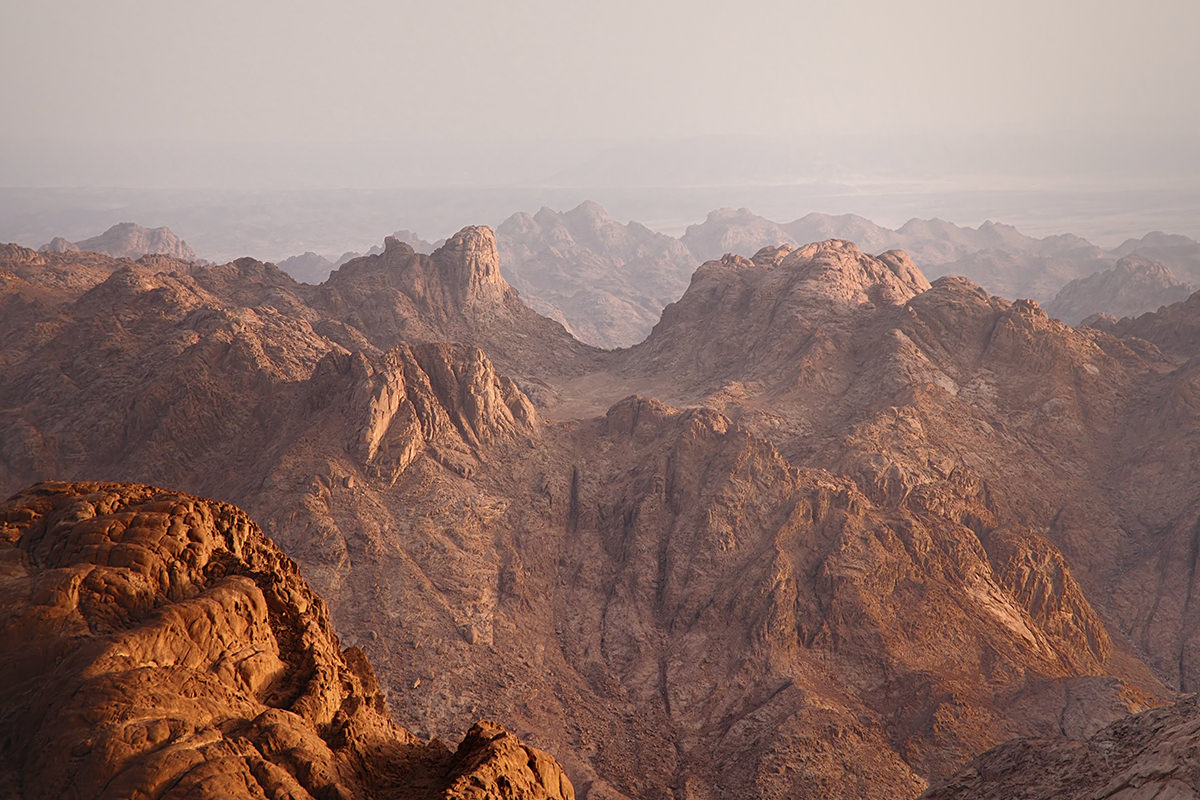
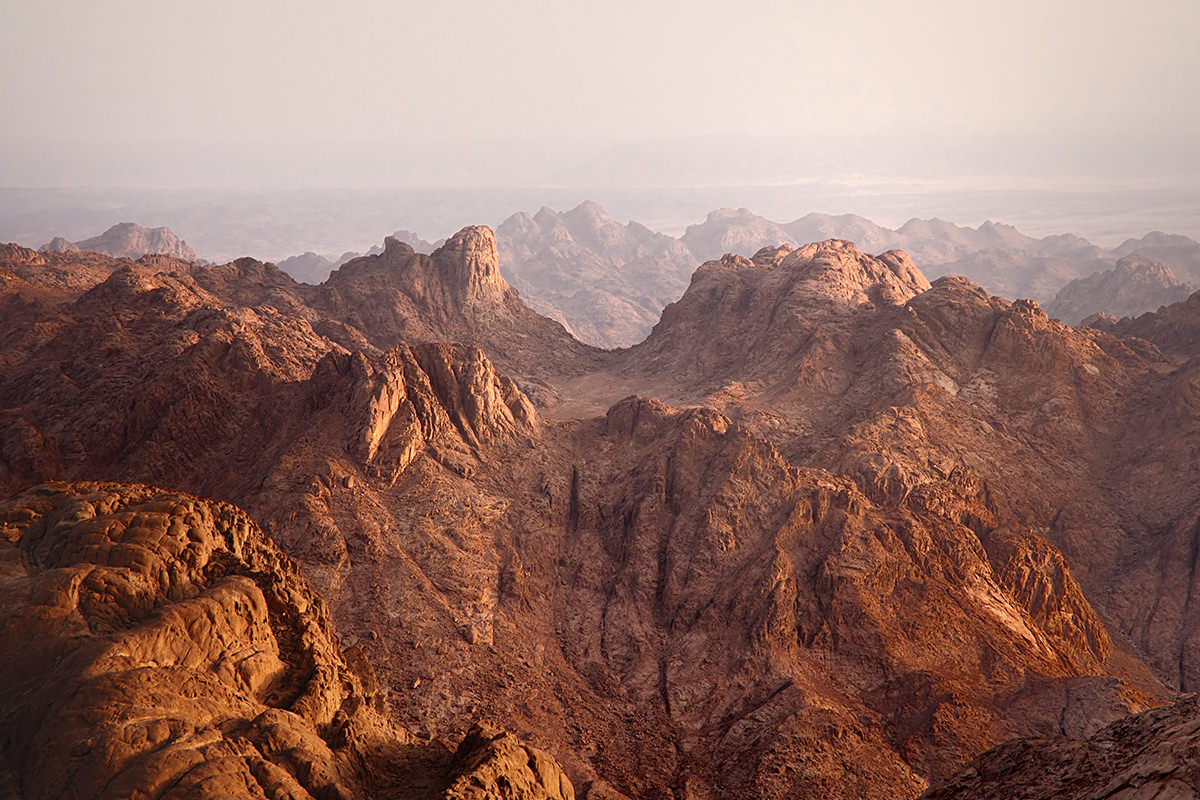
The histogram is a graph of the lights and darks in an image, and reading it correctly explains a lot about why highlights blow out or shadows go muddy in the first place. This tutorial covers how to read the histogram panel across its different views, what a well-exposed versus poorly-exposed histogram looks like, and how to use a Levels adjustment layer, including on just a selected area, to correct exposure problems it reveals.
Opening the Histogram Panel and Its Views
The Histogram panel isn’t visible by default, and switching to its expanded view with colored channels makes it much easier to read at a glance.
-
Open the Histogram Panel
Go to Window > Histogram to bring up the panel.
-
Switch to Expanded View
Click the panel’s menu and choose Expanded View to see more detailed information, including individual color channels.
-
Enable Show Channels in Color
Click the panel menu again and enable Show Channels in Color so each channel’s histogram displays in its own color for easier reading.
Understanding RGB, Individual Channels, and Luminosity
The histogram can display several different views of the same image, from the combined RGB information down to individual color channels or brightness alone.
-
Read the RGB View
View the RGB histogram, which combines red, green, and blue information, with darks toward the left and lights toward the right.
-
Check Individual Red, Green, and Blue Channels
Switch between the Red, Green, and Blue channel views to see how light and dark values are distributed within each individual color.
-
Check the Luminosity View
Switch to Luminosity to see a histogram similar to what the image would look like converted to black and white.
Why RGB Is the Most Useful View for Exposure
The individual Red, Green, and Blue channel views show where each specific color’s brightness falls, which is useful for certain color-specific problems but less relevant to overall exposure. The combined RGB view is what most directly reflects how bright or dark the image reads as a whole, which is why it’s the view relied on most when actually correcting exposure.
Recognizing What an Ideal Histogram Looks Like
A histogram with information spread across the full range, from genuine darks on the left to genuine lights on the right, generally represents a well-exposed image.
-
Look for Information Across the Full Range
Check that the histogram shows data spread from the left edge to the right edge, rather than being bunched entirely toward one side.
-
Notice a Gap on One Side
Recognize that an empty gap on the left means the image lacks true blacks, while a gap on the right means it lacks true whites.
Spotting Overexposure and Underexposure From a Histogram Spike
A tall spike pressed against the very edge of the histogram, especially with a clipping warning icon, signals that a large portion of the image has lost detail to overexposure or underexposure.
-
Watch for a Spike Against the Right Edge
Notice a large peak pushed all the way to the right edge of the histogram, often paired with a highlight clipping warning, indicating blown-out highlights with no recoverable detail.
-
Watch for a Spike Against the Left Edge
Recognize the reverse situation, a large peak against the left edge, as underexposed shadows with no recoverable detail.
-
Check the Histogram on Camera Before Shooting
Use the info display on a camera’s LCD screen while shooting to check the histogram in the field and adjust exposure before a shot is overexposed or underexposed.
Stretching a Gapped Histogram With a Levels Midpoint
Dragging a Levels adjustment layer’s midpoint slider stretches existing image information outward to fill in a gap at one end of the histogram.
-
Add a Levels Adjustment Layer
Add a Levels adjustment layer on an image whose histogram shows a gap, such as missing true darks.
-
Drag the Midpoint Slider Away From the Gap
Drag the middle gray-point slider away from the side with missing information (to the right when the darks are missing), watching the histogram stretch out to fill in genuine blacks or whites.
Why Stretching the Histogram Can Degrade Image Quality
Moving the midpoint slider takes the existing amount of tonal information and stretches it to cover a wider range, but an 8-bit JPEG doesn’t have enough original data to fill that wider range smoothly. The result shows up as gaps, or “holes,” in the stretched histogram, which correspond to visible banding and posterization in smooth gradients like skies, which is why shooting in 16-bit gives much more room to push levels without this kind of degradation.
Using the Black Point and White Point Sliders Instead
Moving the black point and white point sliders inward, rather than the midpoint, redefines what counts as pure black or pure white without stretching the same amount of the tonal range.
-
Bring the Black Point Slider In
Drag the left black point slider inward until it reaches the start of where actual image data begins in the histogram.
-
Bring the White Point Slider In
Drag the right white point slider inward until it reaches the end of where actual image data ends in the histogram.
-
Avoid Clipping Into Existing Data
Stop before either slider moves into an area that already contains meaningful image information, since moving too far starts clipping detail rather than just redefining the range.
Why the Black/White Point Sliders Are Often Safer Than the Midpoint
Dragging the midpoint slider stretches the entire existing tonal range outward, which is exactly what creates gaps and banding on a file without enough underlying data. Moving the black and white point sliders inward instead simply redefines where pure black and pure white begin, without demanding as much of the existing information, so it’s generally the gentler option when a histogram just needs its endpoints tightened up.
Analyzing and Correcting a Selected Area of the Image
Switching the histogram’s source to a specific selection, then applying a masked Levels layer just to that selection, corrects exposure in one part of an image, such as removing haze from distant mountains, without affecting the rest.
-
Make a Selection of the Area to Analyze
Use the Marquee tool to select just the area of interest, such as a hazy mountain range.
-
View the Histogram for the Selection
Switch the histogram’s source option to the current selection to see its specific tonal range.
-
Add a Levels Layer Masked to That Selection
Add a Levels adjustment layer while the selection is active so the mask limits the adjustment to that area, then bring in the black and white points to stretch that area’s own range.
-
Refine the Mask With a Brush
Use the Brush tool on the layer mask to extend or limit exactly where the adjustment shows, avoiding areas like a foreground with a different natural exposure.
Recognizing When Blown Highlights Can’t Be Recovered
When a camera captures no information at all in an overexposed area, no amount of Levels adjustment in Photoshop can bring detail back, making correct exposure in camera the only real fix.
-
Check the Histogram for a Total Loss of Highlight Data
Look for a histogram with information pushed entirely to the right edge and a hard cutoff, indicating no captured data in the highlights at all.
-
Try Bringing the Midpoint Toward the Highlights
Attempt to recover some highlight detail by shifting the midpoint slider toward the lights, checking how much information actually returns.
-
Accept the Limit When Data Simply Isn’t There
Recognize that areas with a true total loss of highlight information, like a solidly blown-out white area, stay blown out no matter how the Levels sliders are adjusted, and must be corrected by exposing lower in camera next time.
Why This Approach Works
Reading the histogram’s shape, whether it’s gapped on one side or spiking against an edge, is what actually diagnoses an exposure problem before deciding how to fix it. Choosing between the midpoint slider and the black/white point sliders in Levels matters because stretching the midpoint risks visible banding on an 8-bit file, while moving the endpoint sliders redefines the range with less degradation. Recognizing when highlight or shadow data is genuinely gone, rather than just compressed, is what keeps effort from being wasted trying to fix something only correct exposure in camera can actually solve.
Final Thoughts
The histogram turns an otherwise invisible property of an image, its actual distribution of light and dark, into something that can be read and corrected directly. Checking it both in Photoshop and on a camera’s LCD screen while shooting is one of the most reliable ways to catch exposure problems before or after the fact.
Quick Reference: Keys, Menus and Settings
- Open the histogramWindow > Histogram
- More detailPanel menu > Expanded View, then Show Channels in Color
- Read itDarks on the left, lights on the right; Channel: RGB, Red, Green, Blue, Luminosity, Colors
- Stretch the rangeLevels layer: midpoint slider, or black and white point sliders in to where the data starts
- Hide the panelsTab to see the image on its own
- One areaMarquee selection, Levels layer with the selection active, Brush on the mask
- In cameraInfo button shows the histogram on the LCD; lower exposure if it piles up on the right

Free Downloads
Take the Guide With You
Get the PDF guide on reading the Photoshop histogram and fixing exposure with Levels, from gaps and clipping to correcting one selected area. Free with a PHLEARN account.
The Photoshop Histogram: Common Questions
What does the histogram show?
It is a graph of the lights and darks in your image. Darks are on the left, lights are on the right, and the height shows how much of the image sits at each level.
How do I open the Histogram panel?
Go to Window > Histogram. In the panel menu choose Expanded View for more information, and Show Channels in Color so each channel shows in its own color.
Which histogram view should I use?
RGB, which combines the red, green and blue channels, is the most helpful for exposure. You can also check Red, Green and Blue on their own, Luminosity (lights and darks as if the image were black and white) and Colors.
What does a good histogram look like?
Information from just about the left edge to the right edge, without huge peaks pressed against either side. A gap on the left means no true blacks; a gap on the right means no true whites.
What does a big spike against the edge mean?
On the right, the highlights are blown out and hold no information; on the left, the shadows are underexposed. Check the histogram on your camera’s LCD while shooting (the Info button on many cameras) and bring the exposure down or up.
How do I fix a histogram with a gap?
Add a Levels adjustment layer. Moving the midpoint slider stretches the existing information across the range. Or bring the black or white point slider in to where the data starts, without going into the data itself, which would clip it.
Why does my histogram have holes after using Levels?
Stretching spreads the same amount of information over a wider range. On an 8-bit JPEG there isn’t enough to fill it, so you get holes in the histogram and banding instead of smooth gradients. A 16-bit file gives you much more room.
Can I check and fix just one part of the photo?
Yes. Make a selection with the Marquee tool and the histogram shows just that area. Add a Levels layer while the selection is active so it is masked to that area, bring in the black and white points, then refine the mask with the Brush tool. That is how the haze comes out of the mountains in the video.
Can Levels recover blown-out highlights?
Only where some information is left. Moving the midpoint right brought back detail in the background of the baby photo, but the hat stayed pure white. Areas with no information have to be fixed in camera by exposing lower.
Is there a free download?
Yes, with a free PHLEARN account. You get 1 PDF guide covering how to read the histogram and correct exposure with Levels in Photoshop.
Master Photoshop, Lightroom and Photography
Join PHLEARN PRO for $12.99 a month, or $99.99 a year (save 36%). Cancel anytime, with a 100% money-back guarantee.





