

THIS COURSE INCLUDES
- 4 Lessonsfollow-along
- 58mof captioned HD video
- Beginnerno experience needed
- 7 Sample Images+ 3 brushes
Join PHLEARN PRO for instant access to this course and every tutorial on PHLEARN.
- Stream in up to 4K on any device
- Closed captions and chapters on every course
- Download all sample images and PSDs
- New PRO tutorials every month
- Cancel anytime
DESCRIPTION
Transform your next portrait image into a special effect scene worthy of a superhero with fire effects. In this Phlearn PRO Tutorial you will learn to add the most realistic fire effects to your photos. See how to clean a background, add fire, create custom brushes and much more.
What You’ll Learn
- Add realistic fire effects to any portrait
- Cast glowing light and reflections from the flames
- Match color across shadows, midtones, and highlights
Course Downloads
Learn Photoshop Special Effects.
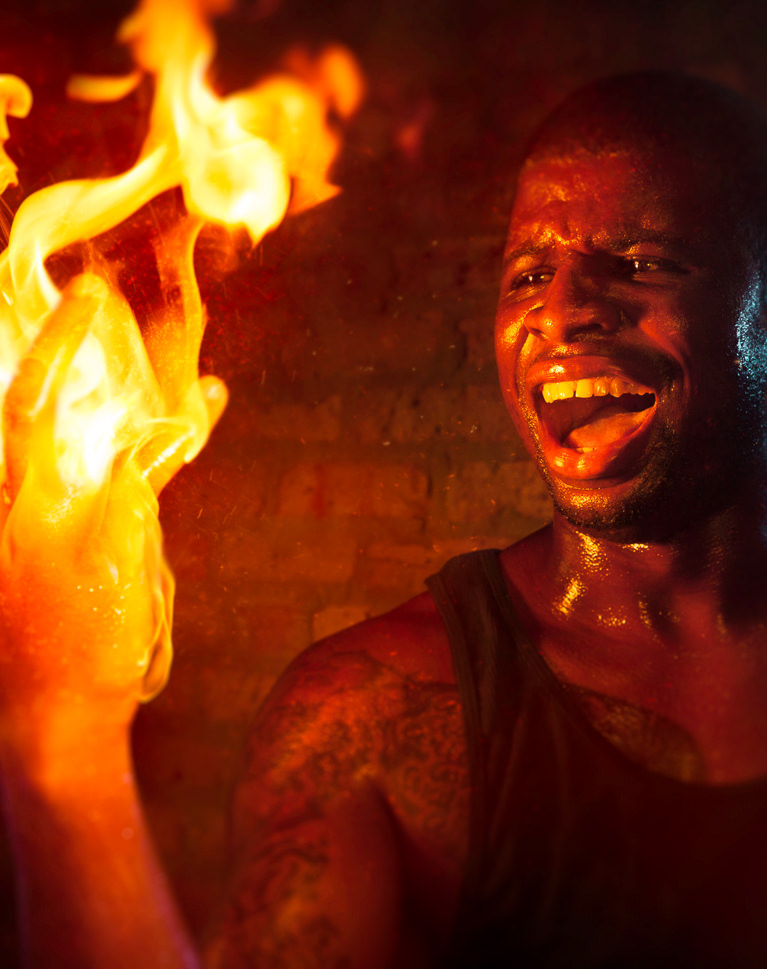
Plan Your Vision
Every Photoshop project should start by creating a plan of action. Understanding your goals for the fire effects will help you to outline your editing process and ensure you don’t miss anything.
Make Perfect Cutouts
Follow along as we explain the correct tools and techniques to cut out the subject before adding fire effects. Learn how to use the Pen Tool to create paths and turn the paths into selections. Create incredible selections and speed up your background cleanup.
Add Fire Effects
Learn how to add fire to a photo and make it look realistic. There are a few rules that you have to follow in order to make fire effects look real, and in this tutorial we teach you exactly how to make it happen.
Remove Distractions
Refine your images by removing unwanted distractions. Master multiple techniques that will allow you to remove literally anything leaving only the focal points you decide.
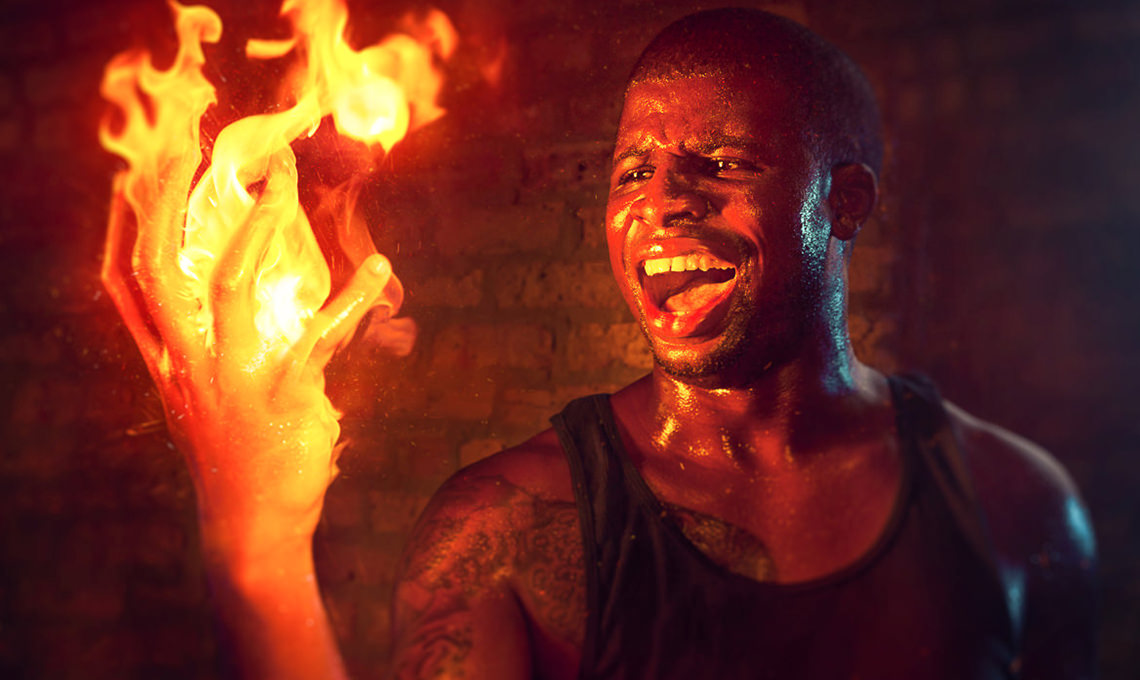
Human Torch
Heat up any scene with these tips and tricks for adding realistic fire.
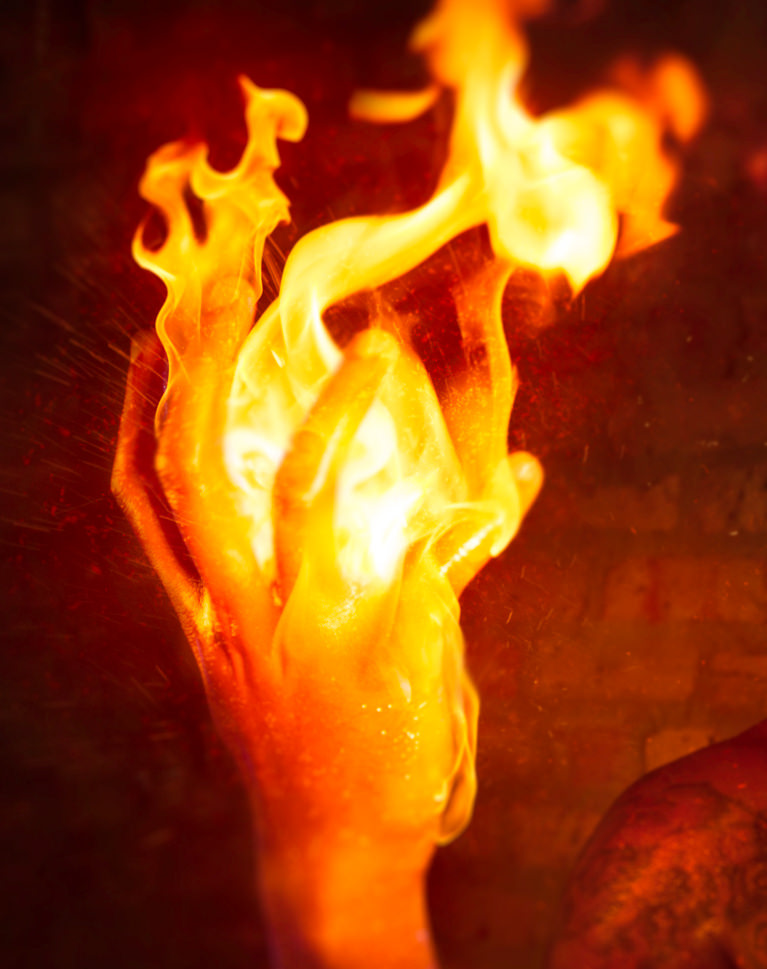
Add Glowing Light from the Fire Effects
Fire casts light on everything around it, and in this tutorial you will learn how to bring the color and light of the fire to the rest of the image.
Create Reflections
Creating reflections in Photoshop varies depending on the surface that reflects your subject. Reflections might need to be smooth and clear, or other times blurry and distorted. Learn how to make reflections of fire effects that apply to many different types of images.
Perfect Color Match
Create the most believable fire effects composite by matching the colors perfectly. Learn how to adjust the colors separately between shadows, midtones and highlights to create an accurate and realistic color match.
Custom Photoshop Brushes
Create your own Photoshop brushes so you’ll always have the right brush for the job. Custom brushes are excellent for advanced retouching and adding special effects to your images.
Why Fire Effects Fail and How to Fix Them
Most fire effects look fake for one reason: the flame is pasted on but nothing around it responds. Real fire is a light source, so it warms the skin nearest to it, throws an orange glow onto the wall, and reflects in anything glossy. This tutorial builds that response in layers, first placing and shaping the flames, then painting in the glow, matching color across the frame, and finishing with custom brushes for embers and heat, so the fire looks like it belongs in the photo.

Class Instructor
Aaron Nace
PHLEARN Founder & Lead Instructor
Aaron Nace is a photographer, digital artist, and the founder of PHLEARN. He has been teaching Photoshop, Lightroom, and photography since 2011, and has taught at Adobe MAX for more than eight years.
Aaron publishes a free tutorial every week and a new in-depth PRO course every month.
- 2M+YouTube subscribers
- 160M+video views
- 1,000+tutorials published
- 15years teaching Photoshop
Reviews
Master Photoshop, Lightroom and Photography
Join PHLEARN PRO for $12.99 a month or $99.99 a year. Cancel anytime, with a 100% money-back guarantee.






Exactly what I wanted. Im still amazed on how good Phlearn content is!!!
loved this! Thank you so much for providing resources too. 🙂
Incredible tutorial, the way you use curves is amazing. I learned so much today, thank you for another great teaching moment
Hi Phlearn, it inspired me a lot. Great tutorial! May I know how many lights did you put, and what’s the lighting position for the raw image? Thanks!
This was so much help really well done, put together and explained.
Amazing tutorial. You mentioned you did the lighting during the shooting to match the color of the flames. Could you explain how you did the lighting and/or how to fake that lighting? That would be awesome!
Awesome tutorial! A lot learned, but easy to follow.
you are the best . thanks
Ok, so all my reviews are going to be extremely good, as I am in love with the Phlearn family and all the incredible help you guys offer, for us around the world, to get better in our photography!
Amazing tutorial. Thank you for the images to practice with and making it easy to get started. Highly recommended!!!
Great tutorial. The fire files are amazing. Im just wondering how you guys did the lighting for the original image. i want to re create it.
When I got Aaron’s (and I keep pronouncing “A-A-Ron”) tutorial, I was completely a novice at PS. I must have watched it numerous times wrapping my head around the whole masking and blending thing. This tutorial really expanded my mind on how to use PS and my photos together and push my limits. I’ve followed Aaron for years now and am thankful for a product that is easy to follow, and really teaches you something that you can use for other projects in many ways. This was my result from this particular tutorial, “the Voodoo that she-do”
Watched the Video an did the Picture. Easy to understand and easy to do. Even for a german guy 🙂
Amazing…. As always. Aaron is is so thorough and well spoken. One of the best teachers I have seen anywhere. It is obvious Aaron and the others at Phlearn love what they do, and are so generous with their time how can you not support them and buy some Pro tutorials. They are worth every penny.
Never knew this would be so easy to do, your tutorial was very straight forward and very easy to follow. Thank you.
Loved the tutorial! Is there any way to get the photoshoot’s lightning diagram? Im curious about how to replicate the light effects on the picture. Thank you! Ill Phlearn you later!
I loved to imagine having powers…!! But I didn’t do the fire thing…I liked to contol water… Maybe you could make a tutorial on that…??