
Download Assets
Download Assets
This tutorial includes 1 sample image, 1 sample PSD and 1 PDF guide. Downloads are free with a PHLEARN account.
- Download the sample images and PSDs from every free tutorial on PHLEARN
- New free tutorials published every week
- One free account — sign up once, then download anything
Free PDF Guide · 3 Pages
This Tutorial as a Step-by-Step PDF
Walks through 23 steps in five parts: Convert to Smart Object, Filter > Liquify with the Forward Warp Tool and low Pressure, the Clone Stamp on Current & Below, Image > Apply Image set to Merged before liquifying again, the regular Healing Brush, a Soft Light dodge and burn layer, and Curves painted in. Keep it next to your keyboard.
description
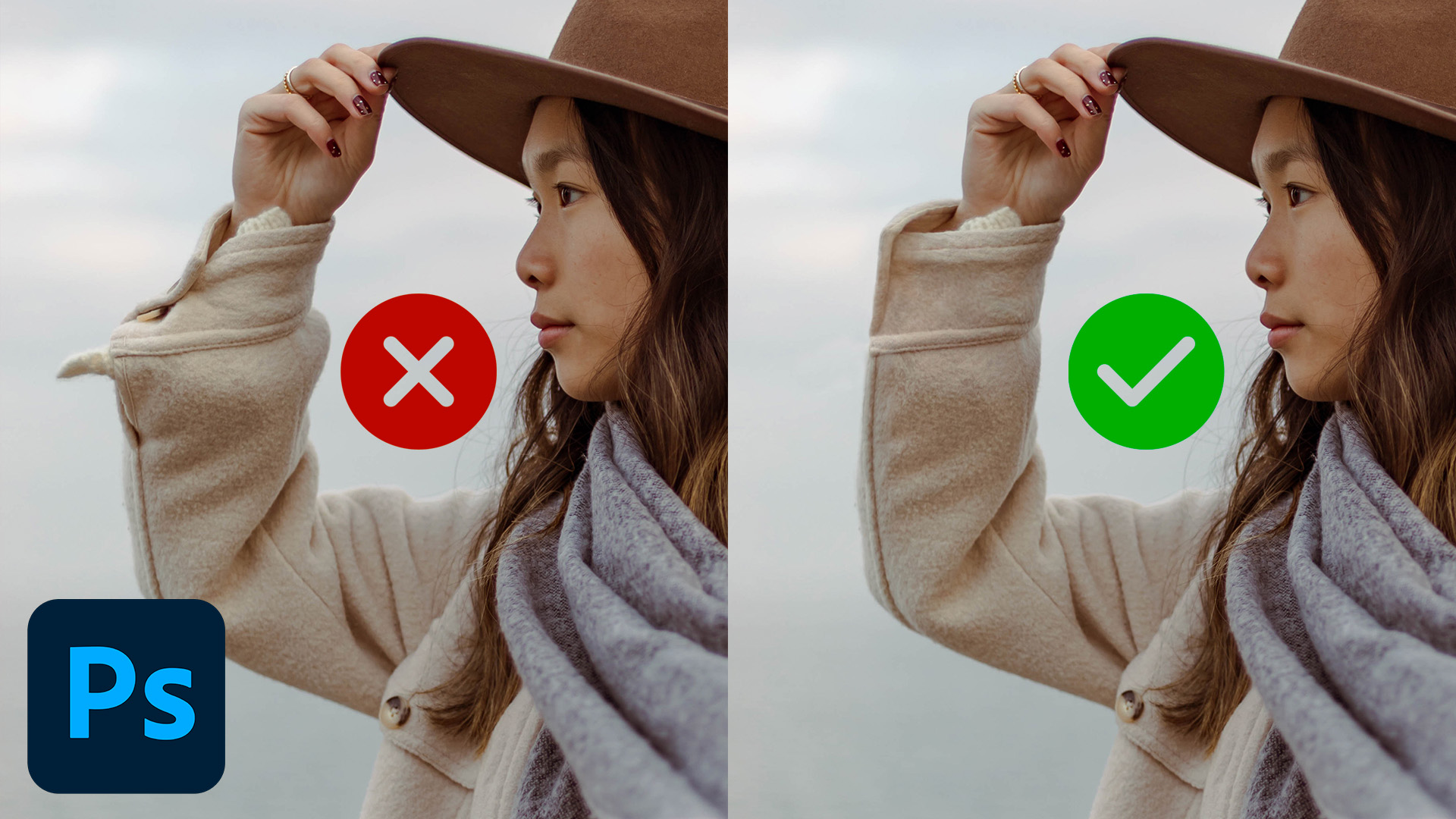
Clothing rarely behaves on set: a sleeve pulls, a hem rides up, a seam creases in the wrong place. Liquify reshapes the garment, the Clone Stamp rebuilds the edges Liquify pushed out of line, a Stamp Visible layer lets you liquify again on top of your own repairs, and the Healing Brush puts the fabric texture back. A final pass evens out the light and colour so the fix does not announce itself.
Enjoying This Free Tutorial?
We publish a new free tutorial every week, each one with sample images and PSDs you can download and follow along with. Sign up and they land straight in your inbox, along with early word on sales, events and subscriber-only offers.
Artist Credit
Photo by Jasmin Chew on Pexels


Fix Clothing in Photoshop with Liquify, the Clone Stamp, and the Healing Brush
Clothing has a habit of bunching, folding, and pulling into shapes that make an otherwise good photo look sloppy. In this tutorial we take a sleeve that has gone wrong, reshape it, rebuild the edge, and repair the texture, using just three tools: Liquify, the Clone Stamp, and the Healing Brush. Everything happens on new layers, so the original image is never touched.
Reshape the Clothing with Liquify
Liquify lets you push and pull pixels around, which makes it the right tool for changing the overall shape of a garment before you worry about detail.
-
Duplicate the Layer and Convert It to a Smart Object
Click the Background layer and press Ctrl/Cmd + J to duplicate it. Right-click the copy and choose Convert to Smart Object. Liquify now runs as a Smart Filter, so you can turn it off or re-open it at any time.
-
Open Liquify and Choose the Forward Warp Tool
Go to Filter > Liquify. Select the Forward Warp Tool in the top left of the toolbar. Use the bracket keys to size the brush to roughly the size of the area you want to move. A brush that is too small tends to leave jagged edges.
-
Keep Pressure Low and Push in Small Moves
In the Brush Tool Options on the right, leave Pressure fairly low and Density near its default. Click and drag across the clothing to reshape it a little at a time. Big single strokes stretch pixels; several small strokes keep things clean.
-
Check Your Work with Reconstruct
Click Reconstruct under Brush Reconstruct Options and drag the Revert Reconstruction slider left and right to compare the original and warped shapes. Click OK when the shape looks right, then OK again to close Liquify.
Why Stretched Pixels Are Fine at This Stage
After a heavy Liquify pass, some areas will look smeared or stretched. That is expected. The goal of this step is only the shape. Texture is easy to rebuild later with the Healing Brush, so don’t fight Liquify to keep the fabric looking perfect.
Rebuild the Edges with the Clone Stamp Tool
The Clone Stamp copies pixels directly from one area to another, which makes it ideal for replacing awkward bits of fabric with clean fabric from elsewhere in the same garment.
-
Create a New Layer and Set the Clone Stamp to Sample Current & Below
Click the New Layer icon, then press S for the Clone Stamp. In the options bar set Sample to Current & Below and leave Opacity at 100%. Working on an empty layer keeps every fix separate and removable.
-
Alt/Option-Click to Sample, Then Paint
Hold Alt/Option and click on a clean area of the sweater, then paint over the parts you want to replace. For a bigger repair, clone a patch onto its own layer, press V for the Move Tool, drag it into position, then press Ctrl/Cmd + T to scale and rotate it to match.
-
Blend the Patch with a Layer Mask
Add a layer mask to the patch layer, press B for the Brush Tool, and paint with black along the edges so the patch fades into the original fabric. Repeat up the sleeve, sampling and painting in small sections.
Make a Stamp Visible Layer and Liquify Again
Once you have cloned on top of the Smart Object, re-editing the original Liquify filter no longer helps, because the clone layers sit above it. The fix is to merge everything you can see onto a fresh layer and run Liquify on that.
-
Apply Image onto a New Layer
Create a new empty layer at the top of the stack. Go to Image > Apply Image, set Layer to Merged, and click OK. You now have a flattened copy of the current result without losing any of the layers underneath.
-
Select the Area and Run Liquify Again
Press M for the Marquee Tool and drag a selection around just the clothing you still want to change. Go to Filter > Liquify and push the shape the rest of the way. Focus on the outline; texture comes next.
Repair the Texture with the Healing Brush
Where Liquify has stretched the weave of the fabric, the Healing Brush copies good texture from one area and blends it into the lighting of another.
-
Choose the Regular Healing Brush, Not the Spot Healing Brush
Press J and make sure you have the Healing Brush Tool (the band-aid icon), not the Spot Healing Brush. The regular Healing Brush lets you pick the source area yourself, which matters when you need a specific texture.
-
Sample Texture of Similar Brightness
On a new layer, Alt/Option-click an area of fabric that looks good and paint over the stretched patches. Sample light areas to fix light areas and dark areas to fix dark areas; texture from a shadow will have different contrast than texture from a highlight and will not blend.
-
Alternate Between Healing and Cloning
Use the Healing Brush for texture and the Clone Stamp for hard edges and specific details like the lip of a cuff. Lower the Clone Stamp’s Flow or Opacity if a transition needs softening.
Warp a Cloned Piece into a New Shape
If you need a shape that doesn’t exist anywhere in the photo, clone a similar piece onto its own layer, press Ctrl/Cmd + T, right-click and choose Warp, then bend it into place. A layer mask painted with black along the join makes it disappear into the original.
Even Out the Light and Color
-
Dodge and Burn on a Soft Light Layer
Create a new layer and set its blending mode to Soft Light. Paint with black to darken patches that are too bright and with white to lighten patches that are too dark, at a low brush opacity. This evens out the lighting across the repaired fabric.
-
Balance the Color with a Curves Adjustment Layer
Add a Curves adjustment layer, pull the curve down slightly to darken, and nudge the Red channel up a touch to add warmth. Press Ctrl/Cmd + I to invert its mask, then paint with white only where the fabric needs the correction. Toggle the layer’s visibility to check that the color still matches the rest of the garment.
-
Group Your Layers and Compare Before and After
Shift-click all the fix layers and press Ctrl/Cmd + G to group them. Clicking the group’s eye icon on and off is the quickest way to judge the result and spot anything you missed.
Tips for Fixing Clothing in Photoshop
Work from big to small: fix the overall shape first, then the edges, then the texture, then the light. Keep every fix on its own layer so nothing is permanent. And remember that these three tools, Liquify, the Clone Stamp, and the Healing Brush, will handle almost any clothing problem you run into, from a bunched sleeve to a wrinkled shirt.
Ready to learn more Photoshop? Check out The Beginner’s Guide to Photoshop and our Photoshop Learning Path. For retouching like this taught in order, the PRO Beauty & Fashion Retouching Learning Path is where to go next.
Quick Reference: Keys, Menus and Settings
- Set upCmd/Ctrl + J, then right-click > Convert to Smart Object
- ReshapeFilter > Liquify, Forward Warp Tool, [ and ] for size, low Pressure; Reconstruct to compare
- Rebuild edgesNew layer, S, Sample: Current & Below, Alt/Option-click to sample; Cmd/Ctrl + T to fit a patch
- Liquify againNew layer, Image > Apply Image, Layer: Merged; M to select the area, then Filter > Liquify
- Repair textureNew layer, J for the Healing Brush (not Spot Healing), sample light to fix light
- Even out the lightNew layer in Soft Light, B, paint a little black and white
- Match the colorCurves down a little, Red channel up a touch, Cmd/Ctrl + I to invert the mask, paint it in
No AI, no generative credits: Liquify, the Clone Stamp and the Healing Brush do all of it.

Free Downloads
Follow Along on the Same Photo
Get the sample photo, the finished PSD with every repair layer and the 3-page PDF guide with all 23 steps. Free with a PHLEARN account.
Fixing Clothing in Photoshop: Common Questions
What tools do I need to fix clothing in Photoshop?
Three: Liquify for the shape, the Clone Stamp for edges and details, and the Healing Brush for texture. A Soft Light layer and a Curves adjustment layer even out the light and color at the end.
Why convert the layer to a Smart Object before Liquify?
Liquify then runs as a Smart Filter, so you can click its eye icon to turn it off and on or undo it at any time. Duplicate the Background with Cmd/Ctrl + J first, then right-click and choose Convert to Smart Object.
What Liquify settings work for clothing?
Use the Forward Warp Tool at the top left, size the brush with the bracket keys to about the size of the area you want to move, and keep Pressure low. A brush that is too small tends to look jagged.
Why does the fabric look stretched after Liquify?
Pushing pixels a long way stretches the texture. That is expected: fix the shape first, then paint good texture back over it with the Healing Brush.
How do I use the Clone Stamp on an empty layer?
Press S and set Sample to Current & Below in the options bar, with Opacity at 100%. Alt/Option-click to sample good fabric, then paint over the parts you want to replace.
How do I Liquify again after cloning on new layers?
Make a new layer at the top, go to Image > Apply Image, set Layer to Merged and click OK. That gives you a copy of everything you can see, so you can select the area with the Marquee (M) and run Filter > Liquify on it.
Should I use the Healing Brush or the Spot Healing Brush?
The regular Healing Brush (J). The Spot Healing Brush picks the source for you; here you Alt/Option-click the exact fabric texture you want to copy.
Why doesn’t the healed texture blend in?
A dark area has a different amount of contrast than a light one. Sample a light area to fix a light area and a dark area to fix a dark one.
How do I even out light and dark patches on the fabric?
Make a new layer set to Soft Light and paint a little black and white to dodge and burn. Then add a Curves layer, pull it down slightly, raise the Red channel a touch, invert the mask with Cmd/Ctrl + I and paint it in where needed.
Are the sample files free?
Yes, with a free PHLEARN account. You get 1 sample image, 1 sample PSD and 1 PDF guide: the photo, the finished PSD with every layer, and a 3-page guide to the whole process.
Master Photoshop, Lightroom and Photography
Join PHLEARN PRO for $12.99 a month or $99.99 a year. Cancel anytime, with a 100% money-back guarantee.





