

THIS COURSE INCLUDES
- 2 Lessonsfollow-along
- 25mof captioned HD video
- Beginnerno experience needed
- 5 Sample Imagesto follow along
Join PHLEARN PRO for instant access to this course and every tutorial on PHLEARN.
- Stream in up to 4K on any device
- Closed captions and chapters on every course
- Download all sample images and PSDs
- New PRO tutorials every month
- Cancel anytime
Description
Take the stress and guesswork out of a photoshoot with tethered capture! In this tutorial, we’ll break down how to shoot tethered in Lightroom Classic, connecting your camera so that your images appear instantly on your computer as you take them. Then we’ll provide some valuable tips and tricks on how to get the most out of tethered capture to accelerate your workflow and help keep your clients happy and comfortable.
What You’ll Learn
- Shoot tethered in Lightroom Classic for instant feedback
- Connect your camera to your computer during a shoot
- Speed up your workflow and keep clients comfortable
Tethered Capture
See the Details with Tethered Capture
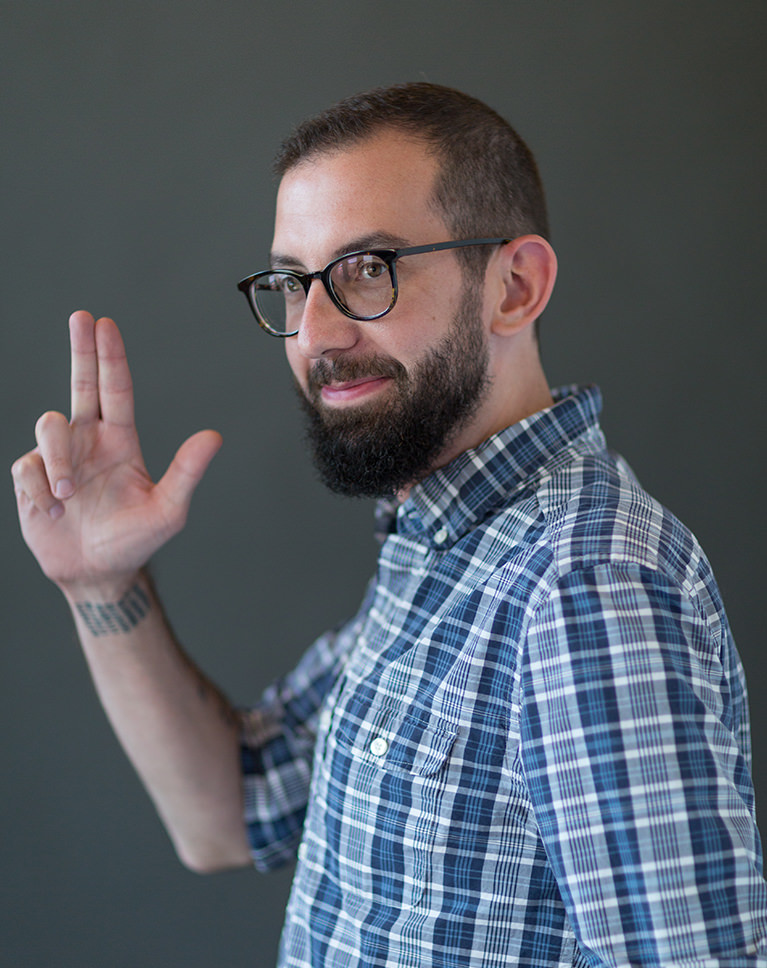
Your camera’s LCD doesn’t compare to the much larger, higher-resolution computer display tethered capture gives you available during a photoshoot. See the details more clearly and make adjustments with confidence. From fixing wardrobe issues to white balance, being able to see and then fix any small problems in camera will make your post-production process that much smoother.
Organize as You Shoot
When you shoot tethered in Lightroom Classic, you can get a head start on your post-production workflow. Save valuable time by creating collections and adding photos to them as you shoot.
Instant Backup
With tethered capture, never worry about losing photos before you have a chance to back them up. Learn how to save photos to both the memory card in your camera and to your computer simultaneously.
Instant Feedback
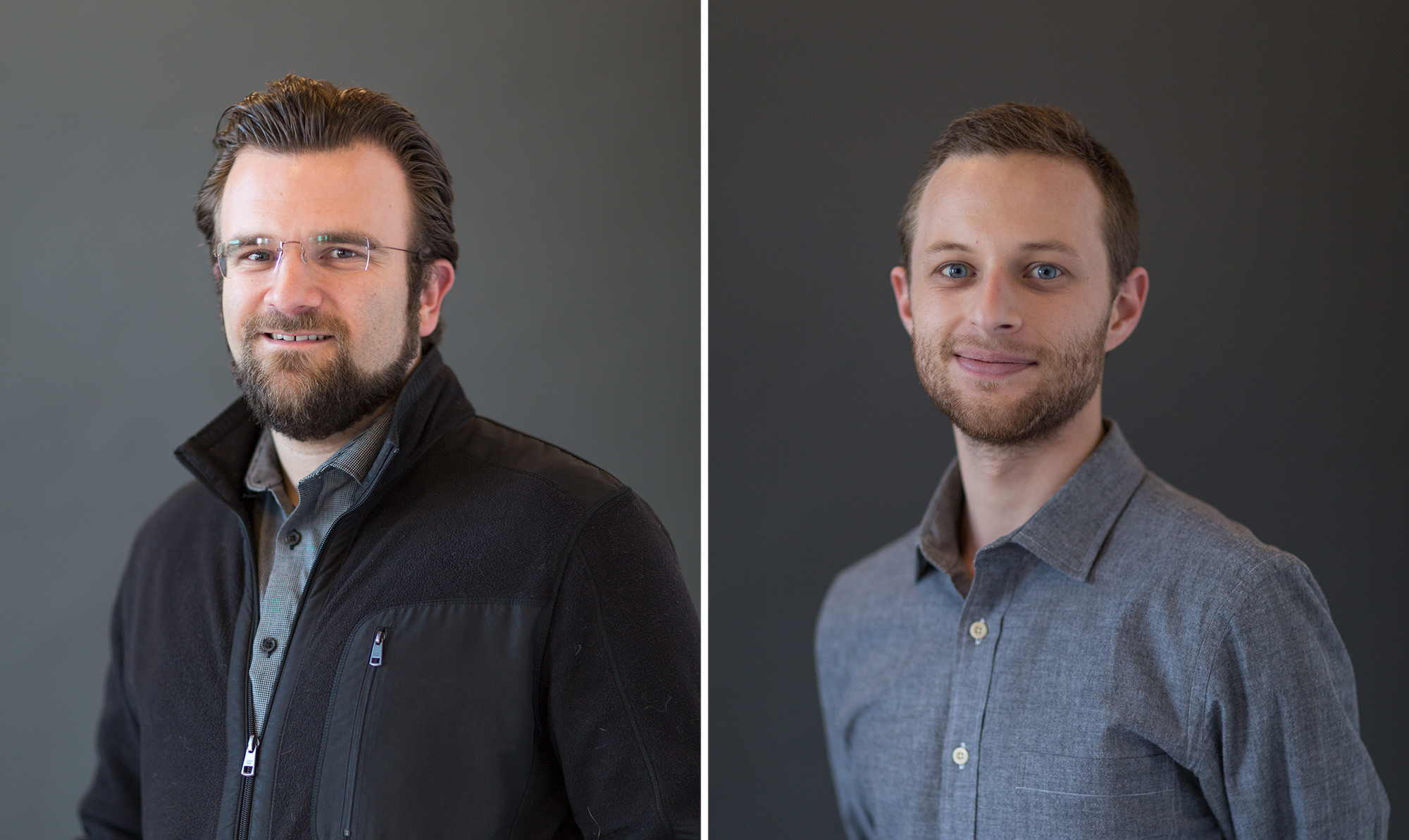
Impress your subjects and clients by showing them their photos as you take them! Get instant feedback and improve the photoshoot experience.

Keep Your Clients Happy
Photoshoots can be uncomfortable. Help your subjects and clients relax by bringing them into the process. Tethered capture will allow them to see their photos and select their favorites so that you can be sure you’re getting images they’ll love.
On-the-Spot Edits
Tethered capture gives you access to all of the powerful editing tools within Lightroom during a photoshoot. Learn to make quick edits and adjustments to a single photo and then apply them to any additional photos that you take in a series.
Metadata
We’ve discussed before how important it can be to include metadata in your photos, and tethered capture applies it as you shoot. We’ll show you how to fully customize how Lightroom will name and apply metadata to your photos, saving you time and ensuring that your photos are immediately protected.
What You Need for Tethered Capture
Tethered capture only takes a camera, a tether cable, and Lightroom Classic. We cover which cables and cameras work best, how to keep a long cable safe on set, and the settings to check before the first frame so the connection stays stable for an entire shoot. By the end, you will be ready to shoot tethered in Lightroom Classic in any studio or on location.

Class Instructor
Aaron Nace
PHLEARN Founder & Lead Instructor
Aaron Nace is a photographer, digital artist, and the founder of PHLEARN. He has been teaching Photoshop, Lightroom, and photography since 2011, and has taught at Adobe MAX for more than eight years.
Aaron publishes a free tutorial every week and a new in-depth PRO course every month.
- 2M+YouTube subscribers
- 160M+video views
- 1,000+tutorials published
- 15years teaching Photoshop
Reviews
Master Photoshop, Lightroom and Photography
Join PHLEARN PRO for $12.99 a month, or $99.99 a year (save 36%). Cancel anytime, with a 100% money-back guarantee.






Thank you for the insight and suggestions. I am getting ready for my first headshot opportunity in Las Vegas and will use the information to help me make the client feel comfortable, plus this will ensure my clients that I know what I am doing.
Aaron does a great job explaining everything, he’s a very good teacher!
Great tutorial, super easy comprehensive step by step fool-proof explanation.
I have used tethering once before, but not knowing how to organize the photos during the shoot. I really like the way, Aaron moves through the course and tells you what he is going to do, shows you how to do it, then tells you why he did it. I have taken other courses where the instructor moves so fast you cannot keep up, and only get frustrated and quit. Glad I found PHLEARN.
I already shoot tethered using the Canon EOS utility software. However, I’ve noticed that different cameras (5D mk2 & 6D mk1) use different versions and can be an inconvenience. Having watched this excellent tutorial, I am now intending to use LR for future tethered shoots using all the fine tuning that Aaron described.
Was looking for a video explaining the best way to tether my 5DIII with LR. As usual I found it at Phlearn. Aaron does a great job explaining all the details as usual. Now I am good to go. Thanks!!
This is yet another great Phlearn tutorial…..which takes ones understanding from a beginner level to a PRO level almost in no time…..Truly Remarkable and best thing is sharing of all the advanced tips which provide immense value and is priceless!