
THIS COURSE INCLUDES
- 12 Lessonsin 3 sections
- 2h 11mof 4K video
- All Levelsbeginner to advanced
- 121 Presets, Actions & LUTsyours to keep
- 49 Sample Imagesincluding 2 RAW files
- 15 Layered PSDsof every finished edit
- 12 Lesson Guidesprintable PDF, one for every lesson
- 7 Install Guidesprintable PDFs
- Captionsand chapters on every lesson
Description
Color grading can give any photo a mood, but the moment you push a look, skin turns orange, green or gray. This course solves both halves of that problem. First you’ll learn to correct skin for every skin tone, light or dark, in RAW files and JPEGs, with the vectorscope in Camera Raw. Then you’ll color grade any look in Photoshop and Camera Raw while the skin stays natural, and save it as a Lightroom preset that puts one look on a whole shoot.
It’s more than a course. Every grading lesson comes with a pack of looks we built and tested on every skin tone: 121 presets, actions, gradient maps and LUTs in all, with 49 sample images and 15 layered PSDs to follow along. They’re yours to keep and use on your own photos.
Table of Contents
-
01 - How to Color Correct Light Skin Tones in Camera Raw21:31m
-
02 - How to Color Correct Dark Skin Tones in Camera Raw13:48m
-
03 - How to Color Correct Skin Tones in a JPEG16:29m
-
01 - How to Color Grade With Curves15:38m
-
02 - How to Color Grade With Solid Color Layers and Blend If12:57m
-
03 - How to Color Grade With a Gradient Map5:41m
-
04 - How to Color Grade With the Camera Raw Color Grading Wheels9:44m
-
05 - How to Color Grade Without Ruining Skin Tones6:48m
-
06 - How to Save Any Color Grade as a LUT9:05m
Course Downloads
Included With This Course
121 Presets, Actions and LUTs, Yours to Keep
This isn’t just a course. Every color grading lesson comes with a ready-made pack of looks, built and tested to keep skin natural on every skin tone, with an install guide for each one. Use them on any of your photos.
-

20
Curves Presets
-
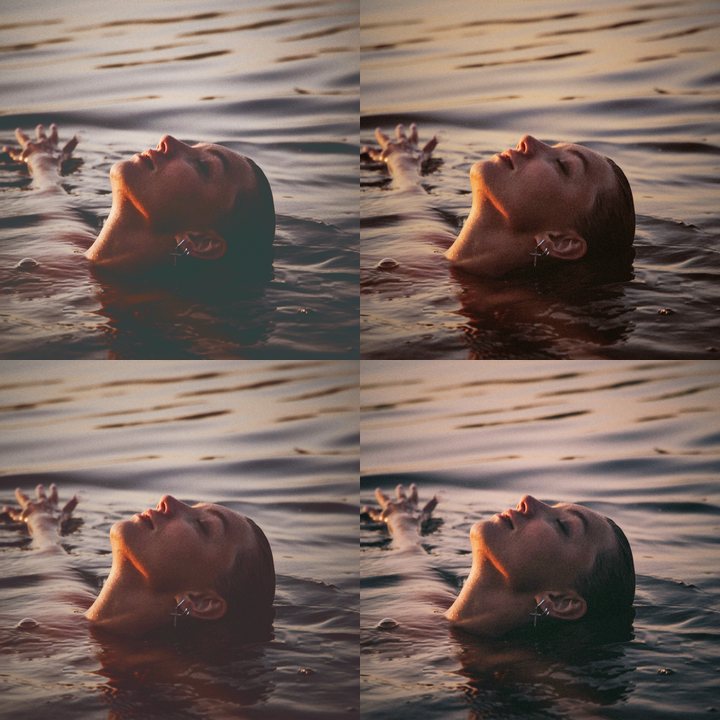
20
Blend If Actions
-
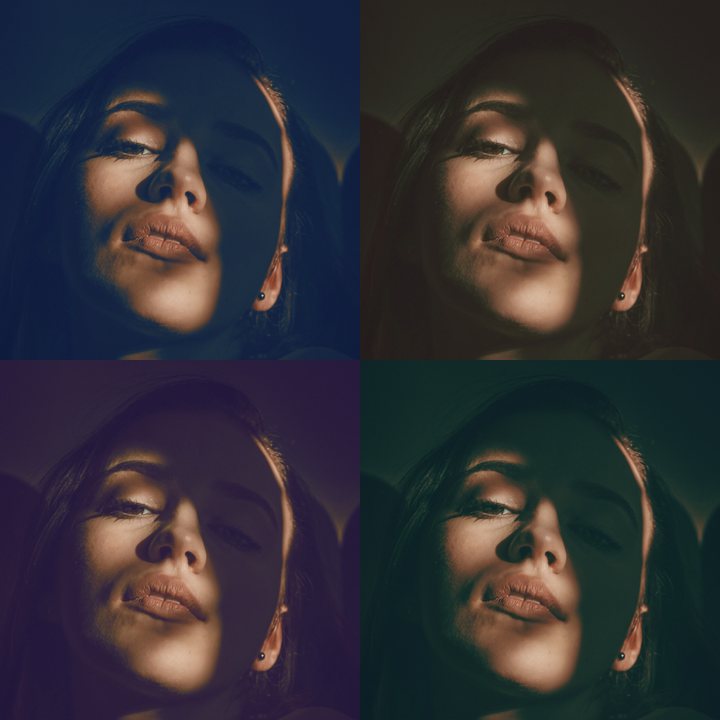
20
Gradient Maps
-
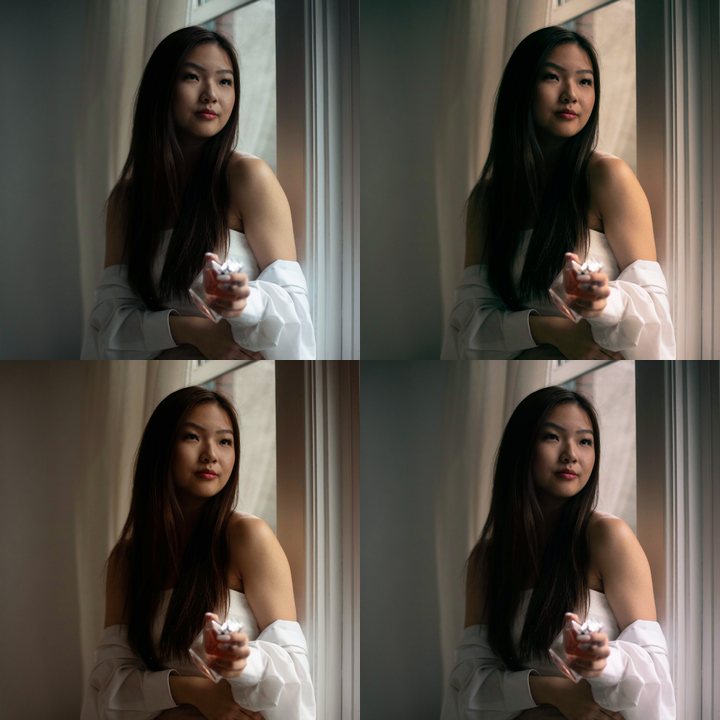
20
Color Grading Wheels Presets
-

1
Protect Skin Action
-
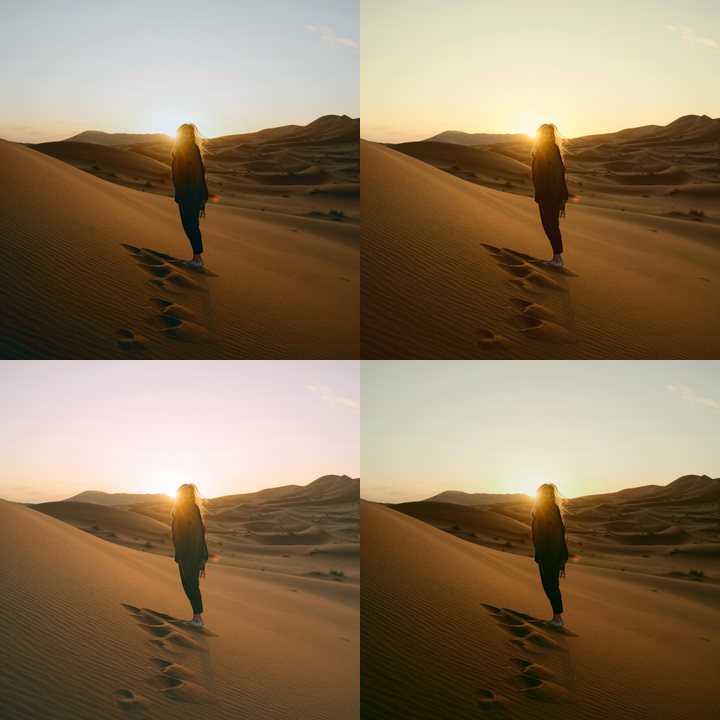
20
Color Grading LUTs
-
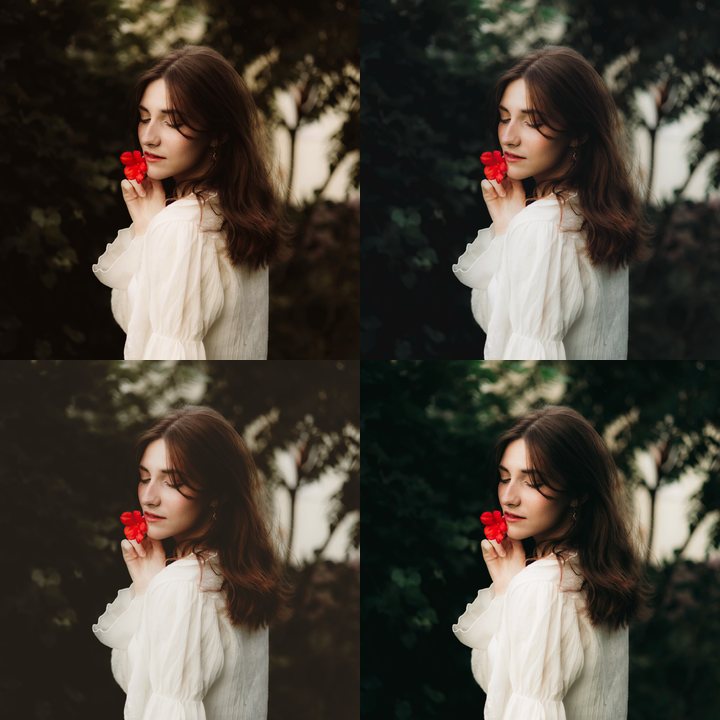
20
Lightroom Presets
-
Plus
- 49sample images, including 2 RAW files
- 15layered PSDs of every finished edit
- 12lesson guides (PDF), one for every lesson
- 7printable install and usage guides
Section 1 · Lessons 1–3
Color Correction: Natural Skin for Every Skin Tone
Read skin color on the vectorscope and correct it on light and dark skin, in RAW files and in JPEGs.
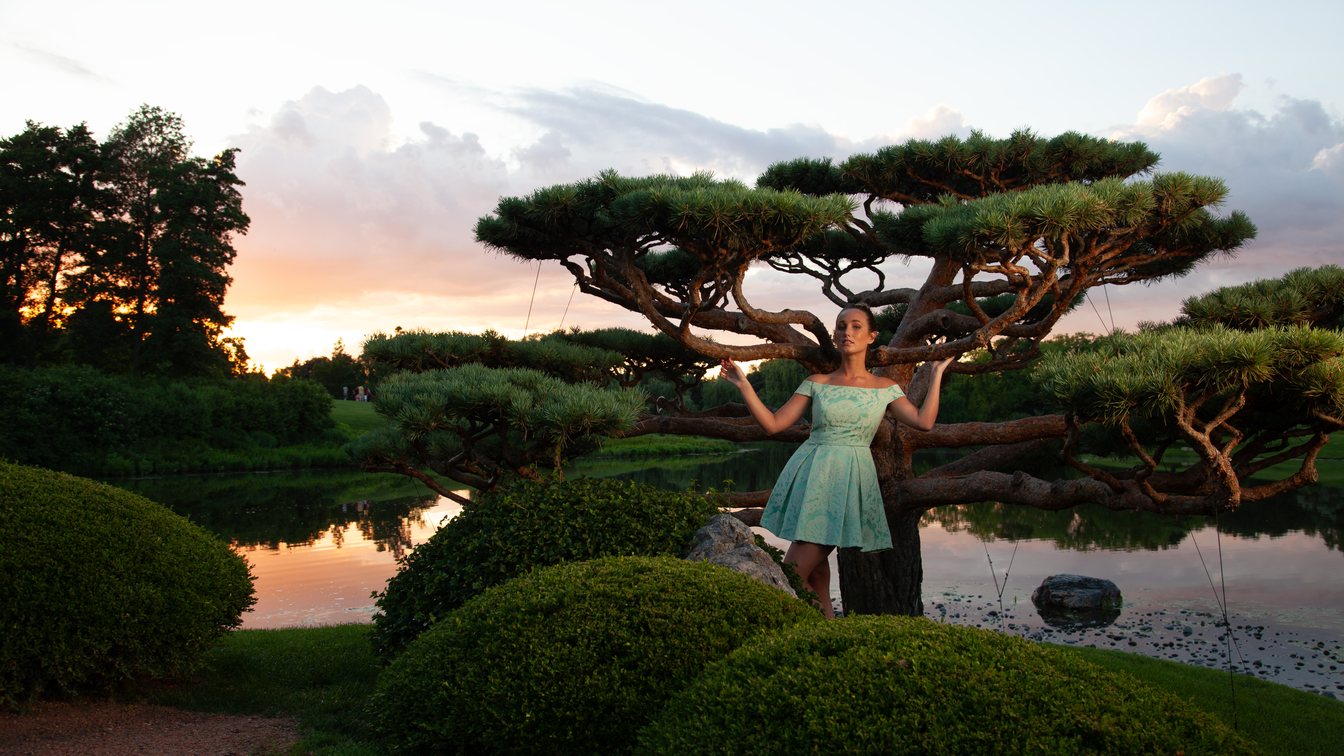
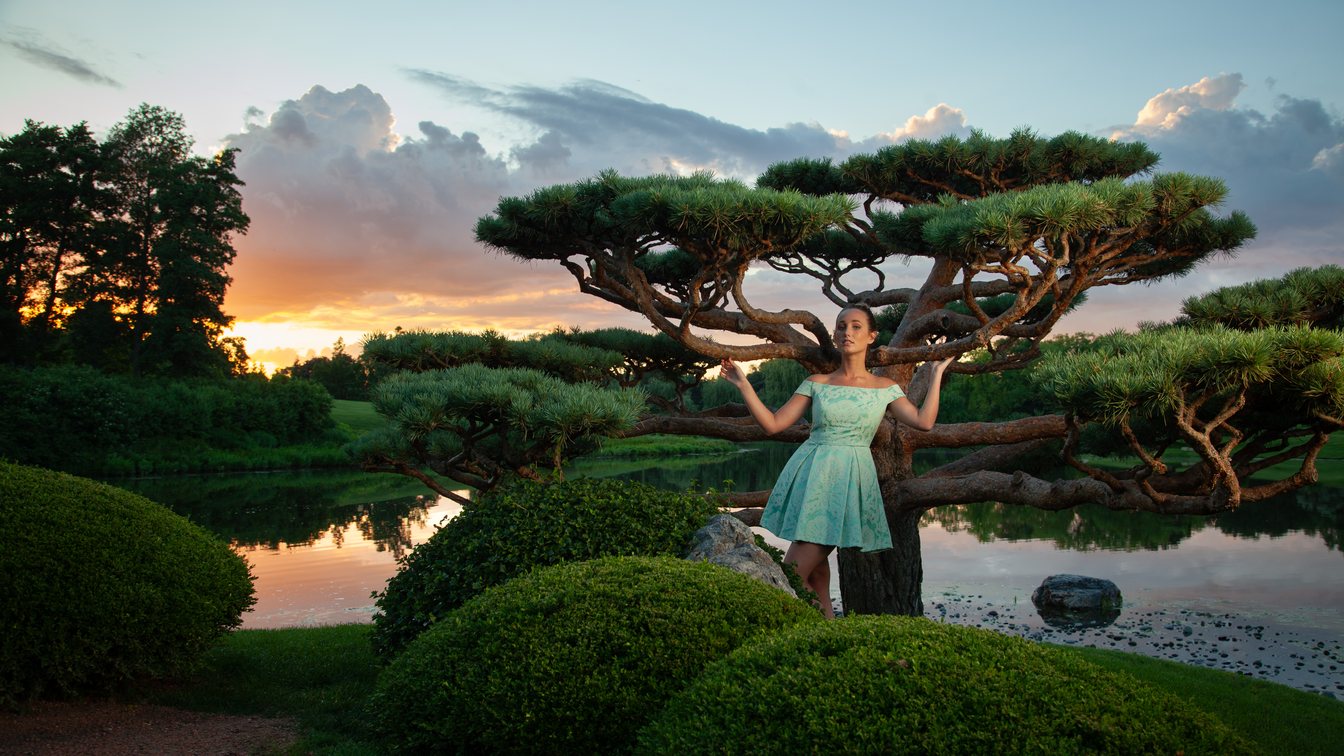
Skin Tones You Can Trust
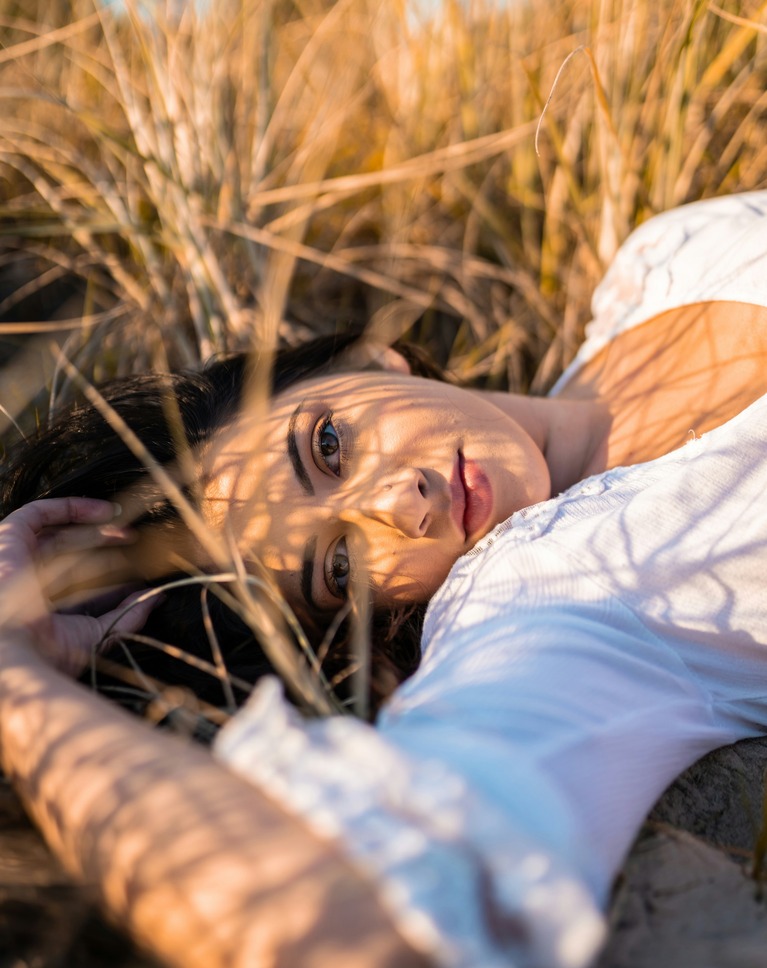
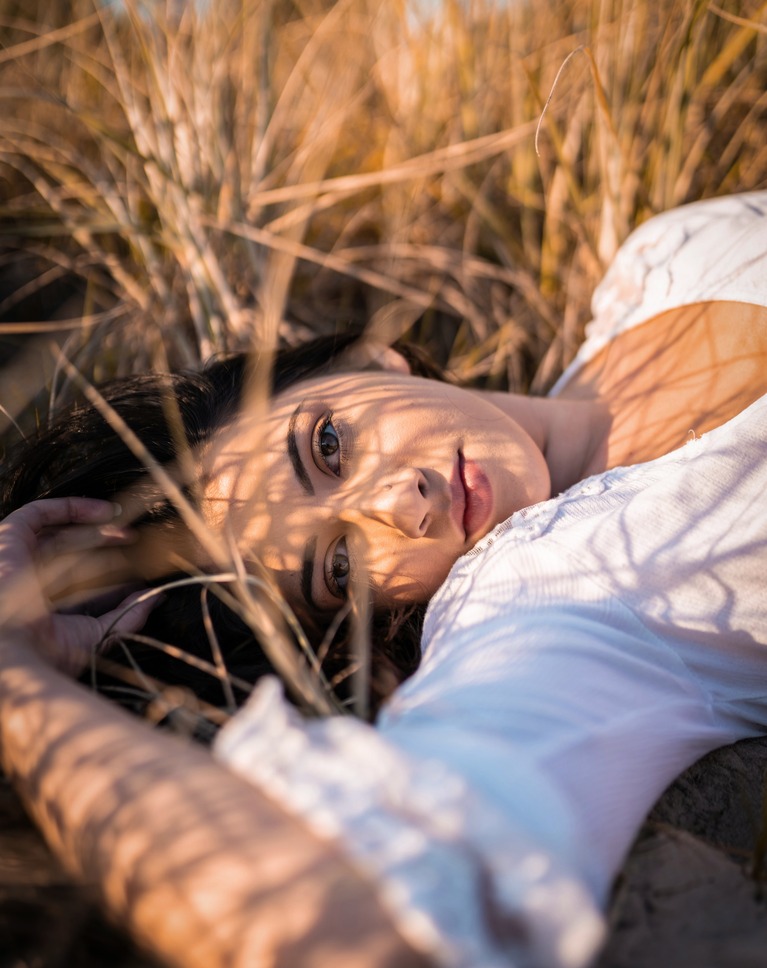
Skin often looks a little off, and it’s hard to say why. In the first lesson you’ll learn to read skin color on Camera Raw’s vectorscope, where natural skin falls along a single line, so you have a target instead of a guess. You’ll correct a RAW portrait lit with warm, colored light until her skin looks true, then finish the whole photo in Camera Raw with a deeper sky, a soft glow on the subject and a clean export.
The Same Line for Darker Skin
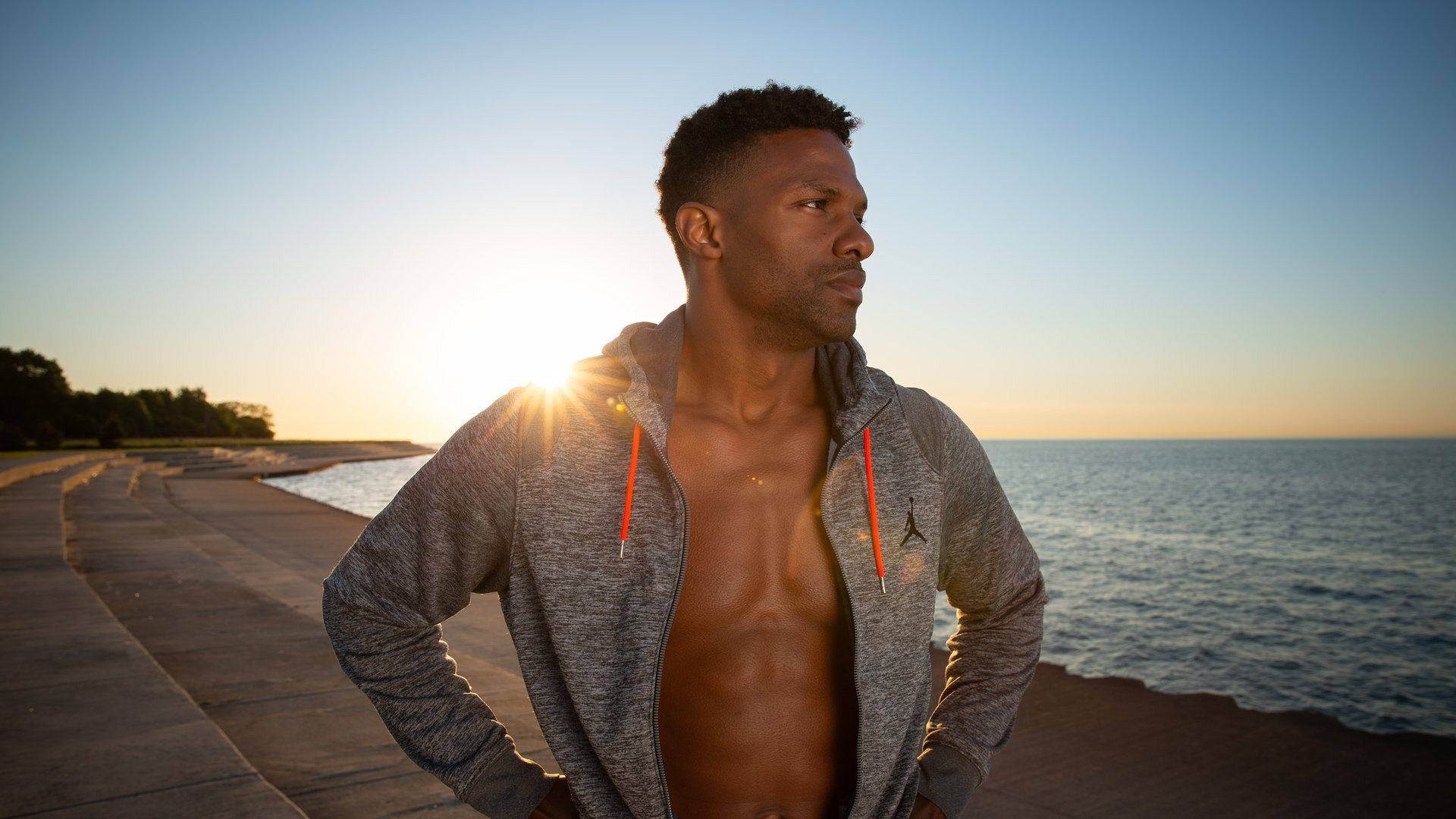
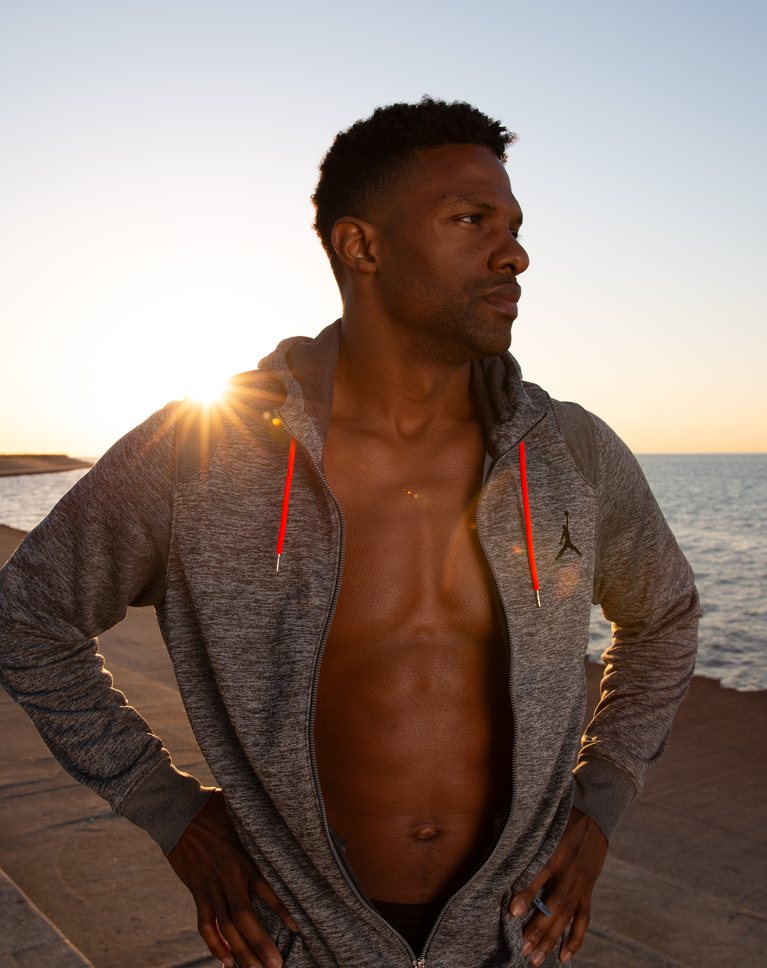
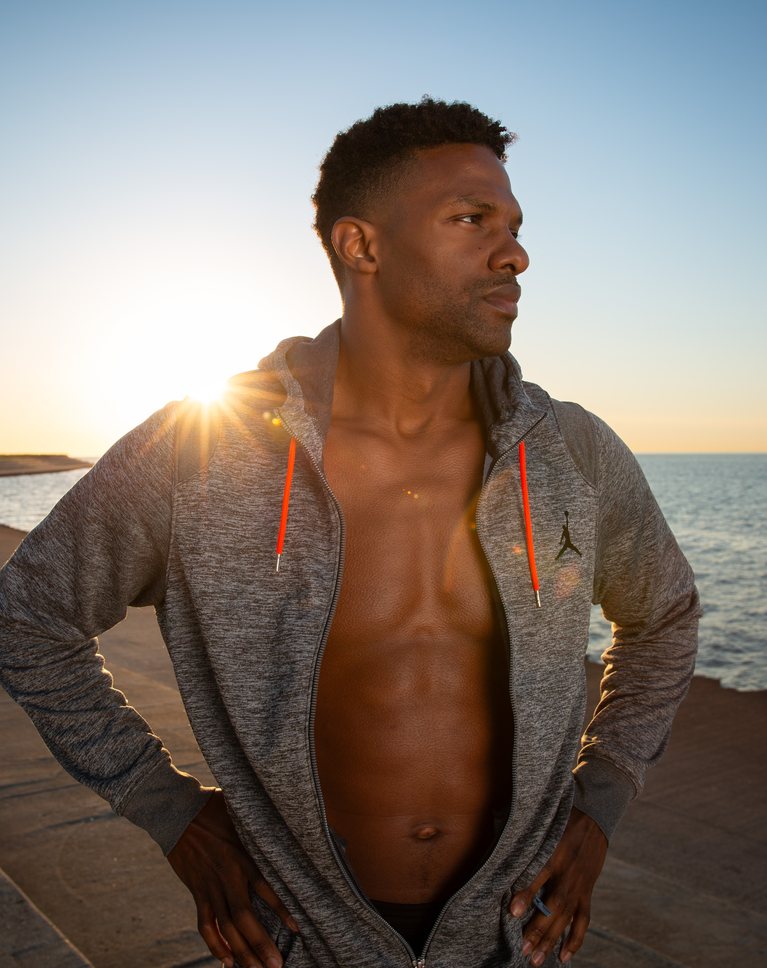
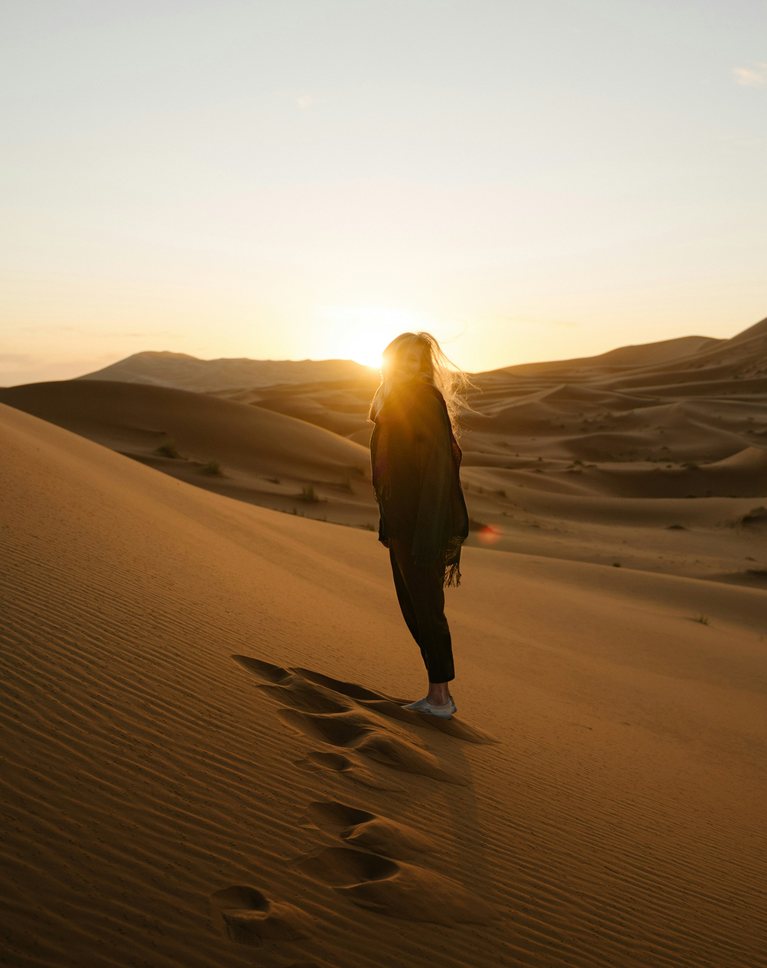
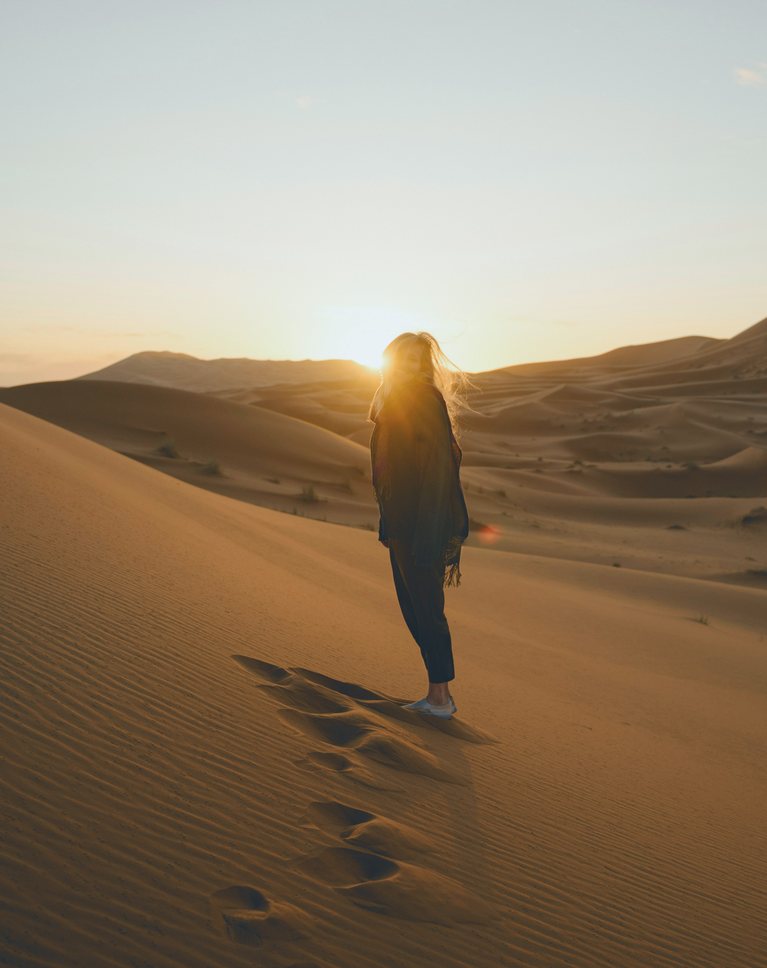
Darker skin isn’t harder to correct; it just needs the right reference. You’ll see the same skin tone line from the first lesson work on a sunrise portrait, and why the fix comes down to a much smaller move than most people expect. Warmer or cooler then becomes a creative choice instead of a guess, and you’ll know which way to take it.
Light the Face After the Fact
The light in this photo landed on his chest, not his face. You’ll learn how to combine masks in Camera Raw so only the face brightens, then add a glow around the sun and deepen the sky, all without leaving Camera Raw or touching the skin color you just corrected.
Clean Up in the Same Sitting
Sensor dust, blemishes, a tilted horizon and a stray airplane trail all go before you leave Camera Raw. You’ll see which of these fixes run automatically, which take a single click, and the one place in the course where generative AI does the cleanup.
When There’s No RAW File
Clients send JPEGs and phones save them. The color is baked in, every slider moves faster, and there’s far less room to push. You’ll learn how to make careful corrections that still land skin in the right place, on three photos with three very different problems: a yellow-green cast, a blue cast and a red one, each solved a different way.
Correct Only the Person
Sometimes the background is fine and only the skin is wrong. You’ll learn how to point the vectorscope at just your subject, so you can see their skin on its own and correct it without changing anything else in the photo. It changes how you use the vectorscope from then on.
On the Line Isn’t Always Right
Skin can sit right on the line and still look wrong. You’ll learn what to check next, how to dial a correction back after the fact, and why it pays to step away and look again before you save. On a JPEG, small moves go a long way.
Section 2 · Lessons 4–9
Color Grading: Any Look, Skin Kept Natural
Four ways to color grade in Photoshop and Camera Raw, a way to protect skin under any look, and how to save a grade as a LUT.
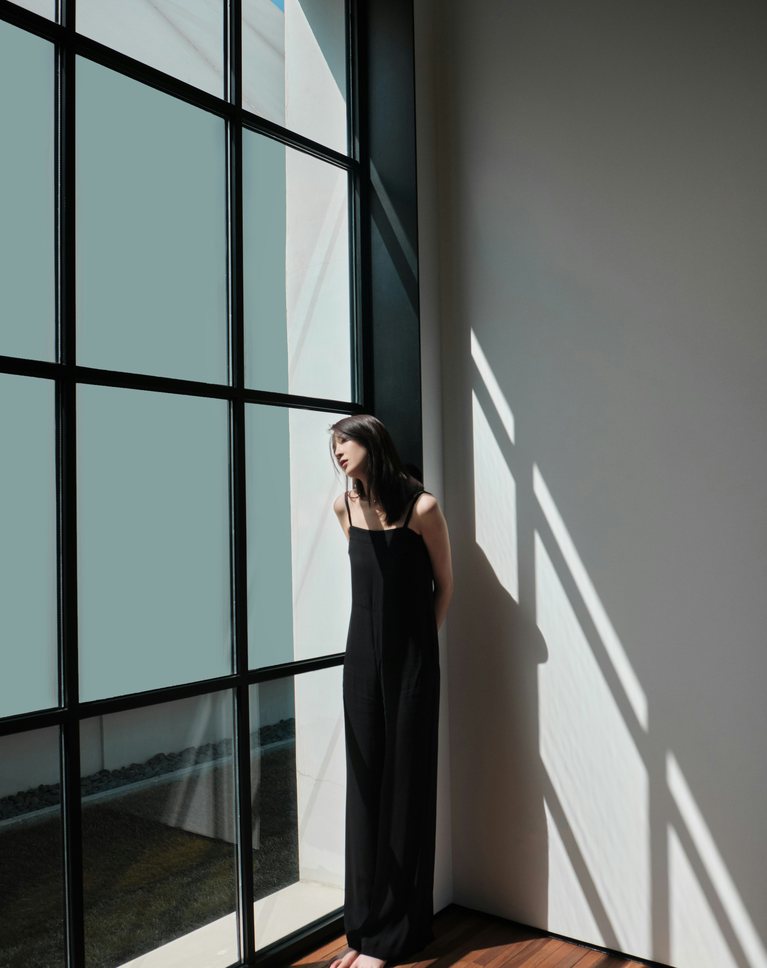

A Full Color Grade in One Layer
Curves is one of the most powerful color grading tools in Photoshop, and most people only use it for contrast. You’ll learn how the red, green and blue channels add color to the shadows and the highlights, and how a few small moves turn a flat photo into a finished look.
Grade Last, Swap Anytime
Where the grade sits in your layers matters. You’ll learn where to put it so every edit underneath is graded the same way, and so you can try a completely different look later without redoing any of your work. It’s the habit that keeps a big edit flexible.
20 Curves Presets, Installed at Once
Save your own curve to use again, then install the 20 PHLEARN Curves presets in one go and tune them to your photo. Each one is an ordinary Curves layer, so nothing is locked and every look can be changed. The download includes three practice photos and the finished PSDs.
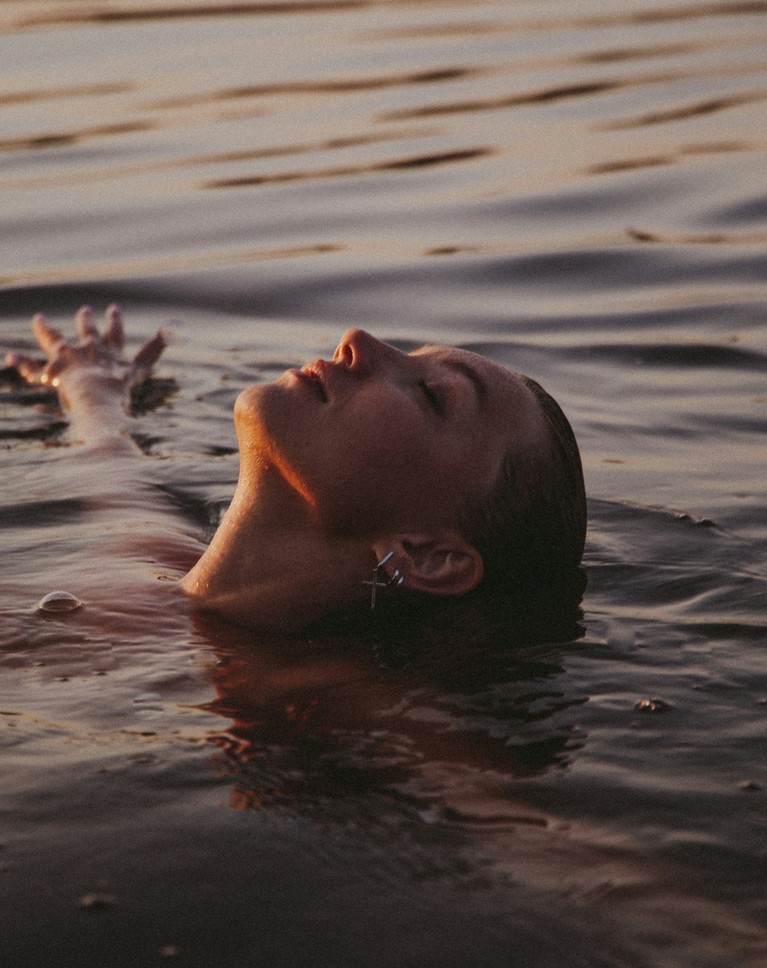
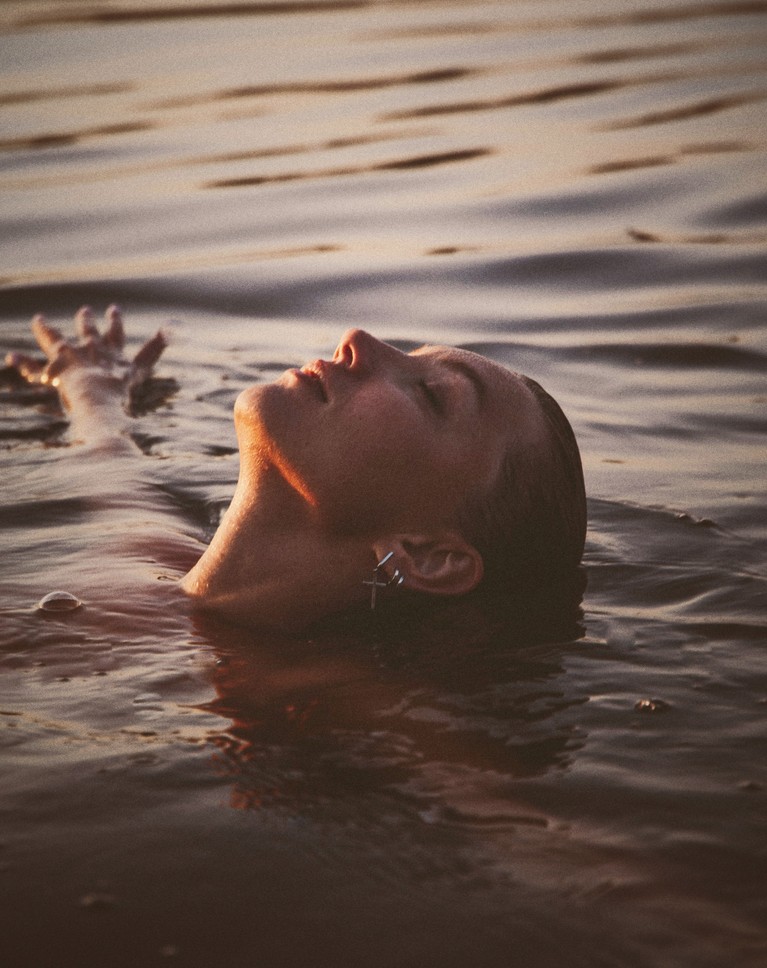
Color Exactly Where You Want It
A solid color layer and the right blend mode can tint just the shadows or just the highlights, and you pick the color live while you watch the photo change. It’s one of the most visual ways to grade, and the midtones, where skin lives, stay protected. You’ll also see how each blend mode changes the result.
Blend If for Exact Control
Blend If takes it further. You’ll learn how to decide exactly which tones receive color, with a soft edge so nothing looks pasted on, and how to get looks that are hard to reach with any other technique, like a light color in the deepest shadows. It’s one of our favorite techniques, and once you see it you’ll understand why.
20 Blend If Looks to Make Your Own
Load all 20 PHLEARN Blend If actions in seconds. Each look builds editable shadow and highlight color layers, so you can stack two looks, change a color and make the result your own. They work in any version of Photoshop, and each one is a starting point, not a finished filter.
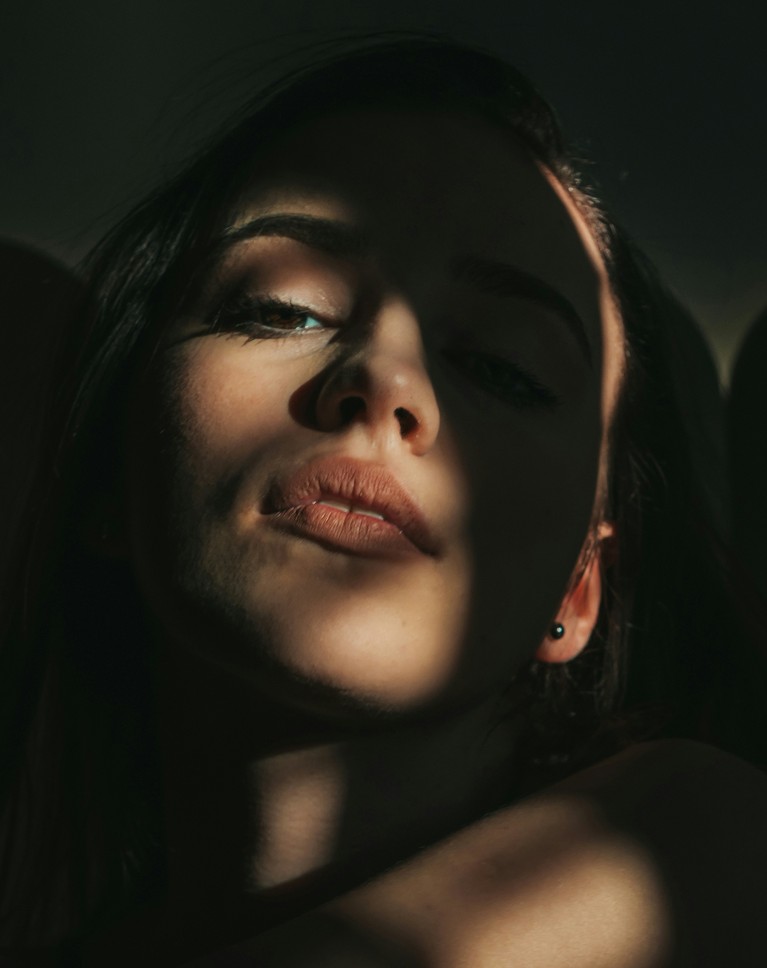
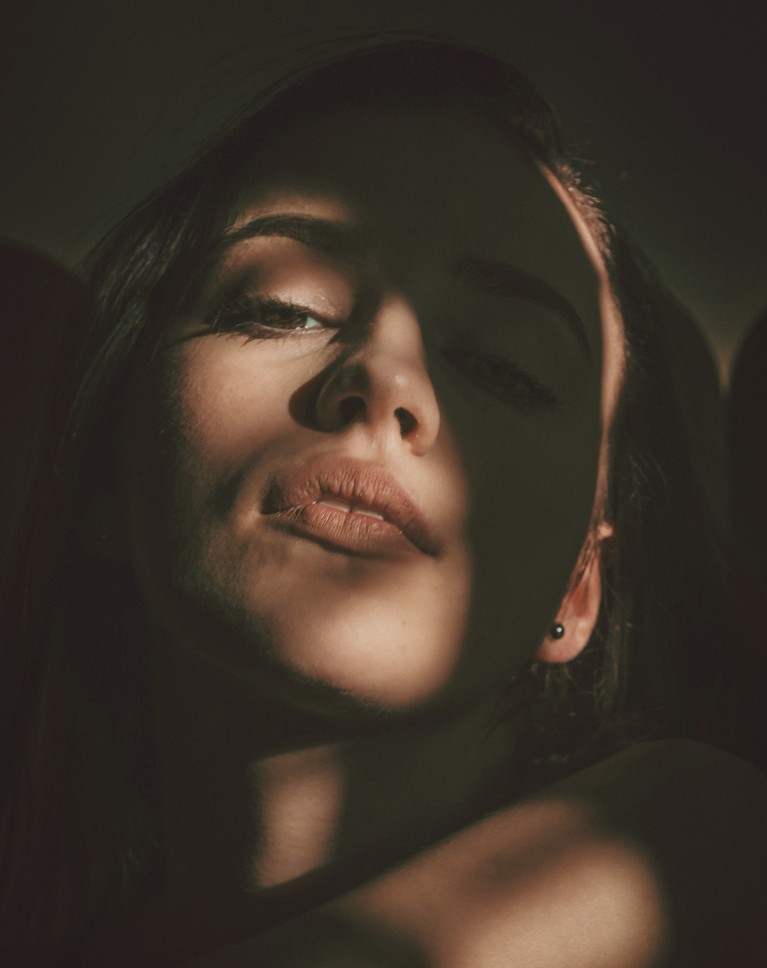
A Hidden Grading Tool
Not many people know a gradient map can color grade, and it does it with a single adjustment layer that covers the shadows, midtones and highlights at once. It’s one of the quickest grades in the course. You’ll learn how it maps color onto a photo and how to choose colors that work together.
Why Most Gradients Fail
The gradients that come with Photoshop aren’t made for this, and you’ll see why they look wrong on a portrait. You’ll learn the one rule a gradient has to follow to work as a grade. Then you’ll learn how to build your own and blend it back so the photo shows through. Every color can be changed at any time.
20 Gradients Built Around Skin
Import the 20 PHLEARN Color Grading gradients once and they stay in Photoshop for good. They were designed with skin tones in mind, so you can click through looks on a portrait without the face going strange. Each one is a starting point you can recolor to taste.
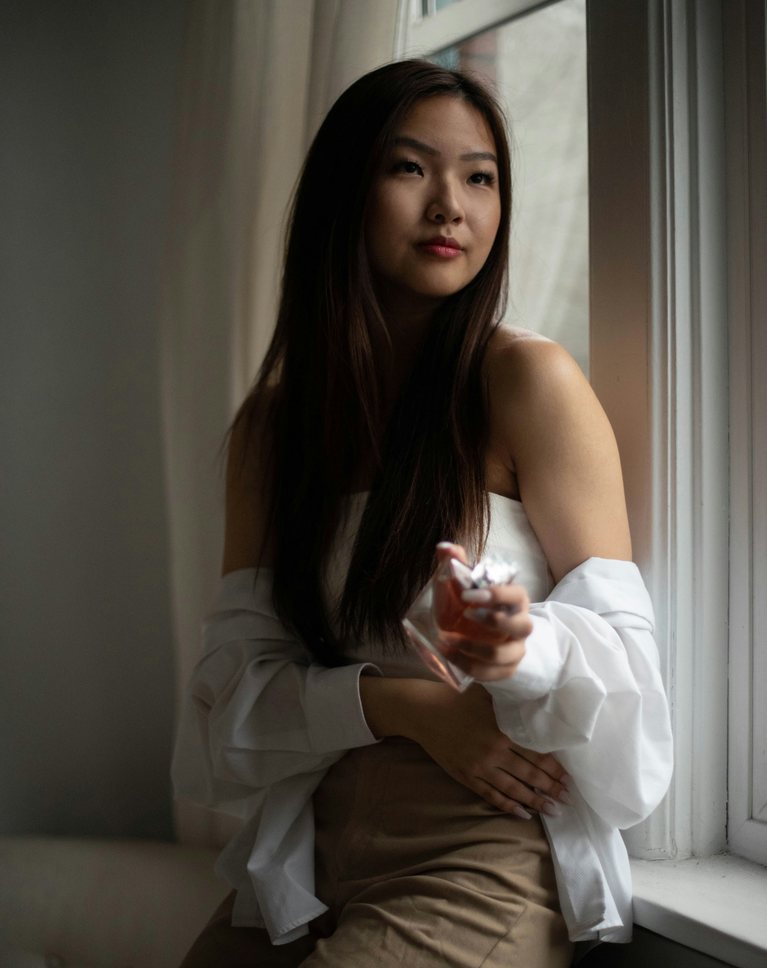

The Most Intuitive Way to Grade
Camera Raw has a color grading panel built in: drag a wheel and the shadows, midtones or highlights take on that color. If you know Lightroom, you already know where everything is. You’ll learn how to keep skin natural in the midtones while you color the rest, and how to check the result on the vectorscope.
Fine-Tune, Then Blend
Once the colors are in, you’ll learn how to shape each range on its own, and how Blending and Balance change the feel of the whole grade, and why they always come last. You’ll also see how to compare your grade with the original at any point.
20 Presets That Leave Skin Alone
Save your own grade as a preset, then import the 20 PHLEARN Color Grading Wheels presets from a single file. They color the shadows and highlights and leave skin in the midtones, and they work in Lightroom too, so a look can follow you between apps.
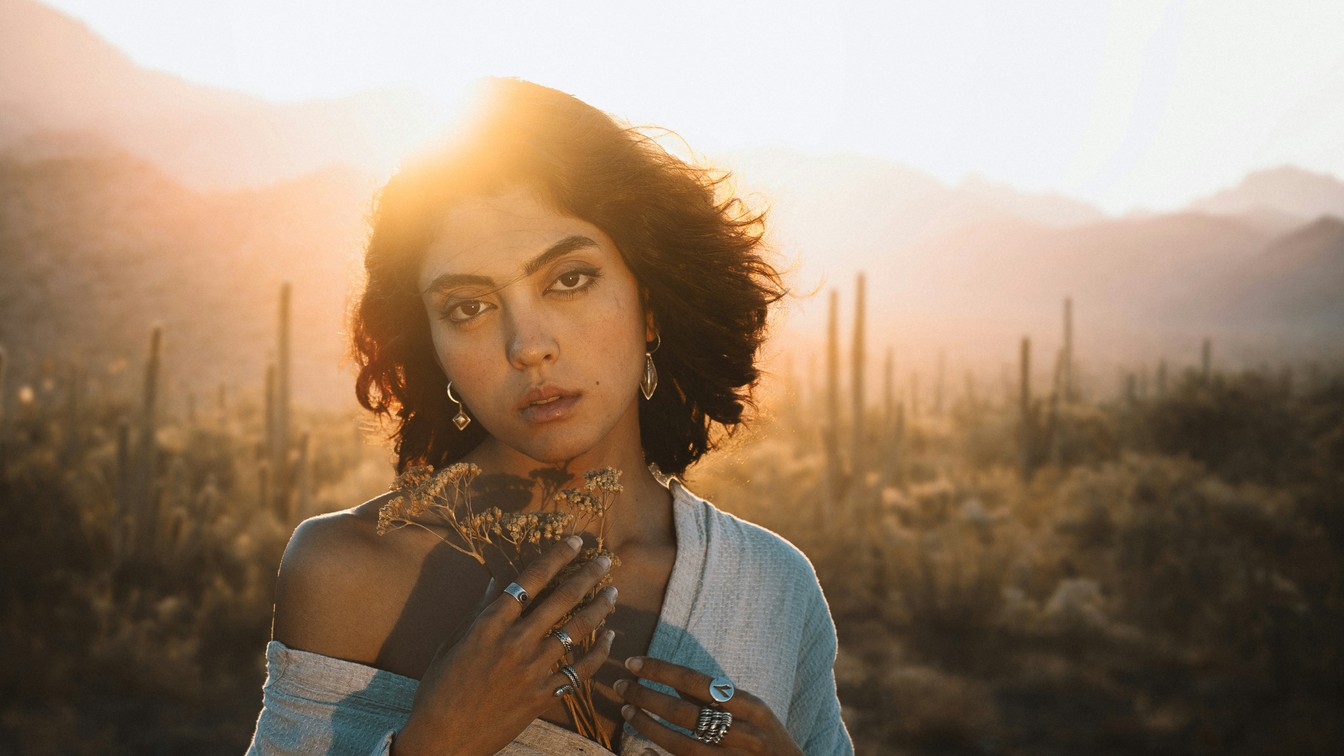
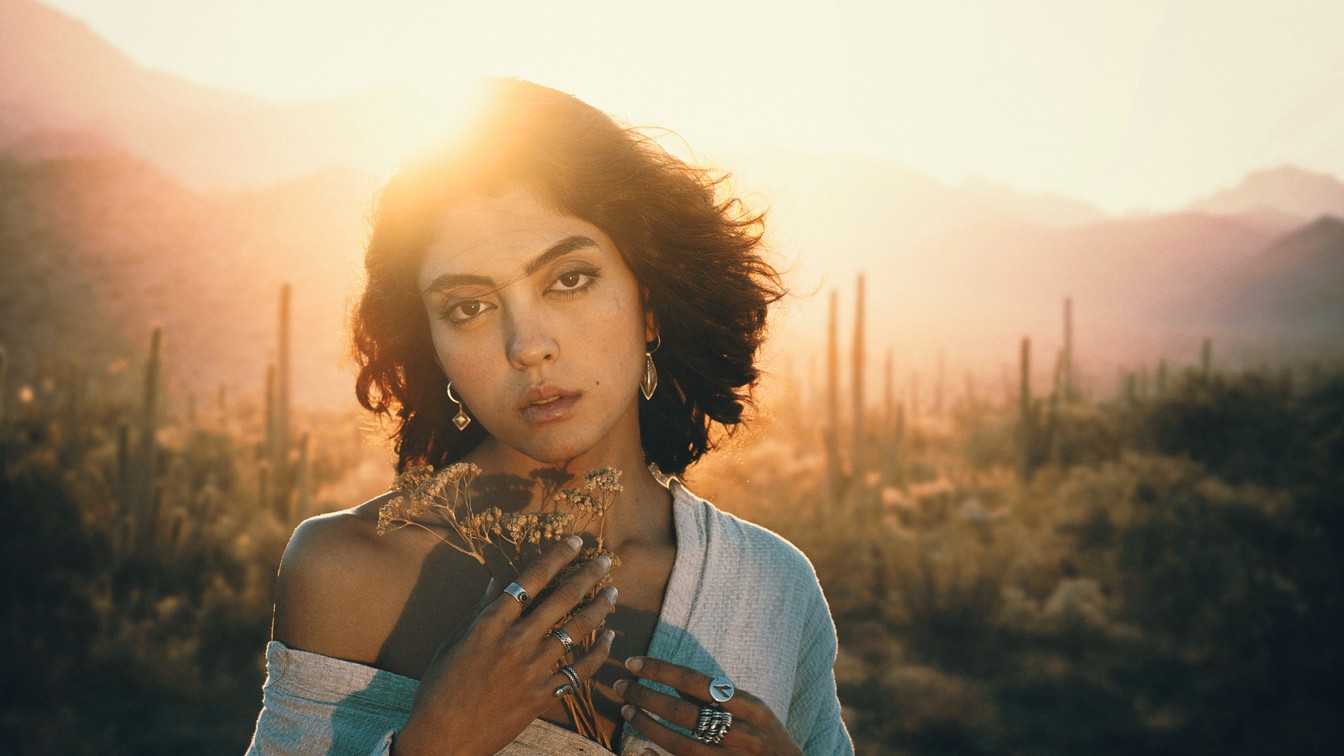
Grade Hard, Keep Skin Natural
Every look you add changes the skin too, and a strong grade can push a face toward red or magenta. This lesson answers the question we hear most: how do you color grade without ruining skin tones? You’ll see the problem on a real portrait, learn a fix you can do by hand, then run the PHLEARN Protect Skin action, which does the work in one click and gives you a place to grade. Curves, gradient maps and color layers all work on top, and the skin stays put.
Turn Any Grade Into One File
Once you’ve built a look from several adjustment layers, you can save the whole thing as a single LUT. You’ll learn how to export one from Photoshop and bring it back, and see it match the original layers exactly. It brings everything in this section together: curves, color layers and a gradient map, combined into one look you can use again.
What a LUT Can and Can’t Carry
A LUT saves color and nothing else. You’ll learn what that means for masks, grain and local edits, which file format to choose, and why the same file works in Photoshop and in most video editors, so one look can cover your photos and your video.
20 LUTs for Photo and Video
Install all 20 PHLEARN Color Grading LUTs in Photoshop in one step, then click through them on your own photo. You may find a look you would never have reached by hand. The guide covers both Mac and Windows.
Section 3 · Lessons 10–12
Lightroom: One Look for a Whole Shoot
Build your own Lightroom presets, make a whole shoot match in a few clicks, and export so your colors hold up online.

The Same Tools, Now in Lightroom
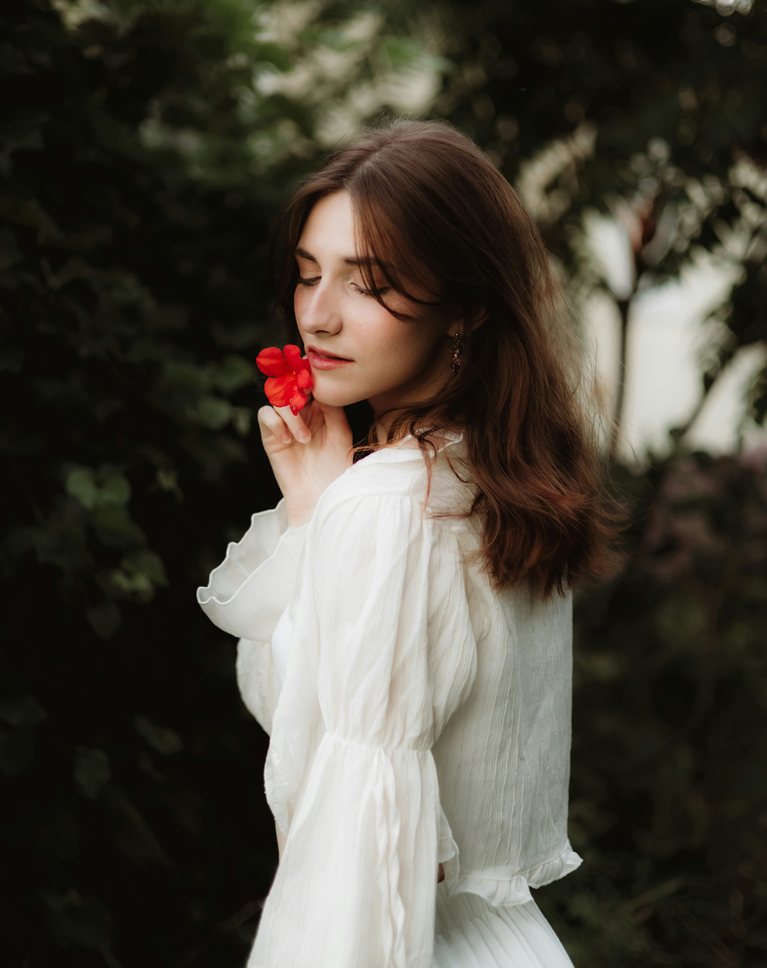
Section 3 moves everything into Lightroom Classic. The tone curve works like Curves in Photoshop and the color grading wheels are the same as Camera Raw’s, so what you’ve learned carries straight over, along with Point Color for targeting a single color.
Presets That Fit Every Photo
Most presets break because they save too much. You’ll learn which panels belong in a preset and which to leave out, so exposure and white balance stay right for each photo and your look travels across a whole shoot. It’s the most useful habit for anyone who makes presets.
15 Looks and 5 Skin Fixes
Import the 20 PHLEARN Lightroom presets in one go, for Lightroom Classic, desktop and mobile. Fifteen are looks and five are one-click fixes for ashy, green, orange, red or yellow skin, kept subtle so they suit more photos and easy to push further when you want more.

One Grade, a Whole Shoot
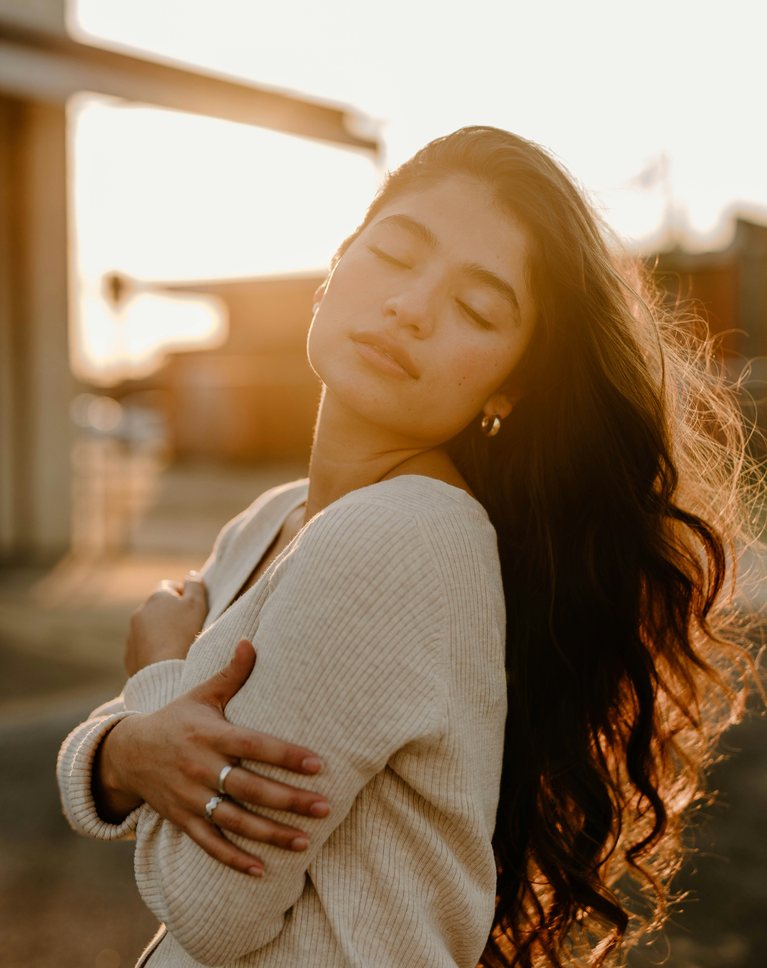
Grade one photo and the rest of the shoot can match in a few clicks. You’ll learn how to sync only what you changed, keep each photo’s exposure and white balance, and keep refining the look as many times as you like. It’s the fastest way to deliver a shoot with one consistent look.
Check Every Frame
A grade that looks great on one photo can miss on the next. You’ll see how to review a whole series at a glance and catch the frames that need more attention. A quick scroll through the grid is the real test. The download includes two full shoots to practice on, 29 photos in all.
Colors That Look Right Online
Your colors look perfect in Lightroom, then shift when you post them. In the final lesson you’ll learn why, and how to export from Lightroom and Photoshop so your photos look the way you graded them, on the web and on any phone. It’s a short lesson, and one of the most important in the course.

Class Instructor
Aaron Nace
PHLEARN Founder & Lead Instructor
Aaron Nace is a photographer, digital artist, and the founder of PHLEARN. Since 2011 he has taught millions of people to edit with confidence in Photoshop and Lightroom, on YouTube and in PHLEARN PRO, and he has been a featured speaker at Adobe MAX for more than eight years.
Every PRO course comes with the sample images and PSDs to follow along step by step, and Aaron adds new courses and free tutorials all year.
- 2M+YouTube subscribers
- 160M+video views
- 1,000+tutorials published
- 15years teaching Photoshop
RAW portraits in lessons 1 and 2 by Aaron Nace. Sample images by Bailey Mahon, Antonella Quispe Tumay, Illia Melnichuk, Dynamic Wang, Karsten Winegeart, Samanta Sokolova, Klara Kulikova, Baran Lotfollahi, Marcin Sajur, Martin Woortman, Allen Taylor, Happy Face Emoji, Deny Hill, see plus, Look Studio, jossemio, Anna Blake, Brooke Cagle and Ali Karimiboroujeni via Unsplash.
Reviews
There are no reviews yet.
Color Grading and Skin Tones: Common Questions
About This Course
Is this course good for beginners?
Yes. Section 1 starts with how to read skin color on the vectorscope, and every lesson comes with the sample images and finished PSDs so you can follow along. If you already grade, each lesson stands on its own, so you can jump straight to the technique you need.
Does this work for every skin tone?
Yes, and that’s the point of Section 1. Lessons 1 and 2 correct light and dark skin with the same reference, and every pack was built and tested on a range of skin tones, so the looks change the shadows and highlights rather than the face.
Why does skin turn orange when I color grade?
Most looks push warm color into the midtones, and that’s where skin lives, so a grade that flatters the background can turn a face orange, red or green. Lesson 8 shows the problem on a real portrait and how to grade as hard as you like while the skin stays natural.
What’s the difference between color correction and color grading?
Color correction makes color accurate: skin that looks like skin and neutrals without a cast. Color grading adds a mood on top. The course follows that order, correction in Section 1 and grading in Section 2, because a grade looks best on a photo that’s already right.
What is the vectorscope in Camera Raw?
It’s a map of every color in your photo, with a line that shows where natural skin falls, whatever the skin tone. Lesson 1 shows how to turn it on and how to read it, and you’ll use it throughout the course. You’ll need a recent version of Camera Raw.
What’s the difference between a LUT and a preset?
A LUT stores color and nothing else, so one file works in Photoshop and in most video apps. A Lightroom preset stores the settings of the panels you choose, so it stays editable. Lessons 9 and 10 cover both, and when each one is the better choice.
Can I use the presets and LUTs on my own photos?
Yes. All 121 presets, actions, gradient maps and LUTs are yours to keep, and you can use them on any of your photos. Each pack comes with a printable guide to installing and using it.
What’s in the course downloads?
Everything you see in the lessons. Every lesson also comes with its own step-by-step PDF guide. There are 49 sample images, including 2 RAW files, and 15 layered PSDs of every finished edit, so you can follow along and check your work. You also get 121 presets, actions, gradient maps and LUTs in 7 packs, and each pack comes with a printable install and usage guide.
Which apps do the packs work in?
The Curves presets, the Blend If actions, the gradient maps and the Protect Skin action are for Photoshop. The Color Grading Wheels presets work in Camera Raw and Lightroom. The 20 Lightroom presets come in two versions: one for Lightroom Classic and desktop, and one for Lightroom mobile. The LUTs work in Photoshop and in most video editors.
Can I download all the packs at once?
Yes. “Download all” in the Included section gets all 7 packs in one 27.4 MB zip, with a folder for each pack named by its lesson. You can also download each pack on its own, and each lesson’s sample files are under that lesson in the course content list.
Do I need to install anything?
Yes, the presets, actions, gradients and LUTs install once and then stay in Photoshop, Camera Raw or Lightroom. Each pack includes its own install and usage guide as a printable PDF.
Are the files mine to keep?
Yes. The presets, actions, gradient maps and LUTs are yours to keep and use on your own photos.
Do the Lightroom presets work in Lightroom mobile?
Yes. The Lightroom presets come in two versions, one for Lightroom Classic and Lightroom desktop and one for Lightroom mobile. The Color Grading Wheels presets work in both Camera Raw and Lightroom.
Which versions of Photoshop and Lightroom do I need?
The course is recorded in Photoshop 2026 with Camera Raw and Lightroom Classic, and the vectorscope needs a recent version of Camera Raw. The Curves presets, gradient maps, LUTs and Blend If actions also work in older versions of Photoshop, and the Protect Skin action needs Photoshop CC 2018 or later.
Does this course use generative AI?
Almost none of it. One optional cleanup step in Lesson 2 uses generative AI in the Remove tool to take out a distraction. Every correction and every grade in the course is done with Camera Raw, adjustment layers and presets.
About PHLEARN PRO
What do I get with PHLEARN PRO?
Every PRO course on PHLEARN, plus all the downloads that go with them: sample images, RAW files, layered PSDs, Photoshop Actions, Lightroom Presets, LUTs, and Brushes. Stream everything in up to 4K with closed captions and chapters, on any device.
How much does PHLEARN PRO cost?
PRO is $12.99 a month, or $99.99 a year, which saves 36%. Both plans include every course, all the practice files, and the full library of presets, LUTs, actions, and brushes. There are no tiers and nothing is held back.
What’s the difference between the free tutorials and PRO?
Free tutorials teach a single technique end to end. PRO courses are longer, go deeper into workflow and decision-making, and include the sample images and finished PSDs, so you can practice on the same files as the lesson.
Do I need to own Photoshop or Lightroom?
Yes. Photoshop and Lightroom are Adobe software, sold as a subscription, and they are not included with PHLEARN PRO. The Adobe Photography plan, which bundles Photoshop and Lightroom, is the most common way our students get both.
Can I cancel?
Yes, anytime, from your account page in a couple of clicks. There are no cancellation fees, and you keep access until the end of the period you have already paid for.
What is the money-back guarantee?
If PHLEARN PRO is not the right fit for you, contact our support team and we will make it right, including a full refund.
Master Photoshop, Lightroom and Photography
Join PHLEARN PRO for $12.99 a month, or $99.99 a year (save 36%). Cancel anytime, with a 100% money-back guarantee.





