30 Days of Photoshop
Join us for 30 tutorials that cover some of the most important tools and techniques in Photoshop 2025! Master everything from foundational skills like layers and selections to advanced techniques in compositing, retouching, and AI.
What You’ll Learn
30 Days of Photoshop is built as a progression, not a grab bag. Each day assumes what came before it, so by the end you are not following steps — you are deciding which tool the job actually calls for. That judgement is the thing that separates someone who can follow a tutorial from someone who can edit.
- Move around Photoshop without hunting. Panels, tools, menus and file formats, and a workspace set up the way you actually work.
- Build edits that stay editable. Layers, layer masks, adjustment layers, Smart Objects and Blend If — the non-destructive core of every professional file.
- Make selections that hold up. Select Subject, refining edges, and what to do on the days the automatic selection gets it wrong.
- Control tone and color on purpose. Levels versus Curves, exposure correction, color correction, color grading, and matching color between two images.
- Retouch to a professional standard. A fast cleanup pass, advanced skin work, and dodging and burning to shape light after the fact.
- Composite believably. Cutting subjects out, replacing skies, scaling and aligning elements, and lighting the whole thing so it reads as one photograph.
- Use the AI tools where they earn it. Generative Fill for removing distractions and extending a frame — and the cases where traditional technique is still faster and cleaner.
- Finish and deliver. Exporting correctly for web and print, and building a mockup to present the work.
Who This Series Is For
If you have never opened Photoshop, start at Day 1. Nothing is assumed, and the first week is deliberately slow — the interface, layers, masks and adjustment layers — because everything after it depends on those four ideas.
If you already edit but learned in pieces, the series is worth taking out of order. Most self-taught editors have gaps in the same places: masking, the difference between Levels and Curves, and why their composites never quite sit in the frame. Days 6, 7 and 30 are a good diagnostic.
If you shoot professionally and want speed rather than theory, the retouching, color grading and AI days are the ones that change how long a job takes.
What You Need
- 30 tutorials, one for each day
- Free no PRO membership required
- Beginner no prior experience assumed
- 2025 recorded in Photoshop 2025
Every tutorial includes the sample images and layered PSD files used on screen, so you can edit along on the same photograph rather than hunting for something similar. An older version of Photoshop will handle most of the series; the AI days need Photoshop 2024 or later for Generative Fill.
How Long It Takes
Most tutorials run between 20 and 45 minutes. The name suggests one a day for a month, and that pace works well — it leaves time to repeat the technique on your own photos before the next one, which is where it actually sticks. Doing it in a week is possible and considerably less effective.
Frequently Asked Questions
Do I need a PHLEARN PRO membership?
No. All 30 days are free, including the sample files. PRO exists for the in-depth Learning Paths and full courses, but nothing in this series is behind it.
Do I need the newest version of Photoshop?
The series was recorded in Photoshop 2025 and the interface will match most closely there. Almost everything works in older versions — the exceptions are the AI features like Generative Fill, which need Photoshop 2024 or later.
Do I have to watch them in order?
For a beginner, yes for the first ten or so. Layers, masks and adjustment layers are used constantly from then on. After that the days are largely self-contained and you can jump to what you need.
Is this the same as the original 30 Days of Photoshop?
No. This is the 2025 Edition, rebuilt from scratch. The original 2020 run is still on the site as the Classic Edition, and it remains a good series — but Photoshop has changed enough since that the tools, and in places the whole approach, are different. Start here.
Will this teach me photography as well as editing?
No, this is an editing series. It works on supplied images and does not cover cameras, lighting or shooting.
Where to Go Next
Start the Series
Day 1 is a tour of the whole program — every major tool, option and menu — so nothing later feels unfamiliar.
On This Page
Go Further with PRO
When you have finished the 30 days, the Learning Paths pick up where this leaves off — full courses in portraits, compositing, product work and AI, with the same sample files.

The Photoshop interface is four areas and a handful of panels. Learn what each one is for, build a workspace that suits you, and set two preferences first.
Photoshop | Tools & Techniques | Easy | 45 mins | 1 video
1 Sample Image | 1 Sample PSD

Every Photoshop project runs the same loop: open a file, work in layers, save the layered master, then export a flat copy for everyone else to see.
Photoshop | Tools & Techniques | Easy | 30 mins | 1 video
1 Sample Image | 1 Sample PSD
Photoshop file formats split into two groups: the ones you keep work in and the ones you send out. Learn which to use, and what the quality numbers mean.
Photoshop | Tools & Techniques | Easy | 30 mins | 1 video
1 Sample Image | 1 Sample PSD
Layers and layer masks are the one feature that separates Photoshop from every other editor. Learn what each kind of layer is for and when to mask instead.
Photoshop | Tools & Techniques | Easy | 30 mins | 1 video
3 Sample Images | 1 Sample PSD
Adjustment layers are how you edit light and color in Photoshop without editing the photograph. Three ways to make one, and the handful actually worth using.
Photoshop | Tools & Techniques | Medium | 30 mins | 1 video
1 Sample Image | 1 Sample PSD
A layer mask hides part of a layer without deleting anything. That one sentence is the whole idea, and it is why nothing you do has to be permanent.
Photoshop | Tools & Techniques | Medium | 30 mins | 1 video
3 Sample Images | 1 Sample PSD

Levels vs curves comes down to one real difference: how many points you can place. Everything Levels does, Curves does, and the eyedroppers matter more.
Photoshop | Tools & Techniques | Medium | 30 mins | 1 video
1 Sample Image | 1 Sample PSD
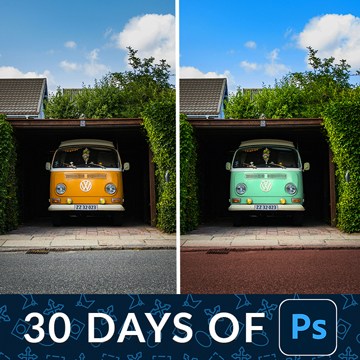
Change the color of anything in Photoshop with two decisions: tell Photoshop where to work, then dial in the new hue. Both stay editable afterwards.
Photoshop | Color & Tone | Medium | 15 mins | 1 video
1 Sample Image | 1 Sample PSD
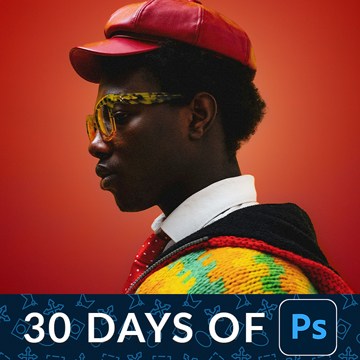
Select Subject has quietly become the most useful button in Photoshop. Switch it to the cloud engine and it handles hair and fine edges properly.
Photoshop | Selections & Masking | Medium | 15 mins | 1 video
2 Sample Images | 2 Sample PSDs
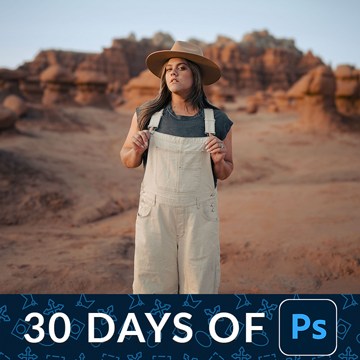
Adobe Camera Raw is a complete raw processor inside Photoshop. Convert to a smart object first and every mask, slider and grade stays editable forever.
Photoshop | Tools & Techniques | Medium | 15 mins | 1 video
1 Sample Image | 1 Sample PSD
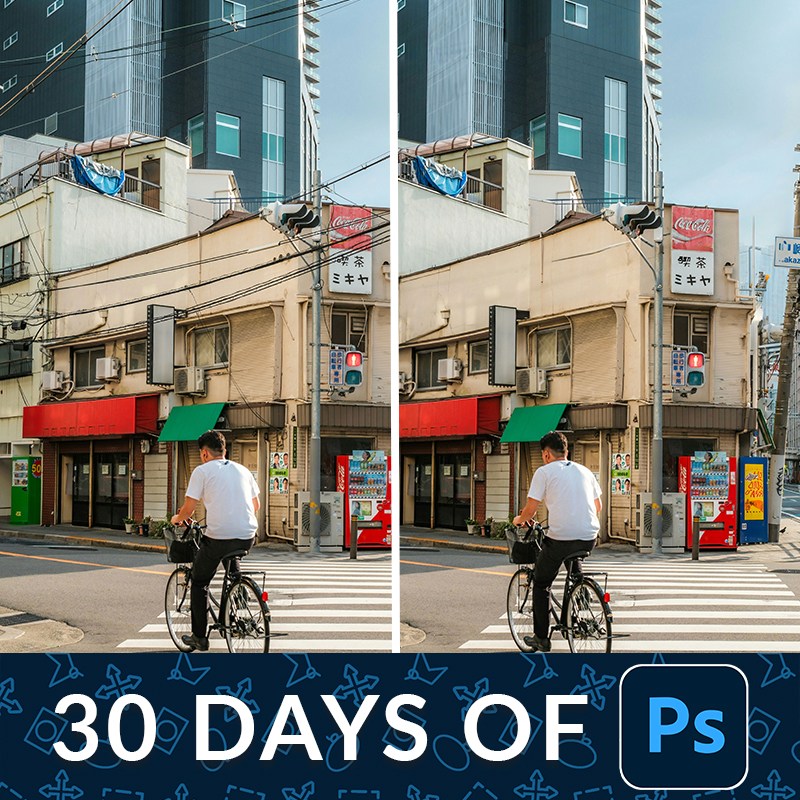
Remove distractions in Photoshop on a duplicate layer so the original pixels stay intact. One click handles most of it; the rest is a short manual pass.
Photoshop | Object Removal & Cleanup | Medium | 15 mins | 1 video
2 Sample Images | 2 Sample PSDs
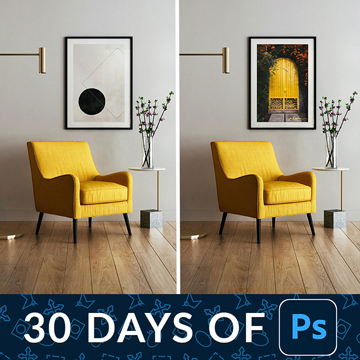
Free Transform looks like four corner handles. It is actually a distortion engine: the modifier keys give you skew, perspective and warp from the same box.
Photoshop | Tools & Techniques | Medium | 30 mins | 1 video
3 Sample Images | 1 Sample PSD
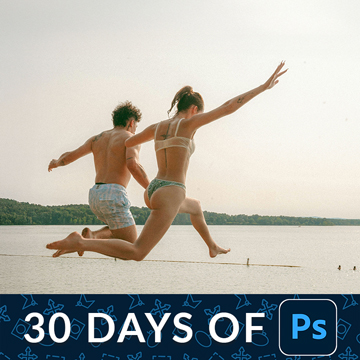
The Crop tool can add as well as take away. Straighten in one drag, use the overlays to place the subject, then expand the frame with Generative Expand.
Photoshop | Tools & Techniques | Easy | 15 mins | 1 video
1 Sample Image | 1 Sample PSD
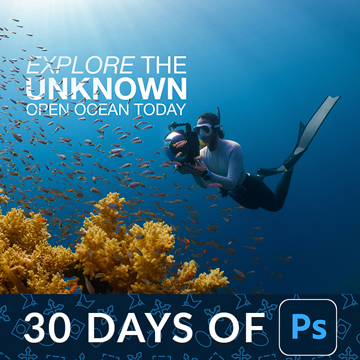
Dynamic text keeps the layout when the words change. Set the type once, and leading, tracking and alignment hold while you rewrite the headline.
Photoshop | Text & Graphic Design | Medium | 15 mins | 1 video
1 Sample Image | 1 Sample PSD
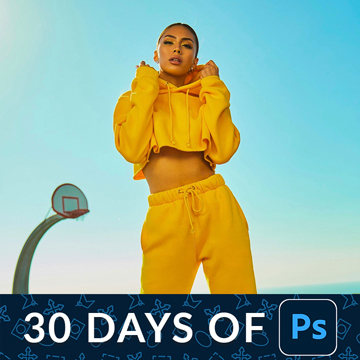
Liquify has outgrown its reputation. Its most useful modern job is unglamorous: fixing a collar, a strap or a stray lock of hair without touching the person.
Photoshop | Retouching | Medium | 15 mins | 1 video
1 Sample Image | 1 Sample PSD

A smart object is a container: the layer you see is a live preview of a file stored inside. Scale it, filter it, and nothing is ever destroyed.
Photoshop | Tools & Techniques | Medium | 30 mins | 1 video
2 Sample Images | 2 Sample PSDs
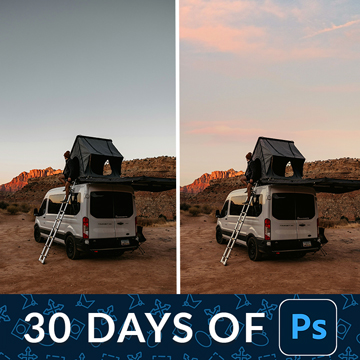
Blend If targets your edits by brightness instead of by brush. Split the handles for a soft transition and blend a new sky or a color tone into just one range.
Photoshop | Tools & Techniques | Medium | 15 mins | 1 video
2 Sample Images | 1 Sample PSD

Blending modes come in six groups, and the groups are the lesson. Learn what Multiply, Screen and Soft Light actually do to the layer underneath.
Photoshop | Tools & Techniques | Medium | 30 mins | 1 video
8 Sample Images | 3 Sample PSDs
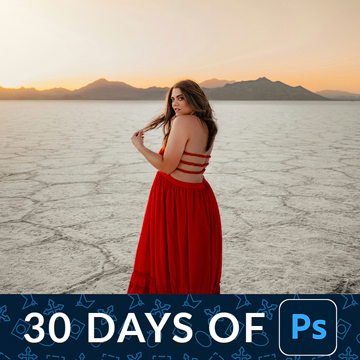
Dodge and burn in Photoshop with two Curves layers instead of the Dodge and Burn tools. Low flow, tiny moves, and every stroke stays editable.
Photoshop | Retouching | Medium | 15 mins | 1 video
1 Sample Image | 1 Sample PSD
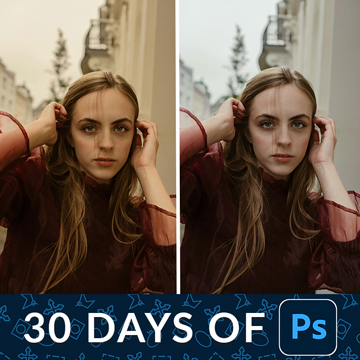
Color correction is the unglamorous step everything else depends on. Set the white balance in Camera Raw, carry a gray reference, and judge it properly.
Photoshop | Color & Tone | Medium | 15 mins | 1 video
1 Sample Image | 1 Sample PSD

Color grading is what happens after the file is technically correct. Cool the shadows, warm the highlights, then fade the whole grade back until it belongs.
Photoshop | Color & Tone | Medium | 15 mins | 1 video
2 Sample Images | 2 Sample PSDs
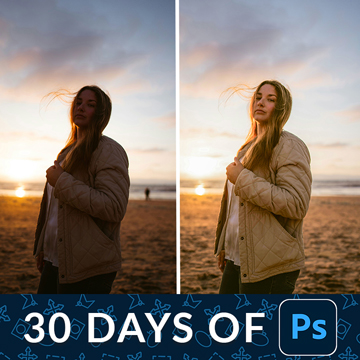
Correct exposure in Photoshop instead of just brightening the photo. Convert in Camera Raw first, mask the people, then fix the one color that is off.
Photoshop | Photo Editing | Medium | 15 mins | 1 video
1 Sample Image | 1 Sample PSD
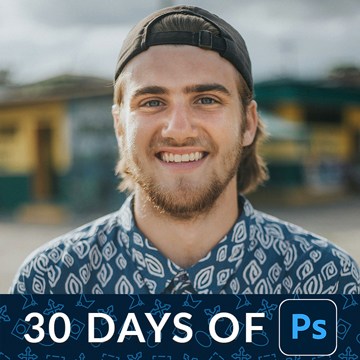
Retouch a portrait in Photoshop in the right order: clear the distractions first, correct the color next, then shape the light. Every step stays editable.
Photoshop | Retouching | Medium | 30 mins | 1 video
1 Sample Image | 1 Sample PSD
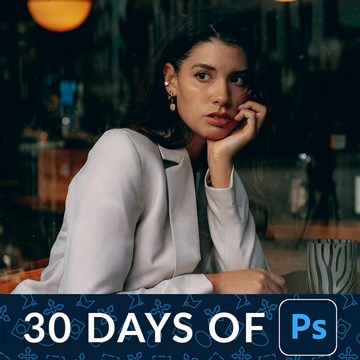
Blend skin tones without touching the texture. Frequency separation splits color from detail so you can even out blotchy skin and keep every pore intact.
Photoshop | Retouching | Advanced | 15 mins | 1 video
1 Sample Image | 1 Sample PSD | 1 Photoshop Action

Match color in Photoshop with Levels instead of the automatic tools. Read the source numbers per channel, then move the target to meet them.
Photoshop | Color & Tone | Advanced | 30 mins | 1 video
2 Sample Images | 1 Sample PSD
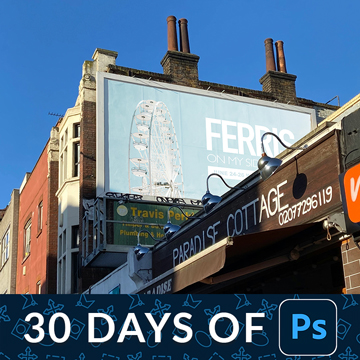
A mockup only works when it inherits the photograph’s own light. Learn the three phases: clear the surface, place the design, then borrow the light.
Photoshop | Text & Graphic Design | Advanced | 15 mins | 1 video
2 Sample Images | 1 Sample PSD

Realistic sky replacement is a matching problem, not a selection problem. Learn to match the light and colour so the new sky belongs in the photograph.
Photoshop | Compositing | Medium | 15 mins | 1 video
2 Sample Images | 1 Sample PSD

Every edit should produce two files, not one. Learn the Photoshop export settings that decide what everyone else actually sees, and when JPEG is wrong.
Photoshop | Workflow & Productivity | Medium | 15 mins | 1 video
1 Sample Image | 1 Sample PSD
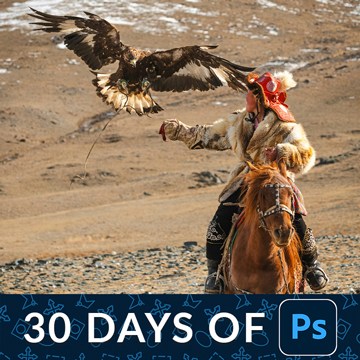
Lightroom vs Photoshop is not a choice, it is a sequence: organize and batch the basics in Lightroom, then hand the one image that needs it to Photoshop.
Photoshop, Lightroom | Workflow & Productivity | Advanced | 30 mins | 1 video
22 Sample Images | 1 Sample PSD
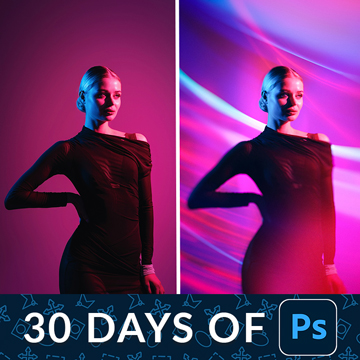
Create a composite in Photoshop that reads as one photograph: match the light, wrap it around your subject, then unify the whole frame with one adjustment.
Photoshop | Compositing | Advanced | 30 mins | 1 video
7 Sample Images | 1 Sample PSD