Download Assets
description
Learn how to create a vibrant and stylized glow motion effect in Photoshop! This tutorial shows you how to blend subjects into colorful backgrounds using unique motion effects and professional color mapping. You’ll gain new skills for controlling light and movement to give your photos a high-end, artistic feel.
Go PRO:
Dive deeper into the world of Photoshop with our in-depth PRO Photoshop Learning Path . Across 11 courses and 53 hours of engaging content, you’ll learn Photoshop’s ins and outs, master pro-level tools, and tackle fun and challenging projects..
Image Source
- Freddie Addery
Images sourced from Unsplash.
Share

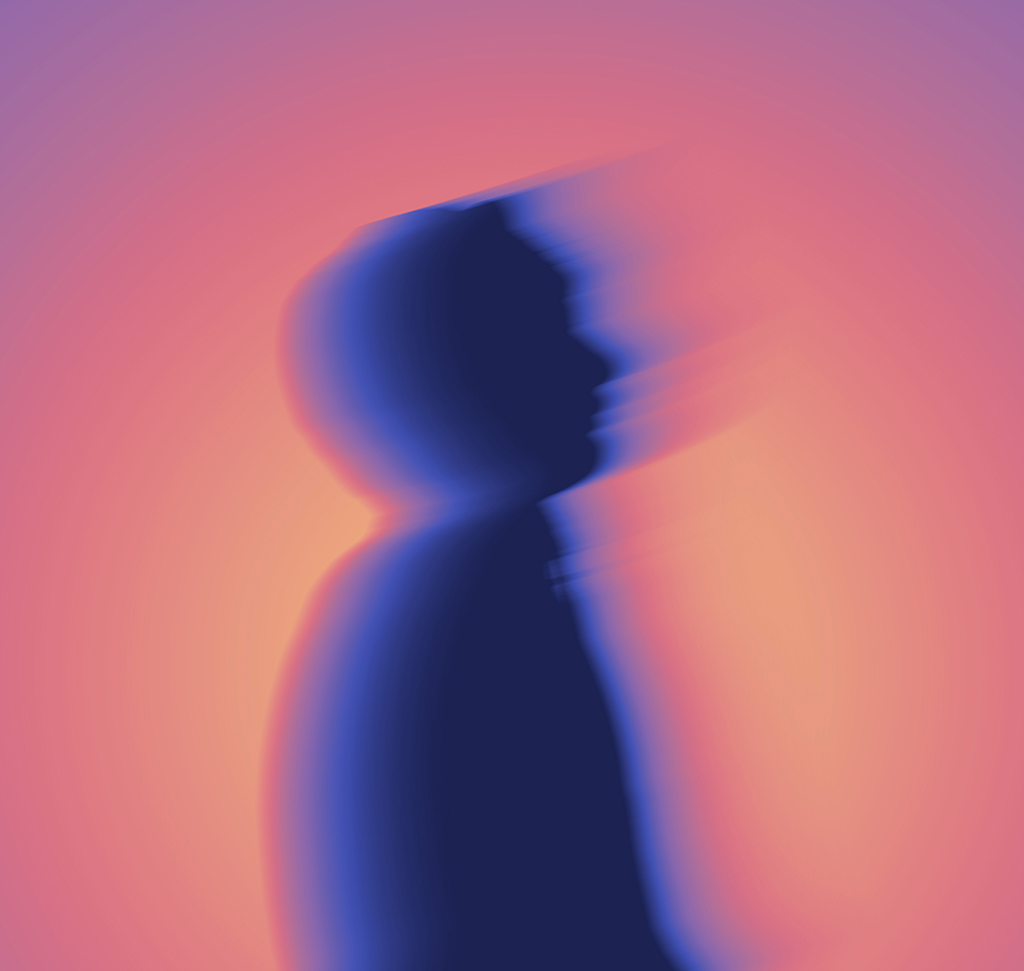
AFTER
BEFORE
Master The Motion
This stylized glow look is a powerful way to turn your shots into cinematic art. By blending silhouettes with fluid blurs and vibrant color mapping, you create a sense of high-end energy and mystery. The best part? We’ll show you how to do it using mostly manual techniques! This will give you total control over the composition, allowing you to move beyond generic filters and create something truly unique.
Getting Started
1. Start by selecting a photo and extending your canvas using the Crop Tool (Keyboard Shortcut “C”); hold Alt/Option while dragging to expand from the center.
2. Isolate your subject by clicking Select Subject and move them to a new layer.
3. Fill the subject with black to create a clean silhouette, then hide the original background to prepare for the new design.
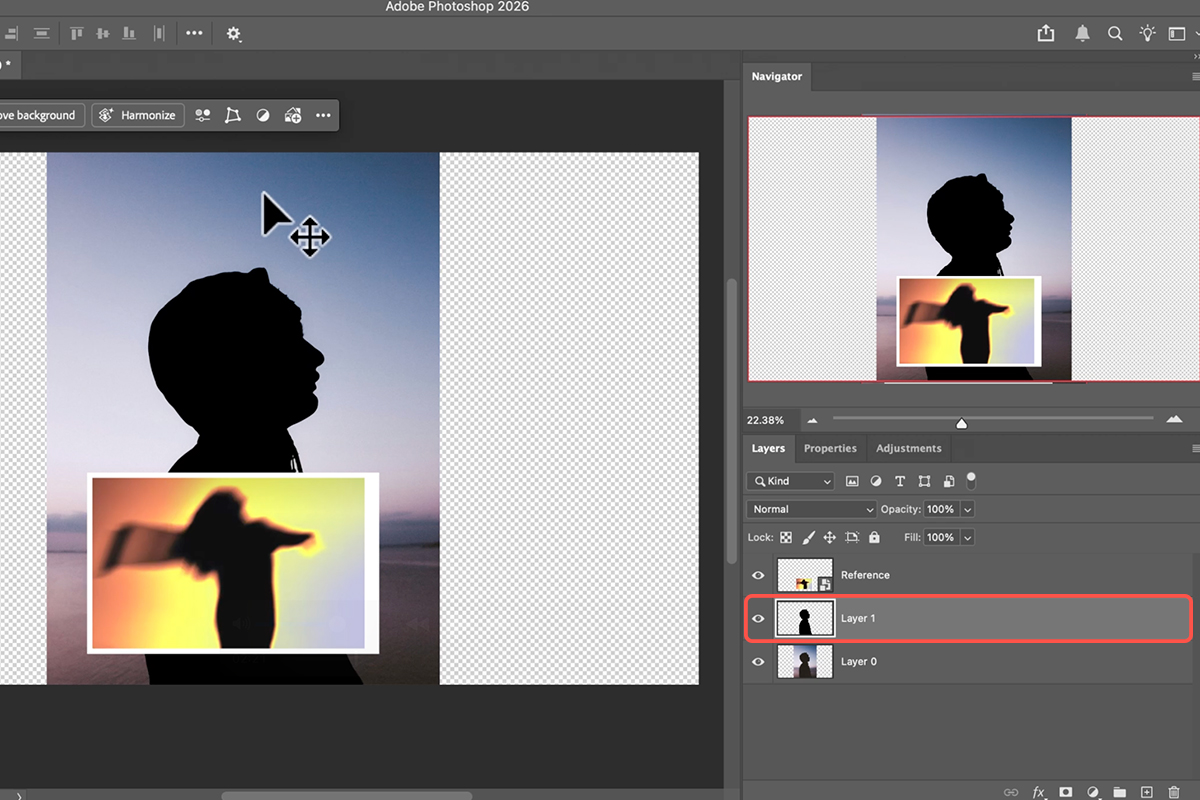
Build the Background
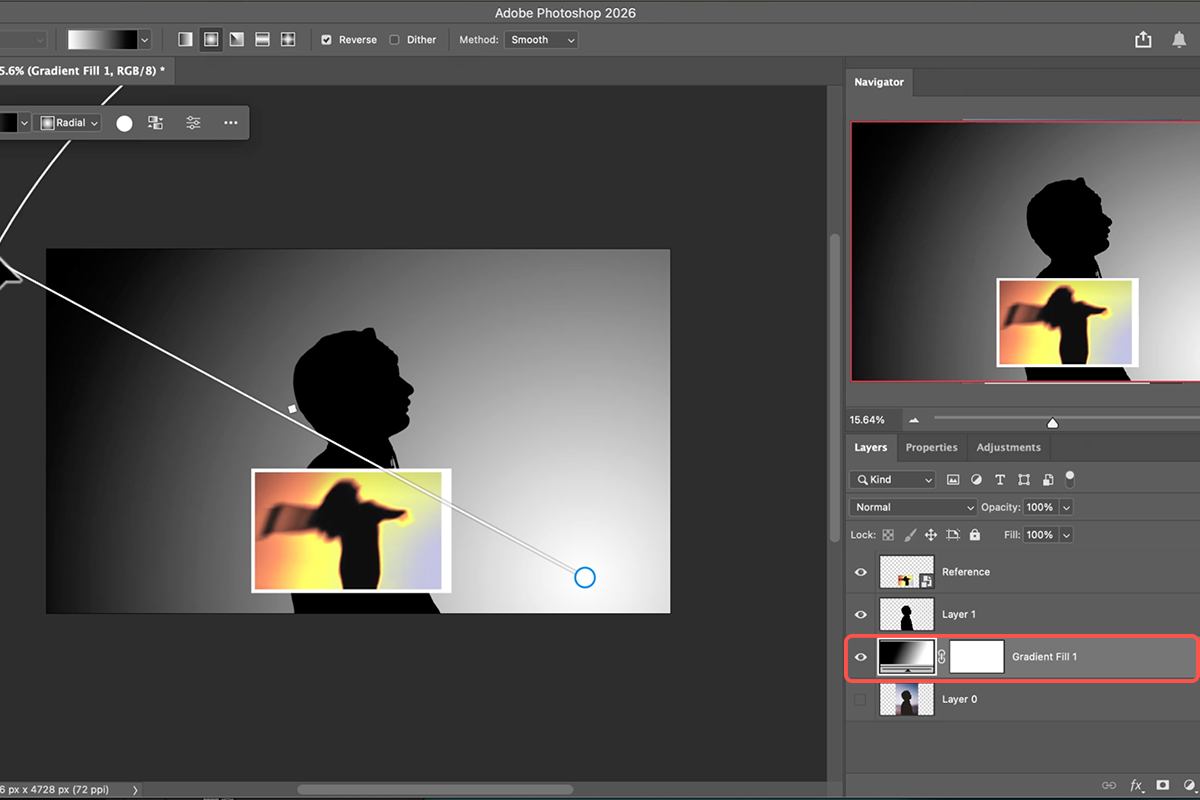
4. Switch to the Gradient Tool (Keyboard Shortcut “G”) and choose a radial “Black to White” preset.
5. Draw a circular gradient behind your subject—the light and dark values here will determine where your future colors appear. Because this is done manually, you can reposition or scale the gradient at any time to change where the light hits the frame.
Create Motion
6. Convert your subject layer into a Smart Object to keep your edits non-destructive.
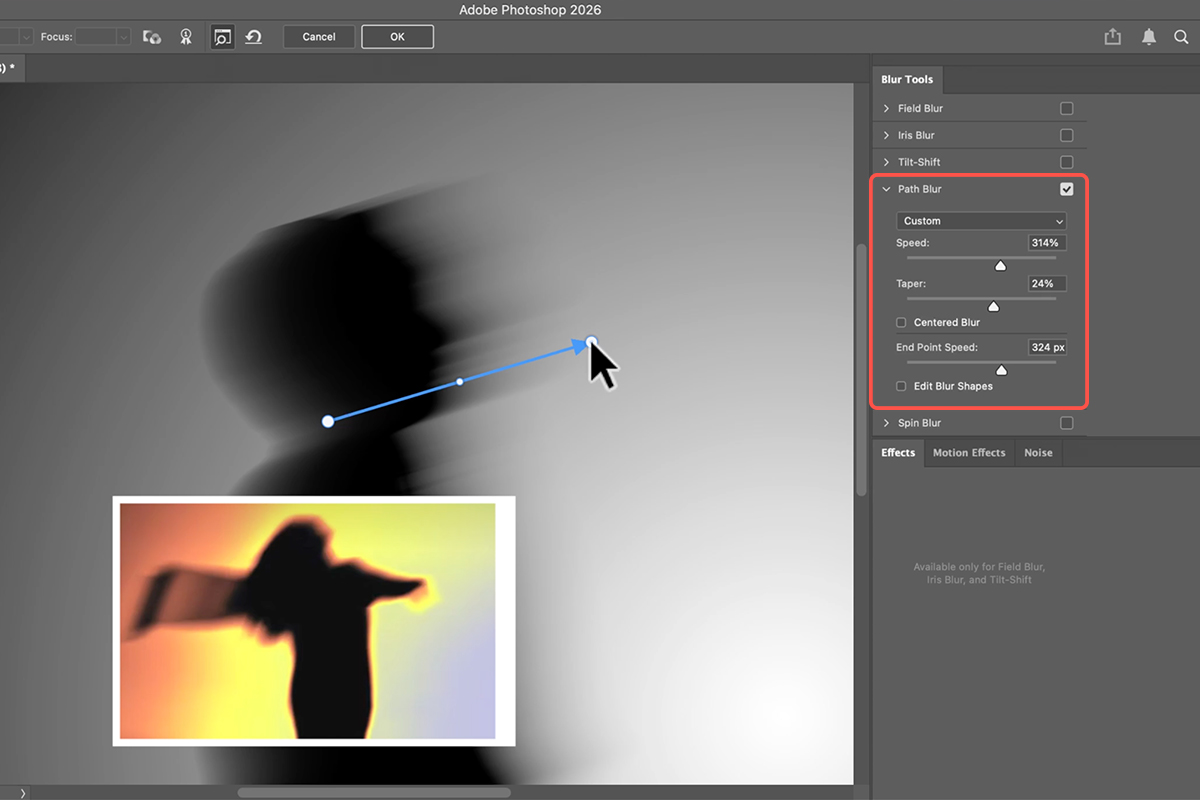
7. Open the Blur Gallery and select Path Blur to draw the direction of the movement.
8. Uncheck Centered Blur to create a one-way motion effect, and adjust the Speed and Taper sliders to make the blur fade out naturally into the background.
Map the Colors
9. Add a Gradient Map from the Adjustments Window to transform the grayscale image into a vibrant artwork. This tool maps specific colors to the light and dark parts of your photo. You can click Reverse to swap the palette or double-click the gradient to manually pick custom colors like teals, oranges, or deep purples for a professional finish.