
Download Assets
This tutorial includes 1 sample image, 1 sample PSD and 1 PDF guide. Downloads are free with a PHLEARN account.
- Download the sample images and PSDs from every free tutorial on PHLEARN
- New free tutorials published every week
- One free account — sign up once, then download anything
Free PDF Guide · 4 Pages
This Tutorial as a Step-by-Step PDF
Every step from the video in order: finding Precision Flow in the Firefly Workspace, uploading your own photo, the edit strength and credit settings, the upscale, Open in Editor, Auto-Align Layers, and masking the original face back in. Keep it next to your keyboard.
description
Discover Photoshop 2026’s new “Precision Flow” AI slider. We test Adobe’s latest feature to see if it’s worth your credits: how it works, how to fix its resolution issues, and a layering trick that keeps your subject’s face sharp and natural.
Enjoying This Free Tutorial?
We publish a new free tutorial every week, each one with sample images and PSDs you can download and follow along with. Sign up and they land straight in your inbox, along with early word on sales, events and subscriber-only offers.
Image Source
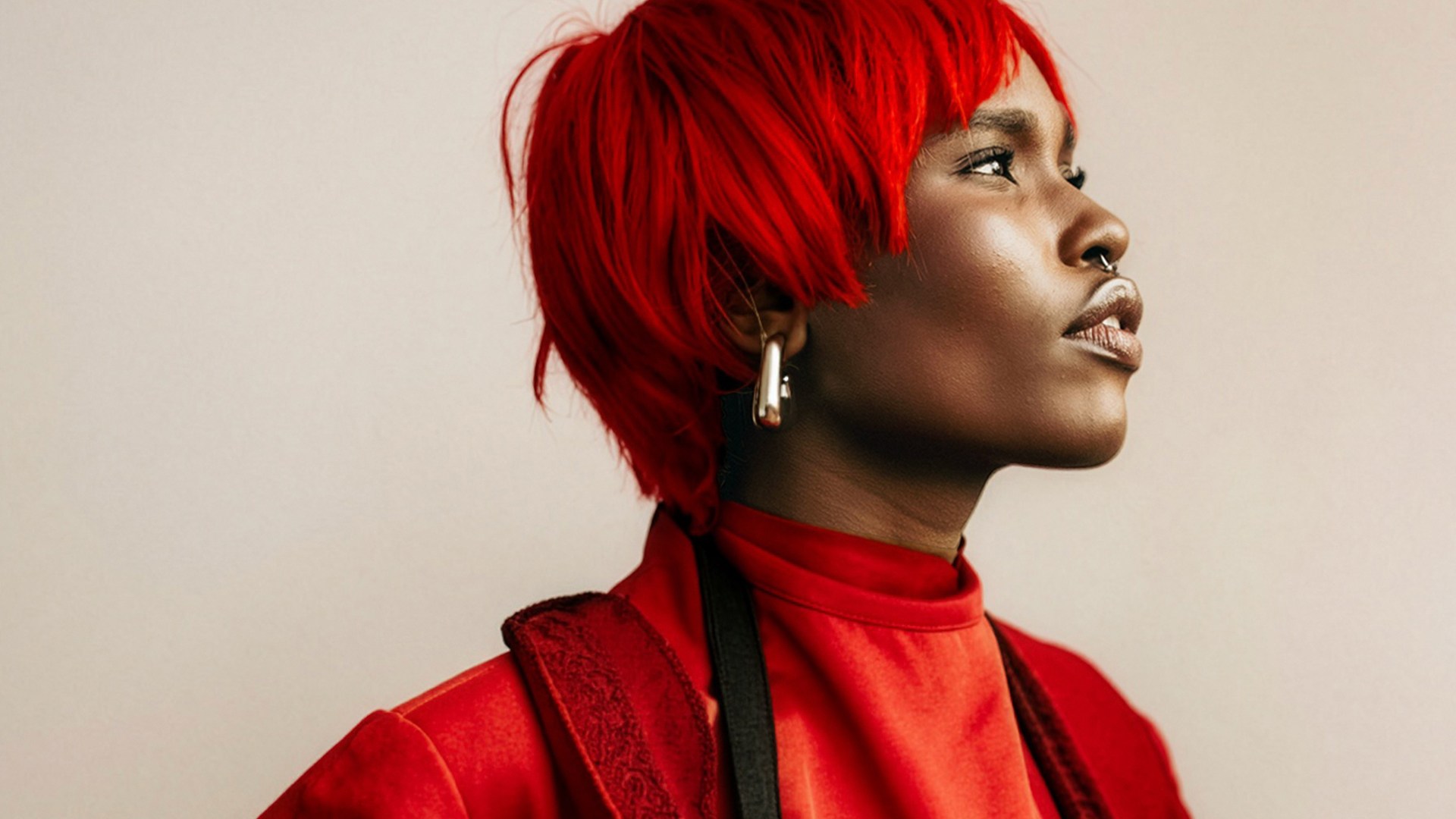
Photo by 1MilliKarat via Unsplash

Is the New AI Slider Worth Your Credits?
Photoshop 2026’s Precision Flow is a genuinely different way to work with generative AI: instead of accepting or rejecting a result, you get an Edit Strength slider and dial the change in until it looks right. Want the jacket a shade darker rather than a different jacket entirely? That’s what this is for.
It also has a real problem. The workspace downsamples your file to 1024 pixels before it does anything, and it hands back something softer than what you gave it — which shows up first and worst on faces. The honest answer to “useful or a total waste” is that it’s useful if you know how to put the resolution back. Here’s the test, and the fix.
What the AI Slider (Precision Flow) Actually Does Well
Change of Degree, Not Change of Thing
Most generative tools are binary: you get the new element or you don’t. A strength slider lets you land at 30% of a change, which is where a lot of real edits live — slightly warmer hair, a slightly heavier coat, a background nudged toward evening rather than replaced.
Good at Clothing, Hair and Environment
Broad areas with soft detail are where it shines. Fabric, hair mass, sky, foliage — things where your eye reads shape and color rather than fine texture.
Bad at Faces
And this is the whole catch. Skin texture, eyelashes and lip edges are exactly the details the downsampling destroys, and they’re exactly the details people look at first. Which is why the workflow below never lets the AI touch the face at all.
Get Into the Firefly Workspace
Precision Flow doesn’t live in the normal Photoshop interface — it’s inside the Firefly workspace, which trips people up on first use.
-
Update Photoshop First
Open Photoshop 2026 and make sure you’re on the latest build. Precision Flow is a beta feature and won’t appear on an older version.
-
Open the Firefly Workspace
From the home screen, look at the left-hand menu and click Firefly Workspace. If you’ve only ever used Photoshop’s main editor, this is a separate environment.
-
Choose Precision Flow (Beta)
Select it from the tool options and click Edit New to upload your image.
-
Prompt, Then Drop the Strength to 0.1
Type your modification into the text box at the bottom — a hair color, a wardrobe change, an environment shift — then immediately pull Edit Strength down to 0.1 before you generate. Starting low and building up gives you a controlled result; starting high means the tool reinvents things you wanted to keep.

Dial It In, Then Put the Pixels Back
This is where you deal with the downsampling. Skipping this step is what makes people conclude the tool is unusable.
-
Find Your Strength Setting
After the first generation, work the slider until the effect is where you want it. Low values keep the original composition; high values start rewriting the photo.
-
Upscale 2x Before You Leave
The workspace has already reduced your file to 1024 pixels. Click Upscale on the right panel, choose 2x, and generate. Do this inside the workspace — it’s cleaner than trying to rescue resolution later. Our free guide to the new Upscale tool covers what it’s doing.
-
Open in Editor
Click Open in Editor at the top right to bring the result back into the main Photoshop interface, where the real work happens.
-
Bring In Your Original
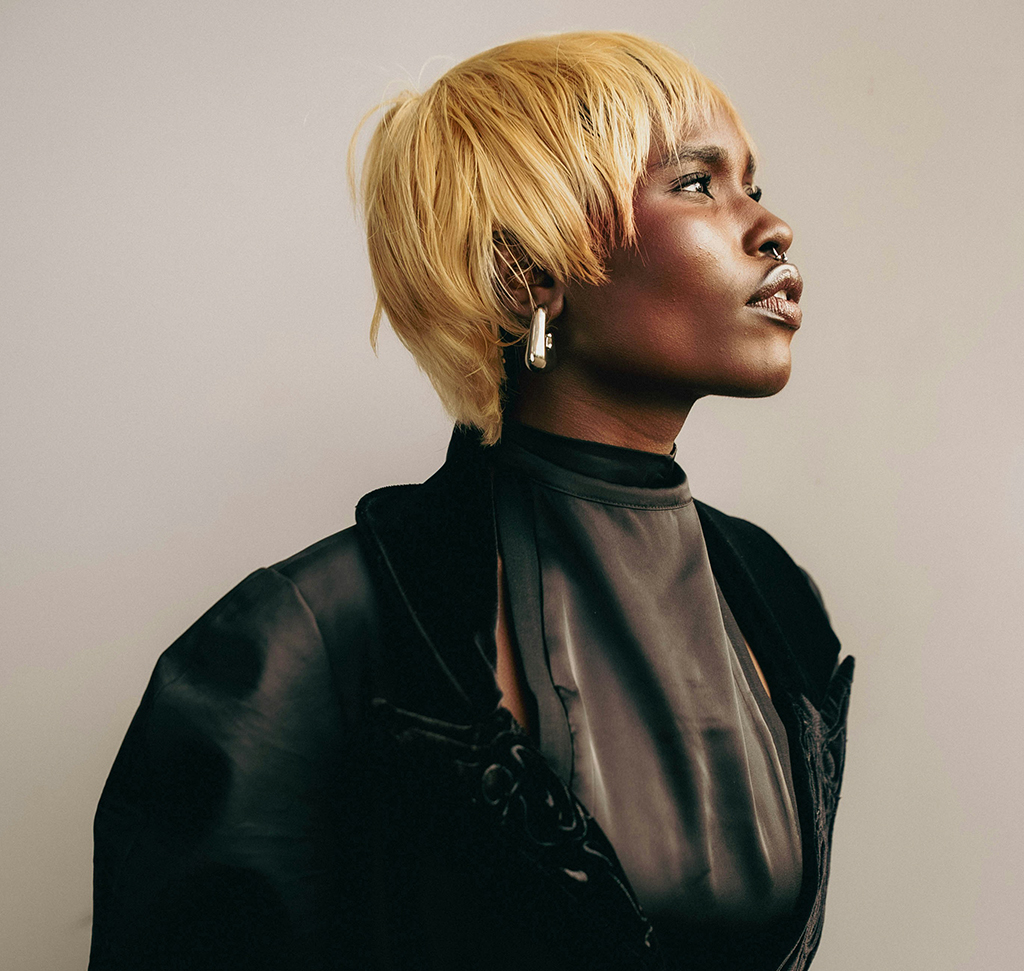
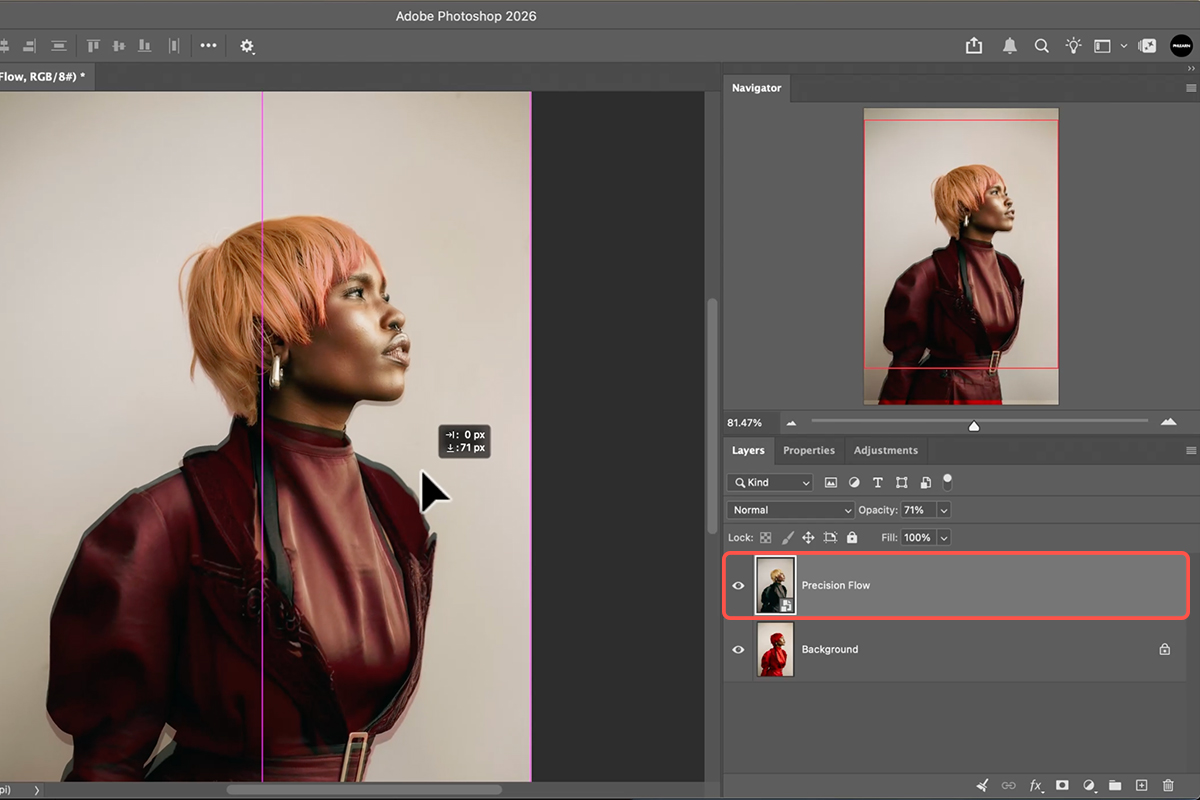
Open your original, full-resolution photo into the same document and place it on a layer directly above the AI version. You now have the untouched detail sitting on top of the generated changes.
Align the Two Versions
Generation shifts things by a few pixels. If you mask before aligning, the face won’t sit quite where the head is, and it’ll look subtly wrong in a way that’s hard to diagnose.
-
Unlock the Background Layer
Double-click the background layer to convert it into a normal layer. Auto-Align can’t work on a locked background.
-
Select Both Layers
Shift-click both layers in the Layers panel so they’re active together.
-
Rasterize a Smart Object
If your original came in as a Smart Object, right-click it and choose Rasterize Layer. Auto-Align won’t run with one in the stack.
-
Run Edit > Auto-Align Layers
Choose Auto and click OK. Photoshop matches the two frames pixel for pixel, correcting the drift the generation introduced. It takes seconds and it’s the difference between a clean composite and a soft, doubled edge.

Mask the Face Back In
The payoff: the AI keeps the parts it’s good at, and your original photograph keeps the parts it isn’t.
-
Select the Top Layer
Click your original photo layer — the one on top — and grab the Object Selection Tool (keyboard shortcut W).
-
Draw a Loose Selection Around the Face
Include the hands too if they’re visible. Loose is fine here; you’re capturing real skin texture, not cutting a precise silhouette, and a soft boundary blends better than a tight one.
-
Add a Layer Mask
With the selection active, click the Add Layer Mask icon at the bottom of the Layers panel. The original face and hands show through at full resolution while the AI’s hair and wardrobe changes come through from the layer beneath.
So, Is the AI Slider Worth It?
Useful, With a Caveat
As a standalone tool it costs credits and gives you back a softer image — that’s a bad trade for finished work. As one layer in a composite, where you’re using it for the wardrobe and keeping your own face and hands, it does something no other Photoshop tool does: partial, dialable generative change.
Best for Concepting
Where it earns its keep fastest is exploration — trying six wardrobe directions before a shoot, or showing a client three environment options. At 0.1 strength you can iterate quickly without committing.
Not a Replacement for Retouching
None of this substitutes for actually editing a portrait properly. If the goal is a finished image, the AI handles the change and traditional technique handles the quality — our PRO Advanced Portrait Editing course covers that side of it.
Mistakes That Waste Credits
Starting at High Strength
Generating at full strength and then trying to dial back means regenerating. Start at 0.1, look, and climb.
Forgetting to Upscale Before Exporting
Leave the workspace without upscaling and you’re stuck with a 1024px file. There’s no way to get that detail back afterwards.
Masking Before Aligning
Mask first and the original face lands a few pixels off from where the AI put the head. Auto-Align, then mask — always that order.
The Principle Worth Keeping
The technique here generalizes well beyond this one tool. Any generative feature that degrades quality can be used as a layer rather than a destination: generate, bring your original back on top, align, and mask through the parts the AI shouldn’t have touched. That’s a compositing workflow, and it’s older than any of these features.
It also means you never have to accept the trade a tool offers you. If the AI gives you 80% of what you want and takes something in exchange, you keep the 80% and take the rest back manually.
Try It on Your Own Portrait
Firefly workspace, Precision Flow at 0.1, upscale 2x, open in editor, original on top, Auto-Align, mask the face. Download the free sample image and PSD to work through the exact example — then run it on a portrait of your own with a wardrobe change, where you’ll immediately see how much sharper the masked face reads against the generated layer.
Quick Reference: Keys, Menus and Settings
- Find Precision FlowPhotoshop Home screen > Firefly Workspace > Precision Flow (beta)
- Use your own photoEdit New > Upload, then Precision Flow in the left panel
- Settings before you generateEdit Strength down to 0.1; the partner model is unnamed; 5 credits per generation
- What you getA slider from the original to the full edit, downsized to 1024 px; Apply when you like a point
- Get the size backUpscale > 2x (5 more credits)
- Back into PhotoshopTop right > Open in Editor (or download the image)
- Line up the originalDrag the original in, double-click Background to unlock, Layer > Smart Objects > Rasterize, select both, Edit > Auto-Align Layers > Auto
- Keep the real faceObject Selection tool, drag a box around the face on the original layer, click Add Layer Mask
Mac first, then Windows where they differ.

Free Downloads
Follow Along on the Same Photo
Get the sample image, the finished PSD with the masked-back face, and the PDF guide, and run Precision Flow on the same portrait. Free with a PHLEARN account.
Precision Flow: Common Questions
What is the AI slider in Photoshop?
It’s called Precision Flow. You type a prompt, generate once, and get a slider that runs from your original photo to the full edit, so you decide how much of the change to keep. It’s in beta inside the Firefly Workspace.
Where do I find it?
Update Photoshop 2026, go back to the Home screen and click Firefly Workspace on the left. Precision Flow is one of the tools there. To use your own photo instead of the demo image, click Edit New, then Upload.
How many credits does it use?
Five per generation, and it tells you before you click. The upscale afterwards is another five, so the result in the video cost ten credits in total.
Why set Edit Strength to 0.1?
Because the default results are too much. After a lot of testing, Aaron starts every generation at 0.1 and lets the slider do the rest. You can push it higher, but low strength keeps the result closer to a photograph.
Which AI model does it use?
It only says “partner model.” Adobe usually names the model (Gemini, Flux and so on), but here it doesn’t.
Why does my image come out smaller?
Precision Flow downsizes whatever you upload to 1024 pixels. After you Apply, use the Firefly Upscale at 2x to get some size back; it costs five more credits and isn’t full quality, which is why the face swap at the end matters.
How do I get the result into Photoshop?
Top right of the Firefly Workspace: download the image, open it in Firefly on the web, or click Open in Editor. “Editor” means Photoshop. That opens the result as a document.
How do I keep the real face?
Drag the original photo in as a layer, unlock the background by double-clicking it, rasterize the Smart Object, select both layers and run Edit > Auto-Align Layers. Then use the Object Selection tool to draw a box around the face on the original layer and click Add Layer Mask. You get the AI hair and clothes with the person’s actual face.
Is it worth using?
Aaron went in skeptical and came out liking it. Five credits buys far more variations than three fixed generative fill results, and with the original face masked back in, the slider is useful. On its own, the resolution loss is the catch.
Are the sample files free?
Yes, with a free PHLEARN account. You get the sample image, the layered PSD and the PDF guide.
Master Photoshop, Lightroom and Photography
Join PHLEARN PRO for $12.99 a month or $99.99 a year. Cancel anytime, with a 100% money-back guarantee.