
THIS COURSE INCLUDES
- 6 Lessonsfollow-along
- 2h 53mof 4K video
- Beginner-Friendlysix start-to-finish projects
- 25 Sample Images+ 5 illustrations
- 7 Layered PSDsevery finished project
- Captionsand chapters on every lesson
Part of a Learning Path
Join PHLEARN PRO for instant access to this course and every tutorial on PHLEARN.
- Stream in up to 4K on any device
- Closed captions and chapters on every course
- Download all sample images and PSDs
- New PRO tutorials every month
- Cancel anytime
Description
Graphic photography is where photos stop being photos and start being art: illustrations, sketches, textures, and bold shapes woven into a portrait until the whole thing reads as one piece. In this beginner-friendly course you build six finished projects from start to finish in Photoshop 2026, from a dreamy double exposure to a screen-printed pop art poster, and every photo, texture, illustration, and layered PSD is included so you can follow along layer by layer.
You will learn the fundamentals that make graphic photography work (blend modes, layer masks, clipping masks, and the sandwich technique that places elements both behind and in front of your subject) plus a manual contour-line effect you automate with a Photoshop Action, a custom illustration built in the new Firefly workspace, halftone and sketch conversions with Generative Fill, and the Camera Raw finish that ties every project together.
What You’ll Learn
- Blend photos, illustrations, and textures into one image
- Layer elements behind and in front of your subject naturally
- Master blend modes and masks the base of every technique here
Course Downloads
Design Beyond Reality

Graphic Photography for Beginners
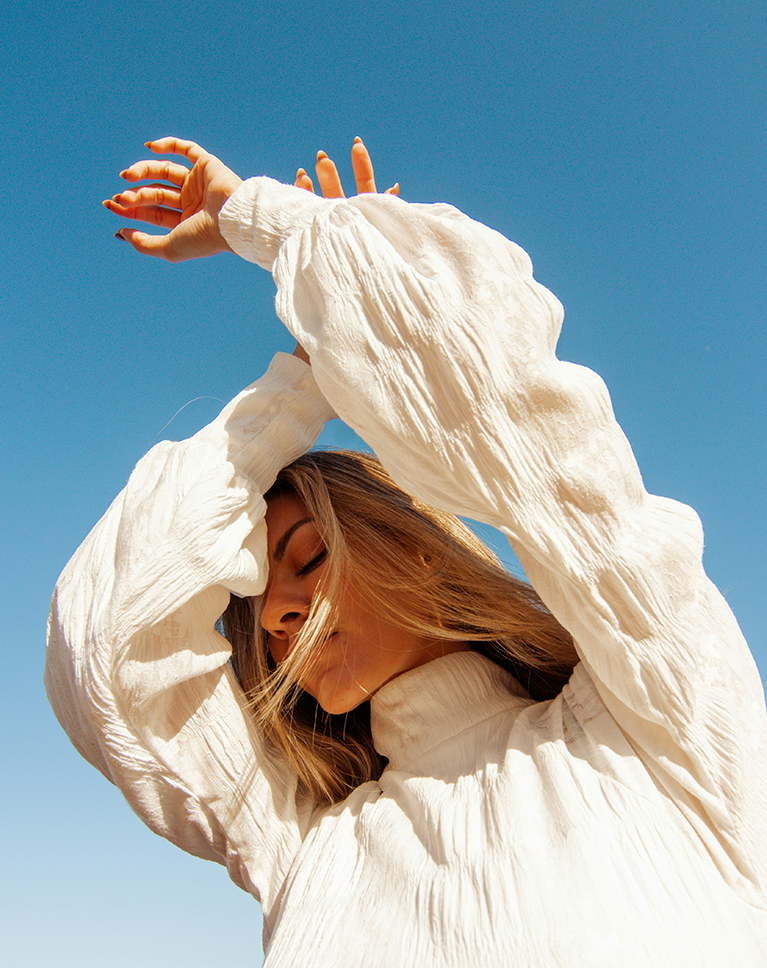
Every project in this course follows the same simple idea: start with a photograph, add graphic elements, and blend them until nothing looks pasted on. We keep it approachable, working with placed smart objects, a handful of blend modes, and layer masks you refine with Select and Mask, so even if you have never combined graphics and photos before you will finish with six pieces you are proud of.
Blended Exposures
The first project blends two motion-blurred flower photos into a portrait, the simplest form of graphic photography and the best place to start. You will cut the subject out with Select Subject, drop the flowers behind her with the Screen blend mode, then unlink the mask so you can move, rotate, and flip the flowers without losing the cutout. A second flower layer painted in with a low-flow brush in front of the subject creates the sandwich effect that gives the image real depth.
Photos Meet Pencil Sketches
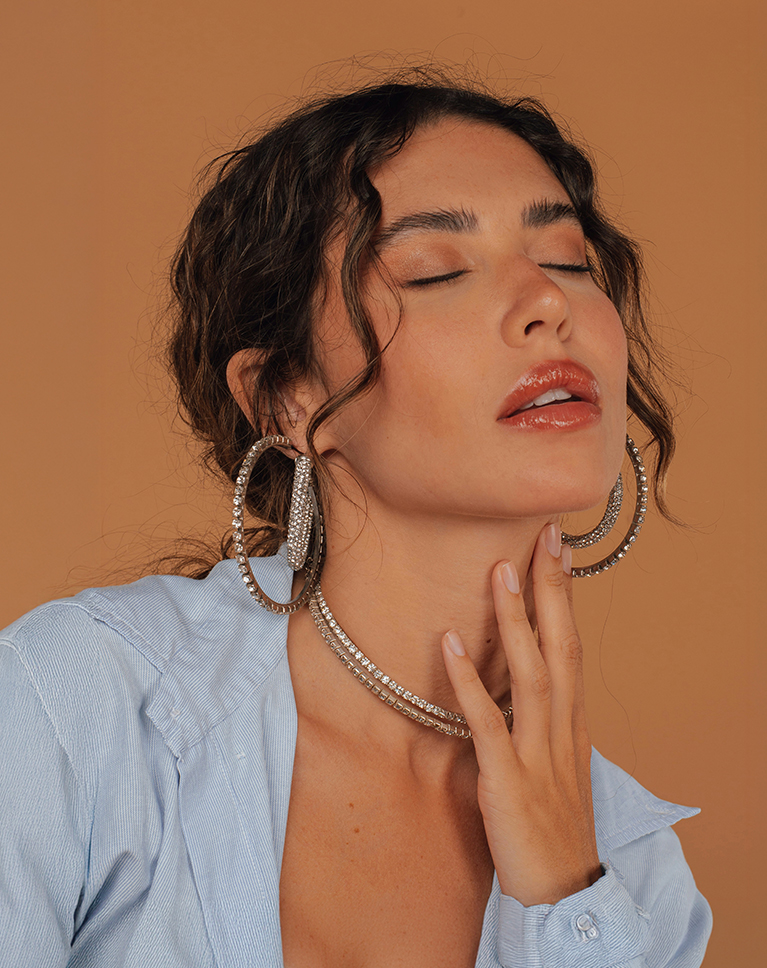
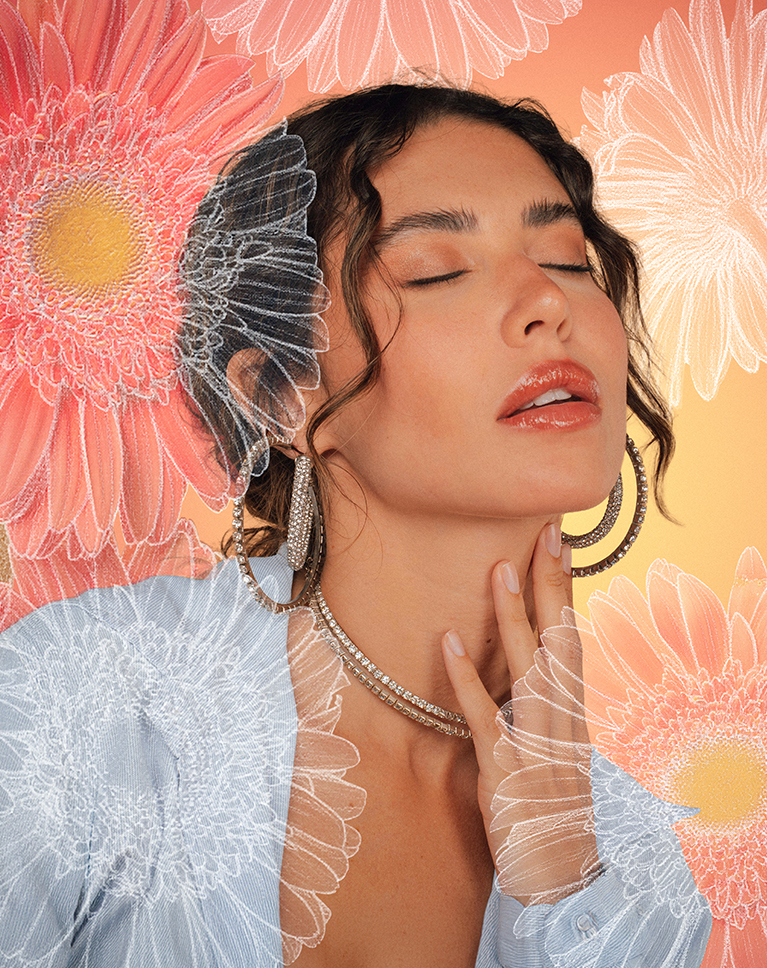
Project two, a graphic photography classic, composites flower photos with matching pencil-sketch versions. You will copy a mask from one layer to another with an Alt-drag, invert a sketch and Screen it over the subject, and learn the grouping trick that lets the photo flowers sit behind her while their sketches pop out in front. A radial gradient sampled from the image ties the background to the scene.
Blend Modes & Layer Masks
Photoshop is all about how layers interact, so graphic photography leans on a few blend modes used well: Screen to keep only the light parts of a texture, Multiply to keep the dark, Soft Light to overlay a halftone, and Darken to tint. Along the way you will learn why a mask sometimes needs inverting, how to link and unlink layers, and how clipping masks keep every color and adjustment locked to one element.
Advanced Masking
Graphic photography lives or dies on the edges. You will refine selections in Select and Mask with Feather, Shift Edge, and Contrast, duplicate one mask across several layers, and use the expand-and-smooth trick on a selection to leave a clean outline gap around your subject, so illustrations wrap around a person instead of cutting through them.
Depth with the Sandwich Technique
A graphic behind the subject takes an image halfway; a second element in front finishes it. In several projects you will group a layer with itself, put the subject selection on the group, and invert it so photos sit behind while sketches and illustrations float in the foreground, creating a dimensional look that feels woven into the scene.
Make It Pop
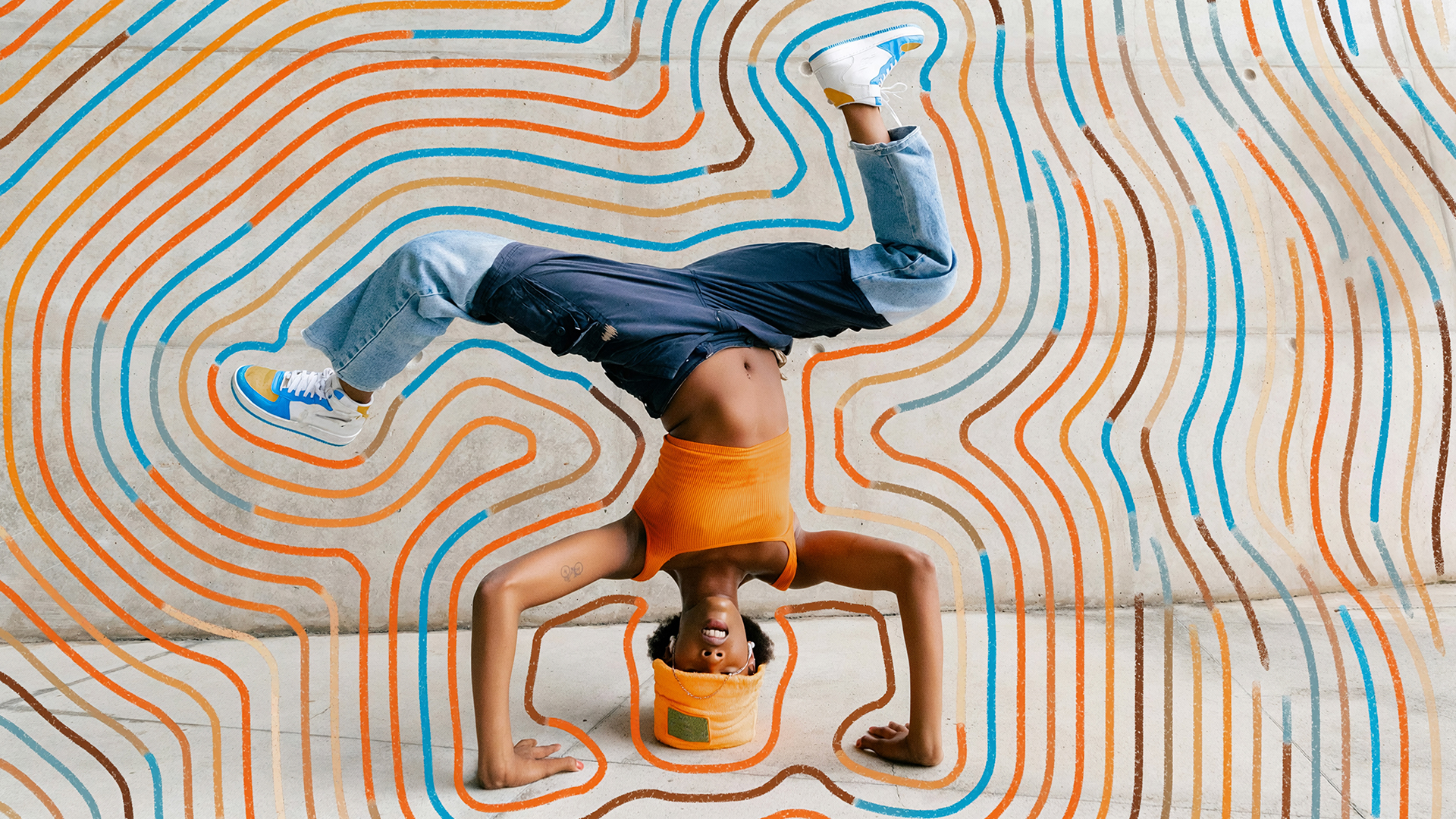
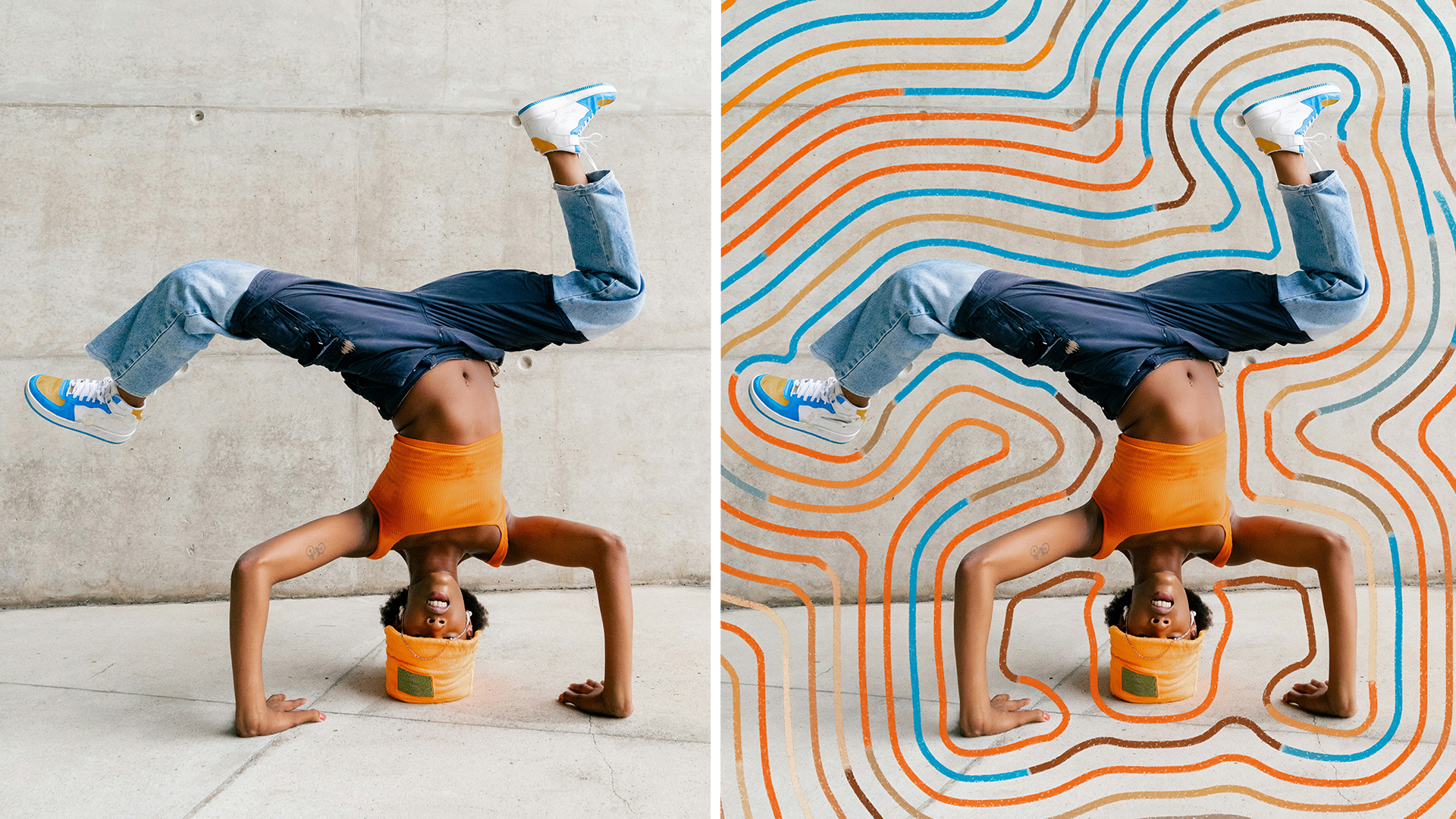
The contour-line portrait is the heart of the course, and it is built by hand. You will expand and smooth a selection of your subject, fill a layer, drop its Fill to zero, and add a Stroke layer style to draw the first line, then record those steps as a Photoshop Action and play it until the lines reach the edge of the frame. From there you color the lines five different ways, from a clipped solid color and a sampled gradient to freehand painting and a Generative Fill crayon pass, and turn the variations into an animated GIF.
Actions Panel Workflow
The Actions panel turns a tedious sequence into a single Play button. You will record loading a selection, expanding and smoothing it, creating a layer, filling it, setting Fill to zero, and adding a Stroke, then run the action over and over to build concentric lines in seconds. It is the same automation you can apply to any repetitive step in your own graphic photography.
Custom Illustrations in the Firefly Workspace
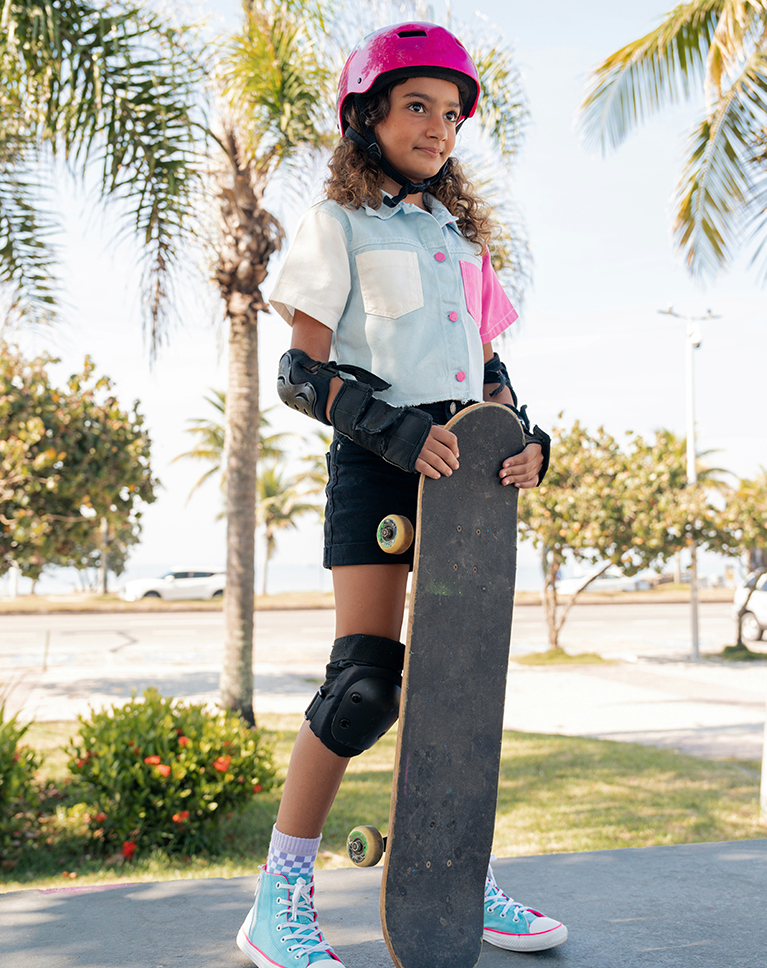
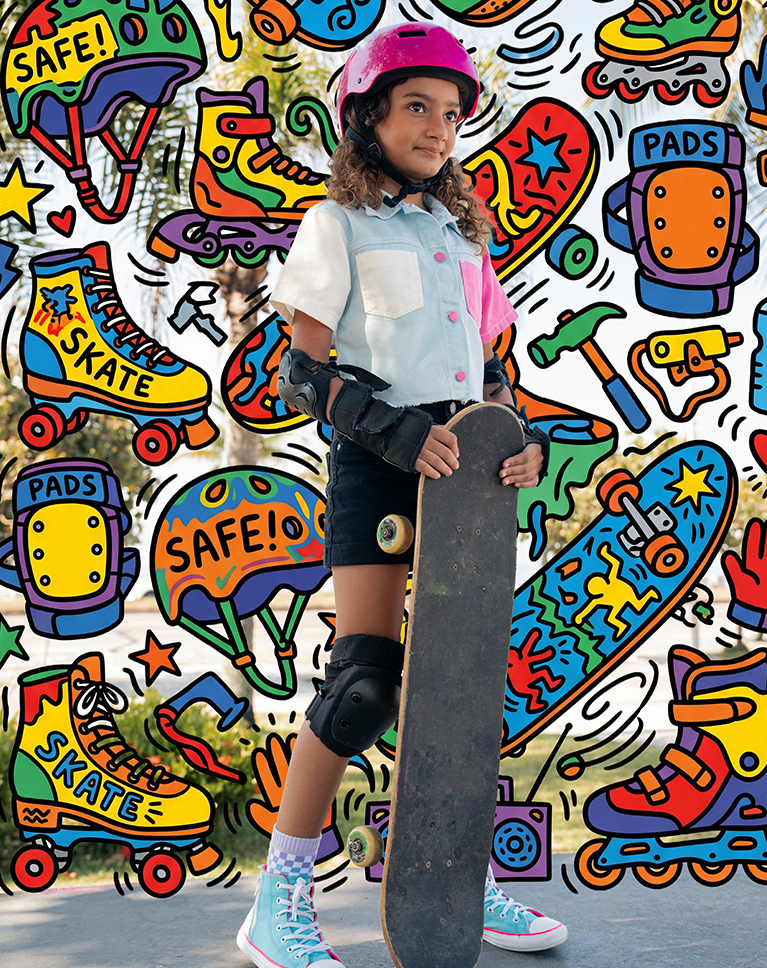
For the skateboarder project you open the Adobe Firefly workspace and write a prompt for a colorful 2D illustration of skate gear on a white background, compare the output of different image models, remove the background, and export a transparent PNG. Back in the portrait you scale it up, mask it behind the subject, and add more illustrations until the wall is covered. Every generated asset is included in your download, so no credits are needed to follow along.
Pop Art Portraits
The halftone project fuses a portrait with a black-and-white halftone conversion set to Soft Light, colorized with a clipped Hue/Saturation layer. You will build a composition of circles with the Ellipse tool, punch holes with the Elliptical Marquee, fill shapes with a halftone texture, add a bold Stroke around the subject, and finish with grain and a vignette for a genuine screen-printed poster look.
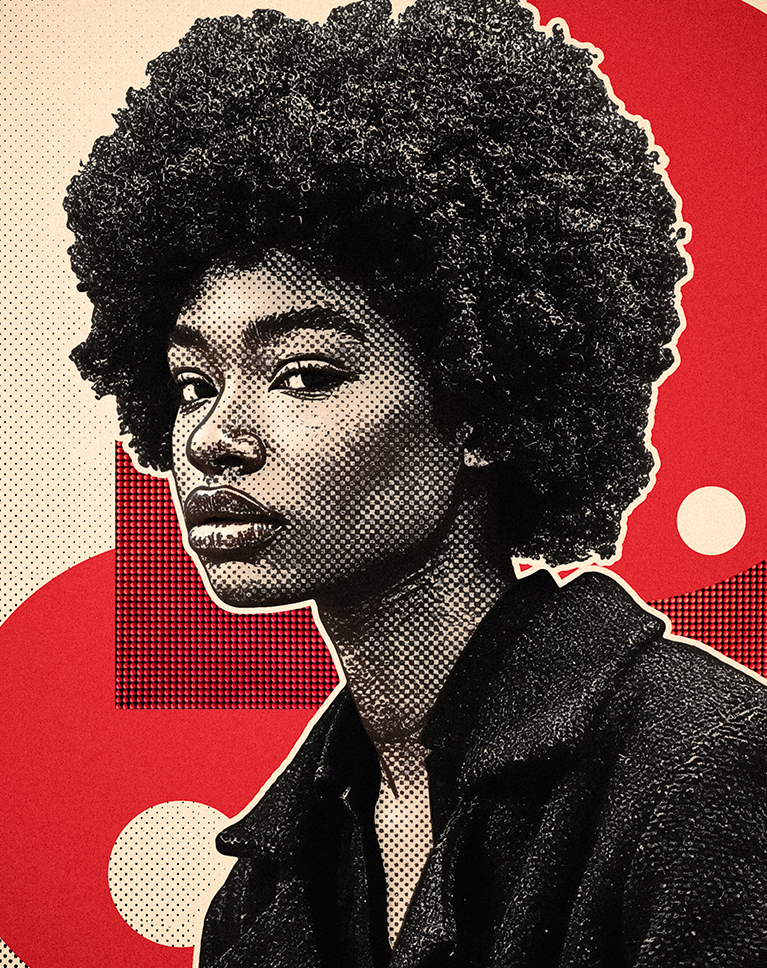
Monochromatic Sketch
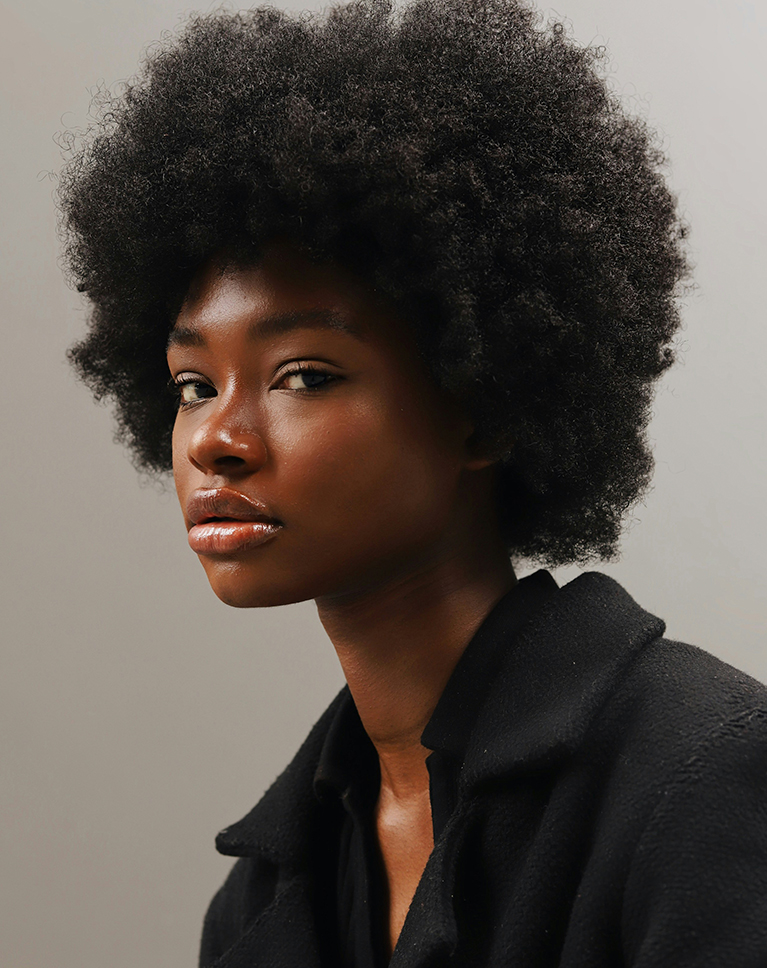
The final graphic photography project converts a portrait into a pen sketch, then surrounds it with overlapping ellipses filled with textures clipped to each shape and set to Screen. A single colorized Hue/Saturation layer on top unifies every element in one green tone, and grouping each circle with its texture keeps the whole composition easy to rearrange.
Camera Raw Finishing Touches
Nearly every graphic photography project ends the same way: Apply Image to a new layer, convert it for smart filters, and open the Camera Raw Filter for matching grain, a vignette, and a radial exposure boost on the face. It is a subtle step you barely notice on its own, but the before-and-after shows how it turns a stack of layers into one cohesive image.
Everything You Need to Follow Along
This graphic photography course includes 25 sample images and 7 layered PSDs: every portrait, texture, sketch, halftone, and illustration, so you can rebuild each project layer by layer. When you are ready for more, continue with our Graphics & Text Learning Path: 7 courses and over 20 hours on blending graphics, photos, and text.

Class Instructor
Aaron Nace
PHLEARN Founder & Lead Instructor
Aaron Nace is a photographer, digital artist, and the founder of PHLEARN. Since 2011 he has taught millions of people to edit with confidence in Photoshop and Lightroom, on YouTube and in PHLEARN PRO, and he has been a featured speaker at Adobe MAX for more than eight years.
Every PRO course comes with the sample images and PSDs to follow along step by step, and Aaron adds new courses and free tutorials all year.
- 2M+YouTube subscribers
- 160M+video views
- 1,000+tutorials published
- 15years teaching Photoshop
The portraits in this course are stock photos and the textures come from Unsplash; every sketch, halftone, and illustration was generated in Adobe Firefly and is included in your download, so no credits are needed to follow along.
Reviews
Master Photoshop, Lightroom and Photography
Join PHLEARN PRO for $12.99 a month or $99.99 a year. Cancel anytime, with a 100% money-back guarantee.






As usual excellent course. Well structured with great content. My only slight downside is about constant repetition of things like how to do clipping masks and one or two other more basic areas. After all this is a pro tutorial. Just saying.
Thanks for the feedback! We’re glad the structure and content worked for you. We hear you on the repetition. We’re aiming to make the course useful across different skill levels, so some foundational steps like clipping masks show up more than a pro might need. We appreciate you flagging it, and we’ll keep it in mind for future tutorials, especially for more advanced material!
Aaron, I love the way. you teach … it is always so complete … you point out most or all of the pitfalls and I can follow along without trying to figure out “How did he did do that!!” Peter
That means a lot, Peter — I try to slow down at exactly the spots where I know people usually get stuck, so I’m glad it actually landed that way for you. Thanks for following along and for the kind words.
I like the graphic design (and scenic composite) PHLEARN lessons. The lessons are applicable to commercial work and provide a nice break from typical photo-edit workflow. Aaron, you’re creative ways of showing the value of AI (Firefly) and new Ps/LrC feature are appreciated.
Really glad these lessons feel useful for commercial work, William, that’s exactly the kind of break I was going for when I made them. Appreciate you noticing the AI and new feature stuff too, I have a lot of fun figuring out how to weave that into real workflows.
An amazing tutorial to follow along, I absolutely go test out for more. Thank you, Aaron!
Oh my gosh this is a gorgeous technique. Please do more of these tutorials as I love how you apply graphics with photography – so beautiful. Thank you!
Great work!
Great lesson, as always. Even after all these years, you always bring something new to the mix! Thank you for helping us be better. 🙂
I love the pencil sketch video. Have tried it with a butterfly and also flipped it to create a second one.
Outstanding Tutorial on mixing Photo’s and Illustration into photoshop. Love to see more tutorials on this topics. Thank you
By far the best instructor I´ve experienced.
another wonderful tutorial please do more of this style of editing I love the artistic effect and beautiful images
Excellent step-by-step explanations! Enjoyed it!
Arron’s tutoraials are always excellent – well explained with great files to work from and also great support from the PHLEARN Team if you have any problems. I have been a customer for many years and don’t ever need to use anpother site for PS and LR tutorials.
Really enjoyed this class. Thanks Aaron for sharing your ideas and teaching
I love Aaron’s more creative/arty type tutorials, they make photoshop fun and show how AI can be used in a creative and imaginative way.
Hello Aaron, Worked through the first tutorial with you and finished with a great image, now to try on my own images. Thanks, I enjoyed it a lot. Alec
Aaron, thanks so much. I learned a lot!
Hello Aaron, Watched the first chapter, great. What a fantastic tutorial for my project. I can give the people I portrayed a beautiful (art) photo to hang on the wall, for example. Thanks and regards, Henk