
Download Assets
description
Discover the power of Generative Upscale in Photoshop 2026. This tutorial demonstrates how to transform low-resolution, pixelated vintage photos into high-definition images using AI. We’ll experiment with Adobe Firefly, Topaz Bloom, and the top-performing Topaz Gigapixel model to achieve 4x magnification with incredible detail while maintaining the original image’s integrity.
Go PRO:
Dive deeper into the world of Photoshop with our in-depth PRO Photoshop Learning Path . Across 11 courses and 53 hours of engaging content, you’ll learn Photoshop’s ins and outs, master pro-level tools, and tackle fun and challenging projects..
Share

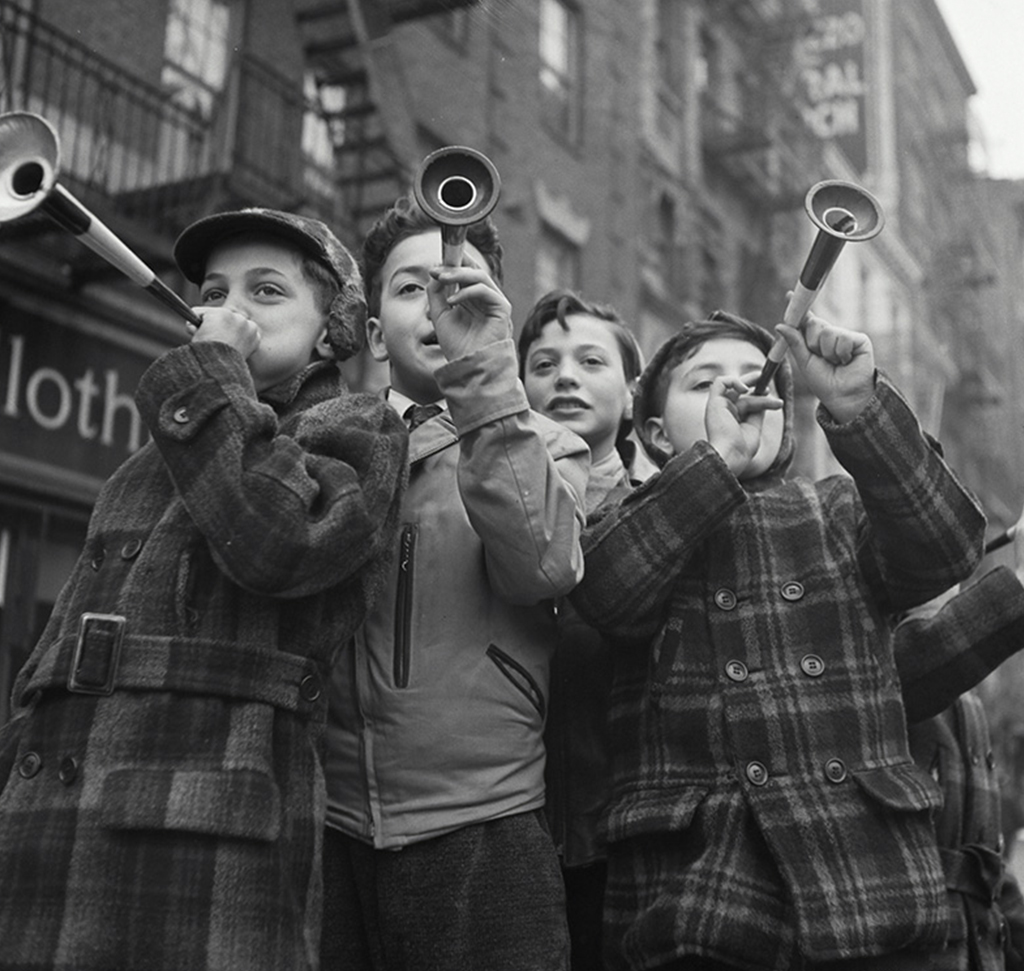
AFTER
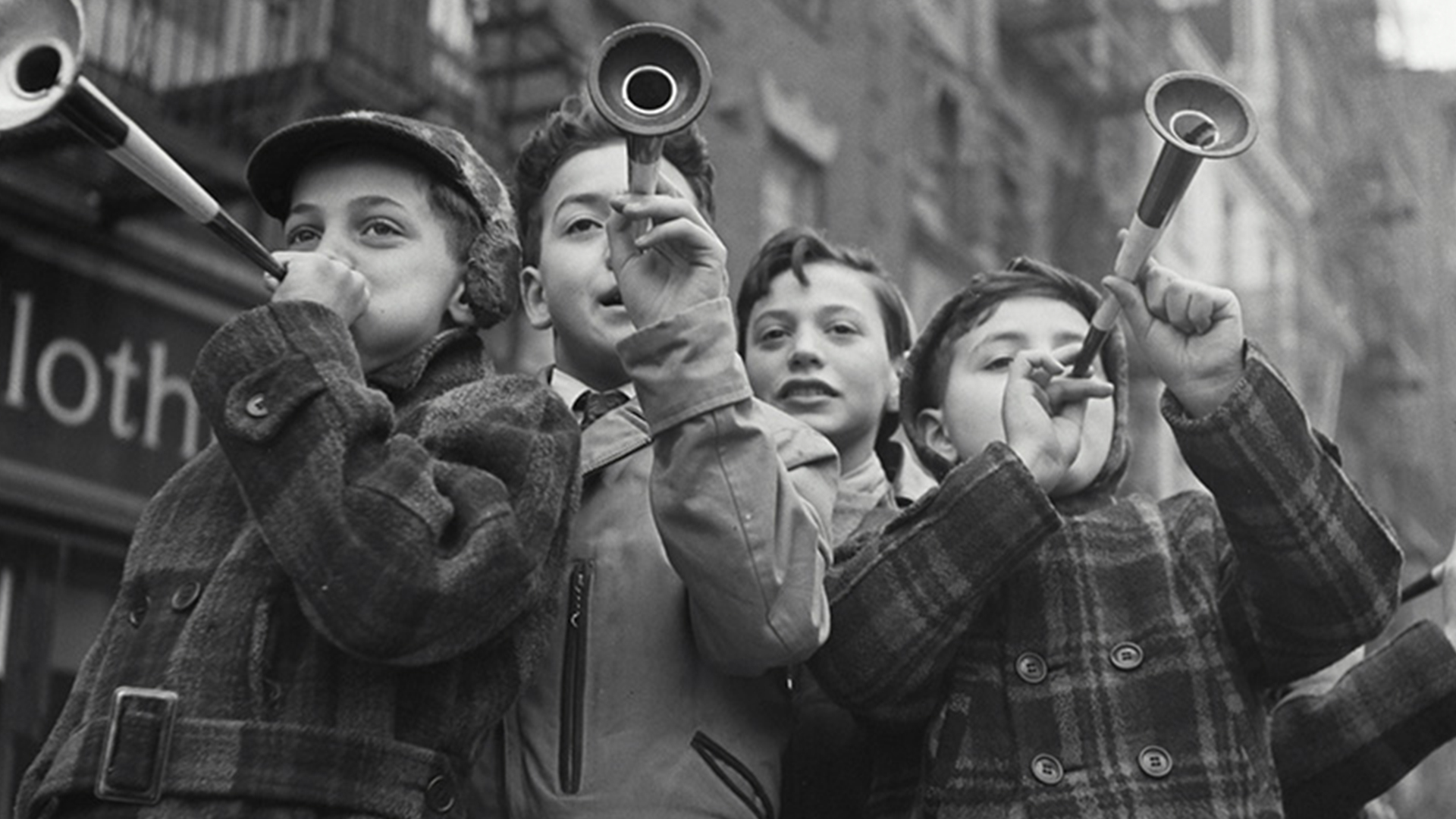
BEFORE
Detail Without Compromise
Generative Upscale in Photoshop 2026 provides a practical solution for salvaging low-resolution or vintage imagery. Older photographs often suffer from heavy pixelation and a lack of discernible detail when enlarged. By using AI to reconstruct missing data rather than simply stretching existing pixels, this tool allows for significant magnification while maintaining the visual character of the original shot.
Getting Started
1. Open your low-resolution or vintage image in Photoshop.
2. Press Ctrl/Cmd + 1 to view the image at 100% so you can see the extent of the pixelation before you begin.
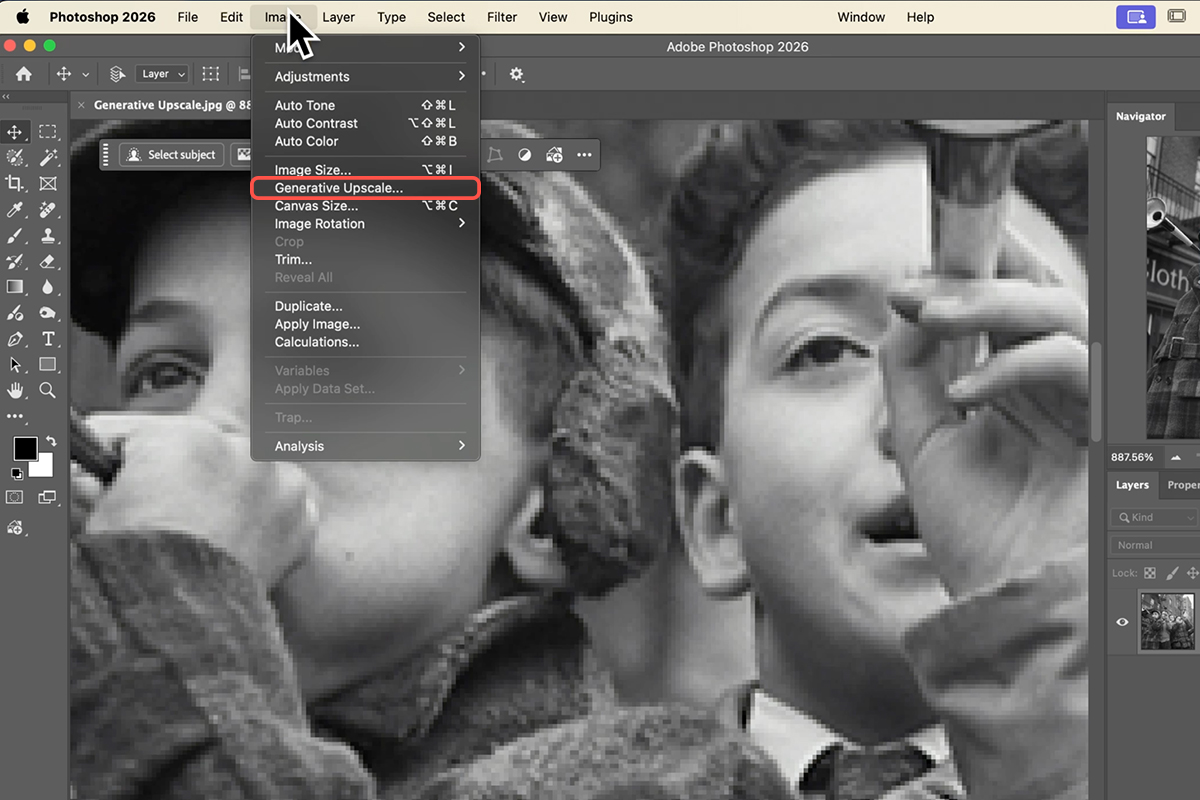
3. Navigate to the top menu bar and go to Image then scroll down to Generative Upscale.
Select Your AI Model
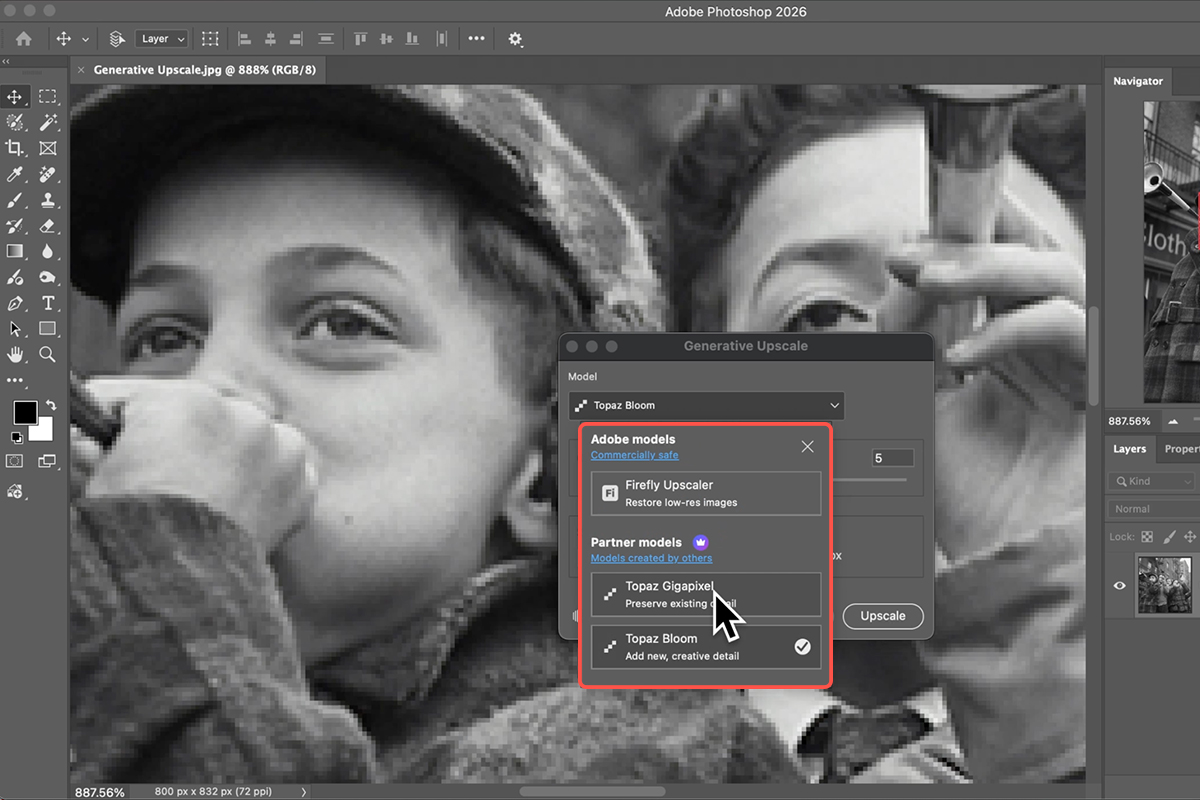
4. In the dialog box, choose your preferred model from the dropdown menu. We recommend Topaz Gigapixel for realistic detail, while the Firefly Upscaler provides standard results. Avoid Topaz Bloom for portraits as it can significantly alter the appearance of people.
5. Choose your magnification factor from the options provided. For a dramatic improvement in size and clarity, select 4x from the scale settings.
6. Click the Upscale button to begin the process. Photoshop will use AI to process the image and intelligently fill in the missing details.
Compare & Save
Photoshop creates a new file automatically so your original remains untouched. Press Ctrl/Cmd + 0 to Fit to Screen. Toggle the visibility of the new layer to see the “Before” vs. “After,” then press Ctrl/Cmd + S to save the high-res version.