
Join PHLEARN PRO for instant access to this course and every tutorial on PHLEARN.
- Stream in up to 4K on any device
- Closed captions and chapters on every course
- Download all sample images and PSDs
- New PRO tutorials every month
- Cancel anytime
Watch the Full Series
Description
The Paths panel is where every vector you draw in Photoshop lives – Pen tool paths, shape outlines, anything mathematical rather than pixel-based. From there a path can be filled, stroked with any brush, converted to a selection, or turned into a vector mask you can reshape at any time. This lesson covers the whole panel and finishes with a practical job: masking a new sky in behind a building.
Course Downloads
Learn Paths
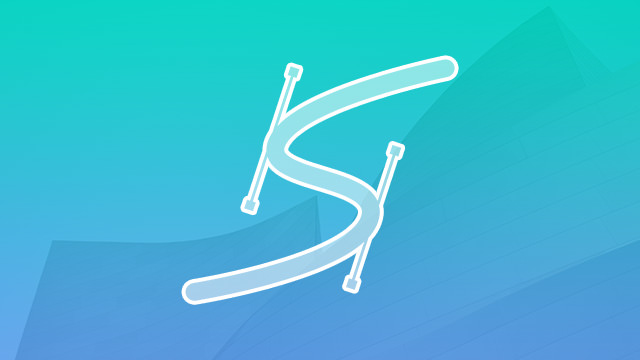
Where Paths Live
Window > Paths opens the panel, which starts empty. Draw anything with the Pen tool and it appears as a Work Path – a temporary slot that gets overwritten the next time you draw. Double-click it and give it a name to make it permanent. Paths are stored completely separately from layers, so make sure you have the right layer selected in the Layers panel before you act on a path.
Fill and Stroke Paths
The icons along the bottom of the panel act on the active path. Fill with foreground color floods the shape onto your current layer. Stroke with brush traces the path using whatever brush you have loaded – set your size and hardness first, because it uses them exactly. Right-click the path and choose Stroke Path instead and you get a dialog with a tool menu and a Simulate Pressure checkbox, which tapers the stroke thin-thick-thin. That is how you get a hand-drawn ink look from a mathematically perfect curve.
Paths and Selections
Click the Load path as selection icon, or Ctrl/Cmd + click the path thumbnail, and your vector becomes a selection – which is why the Pen tool is the most precise cutout tool for anything with hard, clean edges. The reverse works too: the Make work path from selection icon converts an active selection into a path, though it arrives with far more anchor points than a hand-drawn one and is rougher as a result.
Vector Masks from Paths
Click the mask icon once with a path active and you get a normal layer mask; click it again and you get a vector mask, which sits alongside the layer mask in the Layers panel. The advantage is that it stays editable forever – grab the Pen tool, move an anchor point, and the layer’s visibility updates instantly. If a cutout is not quite right, you fix the curve rather than repainting a mask.
Masking In a Sky with Paths
Trace a building with the Pen tool – click for corners, click and drag for curves, hold Alt/Option to break a handle where the curve changes direction, and Ctrl/Cmd to nudge anchor points. Name the path, load it as a selection, then with your sky layer active click the layer mask icon and press Ctrl/Cmd + I to invert so the clouds sit behind the building. Set the sky layer to Lighten or Screen so only its bright areas show. Finally, unlink the layer from its mask (click the chain icon) so you can scale and reposition the clouds while the mask stays locked to the building.
Paths Quick Reference
- Window > Paths; rename the Work Path to keep it
- Ctrl/Cmd + click the thumbnail – load the path as a selection
- Right-click > Stroke Path – pick a tool and enable Simulate Pressure
- Click the mask icon twice – create an editable vector mask
- Unlink the chain between layer and mask to move them independently
- Paths are vectors: infinitely scalable, endlessly re-editable

Class Instructor
Aaron Nace
PHLEARN Founder & Lead Instructor
Aaron Nace is a photographer, digital artist, and the founder of PHLEARN. He has been teaching Photoshop, Lightroom, and photography since 2011, and has taught at Adobe MAX for more than eight years.
Aaron publishes a free tutorial every week and a new in-depth PRO course every month.
- 2M+YouTube subscribers
- 160M+video views
- 1,000+tutorials published
- 15years teaching Photoshop
Reviews
There are no reviews yet.
Master Photoshop, Lightroom and Photography
Join PHLEARN PRO for $12.99 a month or $99.99 a year. Cancel anytime, with a 100% money-back guarantee.





