
Download Assets
description
Adobe just dropped an amazing update! Forget struggling with circular text; now you can instantly snap your words into circles, arches, and blocks. In this tutorial, we’ll show you how to use these new tools in Photoshop Beta to create professional, flexible layouts that perfectly fit any design.
Go PRO:
Dive deeper into the world of Photoshop with our in-depth PRO Photoshop Learning Path . Across 11 courses and 53 hours of engaging content, you’ll learn Photoshop’s ins and outs, master pro-level tools, and tackle fun and challenging projects..
Share
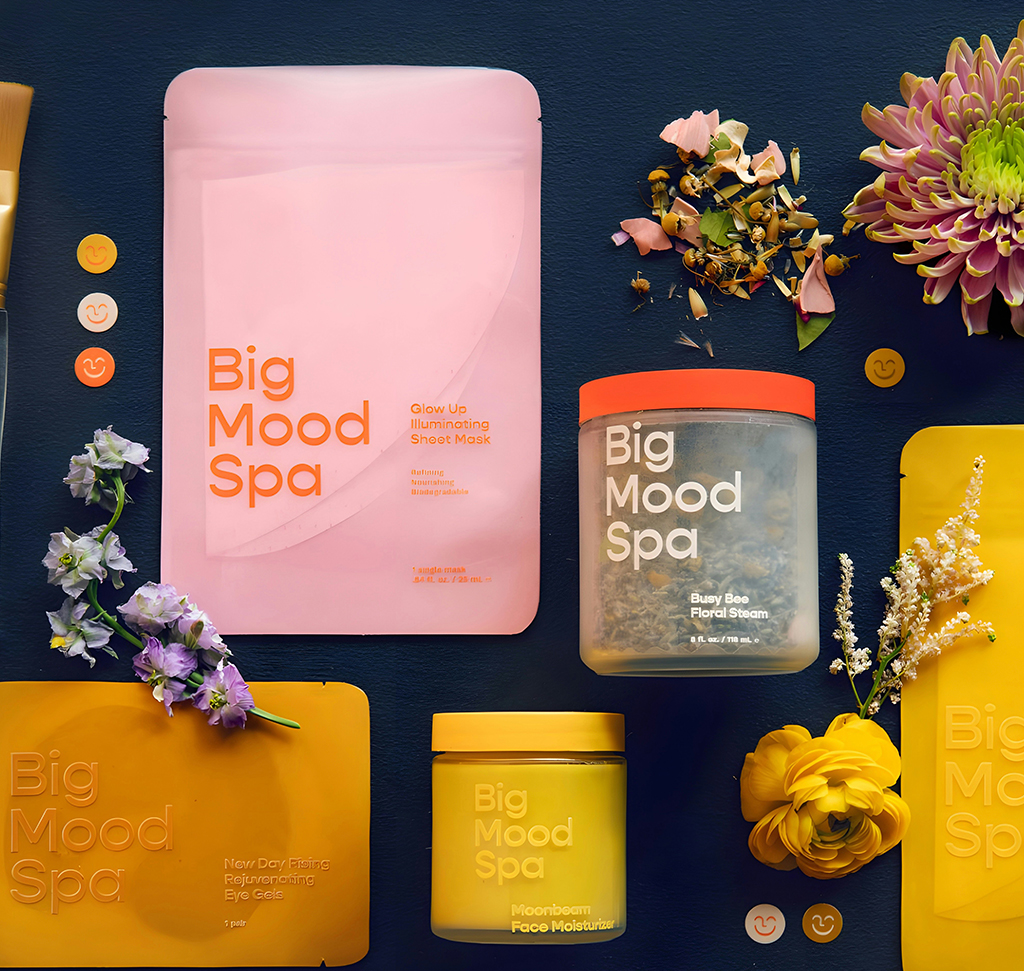
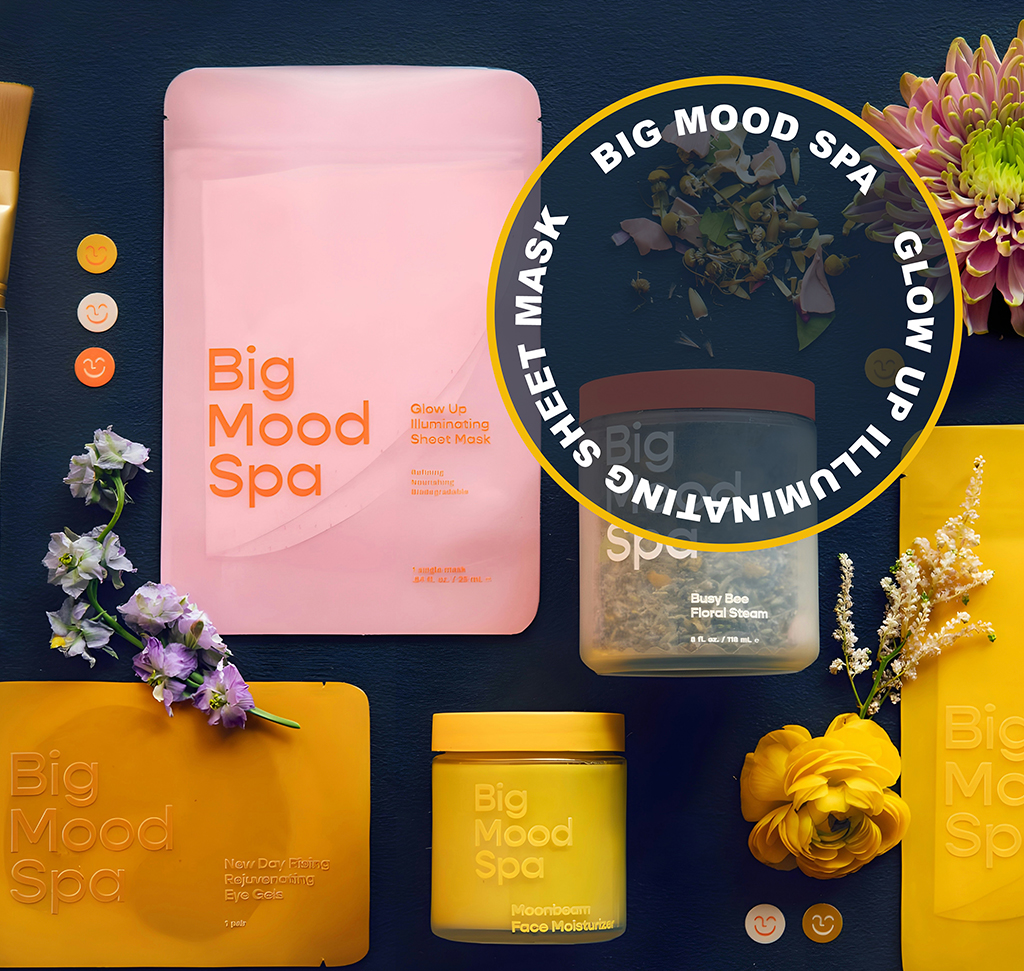
AFTER
BEFORE
Text That Fits Every Shape
This 2026 update to Photoshop’s Dynamic Text tool is a significant time-saver for anyone who has struggled to wrap text around curves or fit it into specific shapes manually. Traditionally, creating circular or arched text required complex paths or warped transformations that were difficult to edit later. With this update, the process becomes non-destructive and fully adjustable, allowing you to prioritize creativity over technical troubleshooting!
Accessing The Tool
The new Dynamic Text shapes currently live in the Photoshop Beta app. To find it, open your Creative Cloud desktop application, navigate to the All Apps section, and click on the Beta apps tab. Once installed, open your project and select the Type Tool by pressing T. Click and drag to create a bounding box, then paste or type your content to get started.
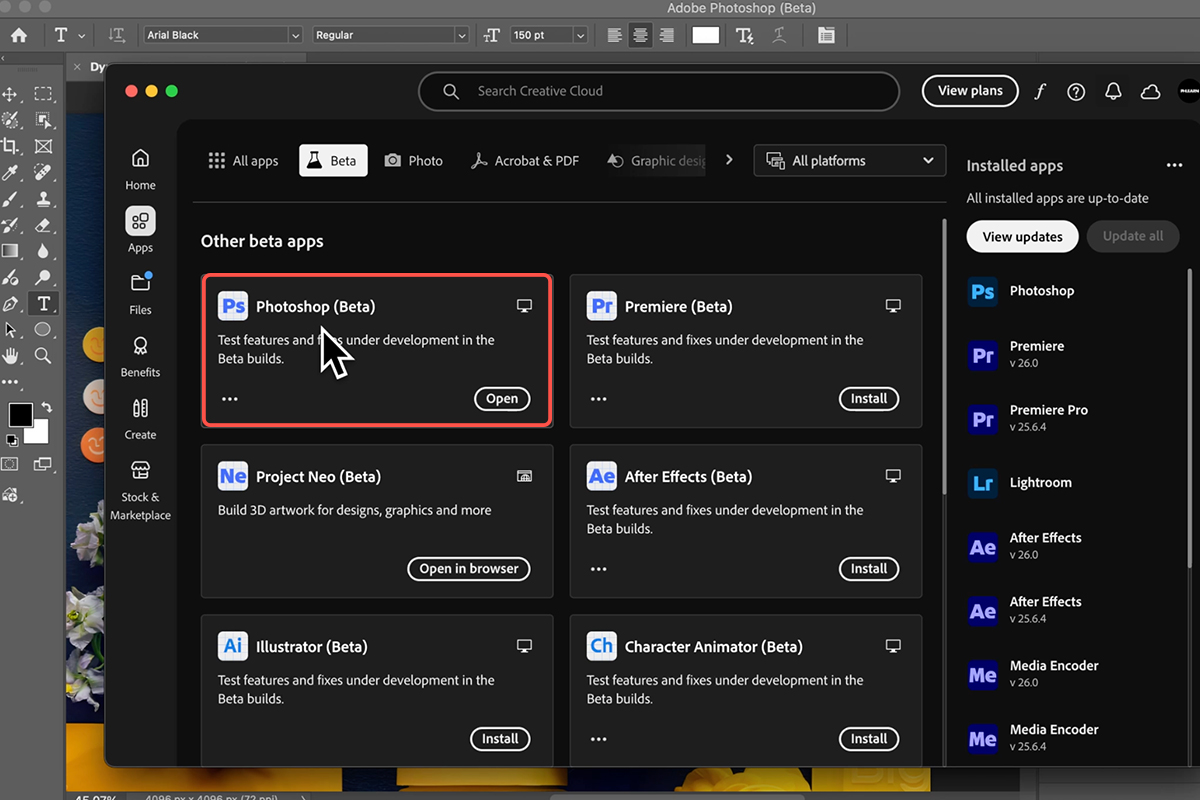
Activating Dynamic Text
With your text layer selected, look at the Contextual Task Bar or the Options Bar at the top of your screen. Click the Dynamic Text icon (look for the lightning bolt symbol) to open the new shape menu. While the 2025 version only offered a standard block, you can now instantly select Circle, Arch, or Bow. This turns your layer into a “Smart” vector-style object that automatically adjusts font sizes to fill the space beautifully.
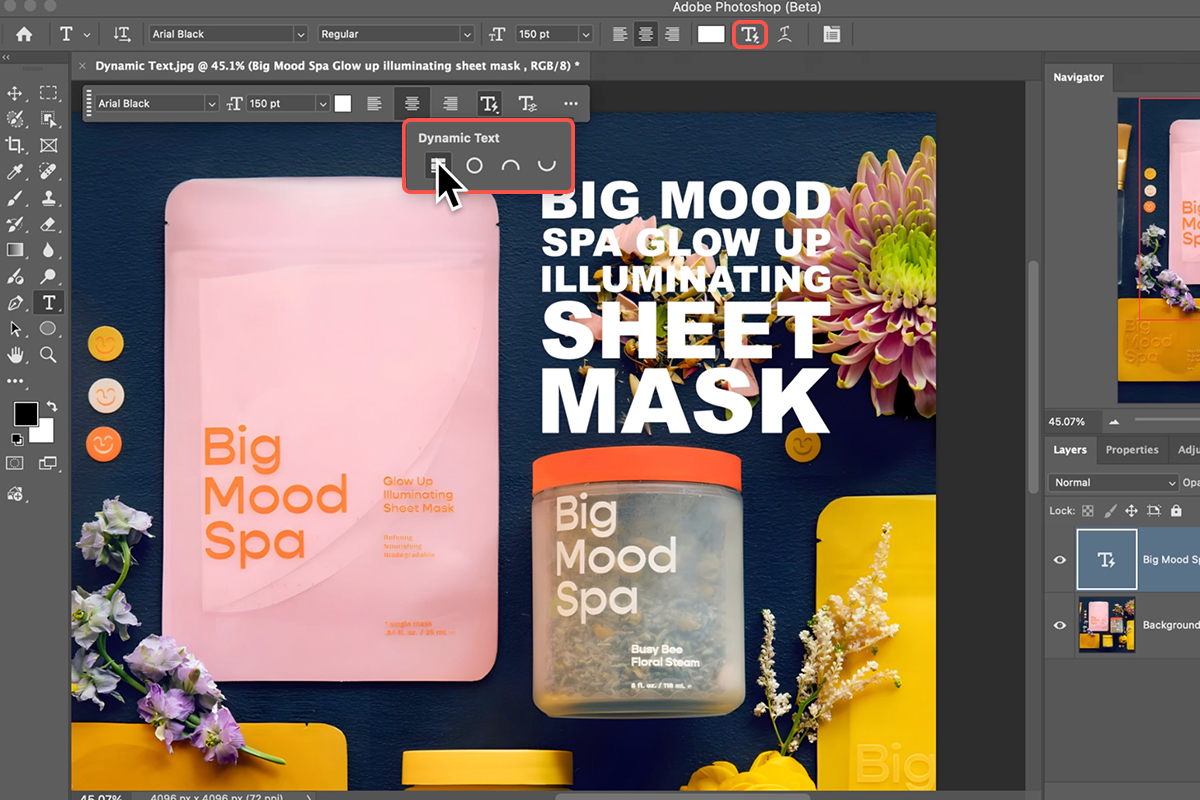
Refining Your Layout
The true power of this tool is its flexibility. You can click and drag the corners of the bounding box to change the layout from vertical to horizontal in real time. To perfectly align your text with other design elements, like a background shape, hold Ctrl/Command and click both layers in the panel. Then, use the Move Tool (Keyboard Shortcut “V”) and click the Alignment Icons at the top to center everything perfectly.
Pro Customization Tips
For more control, open the Properties Panel while your dynamic text is active. Here, you can flip the text direction or move the type above, below, or centered on the path. If you need to rotate the entire shape, hold Ctrl or Command while using the Type Tool and drag the corner. When you are finished, always click the Checkmark in the options bar or press Command + Enter to commit your changes without breaking the text flow.