

description
An old scanned photograph that’s been physically torn into pieces, taped back together, and left to discolor over the decades presents a very different kind of repair than a digital blemish or two. This tutorial covers separating a torn photo’s pieces back onto individual layers and realigning them, retouching blemishes and tears with the Spot Healing Brush, Clone Stamp, and Brush tools, adding grain back with noise, and correcting the yellowed color cast that comes with age.
Enjoying This Free Tutorial?
We publish a new free tutorial every week, each one with sample images and PSDs you can download and follow along with. Sign up and they land straight in your inbox, along with early word on sales, events and subscriber-only offers.
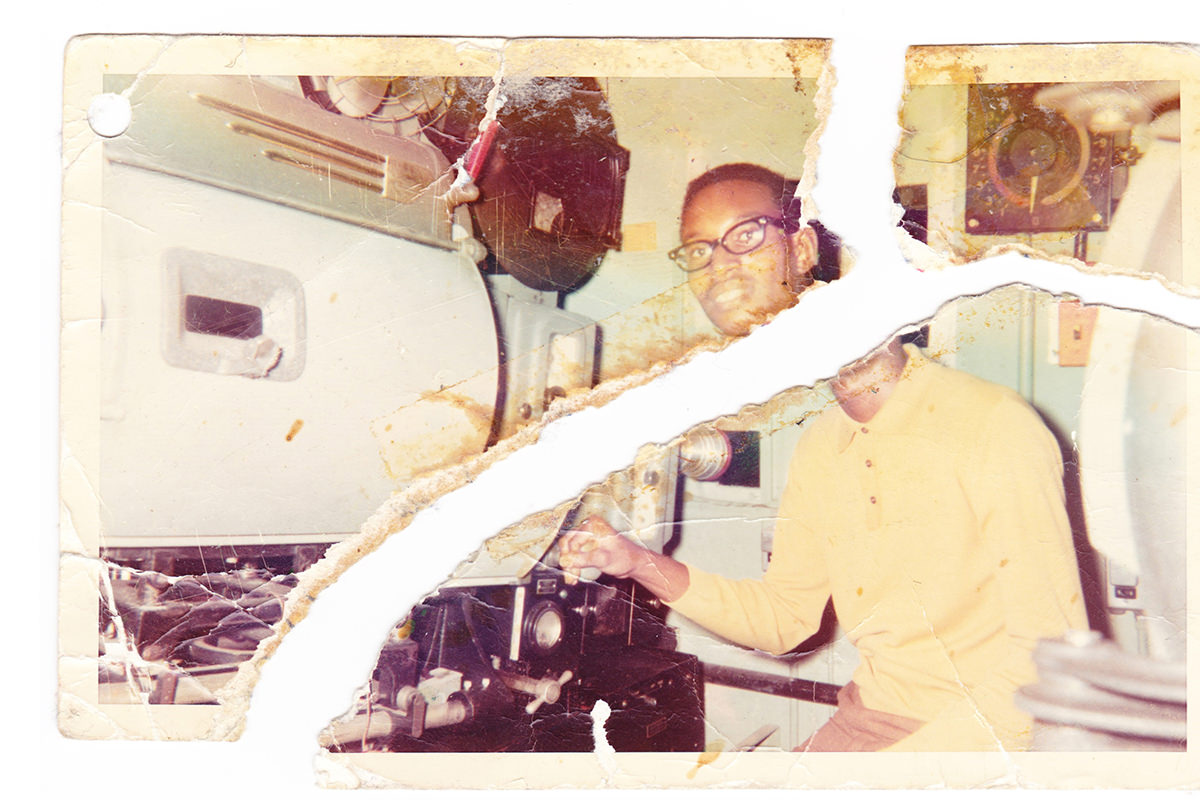
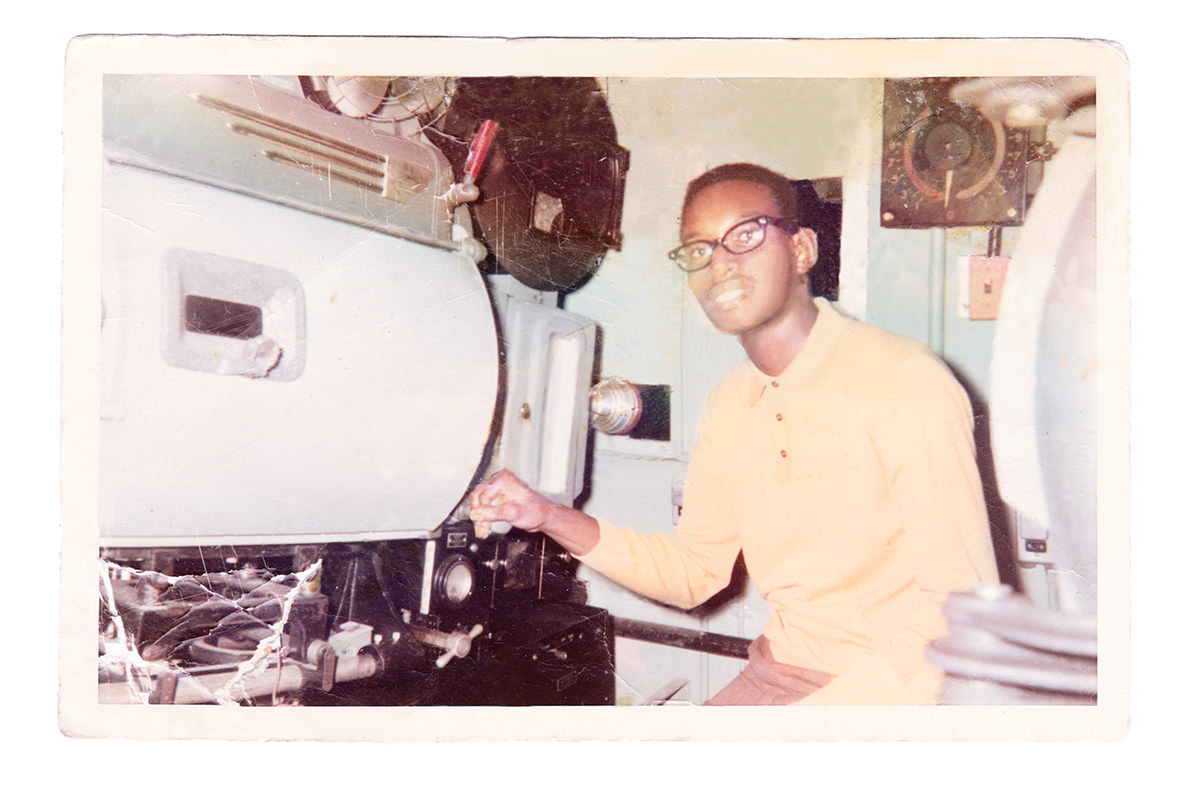
An old scanned photograph that’s been physically torn into pieces, taped back together, and left to discolor over the decades presents a very different kind of repair than a digital blemish or two. This tutorial covers separating a torn photo’s pieces back onto individual layers and realigning them, retouching blemishes and tears with the Spot Healing Brush, Clone Stamp, and Brush tools, and finally correcting the yellowed color cast that comes with age.

Separating and Cutting the Torn Pieces Onto New Layers
Before any repositioning can happen, each torn piece of the photo needs to be lifted off the flat white background and cut apart onto its own layer.
-
Select the Background With the Magic Wand Tool
Press W for the Magic Wand tool and click the plain white background around the torn pieces.
-
Refine the Selection’s Edge
Click Refine Edge, add a small amount of feathering, and shift the edge slightly toward the center to clean up shadows along the torn pieces.
-
Invert the Selection
Go to Select > Inverse to switch the selection from the white background to the torn photo pieces themselves.
-
Duplicate the Pieces to a New Layer
Press Cmd/Ctrl+J to duplicate the selected pieces onto a new layer with a transparent background.
-
Select and Cut Each Individual Piece
Use the Lasso tool to select one piece at a time, press Cmd/Ctrl+X to cut it, then press Shift+Cmd/Ctrl+V to paste it back in place on its own new layer.
Why Refine Edge Matters Before Inverting the Selection
A Magic Wand selection made directly on a scanned photo often includes soft shadow edges right along the torn boundary, which would carry over into every piece once cut apart. Feathering and shifting the edge inward with Refine Edge first removes most of that shadow, so each piece separates more cleanly before it ever gets moved.
Repositioning and Aligning the Pieces
Lining up geometric details that continue across a tear, like a straight edge on a piece of machinery, is the most reliable way to figure out exactly where each piece belongs.
-
Move Each Piece With the Move Tool
Press V for the Move tool and drag each piece roughly into position, using the arrow keys for fine adjustments.
-
Use Continuing Lines as Alignment Guides
Look for straight lines or geometric shapes that should continue from one piece into the next, and use them to judge correct placement.
-
Rotate a Piece if Needed
Press Cmd/Ctrl+T to rotate a piece slightly if it doesn’t sit at quite the right angle to line up with its neighbors.
-
Adjust Layer Order for Overlapping Edges
Move a piece’s layer up or down in the stacking order when overlapping torn edges need one piece’s information to show through over another.
Adding a Solid White Background Behind the Pieces
A plain Solid Color fill layer placed beneath every piece makes gaps and remaining transparency easy to see while positioning continues.
-
Add a Solid Color Adjustment Layer
Add a Solid Color adjustment layer at the very bottom of the layer stack and set it to white.
-
Group the Background Layers Together
Select the original scan layer and the white Solid Color layer and group them together, naming the group Background, so the three piece layers sit on their own above it.
Repairing Small Blemishes With the Spot Healing Brush Tool
The Spot Healing Brush tool, set to Content-Aware and Sample All Layers, clears small isolated blemishes and scratches with almost no effort.
-
Create a New Layer for Healing
Add a new layer above the aligned pieces to hold the healing work.
-
Select the Spot Healing Brush Tool
Choose the Spot Healing Brush tool and set its mode to Content-Aware with Sample All Layers checked.
-
Paint Over Isolated Blemishes
Paint directly over small, isolated blemishes and scratches, letting the tool sample and blend automatically.
Repairing Detailed Areas With the Clone Stamp Tool and Clone Source Overlay
The Clone Stamp tool takes over where the Spot Healing Brush struggles, giving exact control over which area gets duplicated, especially with the Clone Source panel’s overlay preview turned on.
-
Create a New Layer for Clone Stamping
Add another new layer to hold the Clone Stamp work.
-
Select the Clone Stamp Tool
Press S for the Clone Stamp tool.
-
Sample a Matching Area
Hold Alt/Option and click on an area with texture or detail similar to what needs repairing.
-
Paint Over Tears and Larger Blemishes
Paint over tears, scratches, and larger blemishes with the sampled detail, watching for accidental duplicated patterns that need a second pass.
-
Turn On the Clone Source Overlay
Go to Window > Clone Source and check Show Overlay to preview exactly what a sample will look like before painting it down.
Why Clone Stamp Beats Spot Healing for Detailed Areas
The Spot Healing Brush chooses its own sample area automatically, which works well for a simple, isolated blemish but can guess wrong when a line, shadow, or piece of machinery needs to continue in a specific direction. The Clone Stamp tool’s exact sample control, especially paired with the overlay preview, removes that guesswork entirely for detailed or geometric areas.
Hand-Painting Missing Areas With the Brush Tool
When a tear removes an area completely, leaving nothing nearby to sample from, painting the missing detail in by hand with the Brush tool becomes the only remaining option.
-
Create a New Layer for Hand-Painting
Add a new layer to hold the hand-painted repair.
-
Sample a Base Color
Hold Alt/Option with the Brush tool active to sample a color from a nearby area of good skin or texture.
-
Paint In the Missing Shape
Paint in the missing area, such as part of a chin or jawline, using the sampled color as a base.
-
Lower the Brush’s Flow for Smoother Transitions
Reduce the brush’s flow setting to build up color gradually, creating smoother transitions between the painted area and the surrounding photo.
-
Add Shading for Dimension
Sample darker and lighter tones nearby and paint in shading to give the hand-painted area some dimension.
Why the Brush Tool Is Treated as a Last Resort
Both the Spot Healing Brush and the Clone Stamp tool rely on pulling real detail from somewhere else in the photo, which almost always looks more convincing than anything painted from scratch. The Brush tool only comes into play when a tear has genuinely destroyed all nearby information, since hand-painted detail takes more skill and time to make believable than sampling ever does.
Adding Texture Back With Noise and Soft Light
A layer of subtle noise, blended in Soft Light and masked to the hand-painted area, helps flat painted color match the grain of the surrounding photograph.
-
Create a New Gray Layer
Create a new layer, make a selection around the area needing texture, and fill it with 50% gray using Shift+Delete.
-
Apply the Add Noise Filter
Go to Filter > Noise > Add Noise and apply a small amount of noise to the gray layer.
-
Change the Blend Mode to Soft Light
Change the noise layer’s blend mode from Normal to Soft Light so it adds texture without changing the underlying color.
-
Mask the Texture Over the Painted Area
Add a layer mask and reveal the noise texture only over the areas that were painted by hand.
Why Adding Noise Texture Matters
Hand-painted color from the Brush tool comes out perfectly flat and smooth, while the rest of an old scanned photograph carries a natural grain from the film and the scanning process itself. A masked layer of Soft Light noise reintroduces that same grain over the painted area, so it blends into the photo instead of standing out as an obviously smoother patch.
Correcting the Color Cast With a Selective Color Adjustment Layer
A Selective Color adjustment layer, working through yellows, reds, magentas, and whites one at a time, removes the yellow and magenta color cast that comes with an aged photograph.
-
Add a Selective Color Adjustment Layer
Add a Selective Color adjustment layer above all the retouching work.
-
Reduce Yellow in the Yellows Channel
Select Yellows and pull the Yellow slider down to counteract the aged yellow color cast, then push the Cyan slider up a little to cool the image slightly.
-
Adjust Cyan and Yellow in the Reds and Magentas
Select Reds and add some Cyan, raising Yellow slightly if lowering it adds purple, then select Magentas, adjust Cyan and push in a little more Yellow to remove the remaining magenta or purple cast.
-
Reduce Yellow in the Whites
Select Whites and pull down the Yellow slider to cool down any remaining yellow tint in the lightest areas of the photo.
-
Adjust the Blacks for Contrast
Select Blacks and darken them slightly to add a bit more contrast back into the image.
Adding Targeted Color Back With a Masked Hue/Saturation Layer
A masked Hue/Saturation adjustment layer can bring a bit more life back into one specific area, like a shirt, without affecting the rest of the now color-corrected photo.
-
Add a Hue/Saturation Adjustment Layer
Add a Hue/Saturation adjustment layer above the Selective Color correction.
-
Raise the Saturation
Raise the Saturation slider a little, judging it by the area that needs the color, such as the yellow shirt.
-
Invert the Layer Mask to Black
Press Cmd/Ctrl+I to invert the layer mask, hiding the added saturation everywhere.
-
Paint White Over the Area Needing More Color
Paint white on the mask over a specific area, such as a shirt, to bring back a bit of natural-looking color there.
-
Group the Finished Color Layers
Group the Selective Color and Hue/Saturation layers together to keep the finished color work organized.

Why This Approach Works
Separating and realigning the torn pieces first, using continuing lines as a guide, rebuilds the photo’s actual structure before any retouching begins, giving every later step a stable, correctly assembled image to work on. Moving through the Spot Healing Brush, Clone Stamp, and Brush tool in that order, from least to most manual effort, matches each area of damage with the least invasive tool capable of fixing it. Correcting color last, once every physical tear and blemish is repaired, ensures the color adjustment is judging the photo’s true, restored content rather than color that would have shifted again once retouching continued.
Final Thoughts
None of the individual techniques used here, cutting apart layers, healing, cloning, hand-painting, and selective color, are especially difficult on their own, but combined they can bring a genuinely damaged decades-old photograph back to life. Anyone with an old torn or faded photo sitting in an album drawer can scan it in and work through this same sequence of steps to give it a second life.
Quick Reference: Keys, Menus and Settings
- Select the backgroundW Magic Wand; Refine Edge: a little Feather, Shift Edge in; Select > Inverse
- Pieces to layersCmd/Ctrl + J; Lasso a piece, Cmd/Ctrl + X, Shift + Cmd/Ctrl + V
- AlignV and the arrow keys; Cmd/Ctrl + T to rotate
- RetouchEach on a new layer: Spot Healing Brush (Content-Aware, Sample All Layers), S Clone Stamp, B Brush with a lower Flow
- Clone previewWindow > Clone Source > Show Overlay
- Add grainShift + Delete to fill 50% gray, Filter > Noise > Add Noise, Soft Light, masked
- Color castSelective Color: less Yellow in Yellows and Whites; Cyan and Yellow in Reds and Magentas; darker Blacks
No AI, no generative credits.
Repairing a Torn Photo: Common Questions
How do I get each torn piece onto its own layer?
Select the white background with the Magic Wand (W), clean the edge with Refine Edge, then choose Select > Inverse and press Cmd/Ctrl + J. Lasso each piece, cut it with Cmd/Ctrl + X and paste it in place on a new layer with Shift + Cmd/Ctrl + V.
Why use Refine Edge before cutting the pieces out?
A little Feather and a Shift Edge in toward the center trims the shadows along the torn edges, so each piece comes out cleaner.
How do I know where each piece goes?
Ignore the tear and follow lines that should continue across it, like the edges of the machine in the photo. Nudge with the arrow keys, and press Cmd/Ctrl + T to rotate a piece that sits at an angle.
What do I do where torn edges overlap?
Change the layer order. Dragging a piece’s layer down lets the piece above cover the white underside of the tear.
Spot Healing Brush, Clone Stamp or Brush: which one should I use?
Start with the Spot Healing Brush (Content-Aware, Sample All Layers) for small isolated blemishes. Use the Clone Stamp where you need detail and control over the sample. The Brush tool is the last resort, for areas with nothing left to sample from.
How can I see what the Clone Stamp will paint before I click?
Go to Window > Clone Source and check Show Overlay. After you Alt/Option-click to sample, the overlay shows exactly what will go down.
Why do I see the same spot repeated after cloning?
The Clone Stamp copies exactly what you sample, specks included. Watch for duplicates, clone over them and sample from different areas as you go.
How do I make hand-painted areas match the photo’s grain?
On a new layer, fill a selection with 50% gray using Shift + Delete, apply Filter > Noise > Add Noise, set the blend mode to Soft Light and mask it so it only covers the painted areas.
How do I remove the yellow cast from an old photo?
Add a Selective Color adjustment layer. Lower Yellow in the Yellows and the Whites, adjust Cyan and Yellow in the Reds and Magentas, and darken the Blacks a little for contrast.
Master Photoshop, Lightroom and Photography
Join PHLEARN PRO for $12.99 a month, or $99.99 a year (save 36%). Cancel anytime, with a 100% money-back guarantee.





