


Download Assets
This tutorial includes sample images. Downloads are free with a PHLEARN account.
- Download the sample images and PSDs from every free tutorial on PHLEARN
- New free tutorials published every week
- One free account — sign up once, then download anything
description
A guest tutorial with fine art and conceptual photographer Rob Woodcox, recreating one of his surreal images: a man floating in mid-air over Washington Square Park, surrounded by a cluster of hats cut out individually and composited in. Covers masking the subject, flipping the composition for better flow, placing the hats, building glow with curves both on and behind the subject, and adding selective contrast and vignette detail to the monument.
Enjoying This Free Tutorial?
We publish a new free tutorial every week, each one with sample images and PSDs you can download and follow along with. Sign up and they land straight in your inbox, along with early word on sales, events and subscriber-only offers.
Natural Light & Levitation: Compositing with Rob Woodcox
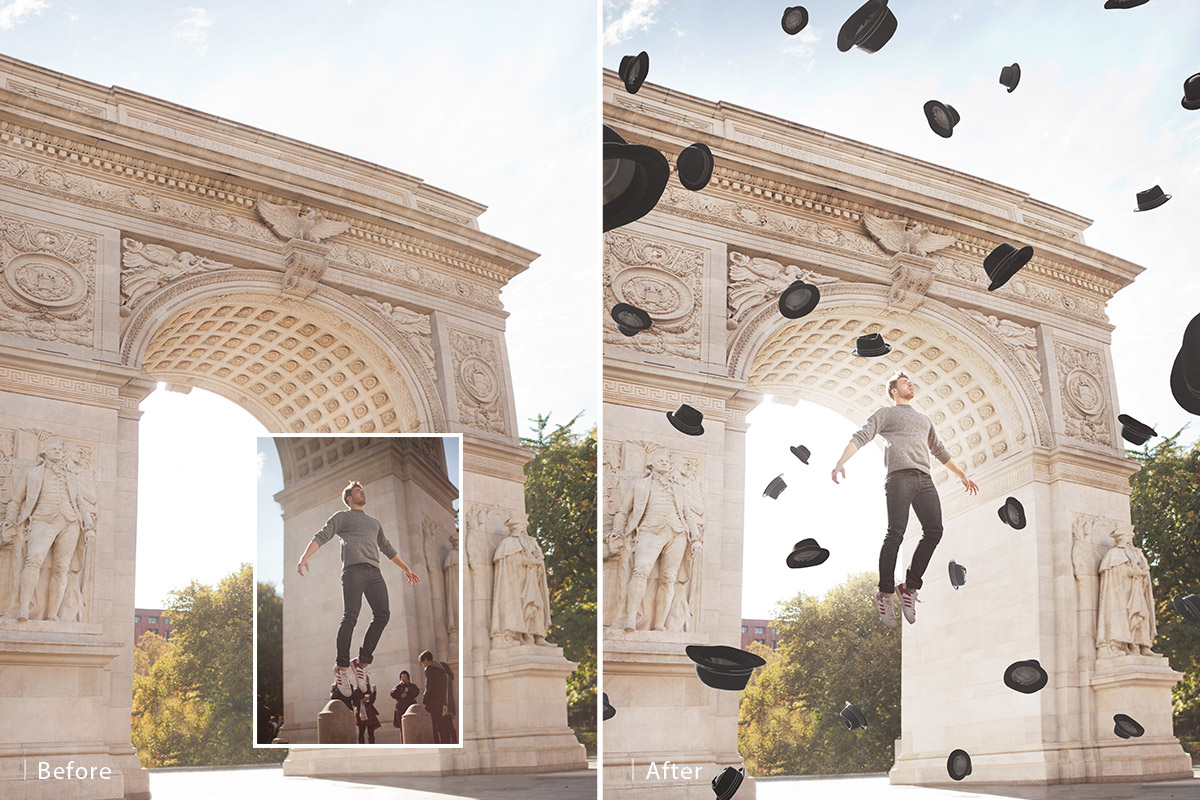
In this guest tutorial, fine art and conceptual photographer Rob Woodcox walks through recreating one of his iconic surreal images: a man appearing to float in mid-air over Washington Square Park in New York City, surrounded by a cluster of floating hats, each cut out individually and composited in using natural light, curves-based glow effects, and careful compositional framing. The sample images are available as a free download on PHLEARN.com.
About This Levitation Composite
Rob created this image while traveling to New York City shortly after deciding to quit his day job, and the floating hats represent typical office jobs being thrown into the air, a visual metaphor for the personal liberation the moment represented for him.
Cutting Out the Subject with a Layer Mask
Drag the subject’s layer onto the Washington Square background, holding Shift while dropping it in, which centers the layer automatically in a convenient starting position. Add a layer mask to the subject and work on masking while keeping the entire subject visible in frame, which makes it easier to catch every edge detail rather than working on a cropped view. Using the Brush tool with black selected, set brush hardness to around 78 percent, since pushing past roughly 80 percent tends to introduce odd clipping artifacts in the mask. Start with a larger brush to clear away the bulk of the unwanted background quickly, then reduce brush size for closer, more detailed cleanup work as the edge of the subject is approached.
Shooting for a Believable Levitation Effect
For a levitation shot to read as believable, the actual photography matters as much as the later editing. Rob had his subject stand on a guard barrier (later removed from the background layer) and jump as high as possible while keeping a soft, relaxed facial expression and letting his arms hang naturally, which produced a genuinely convincing floating pose straight out of camera. Shooting on location also means the subject is lit by the same natural light as the background, in this case low, early-morning sun coming through an archway from the upper right, which is the single most reliable way to make a levitation composite feel seamless rather than obviously pasted together.
Flipping the Composition for Better Flow
Once the subject is fully cut out, flipping the layer horizontally so he faces toward the right side of the frame can improve the composition’s flow, since viewers accustomed to reading left to right tend to follow an image more naturally when its main visual movement runs in that same direction.
Adding the Floating Hats
Bring in the separately pre-cut hat images using File, then Place Embedded, choosing to keep each hat’s own unique angle rather than duplicating a single hat multiple times, since Rob shot several genuine throws of the hat in the air specifically to capture that variety. Resize each placed hat to a consistent scale and position them intuitively, adjusting placement freely to find a composition that feels balanced, a process that took a couple of hours of experimentation in the original creation of this image.
Using Triangles to Frame the Subject
Hat placement isn’t random: drawing a line between select hats reveals a triangle framing the subject on one side and an inverted triangle framing him on the other, a deliberate compositional device that draws the eye toward the subject even before the remaining gaps get filled in with additional hats.
Grouping and Glowing the Subject with Curves
To give the subject a bit more visual pop without disturbing the otherwise well-balanced natural lighting, group the subject’s layer into its own folder, set that folder’s blend mode to Normal so any adjustment inside only affects the subject, and add a Curves adjustment layer clipped within that group. Pulling the curve to brighten while dragging the shadows down separately creates an S-curve, which increases contrast and adds a soft fill-light effect specifically on the subject, an approach that took years of practice with Curves to simplify down from what once required roughly ten separate layers to just one.
Building a Glow Behind the Subject
Working between the subject’s layer group and the background layer applies adjustments only to the background, which is where a soft glow effect behind the subject belongs. Add a Curves layer, raise it until the subject visibly pops against the background, then press Command/Ctrl+I to invert its mask and use a fully soft, 0 percent hardness brush to paint the glow back in specifically behind the subject, an effect that reads as natural here because the scene’s own real light source is already coming from roughly that direction. For an even more intense inner glow directly behind the subject, add a second Curves layer the same way, inverting its mask and painting it in gradually at a lower opacity, around 30 percent per brush stroke, for finer control over how strong the glow becomes.
Selective Contrast and Vignette Detail on the Monument
To bring back a bit of cloud detail and contrast around the edges of the frame without disturbing the glow around the monument and subject, add another Curves layer, drag it down to darken, invert its mask, and paint that darkening in specifically at the sky’s edges using a soft brush at around 50 percent opacity so the effect fades in naturally rather than reading as a hard boundary. Use the Curves eyedropper tool to click a highlight and a shadow point directly on the monument itself, which targets Curves adjustments to that specific tonal range, then paint the resulting contrast boost onto the monument with a soft brush at full opacity to make its stonework read with more depth and drama.
Balancing Detail with the Glow
Adding contrast to the monument and clouds can start to compete with the glow built earlier, so it’s worth going back and brushing some of that added detail back out wherever it overlaps too much with the glow, and revisiting the subject’s own brightness within his folder if his face starts to look lost against a now-brighter background.
Finishing with a Global Hue/Saturation Adjustment
As a final step, add a Hue/Saturation adjustment layer at the very top of the stack, which functions as a global adjustment affecting every composited layer beneath it at once. Use the eyedropper to target the reds specifically and reduce their saturation slightly, then do the same for yellows, which pulls the overall image toward a cleaner, more monochromatic, commercial-looking color palette, particularly effective on images with a lot of cream or white tones.
More Free Photoshop Tutorials
- Select Subject and Refine Edges in Photoshop
- Three Ways to Use Blend If
- Curves vs Levels: Learn the Difference
More from Rob Woodcox
Rob Woodcox has built a decade-long career as a conceptual and fine art photographer, and this same natural-light levitation approach runs through much of his portfolio. Follow him on Instagram to see more of his surreal, story-driven work, check out his workshop offerings to learn directly from him in person, and for the full, unedited walkthrough of this exact image, see Fine Art Compositing with Rob Woodcox.
Final Thoughts
What makes this levitation composite work is less any single Photoshop trick and more a series of deliberate choices made from the very start: shooting on location so the subject is lit by the same natural light as the background, directing a genuinely convincing jump rather than faking a static pose, and layering in glow, contrast, and color adjustments gradually and selectively rather than all at once. The result is an image that reads as effortless, even though, as Rob’s own ten-years-later Curves technique shows, a lot of hard-earned technique sits quietly behind that simplicity.
Related Tutorials
From the Magazine View all
Stories, interviews and guides for photographers, new every week.
 BusinessHow to Compete With AI: Give Your Clients MoreEveryone has the same tools now, and your clients know it. The way to compete is to give them more.
 EditingLightCraft vs Lightroom: Is the Free Clone Any Good?The free clone on the same RAW files: what matches, what breaks and who should switch.
 EditingHow to Tell If a Photo Is AI, and Prove Yours Is RealThe tells that still work in 2026, why detectors disagree, and how to prove your own photos.
Master Photoshop, Lightroom and Photography
Join PHLEARN PRO for $12.99 a month, or $99.99 a year (save 36%). Cancel anytime, with a 100% money-back guarantee.





