
Download Assets
description
Learn how to instantly clear skin with Lightroom Mobile’s AI-powered Quick Actions. This tutorial demonstrates the new Blemishes tool, featuring an amount slider for natural results and manual AI removal for precision. Discover how to achieve professional retouching on the go and see the incredible before-and-after transformations.
Note:
This tutorial features FREE Adobe Stock images. Due to copyright restrictions, we cannot package the full-resolution files directly; however, we’ve included the low-res sample in your download folder. You’ll also find a PDF guide with direct link to download the high-resolution version for free.
Go PRO:
Dive deeper into the world of Photoshop with our in-depth PRO Photoshop Learning Path . Across 11 courses and 53 hours of engaging content, you’ll learn Photoshop’s ins and outs, master pro-level tools, and tackle fun and challenging projects..
Share


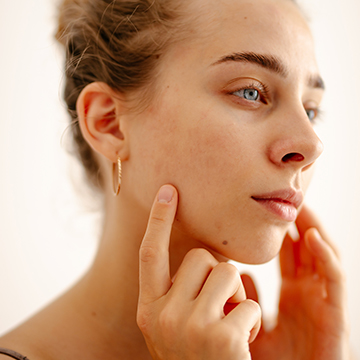
AFTER
BEFORE
Blemishes Gone in Seconds
Editing on your phone should be fast and easy, but professional results used to require a desktop. This new mobile tool changes that by handling the tedious work of skin retouching for you. It’s a huge time-saver for anyone who wants to clean up a portrait while out in the field, making it simple to get high-quality results without being glued to a computer.
Access Quick Actions
1. Start by opening your portrait in Lightroom Mobile.
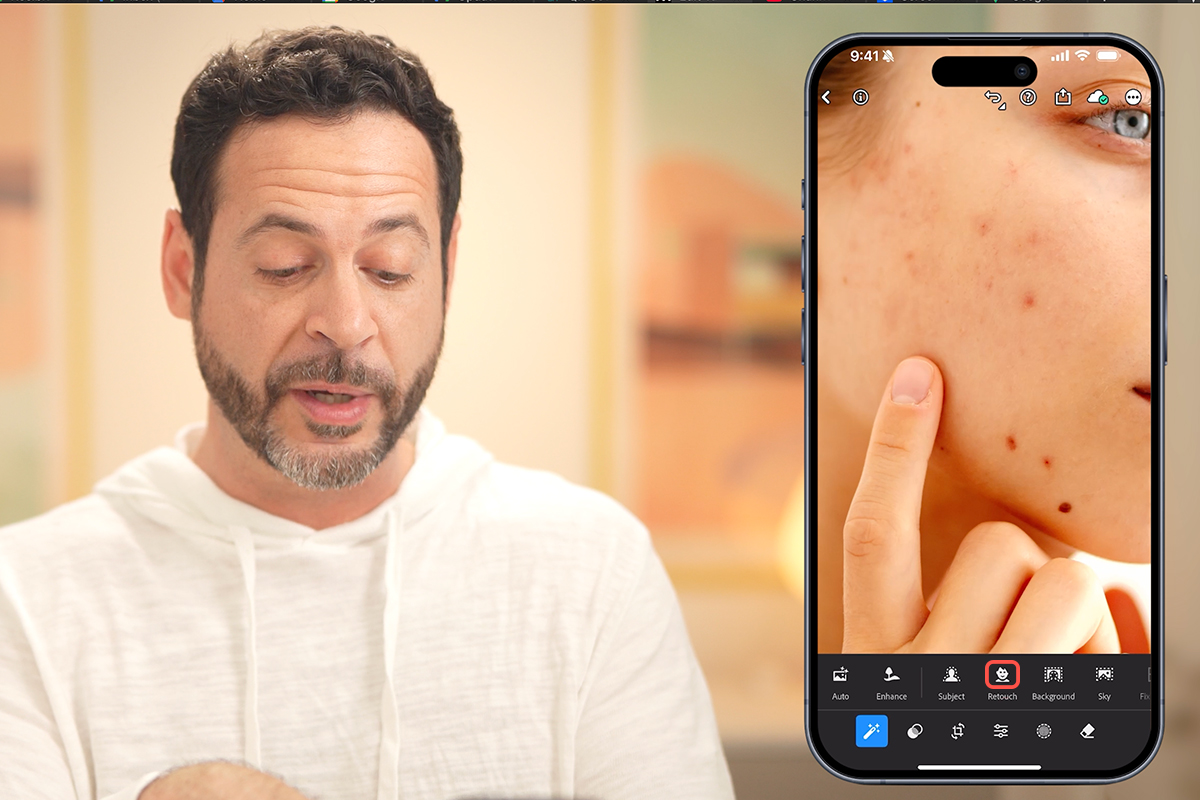
2. To find the new AI features, tap the Quick Actions icon (the magic wand symbol) located on the bottom left. Because the app uses AI to recognize people, it will automatically suggest the Retouch category.
3. Zoom in on your subject using two fingers to get a clear view of the skin texture before proceeding.
Remove Blemishes Instantly
4. Within the Retouch menu, select the Blemishes tool. Lightroom will instantly analyze the face, removing spots and imperfections in one tap.
5. You can refine this using the Amount slider: slide left to bring back some natural detail or right to maximize the clearing effect.
6. If the AI is too aggressive, use the Fade slider to subtly blend marks back into the image for a more authentic result.

Manual AI Removal
If the automated tool misses a specific spot, you don’t need to exit the workflow. Tap the Remove icon (the eraser symbol) on the bottom right. Simply paint over any remaining areas you want to disappear. The app uses generative AI to fill in those gaps seamlessly. Once finished, tap the Checkbox to commit your changes.
Review and Finalize
To see the impact of your work, press and hold anywhere on the image to toggle between the “Before” and “After” views. If you are using a tablet with a keyboard, you can use the \ (backslash) key to toggle the original view or Q to jump into the healing tools. When satisfied, tap the final checkmark to save your flawless edit.