

Download Assets
This tutorial includes 1 layered TIF and 1 PDF guide. Downloads are free with a PHLEARN account.
- Download the sample files from every free tutorial on PHLEARN
- New free tutorials published every week
- One free account: sign up once, then download anything
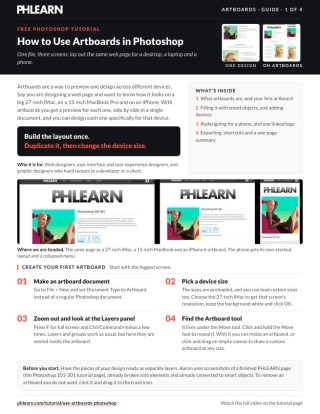
Free PDF Guide · 4 Pages
This Tutorial as a Step-by-Step PDF
This 4-page guide walks through artboards: File > New, Document Type Artboard, smart objects on a 27-inch iMac board, Alt/Option-click a plus to copy it, Window > Properties for the MacBook and iPhone, a stacked phone layout, File > Place Linked for the logo and File > Export > Artboards to PDF. Keep it next to your keyboard.
description
Artboards let one Photoshop file hold the same design at iMac, laptop and phone size, so a responsive layout can be checked side by side. Aaron builds an artboard document from the device presets, keeps everything as smart objects so it survives repeated resizing, restacks the layout for a narrow phone screen, places a logo as a linked smart object that updates every board at once, and exports the set for a developer.
Enjoying This Free Tutorial?
We publish a new free tutorial every week, each one with sample images and PSDs you can download and follow along with. Sign up and they land straight in your inbox, along with early word on sales, events and subscriber-only offers.
Artboards let a design be previewed across several device sizes at once, which makes them especially useful for web, UI, and UX designers checking how a layout holds up on a large iMac, a laptop, and a phone. This tutorial creates a new artboard document, arranges smart-object layers onto it, duplicates it into different device sizes with unique layouts for each, uses linked smart objects so a logo updates everywhere at once, and finishes by exporting the finished artboards for a developer.
Creating a New Artboard Document
Choosing Artboard as the document type when creating a new file loads Photoshop’s built-in device size presets, such as a 27-inch iMac, directly into the New Document dialog.
-
Open a New Document
Go to File > New to open the New Document dialog.
-
Choose Artboard as the Document Type
Select Artboard from the document type options instead of a regular Photoshop document.
-
Choose a Preloaded Device Size
Pick a preloaded size, such as a 27-inch iMac, to automatically set the artboard’s resolution to that screen.
Resizing, Duplicating, and Deleting Artboards
The Artboard tool, tucked beneath the Move tool, resizes an existing artboard and adds new ones using the plus icons that appear along its edges.
-
Select the Artboard Tool
Click and hold the Move tool to reveal and select the Artboard tool beneath it.
-
Resize an Artboard
Click an artboard with the tool active and drag any edge to resize it, such as extending it downward for a scrolling page.
-
Add a New Artboard
Click one of the plus icons along an artboard’s edge to add another artboard the same size beside it (hold Alt/Option to copy the content too), or click and drag on the empty canvas to draw a custom artboard at any size.
-
Duplicate an Artboard With Its Content
Hold Alt/Option while clicking a plus icon to create a new artboard that duplicates all of the original artboard’s content.
-
Delete an Artboard
Click an artboard and drag it to the trash icon to delete it.
Working With Smart Objects to Preserve Resolution
Converting design elements to smart objects before placing them on an artboard means they can be scaled down and back up repeatedly, across multiple device sizes, without losing image quality.
-
Convert a Layer to a Smart Object
Right-click a layer and choose Convert to Smart Object, or go to Layer > Smart Objects > Convert to Smart Object.
-
Duplicate Smart Object Layers Into an Artboard
Shift-click multiple layers, right-click, choose Duplicate Layers, and select the target artboard’s document to paste them into.
-
Drag Any Stray Layers Into the Artboard
Shift-click and drag any layers that land outside the artboard boundary back into it, since an artboard only displays content positioned within its bounds.
Why Smart Objects Matter So Much for Artboard Work
Artboards are built around resizing the same content repeatedly for different device dimensions, and a regular raster layer loses sharpness every time it’s scaled down and back up. Smart objects avoid that quality loss entirely, which is why converting design elements to smart objects before placing them on artboards is worth doing even when it takes an extra step upfront.
Selecting and Arranging Layers With the Move Tool
Holding Cmd/Ctrl while clicking directly on a layer with the Move tool active selects that layer instantly, which speeds up rearranging many elements on a single artboard.
-
Select a Layer by Clicking Directly on It
Press V for the Move tool, hold Cmd/Ctrl, and click directly on any layer’s content to select it without hunting through the Layers panel.
-
Select Multiple Layers at Once
Hold Cmd/Ctrl and Shift while clicking multiple layers to select and move them together.
-
Arrange Elements Into the Layout
Reposition each selected element into place, building out the intended layout for that specific artboard’s screen size.
Creating Additional Artboards for Other Device Sizes
Duplicating the first artboard and then changing its size in the Properties panel builds out matching artboards for other devices, such as a laptop and a phone, based on the same starting layout.
-
Duplicate the First Artboard
Hold Alt/Option and click the plus icon on the first artboard to create a duplicate with all of its content.
-
Open the Properties Panel
Go to Window > Properties to access the selected artboard’s size settings.
-
Change the Artboard’s Preset Size
With the artboard itself selected, choose a different preset, such as a 15-inch MacBook Pro or an iPhone 6, from the Properties panel.
-
Rename Each Artboard
Click an artboard’s name in the Layers panel or on the canvas and rename it to match its device, such as “27-inch iMac.”
-
Repeat for Each Additional Device
Duplicate again and repeat the process for every additional device size the design needs to be previewed on.
Customizing the Layout for Each Device’s Screen
Because each device has very different proportions, elements that sit side by side on a large screen often need to be restacked vertically for a narrower phone layout.
-
Resize Smart Objects for the New Artboard
Select the relevant smart objects, press Cmd/Ctrl+T, and resize them to fit the new artboard’s proportions.
-
Adjust Artboard Height for Content Length
Use the Artboard tool to extend or shorten the artboard’s height depending on how much the layout needs to scroll. The MacBook artboard gets shorter, since that page scrolls less than on the 27-inch iMac.
-
Restack Side-by-Side Elements Vertically
For a narrow layout like a phone, rearrange elements that were side by side on a larger screen into a stacked, top-to-bottom order instead. Duplicate the element with Cmd/Ctrl+J, hide the half you don’t need on each copy with a Marquee selection and a layer mask, stack the copies, and fill behind them on a new layer in the box color. Aaron does it this way because he is working from screenshots of a finished page.
-
Add a Simplified Mobile Menu
On a new layer, fill over the menu items that no longer fit with the header color. Draw a bar with the Rounded Rectangle tool, press Cmd/Ctrl+J to duplicate it into a menu icon, then group the bars.
Why Grouping Content on Each Artboard Helps
An artboard can end up with many separate layers once smart objects, backgrounds, and design elements all get placed onto it, making the Layers panel harder to navigate as more artboards get built. Grouping each artboard’s content into a single named group keeps that clutter contained, which makes it easier to find and work with any single artboard’s layers later, especially once a linked logo gets added on top.
Placing a Linked Logo Across Multiple Artboards
Placing the same file as a linked smart object on every artboard means editing that one source file updates the logo everywhere it’s been placed, all at once.
-
Open the Logo File
Go to File > Open to open the separate logo document that will be placed on each artboard.
-
Group Existing Content on Each Artboard
Select all the content on each artboard and press Cmd/Ctrl+G to group it, keeping things organized before adding the logo.
-
Place the Logo as a Linked Object
On each artboard, go to File > Place Linked and choose the same logo file to place it as a connected smart object.
-
Position the Logo on Each Artboard
Scale and position the placed logo appropriately for that artboard’s layout, making room with the Artboard tool if needed.
Editing the Original Logo to Update Every Artboard
Because every placed instance is linked to the same source file, adding a layer style or effect to the original logo document and saving pushes that change out to every artboard automatically.
-
Open the Original Logo Document
Switch to the original logo file that’s linked to each artboard.
-
Add a Layer Style or Effect
Double-click the logo layer and experiment with effects such as a stroke, a color overlay, or a gradient overlay.
-
Save to Push the Update Everywhere
Press Cmd/Ctrl+S to save the logo file, which automatically updates the design on every artboard it’s linked to.
-
Rasterize and Adjust Details if Needed
In the logo file, right-click the logo layer and choose Rasterize, then press Cmd/Ctrl+E to merge, if you need manual changes, like moving a letter, beyond what a layer style allows. Save the logo file to update every artboard.
Why Linked Smart Objects Save Time Across Devices
Without a linked smart object, updating a logo across three separate artboards would mean editing and re-saving three separate copies, and any inconsistency between them would be easy to miss. Placing the same file as a linked object on every artboard means there’s only ever one source file to edit, and every placed copy reflects that single edit the moment it’s saved.
Exporting Finished Artboards for a Developer
Photoshop offers several export paths for a finished artboard, from a quick single JPEG to a full multi-page PDF covering every artboard in the document.
-
Quick Export a Single Artboard
Select an artboard and choose Quick Export As to save it directly as a JPEG.
-
Use Export As for More Control
Right-click an artboard and choose Export As to access format options like PNG, JPEG, GIF, or SVG along with custom sizing.
-
Export All Artboards to Files or a PDF
Go to File > Export > Artboards to Files, or Artboards to PDF, to export every artboard at once as separate files or as one multi-page PDF.
Why This Approach Works
Working with smart objects from the start is what makes designing across multiple device sizes practical, since content can be freely scaled up and down for each artboard without any loss in image quality. Duplicating one artboard into several device sizes, rather than building each from scratch, keeps a consistent starting layout that only needs targeted adjustments, like restacking elements vertically for a phone. Placing a logo as a linked smart object across every artboard is what turns a single design change into an update that reaches every device preview at once, without manually re-editing each one.
Final Thoughts
Artboards turn what would otherwise be several separate documents into one organized file that previews an entire design across every device it needs to work on, from a large desktop monitor down to a phone screen. Handing a developer a finished set of artboards, exported as files or a PDF, gives them a clear, device-specific reference for exactly how the responsive layout should behave at each size.
Quick Reference: Keys, Menus and Settings
- New artboard documentFile > New, Document Type: Artboard, then a preset such as the 27-inch iMac
- Artboard toolClick and hold the Move tool; drag an edge to resize; Alt/Option-click a plus icon to duplicate with content
- Smart objectsRight-click > Convert to Smart Object, or Layer > Smart Objects > Convert to Smart Object
- Select on the canvasV, then Cmd/Ctrl-click; add Shift for several; Cmd/Ctrl + T to resize
- Change device sizeSelect the artboard, Window > Properties, pick a size preset
- One logo everywhereFile > Place Linked on each artboard; edit the original and save with Cmd/Ctrl + S
- ExportRight-click > Quick Export as JPEG or Export As; File > Export > Artboards to Files or Artboards to PDF
Free Downloads
Follow Along on the Same Layout
Get the layered TIF of the web page layout from the video, plus the PDF guide to artboards, device presets, Place Linked and export. Free with a PHLEARN account.
Artboards in Photoshop: Common Questions
What are artboards for?
Previewing one design at several sizes in a single file. The video lays out a web page for a 27-inch iMac, a 15-inch MacBook Pro and an iPhone 6 side by side, so a developer can see how it should look on each.
How do I start an artboard document?
Go to File > New and set Document Type to Artboard. Then pick one of the preset sizes, such as the 27-inch iMac, and click OK.
Where is the Artboard tool?
It’s nested under the Move tool. Click and hold the Move tool to pick it, then drag an artboard’s edge to resize it, for example to make room for a scrolling page.
How do I duplicate an artboard with everything on it?
With the Artboard tool, hold Alt/Option and click one of the plus icons beside the artboard. A plain click on a plus icon makes a new empty artboard. To delete one, drag it to the trash icon.
How do I change an artboard to a different device size?
Select the artboard itself, not a layer on it, open Window > Properties and choose a new size preset, such as the 15-inch MacBook Pro or the iPhone 6.
Why convert everything to smart objects first?
A smart object can be scaled down and back up without losing resolution. On artboards you resize the same elements for every device, so regular layers would lose quality.
What’s the fastest way to select layers on a busy artboard?
Press V for the Move tool, hold Cmd/Ctrl and click the element on the canvas. Add Shift to select several layers and move them together.
How do I update a logo on every artboard at once?
Place it on each artboard with File > Place Linked, using the same file. Edit the original logo document and press Cmd/Ctrl + S, and every placed copy updates.
How do I export artboards for a developer?
Right-click an artboard for Quick Export as a JPEG, or Export As for PNG, JPEG, GIF or SVG with sizes. File > Export > Artboards to Files or Artboards to PDF exports them all, the PDF as one multi-page document.
Is there a free download?
Yes, with a free PHLEARN account. You get 1 layered TIF and 1 PDF guide with the artboard steps from the video, from the New Document presets to exporting for a developer.
Master Photoshop, Lightroom and Photography
Join PHLEARN PRO for $12.99 a month, or $99.99 a year (save 36%). Cancel anytime, with a 100% money-back guarantee.





