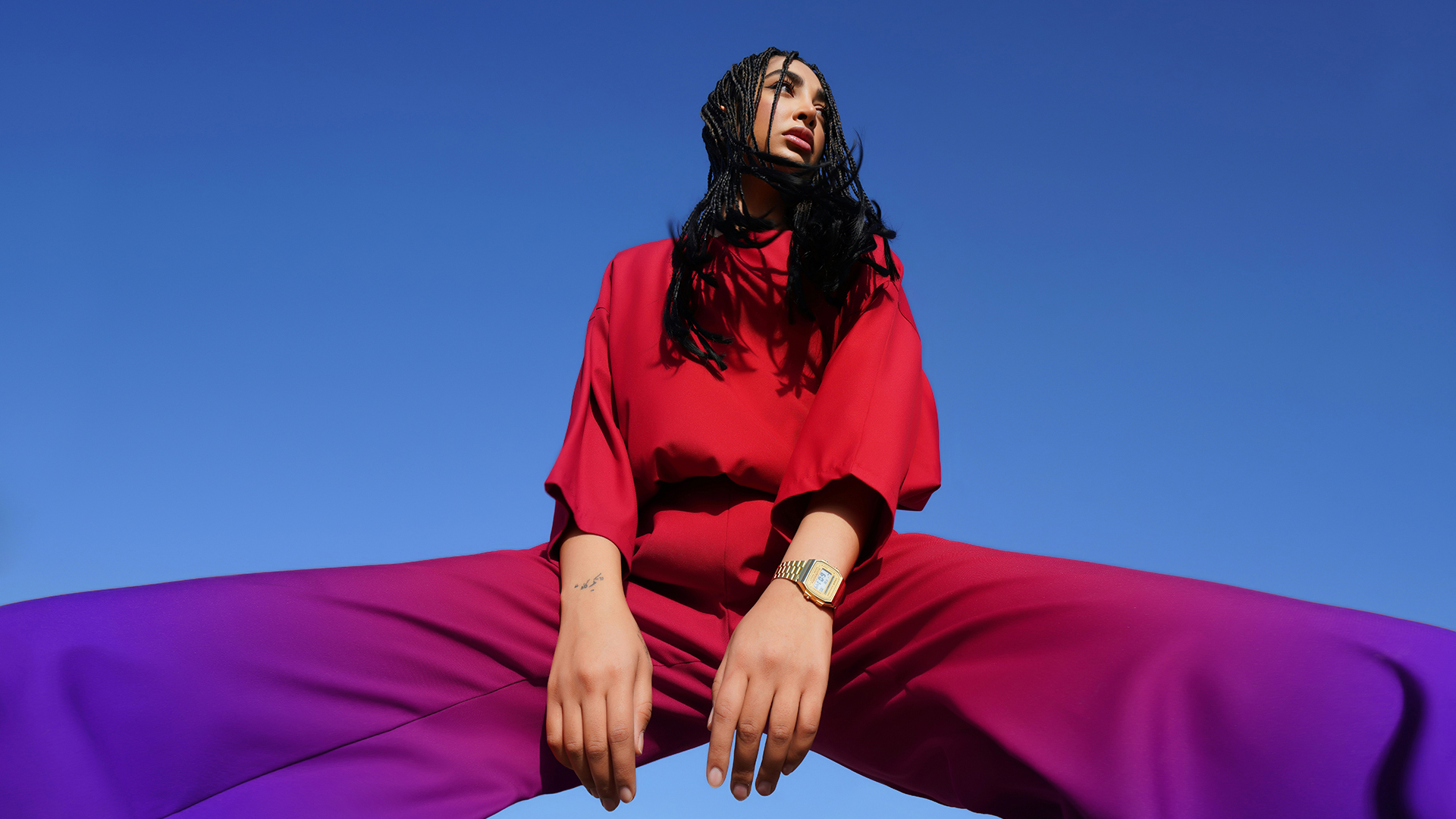

Add color gradients to any object in Photoshop with a Hue/Saturation layer, a masked-out subject and a gradient on the group — skin tones stay natural.
Free practice files
Practice Files for This Tutorial
The sample image, the layered PSD and the 3-page PDF guide from the video, so you can follow every step on the same files.
This tutorial includes 1 sample image, 1 sample PSD and 1 PDF guide.
Create a free PHLEARN account to download, or log in if you already have one. One account gets you the files for every free tutorial.
description
Enjoying This Free Tutorial?
Image Source
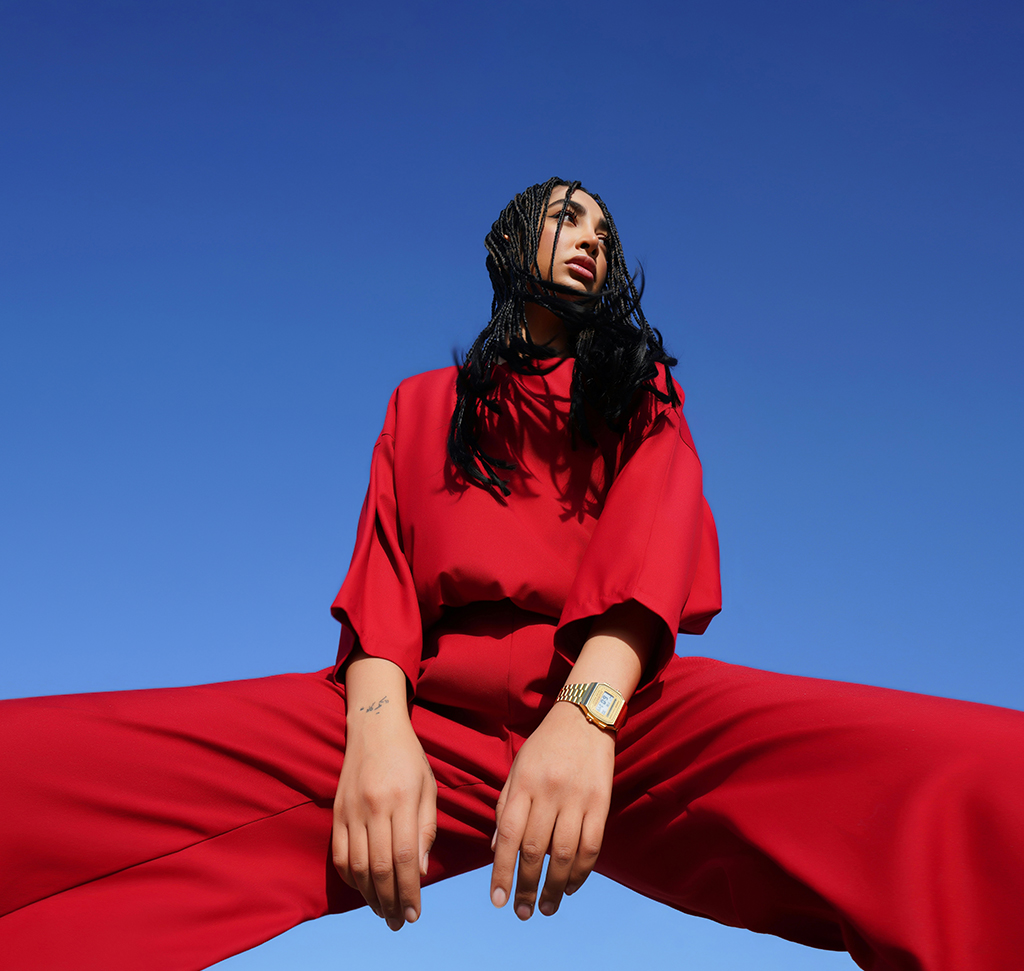
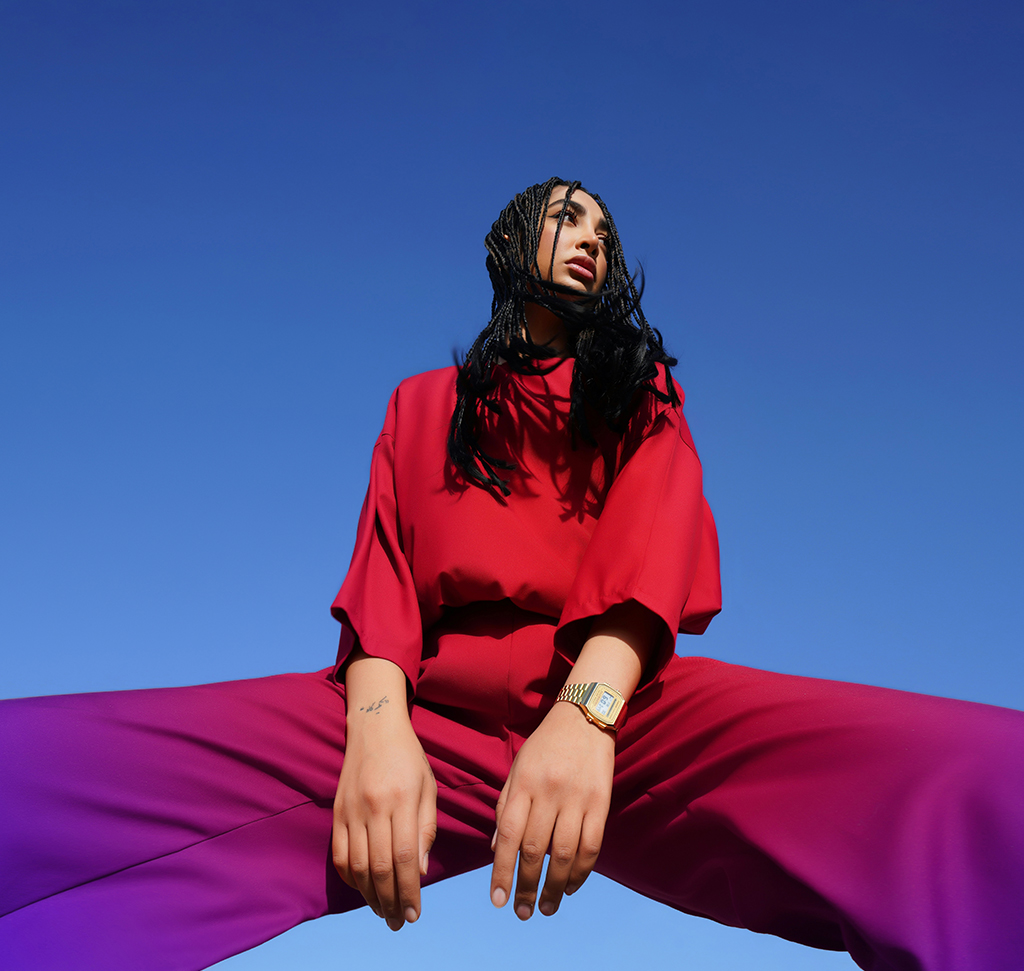
Add Color Gradients to an Object Without Wrecking Skin Tones
Everyone has done this: drag the Hue slider to recolor a shirt, and your subject’s face goes green. Hue/Saturation works on color ranges, not objects, and skin shares more of its range with clothing and backgrounds than you would expect.
The fix has two parts. Mask the skin out of the adjustment so it can never be affected, then put a gradient on the group so the new color fades across the object instead of covering it flatly. The result is a multi-tone recolor that keeps the person looking like a person.
Why Hue/Saturation Alone Fails
It Selects Color, Not Objects
Target the reds to change a jacket and every red in the frame comes with you — lips, cheeks, the warm tones under the skin. The adjustment has no concept of where the jacket ends.
Skin Sits in the Most Crowded Part of the Spectrum
Skin occupies reds, oranges and yellows, which is exactly where most clothing and warm backgrounds live too. Narrowing the range helps but rarely separates them cleanly.
A Flat Recolor Reads as Fake
Real objects don’t have one color across their whole surface; light falls off. A gradient reintroduces that variation, which is why the second half of this workflow matters as much as the first.
Change the Color
-
Add a Hue/Saturation Adjustment Layer
From the Adjustments panel or Layer > New Adjustment Layer. Keep it as a layer rather than an Image > Adjustments edit — everything after this depends on having a mask to work with.
-
Use the Targeted Adjustment Tool to Pick the Range
Click the small hand icon in the Properties panel, then click directly on the color in the image you want to change. Photoshop selects the matching range for you instead of you guessing which of the six preset channels is closest.
-
Move the Hue Slider
Go as far as you like — the point right now is to see which parts of the image respond, not to settle on the final color. Watch the face while you drag; whatever contamination appears is what the next step removes.
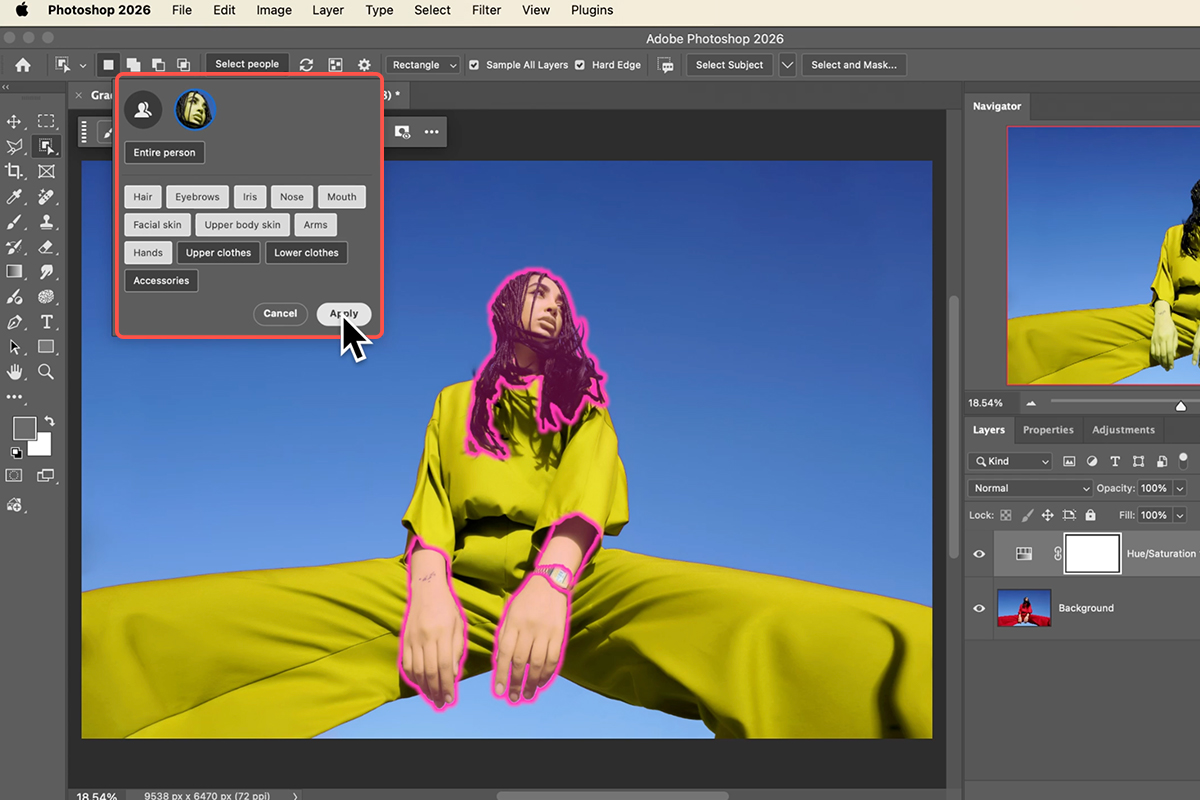
Protect the Skin
-
Select the Person With the Object Selection Tool
Press W, then use Select Subject or Select People in the options bar. Select People is the better choice here because it isolates the person specifically rather than whatever is most prominent. If the edges need work, our free guide to isolating subjects and cleaning up edges covers refining a selection properly.
-
Click the Hue/Saturation Layer Mask
The mask thumbnail, not the adjustment icon. Getting this wrong is the most common failure — fill the wrong thumbnail and you replace the adjustment instead of masking it.
-
Fill the Selection With Black
Edit > Fill, or Shift + F5, and choose Black. The skin drops out of the adjustment entirely. Your recolor is now confined to everything that isn’t the person.
Turn It Into a Gradient
One flat color is where most people stop. Two minutes more gives you a transition from the original color to the new one, which looks far more like light behaving.
-
Group the Adjustment Layer
Cmd/Ctrl + G. This is the move that makes the whole thing work — the group can carry its own mask, independent of the one already protecting the skin.
-
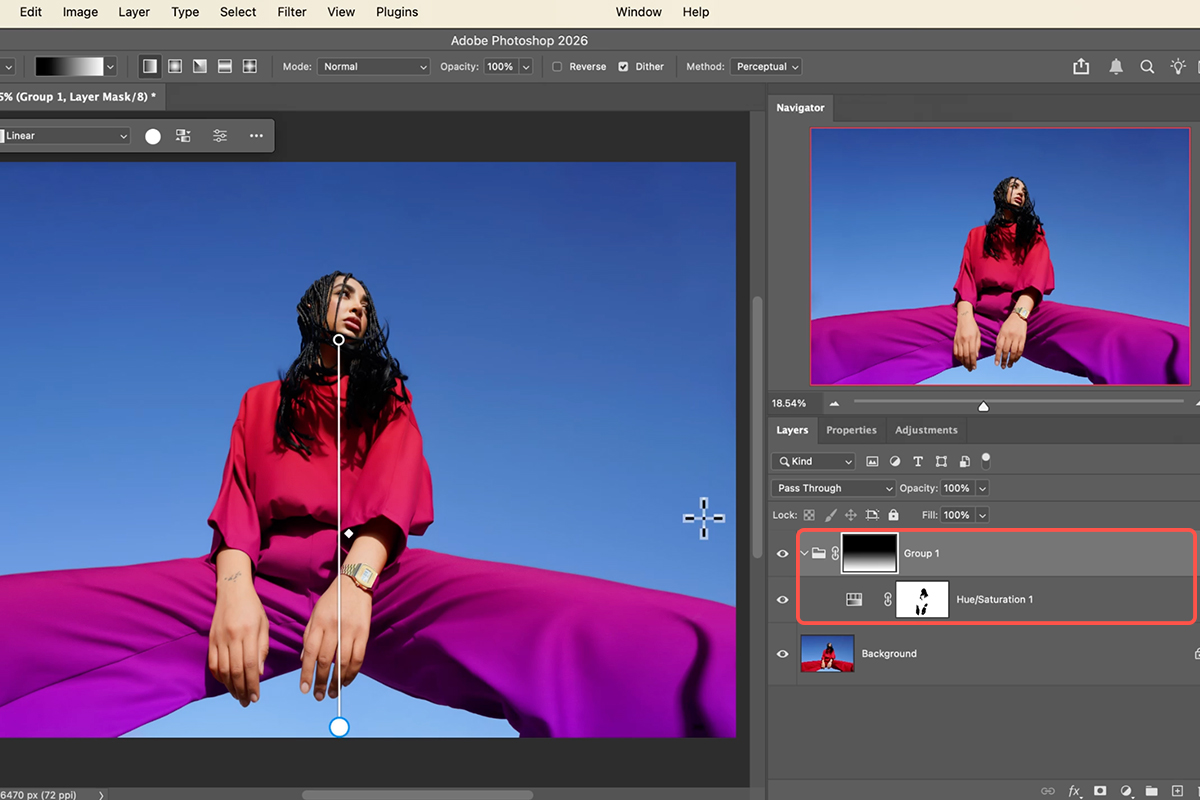
Add a Layer Mask to the Group
With the group selected, click the Layer Mask icon. You now have two masks doing separate jobs: the inner one excludes skin permanently, the outer one controls how the effect fades.
-
Drag a Black-to-White Gradient Across the Subject
Press G for the Gradient Tool, choose Black to White, and drag across the object. Where the mask is white the new color shows at full strength; where it’s black the original shows through; in between you get a genuine blend of the two.
Adjust It Afterwards
Nothing here is committed, which means the version you land on can be the tenth one rather than the first.
-
Double-Click the Hue/Saturation Icon to Change the Color
Hue, Saturation and Lightness are all still live. Saturation and Lightness are worth revisiting — a hue shift often needs a small lightness correction to match how the original tone read.
-
Re-Drag or Reverse the Gradient
Drag again to reposition the fade, or click Reverse in the Contextual Task Bar to flip which end is strong. Both take a second and neither costs you anything.
What Usually Goes Wrong
Filling the Adjustment Instead of the Mask
Click the mask thumbnail before Edit > Fill. If the whole image turns black, that’s what happened.
Skipping the Group
Putting the gradient on the Hue/Saturation mask itself overwrites your skin protection. The two masks need to be on different levels.
Selecting the Subject Instead of the People
Select Subject can grab the object you’re recoloring if it’s the most prominent thing in frame, which masks out precisely what you wanted to change.
Pushing Saturation to Compensate
If the new color looks weak, the problem is usually lightness rather than saturation. Cranking saturation is how a recolor starts to look like paint.
Two Masks, One Idea
The technique worth taking away is stacking masks at different levels. One mask answers “what must never be affected”; the other answers “how strongly does this apply”. Trying to make a single mask do both jobs is what makes color work feel fiddly.
Once you see it that way, the group stops being an organisational convenience and becomes a second layer of control. Any adjustment can be given a permanent exclusion underneath and a soft, redrawable falloff on top — recoloring, dodging and burning, sharpening, all of it.
Recolor Something of Your Own
Hue/Saturation layer, targeted adjustment tool to pick the range, shift the hue, Select People and fill the mask with black, then group it, mask the group, and drag a black-to-white gradient. Download the free sample image and PSD and follow the exact edit — then try it on a portrait where the clothing shares a color family with the skin, which is where this method earns its keep. To go further across Photoshop, our PRO Photoshop Learning Path is where to go next.
Quick Reference: Keys, Menus and Settings
- Target the colorLayer > New Adjustment Layer > Hue/Saturation; choose Reds, click the clothing with the eyedropper, move Hue
- Select the skinObject Selection tool > Select People; tick hair, face, skin, arms and hands, leave clothing off, Apply
- Protect itClick the Hue/Saturation mask, Edit > Fill > Black, then deselect
- Make the gradientCmd/Ctrl + G to group the layer with itself, add a mask to the group, G Gradient tool, Basics > Black to White, Linear, drag
- Flip or move itReverse in the Contextual Task Bar; drag the gradient points; switch to Radial for a center-out fade
- Change the color laterDouble-click the Hue/Saturation layer; Hue, Saturation and Lightness stay live inside the gradient
- Reset a sliderDouble-click it
Mac first, then Windows where they differ.
Image source
Photo by Marjan Taghipour via Unsplash
Free Downloads
Follow Along on the Same Photo
Get the sample image, the PSD with the Hue/Saturation layer, the skin mask and the gradient group, and the PDF guide. Free with a PHLEARN account.
Color Gradients: Common Questions
What’s the easiest way to change the color of clothing?
A Hue/Saturation adjustment layer. Pick the color range (Reds for this outfit), click the clothing with the eyedropper to narrow it to the exact reds, and move the Hue slider. The clothing changes in real time.
Why did my subject’s skin change too?
Skin has red in it, so a Reds adjustment catches it. Select the skin with the Object Selection tool’s Select People (tick hair, face, skin, arms and hands, leave clothing off), click the adjustment layer’s mask and fill the selection with black. The adjustment is now hidden on the person and only the clothes change.
How do I turn the color into a gradient?
Group the Hue/Saturation layer with itself (Cmd/Ctrl+G), add a mask to the group, press G for the Gradient tool, choose the black-to-white gradient from Basics and drag across the image. The group mask fades the color change in across the clothing.
Why a group instead of painting on the existing mask?
The existing mask already protects the skin and you don’t want to disturb it. The group gives you a second mask for the gradient, so the two jobs stay separate and either can be changed on its own.
Can I change the color after the gradient is on?
Yes. Double-click the Hue/Saturation layer and move Hue, Saturation or Lightness; the gradient keeps fading whatever color you pick. You can also reverse the gradient in the task bar, drag it to a new position, or switch to a radial gradient.
How do I reset a slider?
Double-click it.
Does this use AI or credits?
Select People uses AI to find the skin, but nothing here spends generative credits. The color work is an ordinary adjustment layer and masks.
Are the sample files free?
Yes, with a free PHLEARN account. You get the sample image, the layered PSD and the PDF guide.
Master Photoshop, Lightroom and Photography
Join PHLEARN PRO for $12.99 a month or $99.99 a year. Cancel anytime, with a 100% money-back guarantee.