

description
See what the updated Remove Tool in Photoshop can do: find and clear distractions in one pass, rebuild your composition with Generative Expand, and finish in Camera Raw.
Enjoying This Free Tutorial?
We publish a new free tutorial every week, each one with sample images and PSDs you can download and follow along with. Sign up and they land straight in your inbox, along with early word on sales, events and subscriber-only offers.
Image Source
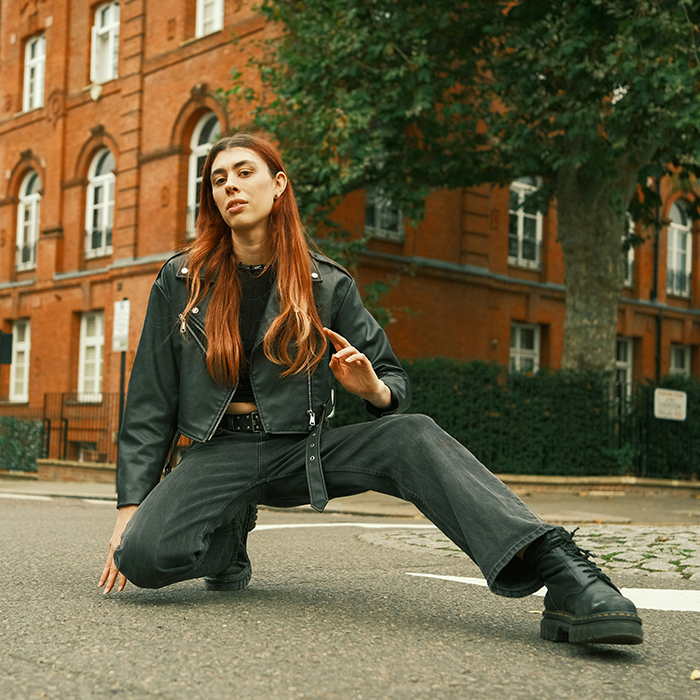
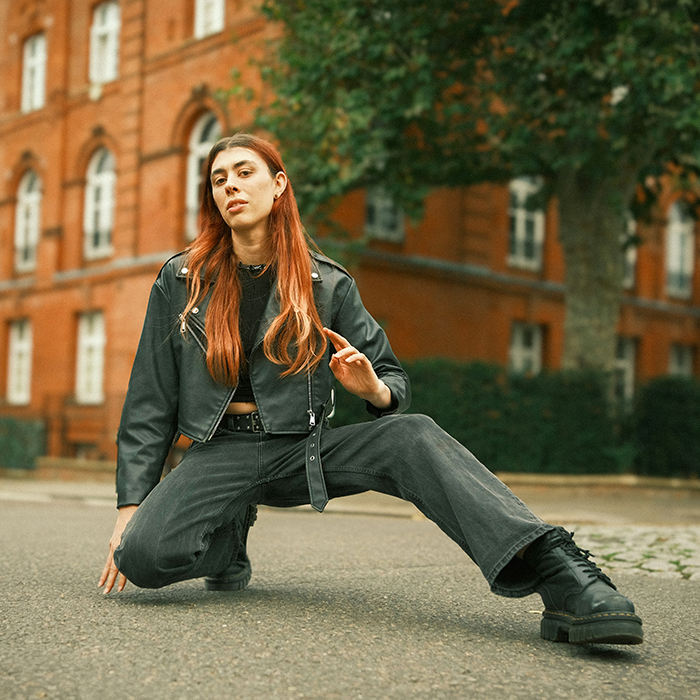
Photo by Fellipe Ditadi via Unsplash
What the Remove Tool Update Actually Changes
Photoshop’s Remove Tool used to be something you pointed at one thing at a time. The 2026 update turns it into something closer to an assistant: it scans the whole frame, tells you what it thinks is clutter, sorts it into categories, and waits for you to agree.
That shift matters more than it sounds. The slow part of retouching was never the cloning — it was noticing. This workflow covers the new Find Distractions options, the crop-and-Generative-Expand pass that fixes composition afterwards, the Camera Raw finish that ties it together, and the Clean Up Layers feature that keeps the file from turning into a mess.
What Find Distractions Does Differently
It Looks at Everything, Not Just Wires and People
The earlier version could find power lines and background people. The new General Distractions option analyses the entire image for the messy stuff nobody remembers to look for — bins, signage, parked cars, litter at the edge of frame.
It Colour-Codes Before It Commits
Nothing is removed when you click Find. Photoshop highlights what it found and groups it, and you approve. That review step is the whole reason this is usable on client work.
It Can Stay Non-Destructive
Two checkboxes decide whether this edit is reversible or baked in. Getting those right before you start is the difference between a flexible file and a flattened one.
Clear the Clutter
-
Grab the Remove Tool
Press J, or pick it from the toolbar. It shares a slot with the healing tools, so if you land on Spot Healing instead, cycle through with Shift + J.
-
Turn On Sample All Layers and Create New Layer First
Both live in the top options bar, and both matter before you touch anything. Sample All Layers lets the tool read the full composite; Create New Layer puts every repair on its own layer instead of into your original pixels. Do this once, at the start — not after you’ve removed six things.
-
Open Find Distractions and Choose General Distractions
You’ll still find Wires and Cables and People as their own options, which are worth using when that’s specifically the problem. General Distractions is the wider sweep.
-
Click Find, Review the Categories, Then Hit the Checkmark
Photoshop colour-codes what it identified. Look at it properly before accepting — the tool occasionally flags something you put in the frame on purpose. Uncheck those, then confirm and watch the rest disappear.

Fix the Composition You’re Left With
Removing clutter changes the balance of the frame. Something that felt crowded before can suddenly feel empty on one side, so the crop pass belongs here rather than at the start.
-
Crop With the Rule of Thirds Overlay
Press C and turn on the Rule of Thirds guide. If your subject is sitting dead centre, move them onto a third. It’s a small change that usually does more for the image than the retouching did.
-
Fill the New Edges With Generative Expand
Crop wider than your original frame and you’ll be left with empty edges. Choose Generative Expand from the Contextual Task Bar to fill them, and check you’re on the current Firefly Fill and Expand model — the older ones are noticeably worse at continuous backgrounds. This is how you give a subject breathing room you didn’t shoot.
Finish It in Camera Raw
Generated pixels are clean in a way real ones aren’t. The finishing pass is mostly about removing that difference.
-
Stamp Visible and Convert to a Smart Object
Press Cmd/Ctrl + Alt/Option + Shift + E to merge everything visible onto a new layer, then right-click and convert it to a Smart Object. Everything you do next stays editable.
-
Open the Camera Raw Filter
Cmd/Ctrl + Shift + A. Add a little grain first — it’s the fastest way to make generated areas share a surface with the photographed ones. Then a subtle Lens Blur to push the background back.
-
Lift the Face With a Radial Gradient
Press M for the Radial Gradient, place it over your subject’s face and raise the exposure slightly. Brighter subject, softer background — the same separation logic behind AI depth masking, done by hand.
Clean Up Layers Before You Close the File
-
Click the Broom Icon
Clean Up Layers reads your document, deletes the empty layers you accumulated, and renames the rest from “Layer 14 copy” to something that describes what’s on it — “Woman Kneeling”, “Remove Tool Edits”.
-
Group What’s Left
Cmd/Ctrl + G. Two or three groups is usually enough. You’ll appreciate it the day a client asks for one change three weeks later.
Where This Goes Wrong
Accepting Every Distraction It Finds
The tool doesn’t know what the photograph is about. It will happily remove a detail that was the reason you took the shot. Read the categories.
Forgetting Create New Layer
Miss that checkbox and every removal is burned into the layer underneath. There’s no undoing it later, only re-doing the whole pass.
Cropping Before Removing
You can’t judge the balance of a frame that’s still full of clutter. Clear first, then crop.
Skipping the Grain
Generative Expand output is too smooth. Without grain matching the rest of the file, expanded edges read as fake even when the content is perfect.
More Free Photoshop Cleanup Tutorials
If removing and isolating is most of what you do in Photoshop, these free tutorials go further:
- The Power of Object Masking in Photoshop 2026
- How to Isolate Subjects and Clean Up Edges
- How to Color Grade in Photoshop Using Camera Raw
- How to Use the Point Color Tool in Adobe Camera Raw
The Part Worth Keeping
The Remove Tool got smarter, but the order of operations is what makes the result look professional: clear the frame, then recompose, then unify, then organise. Reverse any two of those and you end up redoing work.
It’s also worth being deliberate about how much you remove. A photograph with every imperfection scrubbed out stops looking like a photograph. The update makes removal effortless, which means restraint is now the skill.
Try It on Your Own File
Remove Tool with Sample All Layers and Create New Layer on, Find Distractions set to General, crop to a third, Generative Expand the edges, then grain, Lens Blur and a Radial Gradient in Camera Raw, and Clean Up Layers to finish. Download the free sample image and PSD and work through the exact file — then run it on a travel or street shot of your own, where background clutter is worst and the time saved is real. To take non-destructive habits further, our PRO Ultimate Guide to Non-Destructive Editing covers the full pipeline.





Enjoying This Free Tutorial? Go Further with PRO.
Unlock Full Sample Files, PSDs, and Hundreds of Masterclasses!

Download full project assets, original PSDs, and RAW images for every lesson
Unlimited access to our complete library of PRO Photoshop & Lightroom courses
Instant 4K Ultra HD streaming on all devices, anytime, anywhere
Full access to our entire library of Photoshop Actions, Presets, and LUTs
Flexible monthly and annual membership plans
Cancel anytime with zero hassle or commitments