
Download Assets
This tutorial includes 5 sample images, 1 sample PSD and 1 PDF guide. Downloads are free with a PHLEARN account.
- Download the sample images and PSDs from every free tutorial on PHLEARN
- New free tutorials published every week
- One free account — sign up once, then download anything
Free PDF Guide · 4 Pages
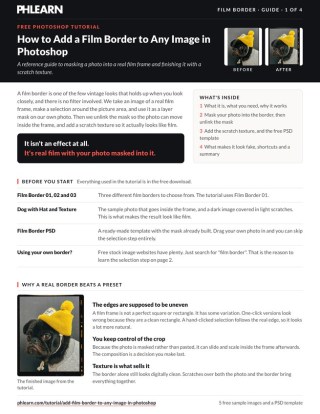
This Tutorial as a Step-by-Step PDF
Every step from the video in order: placing the photo, tracing the border with the Polygonal Lasso, loading the selection into a layer mask, unlinking the mask so the photo moves inside the frame, and the Screen-mode scratch texture. Keep it next to your keyboard.
description
Add a film border to any photo in Photoshop using a layer mask and a scratch texture — no filters, and a free PSD template with three border styles.
Enjoying This Free Tutorial?
We publish a new free tutorial every week, each one with sample images and PSDs you can download and follow along with. Sign up and they land straight in your inbox, along with early word on sales, events and subscriber-only offers.
Image Source
Photos by Justin Chien, Jason Dent, Minh and Sichen Xiang via Unsplash
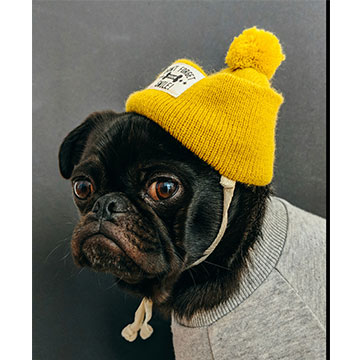
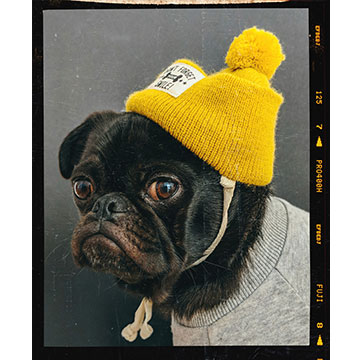
Add a Film Border That Doesn’t Look Like a Filter
A film border is one of the few vintage effects that survives close inspection, because it isn’t an effect at all — it’s a real scan of real film with your photo masked into it. That’s also why the one-click versions look wrong: they’re a rectangle with rounded corners, not a frame with actual edge irregularity.
The method here takes about four minutes. Cut a rough selection inside the border, mask your photo into it, unlink the mask so you can reposition freely, then drop a scratch texture over the top on Screen. Every step is reversible.
Why a Real Border Beats a Preset
The Edges Are Supposed to Be Uneven
Film frames are not geometrically perfect. Sprocket holes sit slightly off, the emulsion edge wanders. A hand-drawn Polygonal Lasso selection reproduces that inconsistency for free, and a perfect selection would actually look worse.
You Keep Control of the Crop
Masking rather than pasting means the photo can slide and scale inside the frame afterwards. The composition inside the border is a decision you make last, not one you’re locked into.
Texture Is What Sells It
The border alone still looks digitally clean. Dust and scratches on Screen are what convince the eye that light actually passed through something physical.
Mask Your Photo Into the Film Border
-
Open Your Film Border
Bring the border file into Photoshop as its own document. The free PSD download below has three styles — start with whichever suits the aspect ratio of your photo.
-
Trace the Inside of the Frame With the Polygonal Lasso
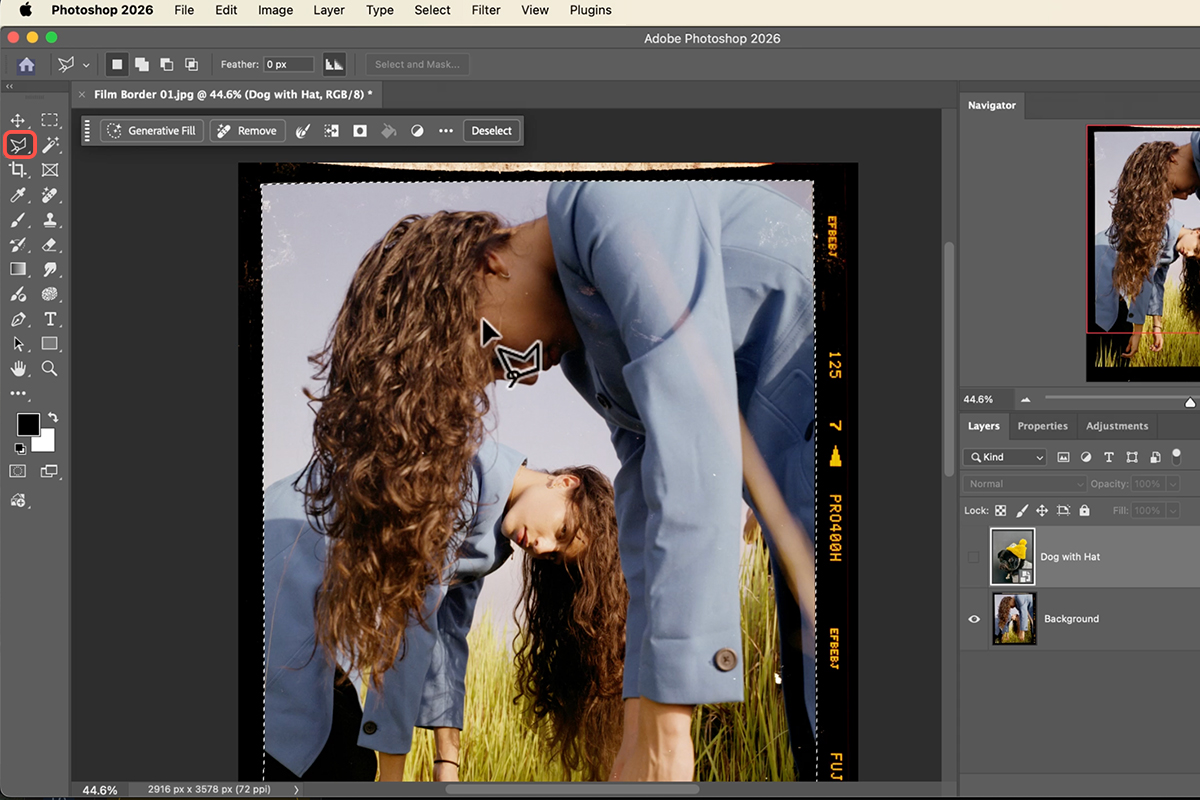
Press L for the Polygonal Lasso and click your way around the inside edge of the frame. Deliberately do not be precise. Slight wobble reads as authentic; a perfectly straight selection is the tell that gives away a fake border.
-
Drag Your Photo In and Press Enter
With the selection still active, drag your image into the document as a new layer and hit Enter to place it.
-
Click the Layer Mask Icon
At the bottom of the Layers panel. Your active selection becomes the mask instantly, and the photo drops into the frame with the border showing around it.
Unlink the Mask to Recompose
This is the step most people miss, and it’s the one that makes the whole thing flexible.
-
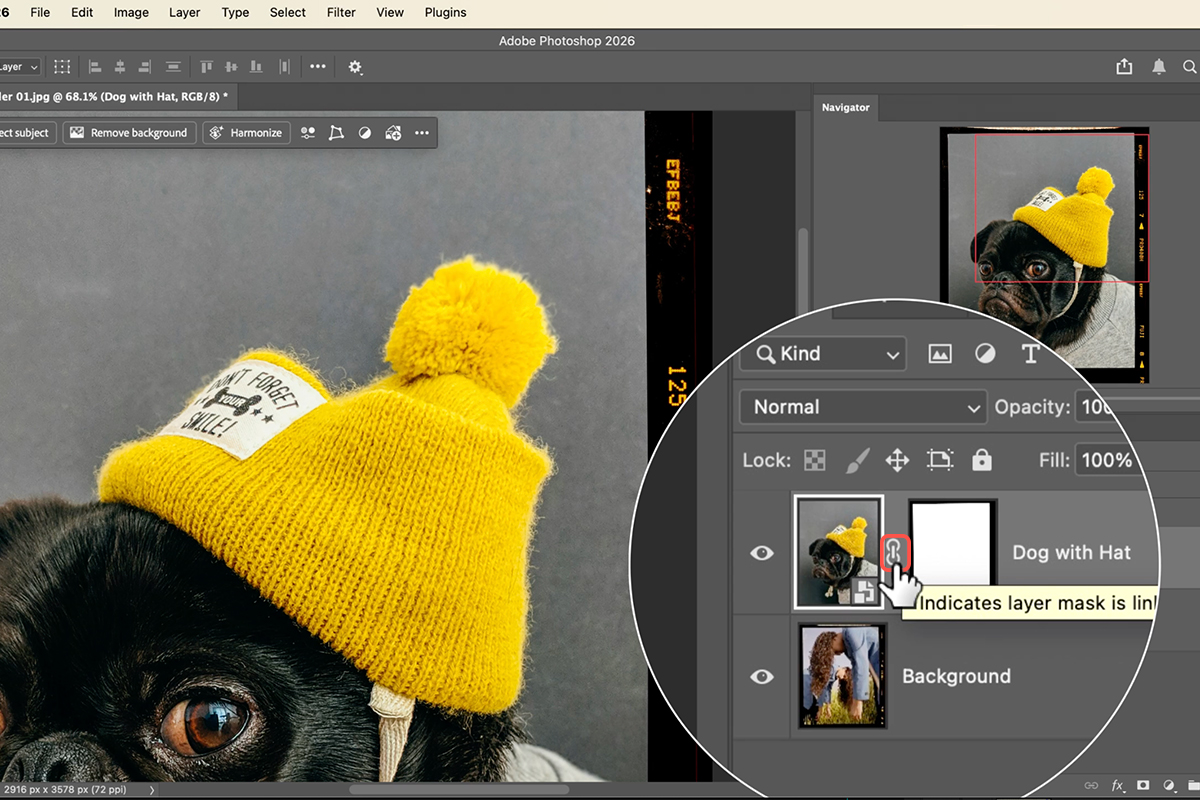
Click the Chain Icon Between the Layer and Its Mask
By default the photo and the mask move together, which means nudging your crop drags the border with it. Clicking the small chain link breaks that connection so the mask stays put.
-
Free Transform the Photo Only
Select the image thumbnail (not the mask), press Cmd/Ctrl + T, and scale or reposition to taste. The frame stays exactly where it is while the picture moves behind it — you’re cropping through a window.
Add Dust and Scratches
-
Drag a Scratch Texture Above Everything
Place it as the top layer so it covers both the photo and the border. Texture that stops at the frame edge looks pasted on.
-
Rotate It in 15-Degree Snaps
Hold Shift while rotating and the transform snaps to 15-degree increments. Useful for reorienting a texture without introducing a subtly crooked angle you’ll notice later.
-
Set the Blend Mode to Screen
Screen drops the black out of the texture and keeps only the bright scratches and dust. It’s the same reason Screen works for light effects — anything that behaves like added light belongs on Screen, not Normal.
-
Pull the Opacity Back
Almost always. Full-strength scratch textures read as damage rather than character. Somewhere well under half is usually where it stops shouting.
What Makes It Look Fake
A Perfectly Straight Selection
Rulers and the rectangular marquee are the enemy here. Click freehand and let it be slightly irregular.
Leaving the Mask Linked
Then every attempt to fix the crop moves the border too, and you end up settling for a composition you didn’t want.
Texture on Normal
The dark areas of the texture cover your photo with a grey haze. Screen is the whole trick.
Too Much Scratch
Real film has a few marks, not hundreds. Heavy texture reads as a filter preset, which is the thing this method exists to avoid.
The Idea Behind the Technique
What makes this work isn’t the border file — it’s the mask. Masking keeps the photo and the frame as separate objects that happen to overlap, so either can change without redoing the other.
That’s the general lesson: whenever you’re combining two images, look for the version of the workflow where they stay independent. Anything you flatten is a decision you can’t revisit, and the decision you most want to revisit is almost always the crop.
Frame One of Your Own
Polygonal Lasso inside the frame, drag the photo in, layer mask, unlink the chain, Free Transform to compose, then a scratch texture on Screen at reduced opacity. Download the free PSD template — three border styles and five sample images — and build it once, then try it on a photo of your own with plenty of headroom, since you’ll lose some of the frame to the border. For the wider non-destructive workflow, our PRO Ultimate Guide to Non-Destructive Editing goes considerably deeper.
Quick Reference: Keys, Menus and Settings
- Place the photoDrag it onto the film border document, press Enter, turn the layer off for a moment
- Trace the openingPolygonal Lasso tool (under the Lasso); click just outside each corner and along the edges so the shape isn’t a perfect rectangle
- Mask itTurn the photo back on, click Add Layer Mask in the Contextual Task Bar
- Move the photo, not the maskClick the chain between the layer and its mask to unlink, then Cmd/Ctrl + T or the Move tool
- ScratchesDrag in the texture, rotate (hold Shift for 15° steps), Option/Alt-drag a corner to scale, Enter; blend mode Screen; lower Opacity
- Your own bordersSearch a free stock site for “film border”; the download has three ready to use
Mac first, then Windows where they differ.
Free Downloads
Follow Along on the Same Files
Get all 5 sample images (three film borders, the dog and the scratch texture), the drag-and-drop PSD and the PDF guide. Free with a PHLEARN account.
Film Borders: Common Questions
How do I put a photo inside a film border?
Drag the photo onto the border document, select the opening of the border with the Polygonal Lasso, turn the photo back on and click Add Layer Mask. The selection becomes the mask and the photo shows only inside the frame.
Why the Polygonal Lasso instead of a rectangle?
A real film opening isn’t a perfect rectangle. Clicking a few points just outside the edge, with a little variation, looks far more natural than a clean marquee.
Do I have to make the selection every time?
No. The free PSD is already set up with the masks: drag your own photo in and it drops into the frame. The lasso step is only there so you can do it with a border of your own.
Why unlink the mask?
With the chain on, moving the photo moves the mask with it and the frame breaks. Click the chain between the layer and its mask to unlink them; then you can move and scale the photo freely and it stays inside the border.
How is the scratch texture added?
Drag the texture in, rotate and scale it to cover everything, and set its blend mode to Screen so only the light scratches show. If it’s too strong, lower the opacity. It goes over the photo and the border, which ties them together.
Where do I get other film borders?
The download includes three. Beyond that, search any free stock site for “film border” and you’ll find plenty; the same steps work with any of them.
Does this use AI or credits?
No. It’s a selection, a layer mask and a blend mode.
Are the sample files free?
Yes, with a free PHLEARN account. You get all 5 sample images, the drag-and-drop PSD and the PDF guide.
Master Photoshop, Lightroom and Photography
Join PHLEARN PRO for $12.99 a month or $99.99 a year. Cancel anytime, with a 100% money-back guarantee.