Download Assets
This tutorial includes 3 sample images, 1 sample PSD and 1 PDF guide. Downloads are free with a PHLEARN account.
- Download the sample images and PSDs from every free tutorial on PHLEARN
- New free tutorials published every week
- One free account — sign up once, then download anything
Free PDF Guide · 5 Pages
This Tutorial as a Step-by-Step PDF
Every step from the video in order: Remove Background, matching the new background with Levels, Path Blur on the flower and on the subject, the second copy with a black mask for the eyes, the Screen-mode color blur, Hue/Saturation and the Grain adjustment layer. Keep it next to your keyboard.
description
Create a high-end light effect using Path Blur and Smart Objects. Add motion and texture to your portraits while keeping everything non-destructive.
Enjoying This Free Tutorial?
We publish a new free tutorial every week, each one with sample images and PSDs you can download and follow along with. Sign up and they land straight in your inbox, along with early word on sales, events and subscriber-only offers.
Image Source
Photos by Good Faces, Kaler Kulikov and Codioful via Unsplash
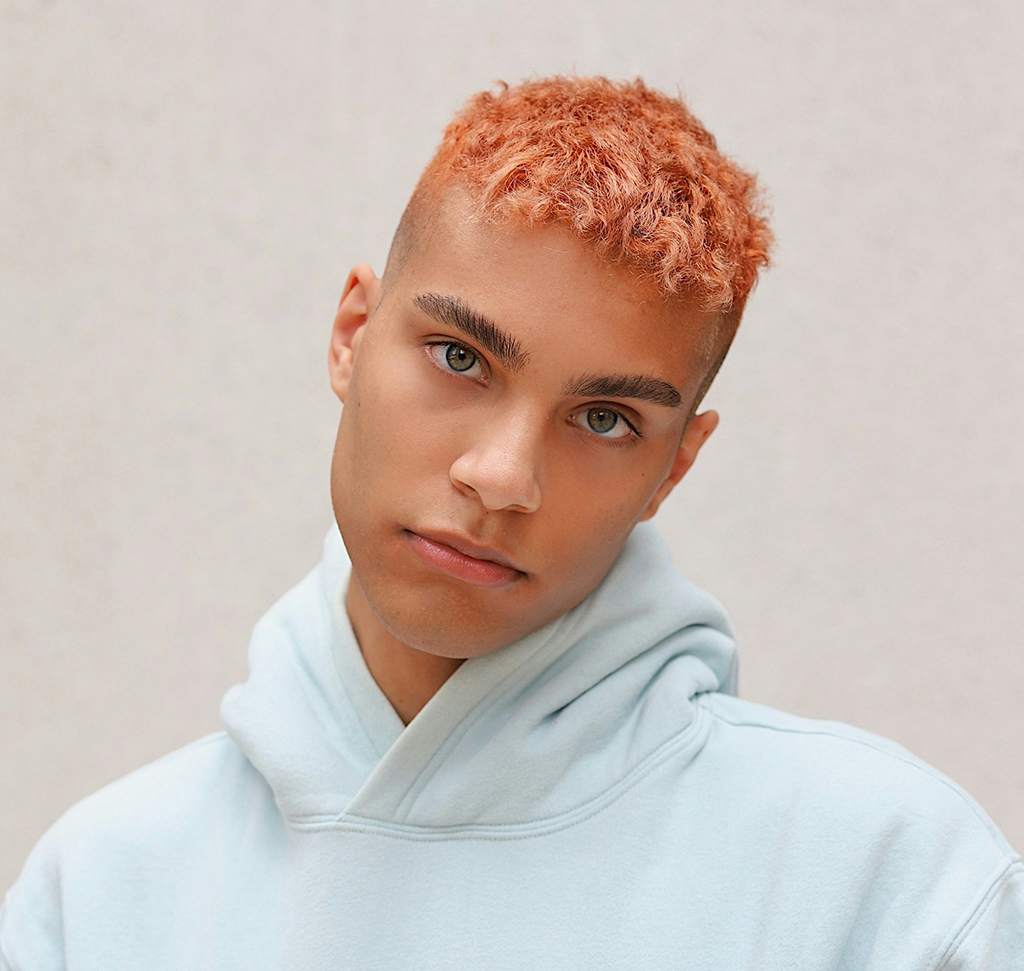

Build a Natural Light Effect Around Your Subject
Streaks of soft light sweeping past a portrait is one of those effects that either looks cinematic or looks like a filter, and the gap between the two comes down to a handful of decisions. Path Blur is the tool that draws the light; everything else in this workflow is about making it belong in the photograph.
The four moves are: match the background’s light before you blur anything, draw the blur along paths you control, protect the eyes so the face still reads, and finish with texture and grain so the whole frame shares one surface.
Why Most Light Effects Look Fake
The Subject and Background Never Agreed
Drop a cutout onto a new background without matching brightness and no amount of light streaking fixes it. The mismatch is already there; the light effect just draws attention to it.
The Blur Goes Everywhere
A uniform blur reads as an accident. Real light has direction — it comes from somewhere and travels somewhere. Path Blur lets you specify that, which is exactly why it beats Gaussian for this.
The Face Got Soft Too
Blur the eyes and the portrait dies. Whatever else happens in the frame, the expression has to stay sharp or there’s nothing to look at.
Cut Out and Match the Light
Do this before touching any effect. Getting the tonal relationship right first means everything after it is decoration rather than repair.
-
Remove the Background
Cut your subject out with Remove Background. If the edges fringe once they’re against the new backdrop, our free guide to isolating subjects and cleaning up edges has the fix.
-
Match Brightness With Levels
Bring in your new background and press Cmd/Ctrl + L to open Levels. Drag the middle slider until the two feel like they were lit by the same source. Ignore the background’s detail entirely at this stage — you’re only judging colour and brightness, and it’s going to be blurred anyway.
-
Convert Everything to Smart Objects
Turn your layers into Smart Objects before applying any filter. Path Blur settings then stay adjustable indefinitely, which matters because the right blur amount is almost never your first guess.
Draw the Light Effect
-
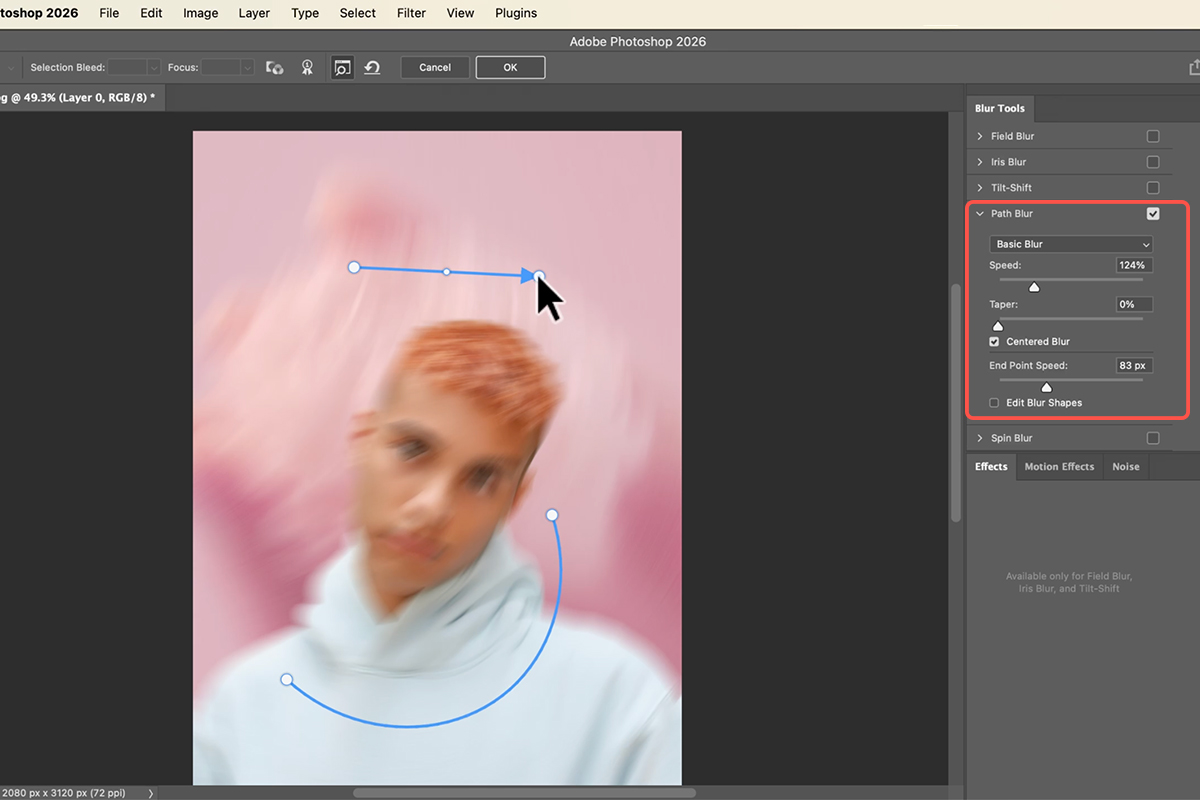
Open Filter > Blur Gallery > Path Blur
This is the one blur that follows a line you draw rather than spreading evenly. You’re literally telling the light which way to travel.
-
Set the Speed and Add More Paths
Work the Speed slider until the streak reads the way you want. Then add a second and third path in different directions — a single path looks mechanical, while a few crossing at slight angles gives the background genuine movement.
Keep the Eyes Sharp
The whole point of blurring the surroundings is to make the face the only sharp thing in the frame. Which means the face has to actually be sharp.
-
Duplicate the Subject and Hide It
Press Cmd/Ctrl + J on the subject layer, then add a black layer mask so the copy is completely hidden.
-
Paint the Face Back With White
Press B for the Brush, set the foreground to white, and paint over the face. The unblurred version shows through only where you paint, so the blur stays on the edges of the subject while the expression stays crisp. Keep the brush soft — a hard edge here is visible immediately.
Finish With Texture and Grain
-
Drag In a Light Texture, Set It to Screen
Screen drops the blacks out of the texture and keeps only the bright parts, which is exactly how light behaves — it adds, it doesn’t subtract. Position it so the brightest area falls where your light source would logically be.
-
Shift the Colour With Hue/Saturation
Cmd/Ctrl + U. Most light textures come in a colour that doesn’t match your scene; a small hue shift is usually all it takes to reconcile them.
-
Add Grain Last
A small amount over the whole image. The blur and the texture are both perfectly smooth, and grain is what gives them the same surface as the photograph underneath. Skip it and the light effect sits on top of the picture instead of in it.

What Goes Wrong
Blurring Before Matching Levels
Once the background is blurred you can no longer read its true brightness, so the match becomes guesswork. Levels first, every time.
One Path, Cranked Too Far
A single high-speed path produces a smear rather than light. Several gentler paths beat one aggressive one.
A Hard Brush on the Face Mask
The transition from sharp to blurred has to be gradual or you get a visible outline around the face. Soft brush, low flow, build it up.
Texture on Normal Instead of Screen
On Normal the texture’s dark areas cover your photo. Screen is what makes it read as added light rather than a pasted layer.
The Rule Underneath All of It
Every step in this workflow is doing the same job in a different way: making two things that weren’t photographed together share the same light. Levels matches brightness, Screen matches how light adds, the hue shift matches colour, and grain matches texture.
That’s worth carrying to any composite. When something looks wrong and you can’t name why, run through those four — brightness, colour, how light behaves, surface texture. The answer is almost always one of them.
Make One Yourself
Remove Background, match with Levels, Smart Objects, Path Blur with a few directions, mask the face back sharp, then a Screen texture, a hue shift and grain. Download the free sample images and PSD and build the exact version — then try it on one of your own portraits with a plain background, which is where this light effect earns the most. For deeper work on lighting a composite, our PRO Advanced Lighting Effects course goes considerably further.
Quick Reference: Keys, Menus and Settings
- Cut out the subjectRemove Background in the Contextual Task Bar
- Match the new backgroundDrag the flower in below the subject, Cmd/Ctrl + L and drag the midpoint left to lighten it, Cmd/Ctrl + T to scale
- Blur the backgroundFilter > Blur Gallery > Path Blur; drag the start, middle and end of the path, raise Speed
- Two copies of the subjectCmd/Ctrl + J; on the top copy’s mask, Edit > Fill > Black
- Blur the subjectLayer > Smart Objects > Convert to Smart Object, then Path Blur again; click to add more paths, Esc to finish one
- Eyes back in focusB, white, click over the eyes on the top copy’s mask; lower its opacity for a mix
- Color blur on topDrag in the color blur, rotate and scale it, blend mode Screen; Image > Adjustments > Hue/Saturation to change its color
- GrainLayer > New Adjustment Layer > Grain; a little, with size and roughness to taste
- Change a blur laterDouble-click Blur Gallery under the Smart Object
Mac first, then Windows where they differ.

Free Downloads
Follow Along on the Same Photos
Get all 3 sample images (the portrait, the flower and the color blur), the layered PSD and the PDF guide, and build the same light effect. Free with a PHLEARN account.
Light Effect: Common Questions
What is this effect?
A light blur: the subject is cut out, a photo of a flower goes behind him as texture and color, both get a Path Blur so it looks like the camera was moving through interesting light, the eyes are kept sharp, and a color blur and grain go on top.
How do I cut the subject out?
Click the background layer and use Remove Background in the task bar. The video’s subject was shot on white, but it works with any photo.
Why adjust the flower with Levels?
The original background was light and the flower is dark. Shift-click the subject’s mask to see the original, then press Cmd/Ctrl+L on the flower and drag the midpoint left until the brightness matches. The composite only works when the new background matches the old light.
Why Path Blur and not Gaussian Blur?
Path Blur smears along a line you draw, like motion, so the flower becomes streaks of light and color instead of a soft blob. Drag the start, middle and end of the path and raise Speed; you see it live. The flower is a Smart Object, so the blur stays editable.
Why two copies of the subject?
One gets blurred with its own Path Blur so its edges melt into the background. The other sits on top with its mask filled black, and you paint white over the eyes so they stay in focus. Lowering that layer’s opacity mixes the two.
Can I use more than one blur path?
Yes. In Path Blur, click to start a new path, press Esc to finish it, and keep going. Aaron uses several on the subject to get a more interesting result.
What’s the color blur layer?
One of the sample images, dragged on top, rotated and scaled to cover the canvas and set to Screen so only its light areas show. Image > Adjustments > Hue/Saturation changes its color without touching the layers below, and it stays editable as a Smart Filter.
Why add grain?
Without it the result reads as a Photoshop effect; with a little grain from the Grain adjustment layer it reads as something done in camera. Keep it subtle.
Are the sample files free?
Yes, with a free PHLEARN account. You get all 3 sample images, the layered PSD and the PDF guide.
Master Photoshop, Lightroom and Photography
Join PHLEARN PRO for $12.99 a month or $99.99 a year. Cancel anytime, with a 100% money-back guarantee.